Seeding Staff & Patients
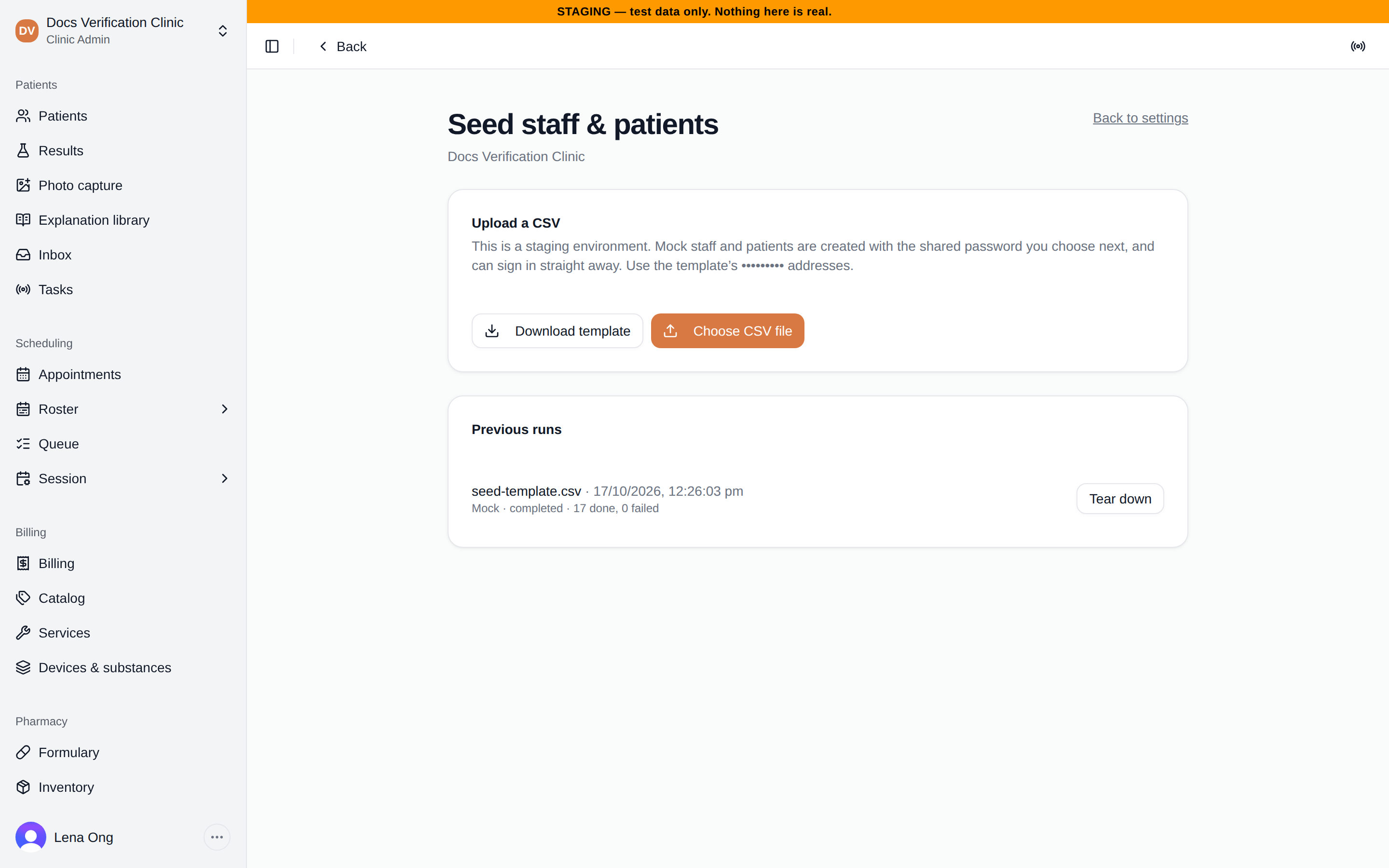
An admin can bring a clinic’s staff and patients into an organisation in bulk from one CSV file, instead of adding them one at a time.
Where to find it
- Right after creating an organisation. The team step of setup (
/onboarding/team) has Or load staff and patients from a CSV, the same upload, below Invite a colleague. See Create an Organisation. - Any time later. The Seed data card on Organisation Settings, with Seed staff & patients, opens the same page, along with the history of earlier runs.
Only an admin of the organisation can use it. A demo organisation has no seed page, and its settings have no Seed data card: it takes only demo sign-ins, never real people. A physician family organisation has none either.
Steps
-
Download template to get a CSV with the expected header (and, on staging, sample rows).
-
Fill it in, then Choose CSV file.
-
Check the preview. Every row is validated by the server before anything is created, and problems are shown per row.
-
Confirm, then click Seed N people.
-
Watch progress row by row. When it finishes, the result table shows what was created, invited, skipped or failed, and can be downloaded. Seed another file starts again.
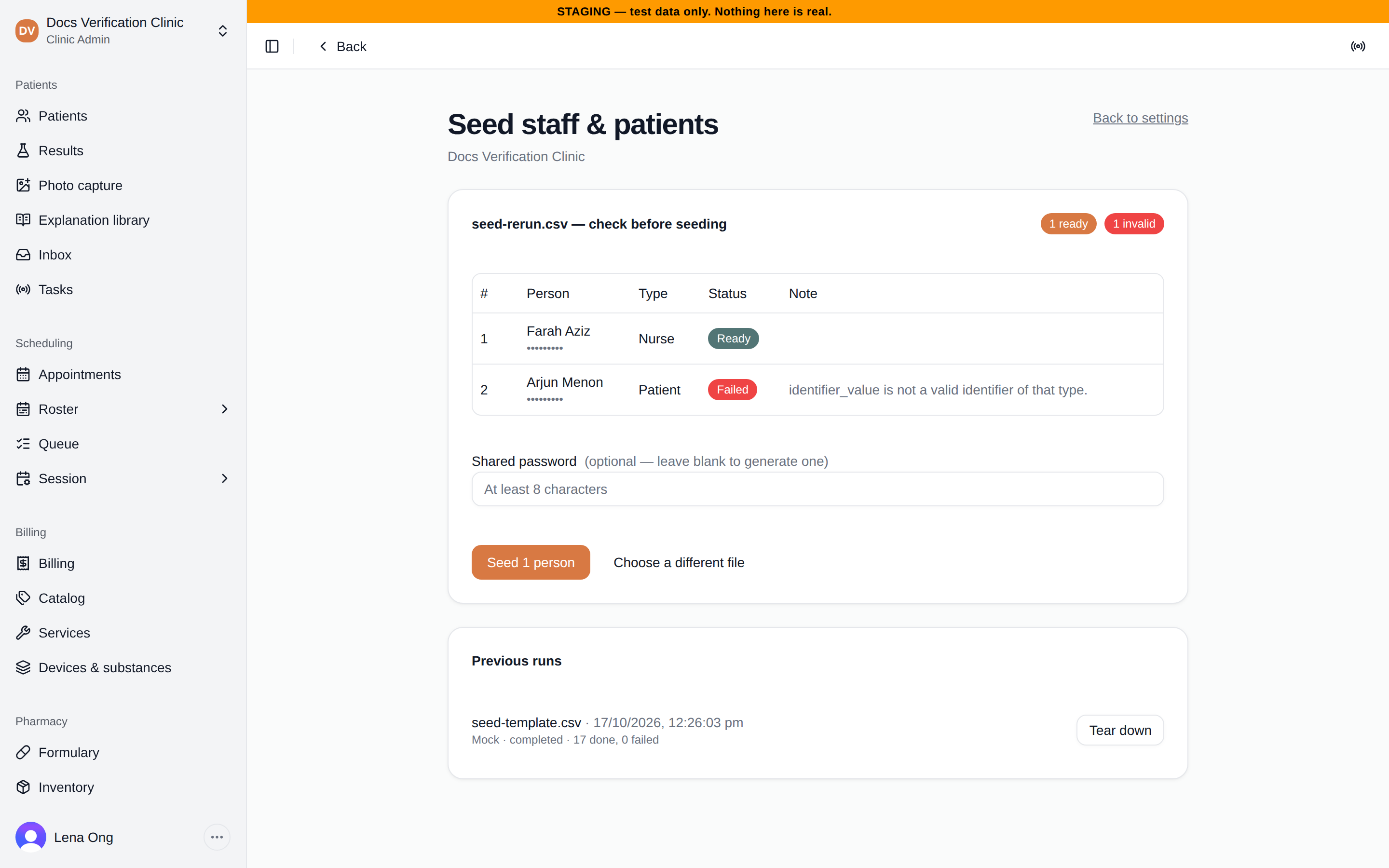
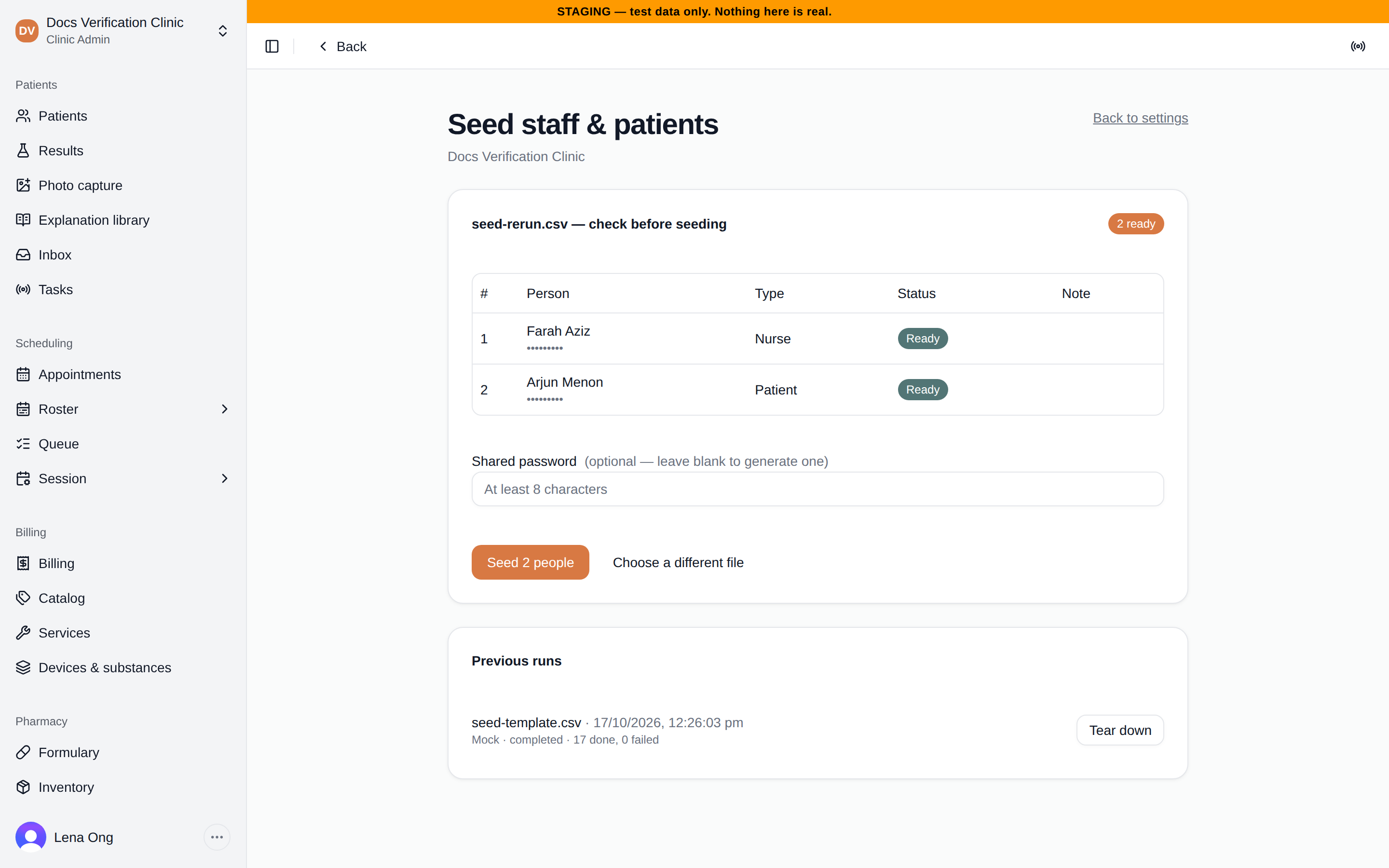
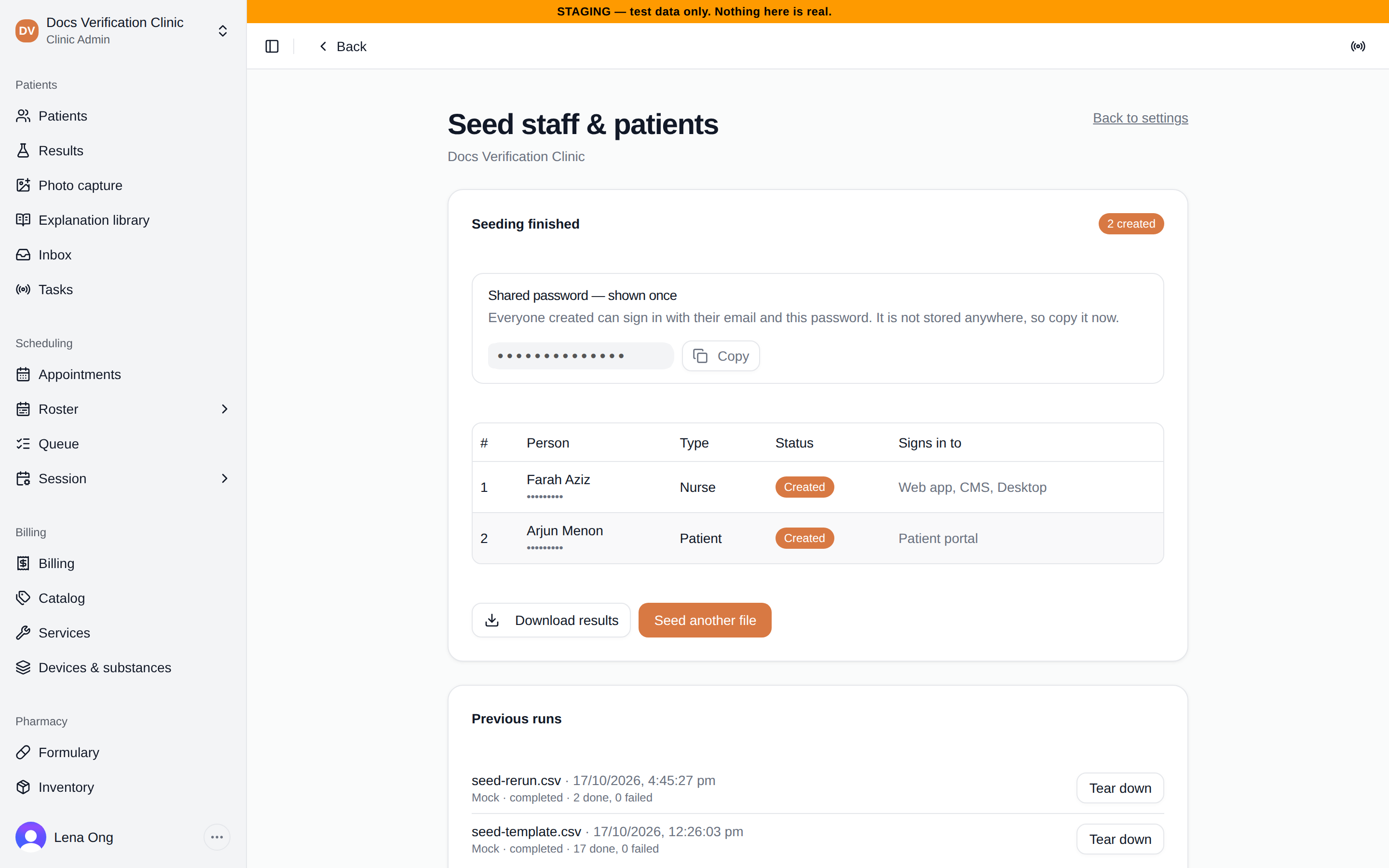
Re-running is safe. People who already exist are skipped, and an existing account that seeding did not create is never touched.
The CSV file
record_type,role,first_name,last_name,email,phone,medical_license_number,gender,date_of_birth,identifier_type,identifier_value,address_line,postal_code
staff,doctor,Marcus,Lim,marcus.lim@clinic.example,91110002,M90001A,,,,,,
patient,,Jane,Tan,jane.tan@mail.example,91234567,,female,1980-04-12,NRIC,S1234567D,1 Orchard Road,238823| Column | Notes |
|---|---|
record_type | staff or patient. |
role | Staff only: a clinic role. |
first_name, last_name, email, phone | Validated like the rest of the app. An email may appear only once in a file. |
medical_license_number | Required for doctors. |
gender, date_of_birth | Patients. |
identifier_type, identifier_value | Patients: NRIC, FIN or PPN (passport). NRIC and FIN are checksum-validated. |
address_line, postal_code | Patients. |
A file can hold at most 200 rows. NRICs, dates of birth and licence numbers are kept only until each row is processed, then discarded from the seed records.
Staging and production behave differently
The mode depends on the deployment the organisation lives on. Staging shows an amber STAGING banner. The seed page says which mode applies before you upload: on staging it says mock staff and patients are created with the shared password you choose. A staging deployment that is not set up to create test accounts seeds the production way.
| Staging (“mock”) | Production (“invite”) | |
|---|---|---|
| Accounts | Created straight away with a shared password you choose (at least 8 characters). It is shown once at the end. Seeded people sign in with their test address and that password. | Each person gets an invitation email and accepts it by signing in with that email address. Staff are added to the staff list straight away and join when they sign in. A patient’s chart is created, and the patient is linked to it when they create their account from the email. A staff member who already has a Medbot account is linked to it at once. A patient whose email already has an account is not emailed: make a portal invite from their chart instead. |
| Email addresses | Must be test addresses ending in +clerk_test@example.com, as in the template. These addresses never receive email, so seeded people cannot sign in with an email code. | Test addresses (+clerk_test, or any @example.com address) are rejected. |
| Confirmation | None. | Tick “I understand invitation emails will be sent to N real people.” |
superuser rows | Allowed, for test accounts. | Skipped. |
| Undoing a run | Tear down deletes every account, staff record and patient that run created. | Not available. |
Patients are linked to the organisation through the same invitation flow as the patient portal, so a seeded patient on production receives a portal invitation.