Chat
The Chat tab of the AI panel lets you ask Medbot questions while you write. It can see the text you attach and can propose edits to the open note. Any signed-in user can use it.
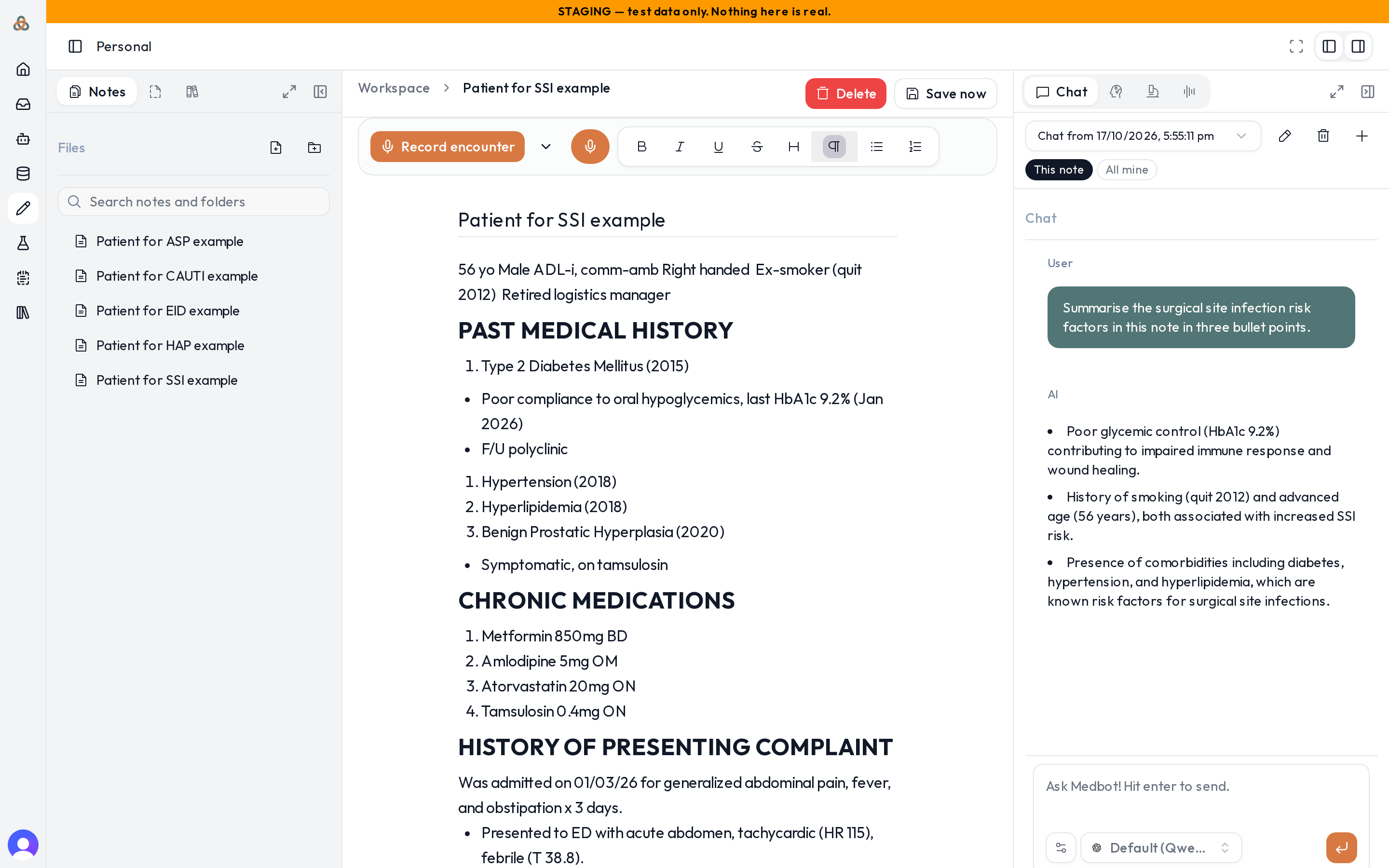
Start a chat
- Open a note in the workspace. If the right-hand panel is hidden, select Show ai panel.
- Select the Chat tab.
- Type in the box (“Ask Medbot! Hit enter to send.”) and press
Enter.
To chat about selected text, select it in the note and choose Ask AI in the bubble menu. The text is attached to your message as context; you can dismiss it before sending.
Your chats
The chat picker at the top shows the current conversation (New chat for a fresh one). Use the buttons beside it to Start a new chat, Rename this chat or Delete this chat.
Choose a model
The model button opens Select a model. Search with Search models… and pick one. The first entry is the platform default. Which models you see depends on what your administrator has made available.
In the desktop app, models you run yourself with Ollama or llama-server are listed under On this device. They use no credits.
Tools
The settings button (View available tools) opens Tools for this chat. These are the things the assistant can decide to use. They depend on where the chat was opened and on your role. Tools that work on the note are marked Editor.
Chatting about a patient
If you attach a dataset and a patient with the Dataset and Patient pickers (No patient or Choose a patient), the box becomes “Ask about <patient>. Hit enter to send.” A button, Run an agent on this patient, lets you start an agent on them.
Edits to your note
Medbot can propose a change to the open note. The proposal appears in the editor with the same accept or reject choice as Refine, and a Regenerate option. Your decision is sent back to the chat.
Running out of credits
Chat uses credits. If you run out and your deployment enforces limits, an Out of credits message appears with a Top up action.