Home
Home is your dashboard in the personal space. It is where you land after onboarding, and a quick way into the tools you use most.
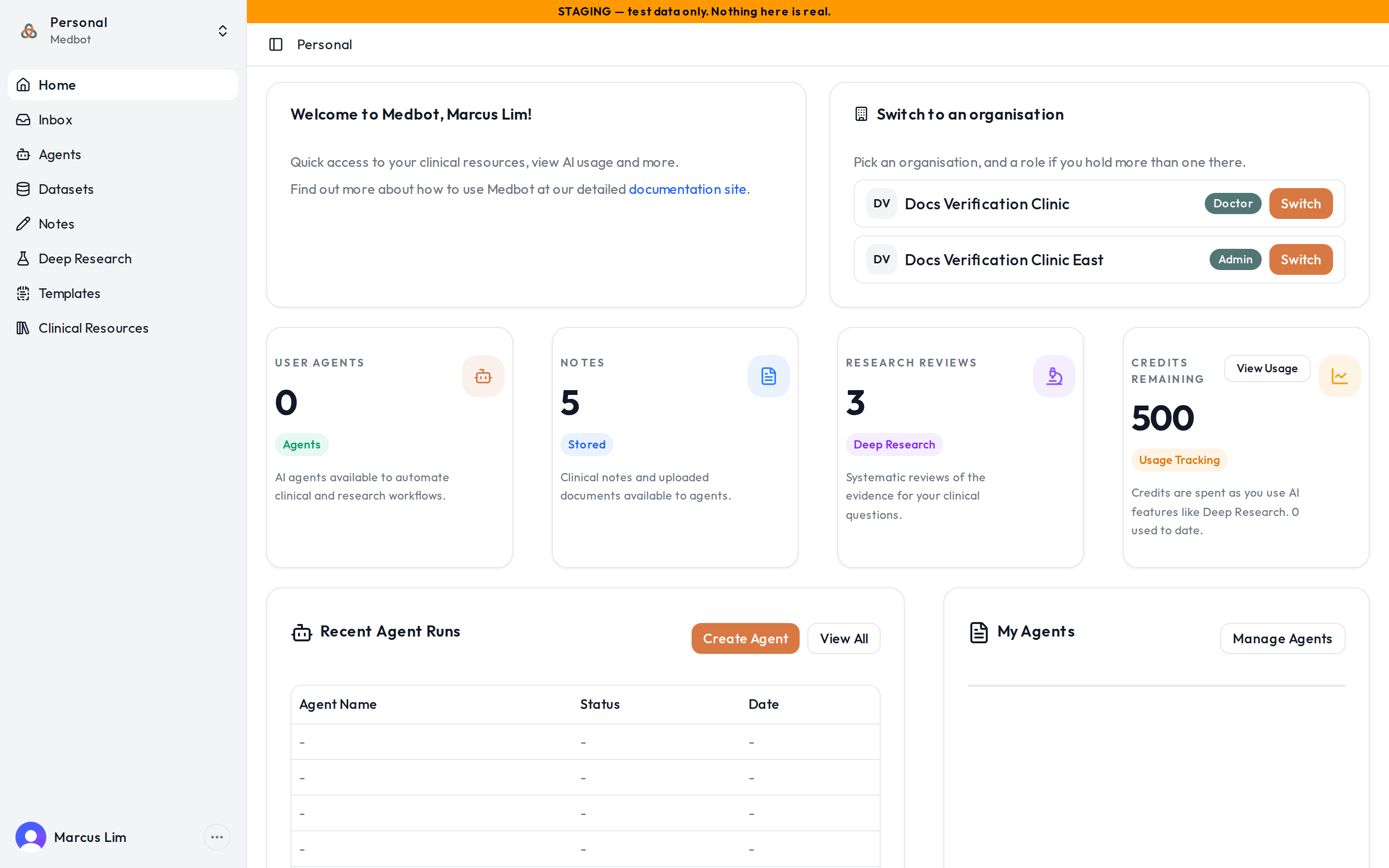
Choose Personal space in the switcher at the top of the sidebar to come back here from a research team. Organisation work is in Medbot CMS; see Teams and Organisations.
What is on Home
| Card | What you can do |
|---|---|
| Welcome to Medbot | A greeting with a link to this documentation. |
| Organisation work | Shown beside the welcome card if you belong to an organisation: “Services, patients and clinic operations live in Medbot CMS.” Open Medbot CMS opens it. See below. |
| Run a clinic or service? | Shown instead if you belong to none: “Set up your organisation, its services and its clinic in Medbot CMS.” with Open Medbot CMS. |
| Credits Remaining | Your balance, counting what is left of your plan’s monthly allowance. Select View Usage to open the Usage Dashboard. |
| Recent Agent Runs | A table of recent runs (Agent Name, status). Select Create Agent to build one, or View All. |
| My Agents | Your agents. Select Manage Agents. |
| Notes | Create Notes opens a new note; View All Notes opens your notes. |
| Deep Research | New review starts a review; View All lists them. |
| Clinical Resources | Add New uploads a document; Manage Resources lists them. |
Organisations and Medbot CMS
Organisations, with their services, tasks, patients and staff, are in Medbot CMS. From Home, the Organisation work or Run a clinic or service? card is the way there: select Open Medbot CMS. The card is shown only where your Medbot has Medbot CMS set up.
In Medbot CMS you can create an organisation (with you as its first admin), join one with a code, claim a listed one or open a demo organisation. See Teams and Organisations.
Inbox
The Medbot app no longer has an Inbox. Every task in the Task Inbox belongs to a care service, so the Task Inbox moved to Medbot CMS. There it is now part of Notifications; the old /inbox and /services/inbox addresses open it.
For notifications about your own work (finished runs, comments), use the Notifications bell at the top right of every page.