Rostering
The roster is the clinic’s staff schedule. Find it at Roster (/roster) in the Home tab, under the organisation’s name. A care service has its own Roster too, in the service’s sidebar, which shows only that service’s shifts and the shared front desk. Receptionists and Clinic Admins build and change the week, and only a Clinic Admin can publish it. Everyone else sees their own week.
Who can do this
| Task | Clinic Admin | Receptionist | Doctor | Nurse |
|---|---|---|---|---|
| See the roster workspace (Overview, Issues, Sessions, Rules, Staff, Time off) | Yes | Yes | No | No |
| See their own week and ask for time off | No | No | Yes | Yes |
| Add, edit, or cancel a shift | Yes | Yes | No | No |
| Assign or replace the staff member on a shift | Yes | Yes | No | No |
| Create a recurring pattern of shifts | Yes | Yes | No | No |
| Approve or reject time off | Yes | Yes | No | No |
| Publish a week | Yes | No | No | No |
| Review attendance (the Attendance tab) | Yes | No | No | No |
Patient service associates and Allied health professionals do not have the roster.
The roster workspace
A Receptionist or Clinic Admin opens the roster on a row of tabs: Overview, Issues, Sessions, Rules, Staff, Attendance (Clinic Admin only) and Time off. Issues shows how many problems the week has, and Time off how many requests are waiting. A link to /roster?tab=attendance (or another tab’s name) opens that tab.
On Overview and Issues, the bar under the tabs shows the week (weeks start on Monday): the arrows move a week, and Today returns to this week. Beside the week are New recurrence, a count of the week’s draft shifts (for example “4 draft shifts”) and Publish week. On the organisation’s roster a Service list narrows the week to one service, with the line “Shifts for <service> and the shared front desk”, or shows All services (“Shifts for every service”). Each service has its own colour in the calendar.
Note: Sessions, Rules, staff qualifications and days on Staff, and Time off requests are kept only while the page is open in this release. They are not saved yet, so reloading the page clears them. Shifts, assignments and publishing are saved as before.
Overview
Overview starts on the Master calendar: “All services and staff categories together”. Each day shows each service’s sessions and how many of each role are rostered against what the Rules ask for, or No one rostered. A day the clinic does not open reads Clinic closed. Select a service on a day to open its role view.
The other views are one per role: Doctors, Nurses and Receptionists. “Counts are shortages and shifts to fix”: each role’s count is how many shifts are short of staff or need fixing. A role view is the week grid for that role, one row per session (Morning, Afternoon, Evening). A shift card shows its times, its service, and who works it, or Unassigned, with a warning when something on it is wrong, such as Not qualified.
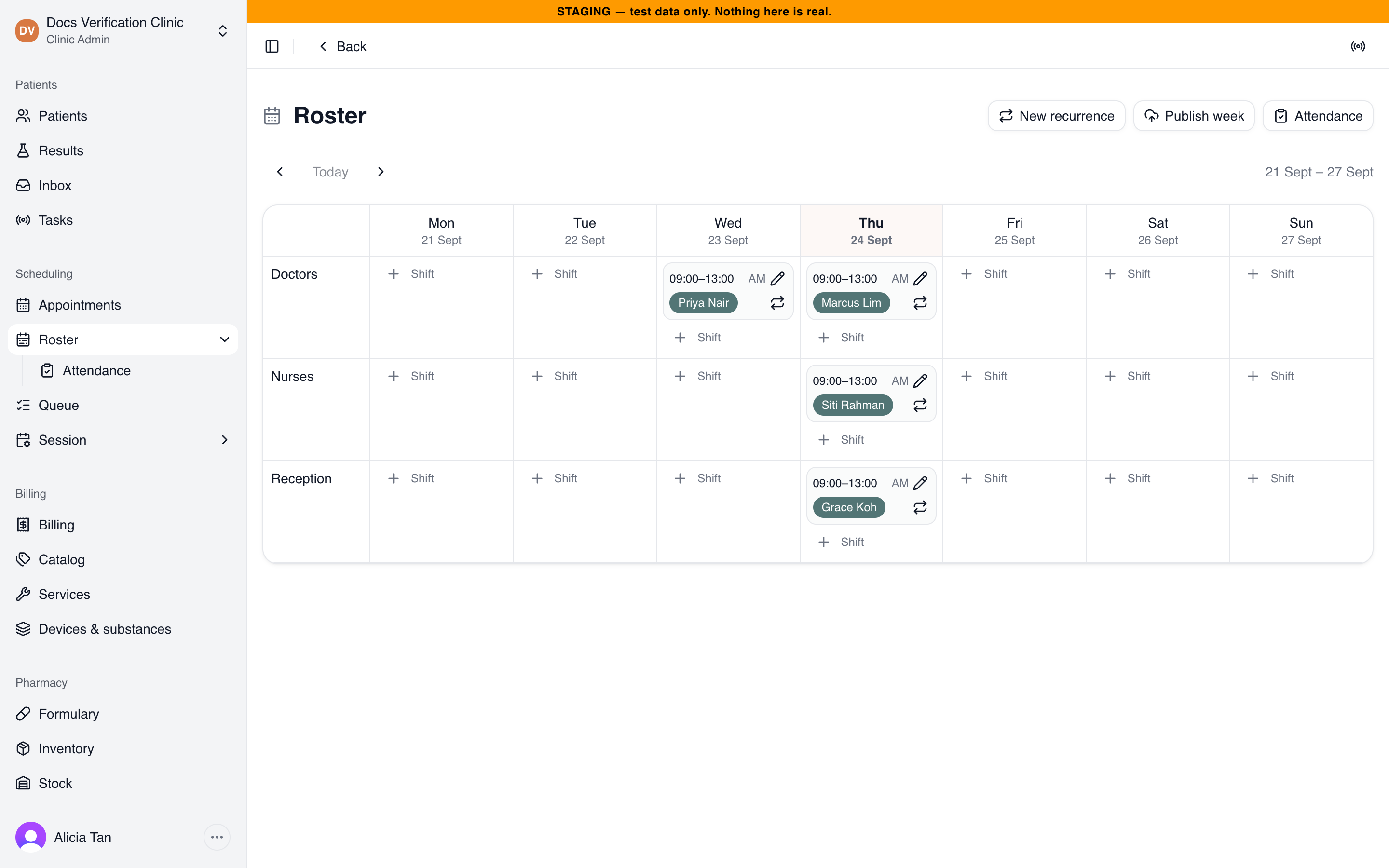
A week of shifts with staff assigned (earlier layout)
Issues
Issues lists what is wrong with the week, sorted by day, under five headings:
| Heading | What it covers |
|---|---|
| Must fix before publishing | ”Wrong person, leave or double booking”: someone who is not qualified for the service, someone on approved leave, a shift in a session the service does not run, or someone booked in two places at once. |
| Short of staff | ”Sessions below the Rules”, for example “Diabetes Clinic needs 1 more nurse”. |
| Leave needs cover | ”Time off during rostered shifts”. |
| Not rostered this week | ”Staff with no shifts at all”. |
| Working requirements | ”Under or over their days”, for example “Dr Tan rostered 3 of 4 days this week.” |
Each issue has a button to fix it, for example opening the shift, adding a shift for the person who is not rostered, or opening the time-off request. On a service’s roster, Issues checks every shift at the service’s location, so a person working in another service there is not reported as unrostered and double bookings across services are caught.
Sessions
Sessions sets the shape of the clinic day:
- Clinic sessions: “The blocks of the day staff are rostered in. New shifts take their times from here.” Each session has a Name, when it Starts and Ends, and its Length.
- Operating hours: “Days the clinic opens and which sessions run on each.”
- Services in each session: “Choose a service, then the sessions it runs in. Shifts can only be added where a service runs.”
Rules
Rules sets People needed per session: for each service and session, how many doctors, nurses and receptionists it needs. Use the minus and plus buttons. Shortages on Overview and Issues are counted against these numbers.
Staff
Staff lists each person with their Role, what they are Qualified for, how many days a week they should work, and how many days they work This week: “Services each person is qualified to work in, and how many days a week they should work. Only qualified staff can be picked for a service’s shift.” A person with nothing set shows Not set. Receptionists are qualified for All services (front desk).
Time off
Time off lists the requests staff sent from My availability: “Sorted by the date the time off starts. Approving takes the person off the shifts it covers. A decision can be changed until the day before the day before the leave starts, giving at least 24 hours’ notice.” It opens on the pending requests.
Each request shows its dates, the part of the day, the person’s remark, and Shifts this leave affects. Approve it, reject it, or arrange cover:
- Approve takes the person off the shifts the leave covers (“Takes them off 2 shifts.”). Where nothing changes, it says so: “They are not rostered then.” or “Their shifts were already filled by someone else; nothing changes on the roster.”
- Choose cover… on an affected shift lists the people free and qualified to work it, or says “Nobody free and qualified”. Once everything is covered the request reads All covered.
- Reject keeps the person on their shifts. Cover arranged for a rejected request is cleared.
- Change decision reverses an approval or a rejection, with a Reason for the change, until the last day it can still change; after that the request says “Changes closed on <date>”.
Attendance
A Clinic Admin’s Attendance tab is the week’s attendance against the published shifts. See Attendance.
Your own week
A doctor or nurse sees two tabs, with their name and role beside them:
- My roster: “Your shifts this week”, with Shifts this week, Days rostered, Next shift, Confirmed and Requests waiting. “Your shifts may still change until the roster admin publishes the week.” Under it, the roster of everyone in the services you work in, with you highlighted, and My requests with what you are Qualified for and Team leave.
- My availability: Mark when you can’t work. Click the start date, then the end date (or send for one day), choose the Part of day, add a Remark (for example “Medical appointment”), and select Send request. “The roster admin approves or rejects each request.” Your requests show as Pending, Approved or Rejected.
A person with no shifts at the location sees “You aren’t on the roster at this location.”
Building a week of shifts
- On Overview, open a role view, then select Shift in a day’s cell. A service’s issue or a person on Staff can also open the dialog.
- In Add shift (“Assign someone to a service in a session”), check the Date and Role, and choose the Session: Morning, Afternoon, Evening or Full day. The Start time and End time follow the session set on Sessions.
- Choose the Service the shift is for (see Which service a shift is for).
- Choose the Staff, or leave it Unassigned. “Only staff qualified for the service are listed.” The dialog warns when the person is already rostered then, on leave, or not qualified.
- Add a Label (optional), for example “Cover for Dr Tan”, and select Save. A message says “Shift created”.
To change who works a shift, select the swap icon (Assign staff, or Replace staff once someone is on it), choose a Staff member, add a Reason if you like, and select Assign. A person cannot be put on two shifts that overlap, and the earlier names stay on the shift as a history. The pencil icon (Edit shift) changes a shift or cancels it.
Recurring shift patterns
Select New recurrence to make a repeating pattern in one step. Tick the Days of week, set the Start time, End time, Role, Service and Session, and choose Starting from and For how many weeks. You can choose who to Assign to and add a Label. Select Generate shifts. Running the same pattern again is safe, because it skips the dates that already have shifts.
The roster assistant
Some Medbot deployments show a Roster assistant box above the calendar on Overview and Issues. It is not shown when the deployment has no assistant turned on. Type the change you want in plain words, for example “Dr Tan is working Thursdays 12 to 5pm for the next 4 weeks”, and select Preview. The assistant lists what it would do and marks anything that deletes or cancels. Select Apply to run the changes, or Discard to drop them. Nothing changes until you select Apply.
Which service a shift is for
A roster belongs to services. Every shift names the Service it is worked in, and a service’s own roster shows its shifts. The organisation’s Roster shows every service’s shifts. A new shift starts with the service whose roster you are on, or with your organisation’s only service. A shift is placed at that service’s location. Archived services and other organisations’ services cannot be chosen.
The front desk is the one exception. A shift for the Receptionist role can instead be All services (front desk): one shift for a receptionist who works every service at a location, shown on each service’s roster with an All services badge. Doctors and nurses always have a service, because the rotation and the Workstation’s “my patients” depend on it. If an older all-services shift belongs to a clinician, it shows All services until you save a change to it, which asks for a service.
The roster assistant follows the same rule: it gives a front-desk shift all services, and a clinician’s shift your only service, or asks you to add it on the calendar when there are several.
Publishing a week (Clinic Admin only)
Select Publish week when the week is settled. It is greyed out while the week has no draft shifts. A message says how many shifts were published, for example “Published 3 shifts”. Publishing does two things:
- It turns the week’s draft shifts into published shifts. Published shifts can start counting toward Attendance.
- If the week includes today and a session is open, it marks the rostered staff as working in that session.
Draft shifts do nothing until they are published. Publishing again publishes only the drafts added since. On a service’s roster, the draft count and Publish week cover every shift at the service’s location.
How it fits together
When a service starts today’s session on its Workstation’s Session tab, the staff rostered for that service today are put on duty. See the Session tab. Attendance is checked against published shifts.
Related
- Attendance: what happened against each published shift.
- Workstation: Session tab: who is on duty today.