Claim an Organisation
Medbot keeps a directory of clinics and services that are not on Medbot yet. If your organisation is listed, you can claim it. A Medbot administrator checks your claim, and once it is verified you become the organisation’s first admin.
Claims are made in Medbot CMS, on its Organisations page (/organisations), where your memberships, the demo organisation and joining with a code are too. Sign in to Medbot CMS with your Medbot account; from the Medbot app, use Open Medbot CMS (see Getting to Medbot CMS). Inside Medbot CMS, Manage organisations in the organisation switcher opens the page. Old links to /organisations/claim in the Medbot app redirect there.
Anyone signed in can make a claim. If your organisation is not listed, create it instead.
Make a claim
- In Medbot CMS, open Organisations and select Claim an existing organisation.
- On Claim an organisation, type a name, postal code or specialty into the Search by name, postal code or specialty box and select Search.
- Find your organisation in the results and select Claim. If someone else’s claim is already open, the result shows Claim under review instead.
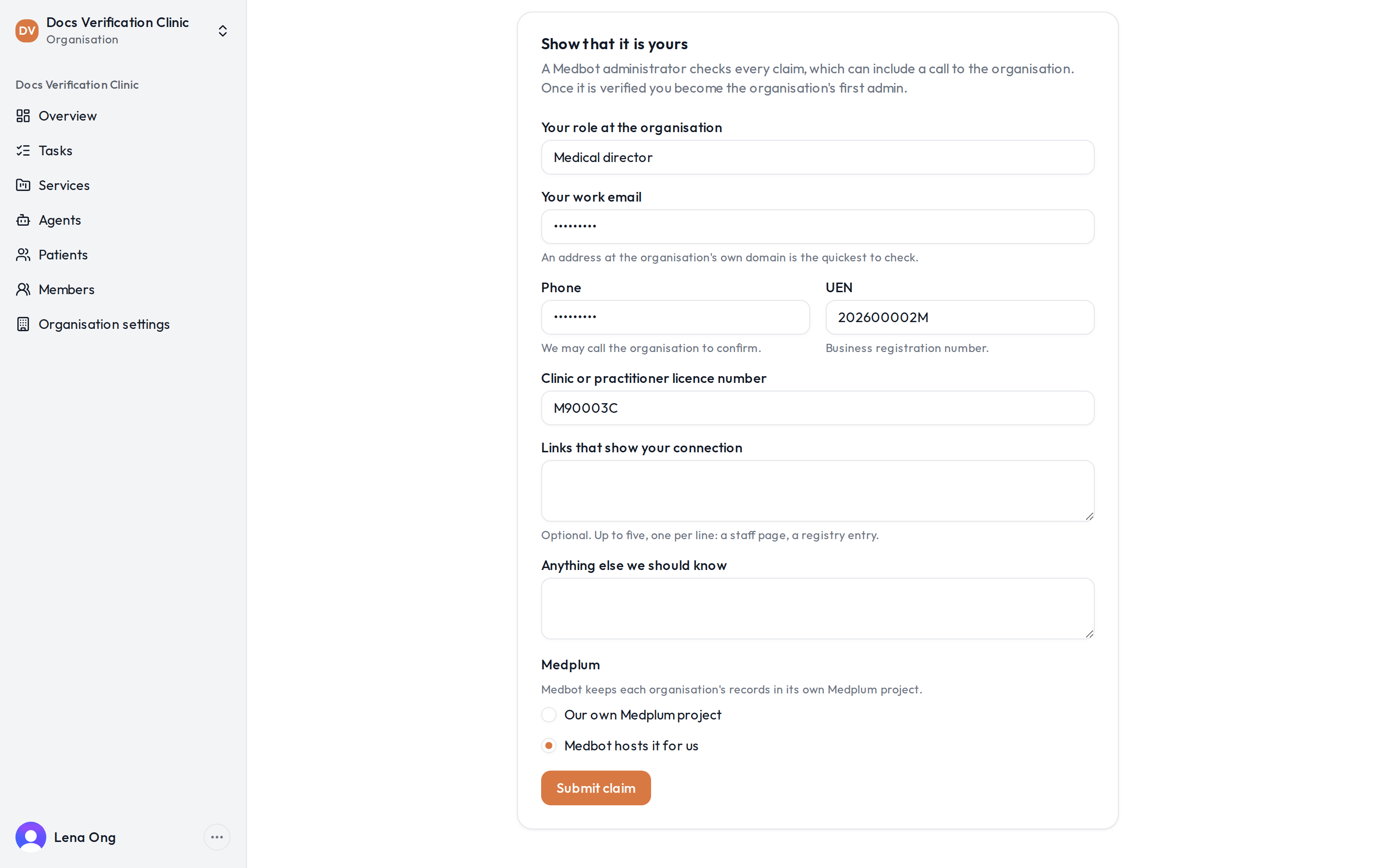
- Under Show that it is yours, fill in the form:
- Your role at the organisation, for example Clinic manager or Medical director.
- Your work email. An address at the organisation’s own domain is the quickest to check.
- Phone. Medbot may call the organisation to confirm.
- UEN, the business registration number.
- Clinic or practitioner licence number.
- Links that show your connection (optional, up to five, one per line).
- Anything else we should know.
- Select Submit claim.
Follow your claim
Open Organisations in Medbot CMS, where Your claims lists your claims with their status, or open the claim directly. The Your claim page shows a status:
| Status | Meaning |
|---|---|
| Submitted | Waiting for a Medbot administrator. You are emailed when it is verified. |
| Being reviewed | An administrator is checking it. |
| Verified | Your claim is accepted. A setup step may be waiting for you. |
| On Medbot | The organisation is set up. |
| Not approved | The claim was rejected. The reason is shown. |
| Cancelled | You or an administrator cancelled it. |
While a claim is open you can select Cancel claim.
Finish setup
Once the claim is Verified, you are emailed and a Finish setup card appears on your claim: “Your claim is verified. Finish setup to bring your organisation onto Medbot with you as its first admin. Medbot keeps its health records for you; there is nothing else to enter.” Select Finish setup. Medbot creates the organisation and its patient records store, and you become its first admin. A Medbot administrator can also create the organisation for you from the claim.
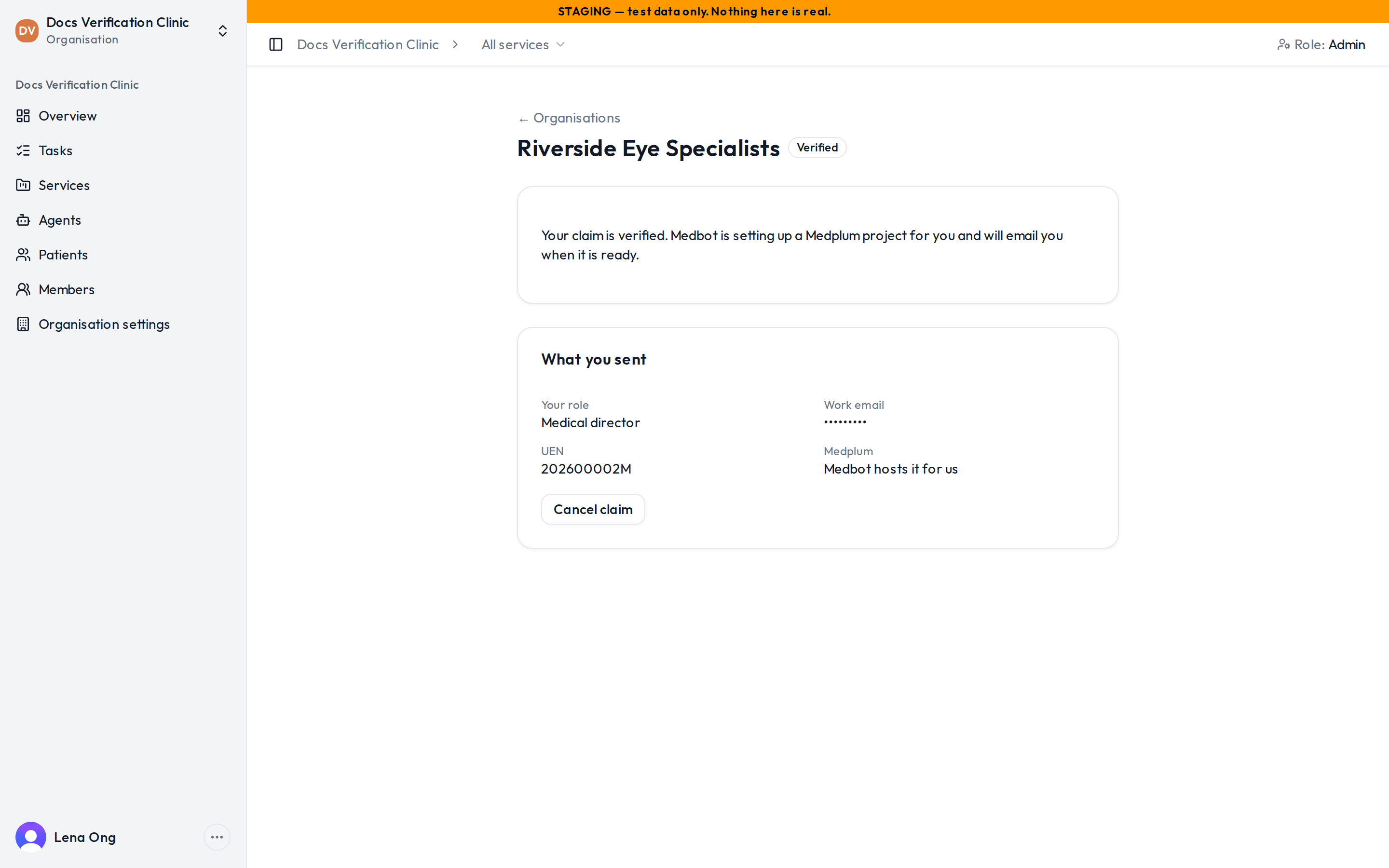
When setup is complete, the page says the organisation is on Medbot. Select Open it: the Organisations page says “<organisation> is on Medbot, with you as its first admin.” Select Open it there to start working in it in Medbot CMS.