Modes of Care
A service’s Mode of care says how it delivers care, and decides which tabs the Workstation shows. Set it when you create a service, or change it later with Edit service details. The mode appears as a badge next to the service’s status, and as the Mode column in the Services list.
| Mode | What it means | Main board |
|---|---|---|
| Outpatient | Patients book or walk in, join a queue for the day, and are seen in a consult. | Queue |
| Inpatient | Patients are admitted to a ward, reviewed on ward rounds, and discharged. | Census (and Rounds) |
| Remote | Patients are followed remotely: messages, portal sessions and video reviews, with no queue. | Caseload |
| Hybrid | Patients come in for visits on the queue and are followed remotely from a caseload in between. | Queue (and Caseload) |
Queues and appointments by mode
Only a service has a queue, takes appointments and has a roster. The mode decides which of those a service has:
| Mode | Queue | Appointments |
|---|---|---|
| Outpatient | Yes | Yes |
| Inpatient | No | No |
| Remote | No | Yes, for example video reviews |
| Hybrid | Yes | Yes |
A service’s Queue, Session and Appointments tabs on its Workstation are there only when its mode has them; opening the address of one that is not goes to the service’s home. An Outpatient or Hybrid service can also turn its queue off with Run a queue in its Queue and sessions settings: it then has no Queue or Session tab, and opens on its Patient list. Check-in and walk-ins are refused for a service with no queue, and a booking, a booking request or a rescheduled slot is refused for a service that takes no appointments. Every mode has a roster. See Appointments and Rostering.
Outpatient used to be labelled Clinic; only the name changed. Services that existed before modes were introduced are Outpatient. Every mode also has an Escalations tab; see Pre-visit History & Escalations.
Outpatient
The Queue, Session and AI encounters tabs are covered on the Workstation page.
Inpatient
The Census board lists the service’s admitted patients. Columns: Bed, Patient, Admitted, Attending, Last round and Flags (a For discharge badge marks patients expected to go home).
The toolbar has:
- Show: This service’s patients or Everyone admitted
- a ward select (All wards by default)
- a filter: All patients, Not seen today, Round in progress, Escalated or For discharge
A banner says how many patients on the ward have not been seen today.
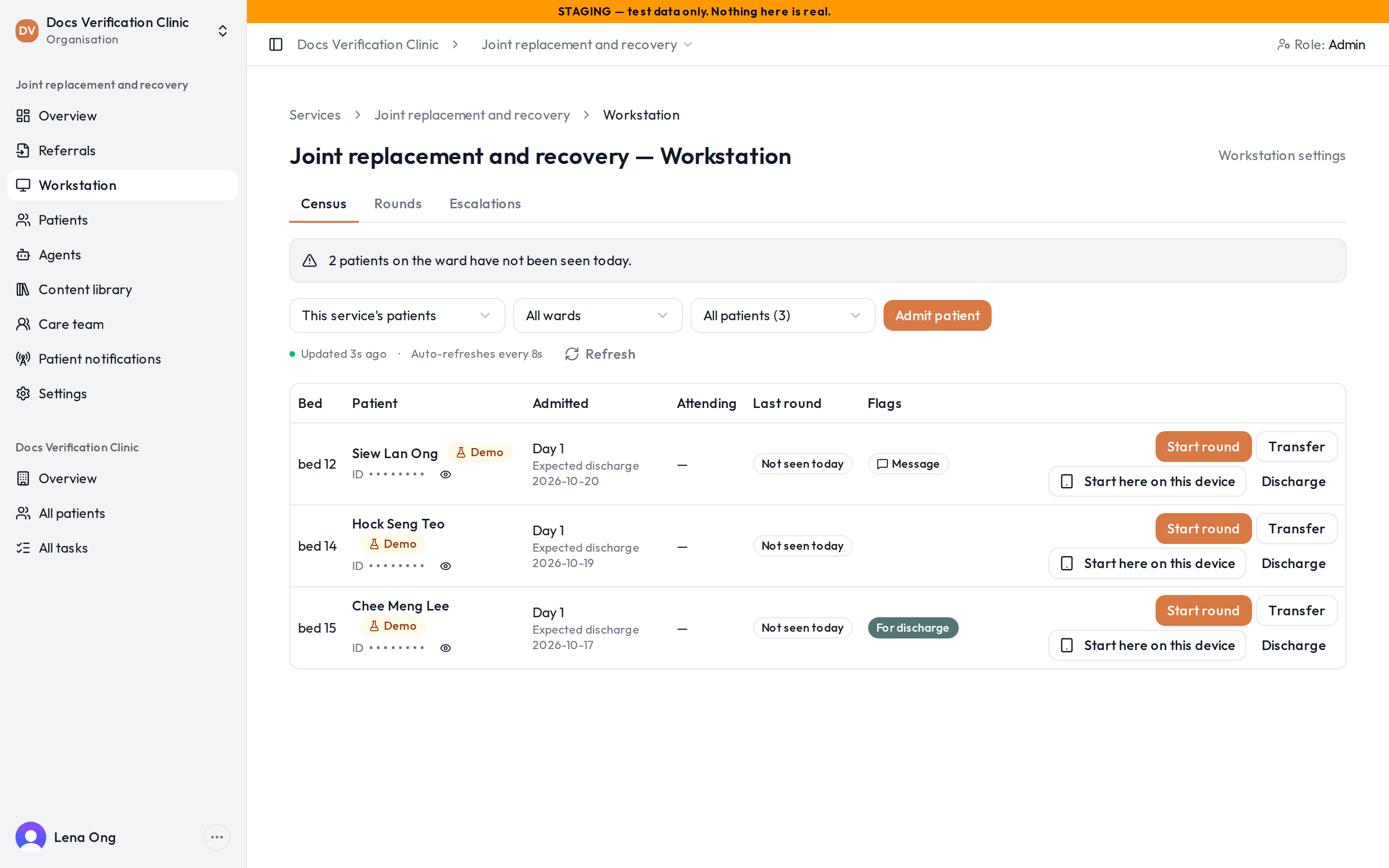
Admit, transfer and discharge
- Admit patient (on the board, or Admit on the patient’s page): search for the Patient, choose the Ward and Bed, and optionally an Expected discharge. A bed can be left as “Not assigned yet”. Click Admit.
- Transfer on a row opens Transfer or update: change Ward, Bed or Expected discharge and click Save.
- Discharge on a row asks Discharged to (for example Home, Transferred to another facility, Rehabilitation, Long-term care) and then Discharge.
On the patient’s page, the General tab shows an Admission card (“Not admitted” until the patient is admitted) with Admit, Today’s ward round and Draft discharge summary. The draft summary is written for you to review in the notes before you discharge.
Ward rounds
Start round (or Resume round) on a census row opens the consult screen, titled Ward round. It works like a clinic consult, including recording. Click End round when finished (“Ward round ended”).
The Rounds tab is a grid of patients by day showing Rounded, In progress, No round or Not admitted, with a Today column.
Settings
In the Workstation settings:
- Wards this service rounds on: leave none selected to include every ward.
- Census order: By ward, then bed or Longest stay first.
A Wards section lets you define the wards themselves; click Save wards to keep changes.
Remote
The Caseload board ranks patients by how much attention they need. The Show filter offers Needs attention, Scheduled today, Active sessions and All patients.
Columns: Patient, Flags, Scheduled (for example a video review with a clinician, or a visit), Last contact and Last review (In progress or Reviewed).
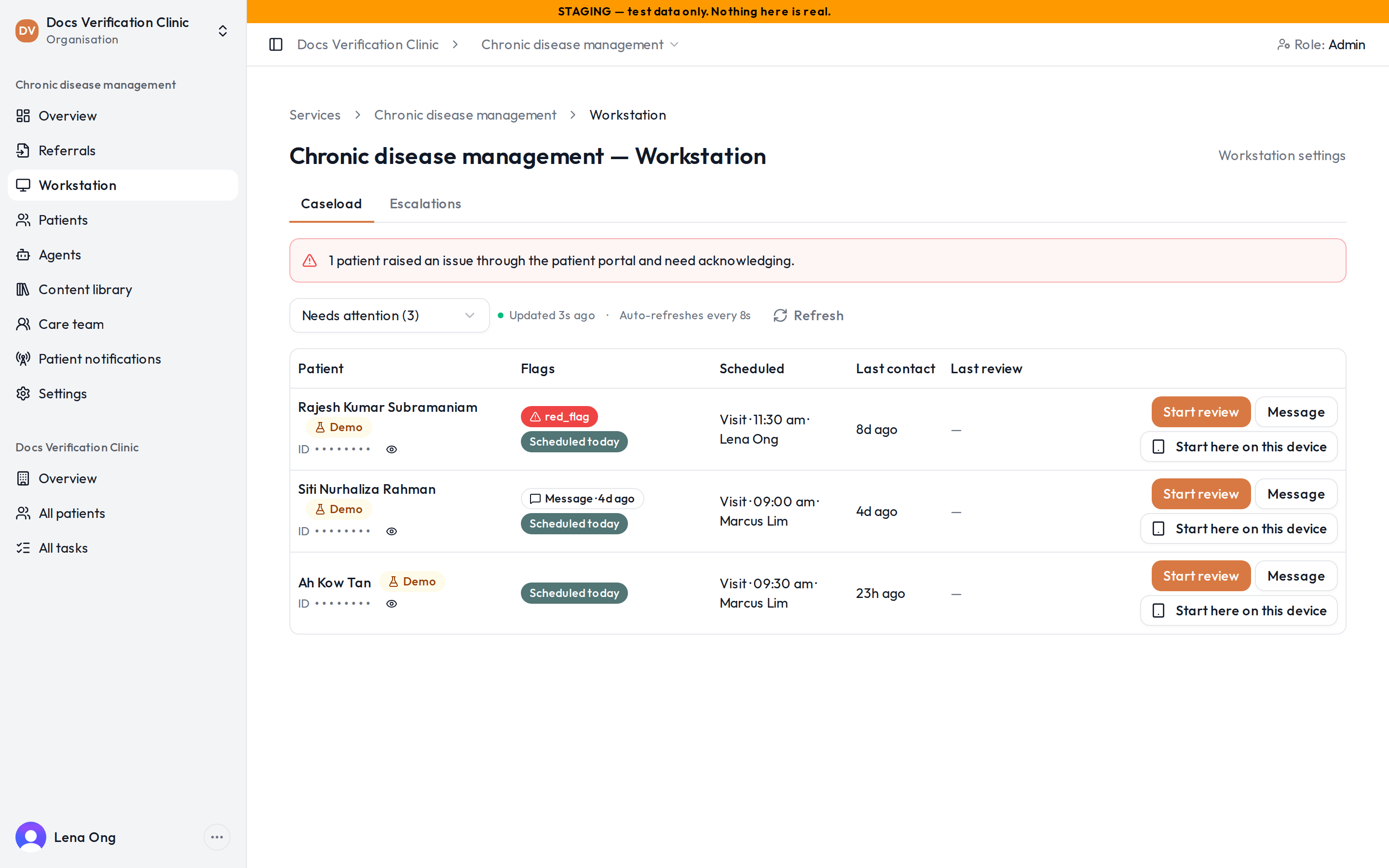
Flags include Escalation, Unanswered message, Session needs a person, Task overdue, Task due, Scheduled today, Waiting on patient, Review in progress and No contact for a while.
Start review (or Resume review) on a row opens the consult screen, titled Remote review (Video consultation when it belongs to an appointment). Click End review when finished. The Unanswered message needs attention after (hours) setting decides when an unanswered patient message raises a flag.
Hybrid
A Hybrid service sees patients in person on the clinic queue and follows them remotely between visits. Its Workstation has everything an Outpatient service has (Queue, Patient list, Appointments, Referrals, Session and AI encounters) plus a Caseload tab after AI encounters, at /workstation/caseload: “Patients followed remotely between visits, most in need of attention first.”
The caseload works as it does for a Remote service, with the same filters, columns and flags, and Start review opens a remote review. The Unanswered message needs attention after (hours) setting applies here too.
A Hybrid service cannot admit patients: it has no census, and admitting a patient to it is refused.