Claims Review
For Medbot platform administrators. Admins can read claims and prepare the checklist; only superadmins decide them.
When someone claims an organisation, a superadmin checks the claim. Open Requests → Organisation claims in the platform admin panel in Medbot CMS (/admin/requests/claims; the old address in the Medbot app redirects there). Admins can read claims and prepare the checklist; a superadmin verifies, rejects and creates the organisation.
The list
The tabs are Open, Submitted, Being reviewed, Verified, On Medbot, Rejected, Cancelled and All. The table shows Organisation, Status, Checks and Submitted. Open a claim to review it.
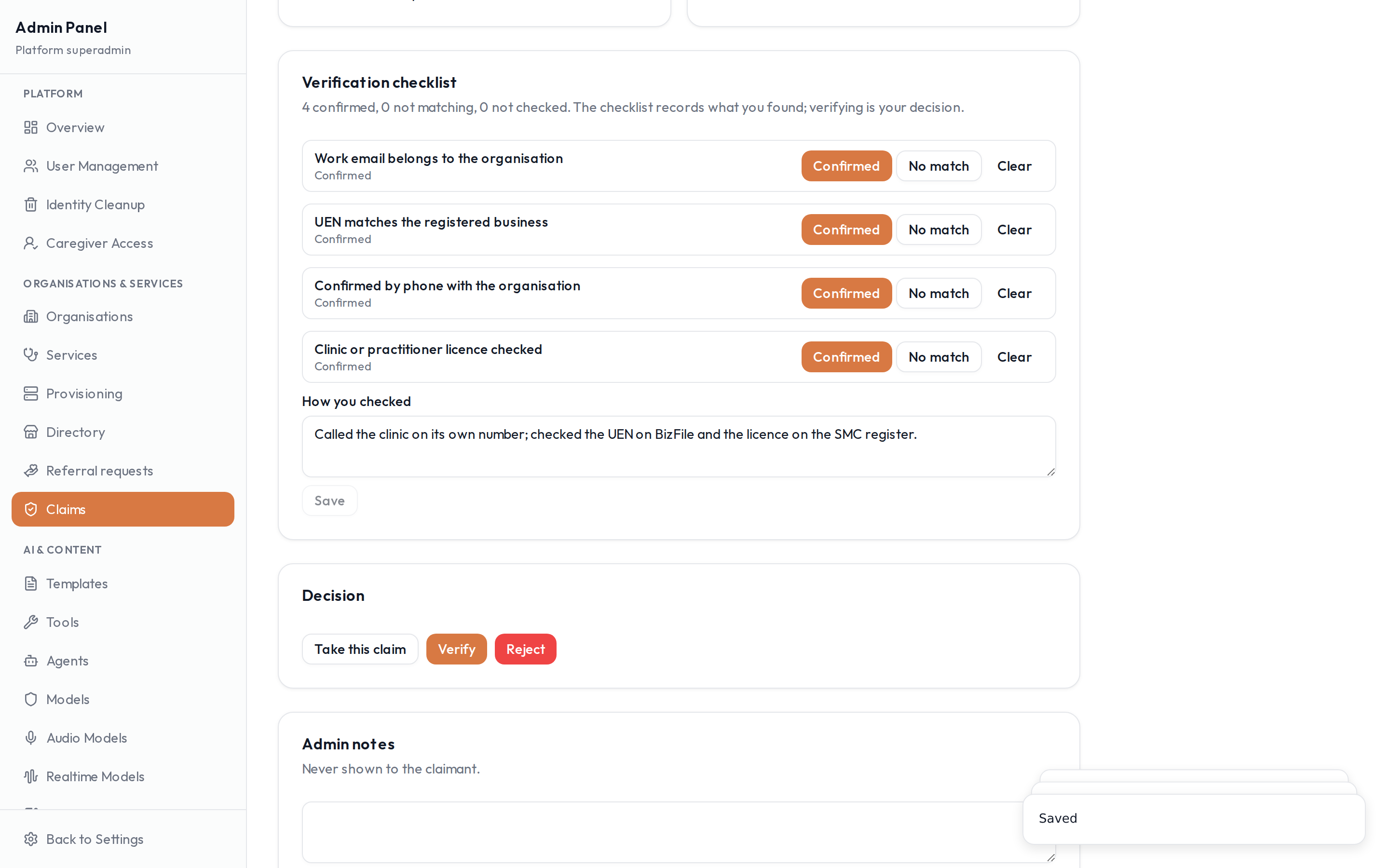
Review a claim
- Select Take this claim (or Take over if a colleague has it). Release gives it back.
- In Verification checklist, mark each check Confirmed, No match or Clear:
- Work email belongs to the organisation (pre-filled from the listing’s website or referral email).
- UEN matches the registered business.
- Confirmed by phone with the organisation.
- Clinic or practitioner licence checked.
- Write what you did under How you checked and select Save.
- Decide, under Decision:
- Verify (confirm “Verify this claim?”). The claimant is emailed and can finish setup themselves from their claim. Or, once the claim is Verified, select Create organisation and confirm “Create <name>?”: “Medbot creates the organisation and its patient records store. The claimant becomes the organisation’s first admin.”
- Reject, with a Reason that the claimant will see.
- After setup, Resend ready email sends the claimant the “ready” email again.
Admin notes are never shown to the claimant.
Last updated on