Encounters & Clinical Notes
An encounter is the record of one visit. Doctors and nurses attach vitals, notes, orders and vaccinations to it. Find encounters in a patient’s chart under Encounters (/patients/[id]/encounters). Clinical notes appear on the chart Overview, and the latest note of the encounter in progress on Encounters.
Who can do this
| Task | Clinic Admin | Receptionist | Doctor | Nurse |
|---|---|---|---|---|
| See a patient’s encounters | Yes | Yes | Yes | Yes |
| Start an encounter | Yes | No | Yes | Yes |
| Read clinical notes | Yes | Yes | Yes | Yes |
| Write a consultation note | Yes | No | Yes | No |
| Write a progress note | Yes | No | Yes | Yes |
| Amend or retract a consultation note | Yes | No | Yes | No |
| Amend or retract a progress note | Yes | No | Yes | Yes |
| Code the visit’s diagnoses (Singapore) | Yes | No | Yes | No |
| Order a Screen for Life screening (Singapore) | Yes | No | Yes | Yes |
| Record a developmental screening (Singapore) | Yes | No | Yes | No |
On the chart, Start Encounter is shown to Clinic Admins, Doctors and Nurses, and only while the patient has no encounter in progress. A Patient service associate and an Allied health professional can also start encounters, through the consult kinds they lead (see Starting a consult from the patient list). The Patient list’s actions menu offers consults only to the roles that lead one: a Receptionist has none. A Receptionist who reaches the form some other way sees “Something went wrong while starting the encounter.” Ask a Doctor, Nurse or Clinic Admin to start it.
Staff-led consults and assistant-led AI encounters are different things. A consult is an encounter a member of staff leads. An AI encounter is a conversation an assistant has with the patient, for a history before a visit, health education, or financial counselling.
Starting an encounter
Start Encounter on a chart belongs to a service. For a patient in one or more care services:
- With one service, it starts the encounter there straight away, as the service’s mode calls for (see Starting an encounter from the Workstation).
- With several, it asks which Service, listing only the patient’s services that you may open.
- If the patient waits in a service’s queue today, the button reads Start consult and opens that visit’s consult instead of a second encounter.
For a patient in no service, Start Encounter opens the chart’s own dialog:
- On the chart’s Overview or Encounters, select Start Encounter (on a phone, in the bar at the bottom of the screen). Or start a consult from the Patient list.
- Choose the Encounter class: Ambulatory (the default), Emergency, Virtual, Home Health or Inpatient.
- Choose the Status: Planned, Arrived, Triaged or In Progress (the default).
- Choose the Priority: Routine (the default), Urgent, ASAP or STAT.
- Optionally enter a Reason for visit (optional).
- Select Start Encounter.
Clinic Admins also see an Account field to link a billing account. See Billing.
In a physician family organisation, the dialog (and starting a teleconsult) also requires a Care category: Stable condition (routine continued care), Minor condition or Urgent, no other doctor available in time.
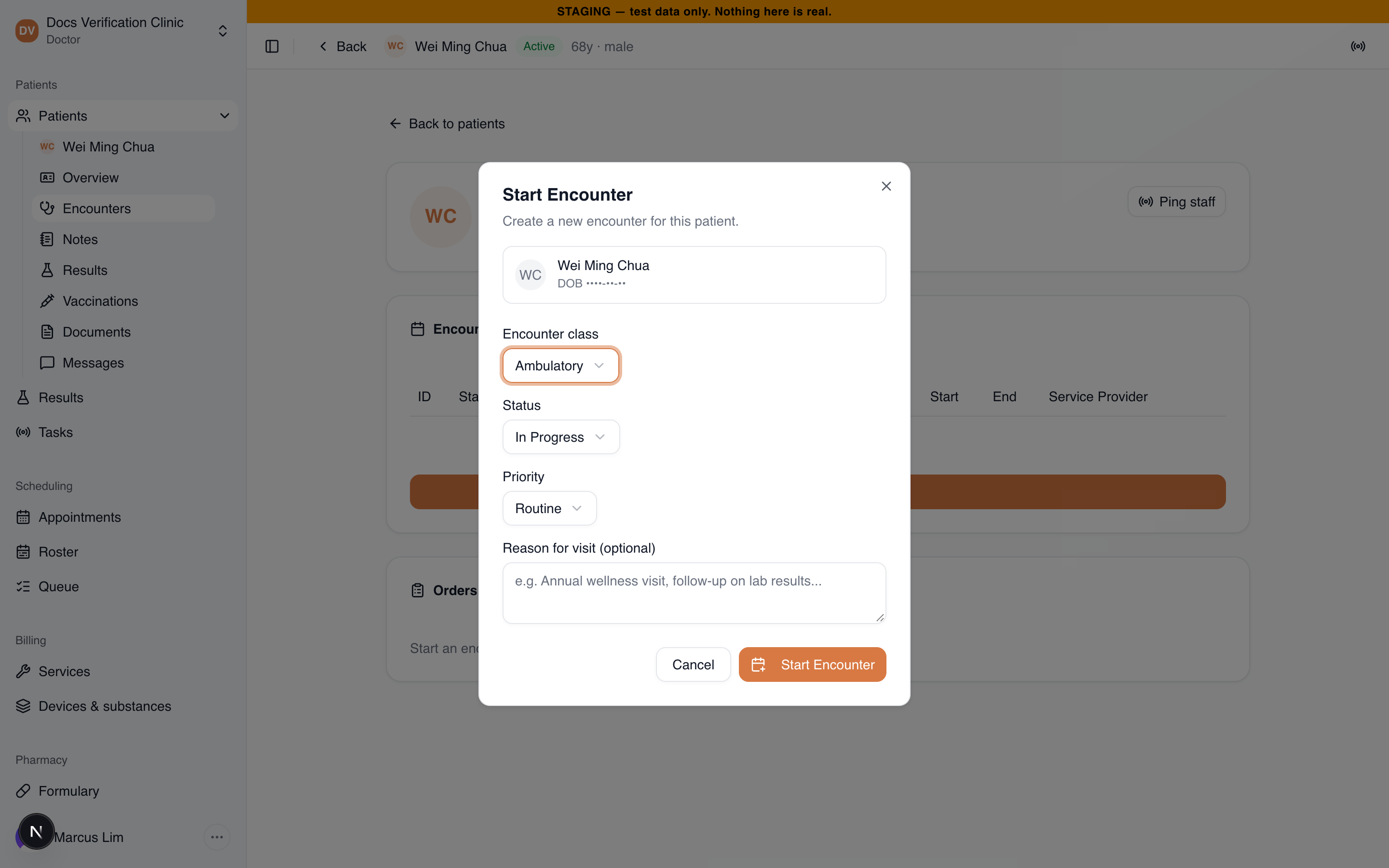
The Start Encounter dialog
You cannot start an encounter for an inactive patient. The button is disabled and the app says “Cannot start an encounter for an inactive patient.”
Starting a consult from the patient list
The actions menu on each row of the Patient list leads with Consult, led by you: the consult kinds your role leads. Choosing one starts a consult in one click, as an ambulatory encounter that is in progress with routine priority, and opens the patient’s notes workspace to write in. The kinds are:
| Role | Consult kinds it can lead |
|---|---|
| Doctor, Nurse | Clinical consult, Financial counselling, Health education, Diet counselling, Physiotherapy, Pharmacy counselling |
| Patient service associate | Financial counselling |
| Allied health professional | Health education, and the one their profession names: Diet counselling (dietitian), Physiotherapy (physiotherapist) or Pharmacy counselling (pharmacist) |
In a physician family organisation the full Start Encounter form opens instead, because it needs a care category. An inactive patient’s consults are greyed out.
Which encounter counts as current
Vitals, notes, orders, order sets and vaccination orders attach to the patient’s current encounter. The current encounter is the most recently started one with status In Progress. An encounter that is only Planned, Arrived or Triaged is not current. Without a current encounter the chart says so and hides Write note, Apply order set and Order service.
Encounters and the queue
A doctor who selects Start consultation on the Reception Queue, or a nurse who selects Start nurse visit on a nurse-led visit, lands on Encounters for that exact queue appointment. The dialog then says “Create a new encounter for this patient’s visit in today’s queue.” The new encounter is linked to that appointment, and the queue row moves to Consultation.
An encounter started from the chart without going through the queue is still linked to the patient’s visit if they are checked in on the queue and their visit is not finished. If they are not checked in, the encounter is not linked to any appointment and does not appear on the queue.
If the visit already has an open encounter, Start Encounter reuses it instead of starting a second. A billing account chosen in the dialog is added to it if it has none. If that encounter has not started yet, for example a nurse left it Triaged after vitals, choosing In Progress starts it, so you can write notes and prescribe on it. An encounter is never linked to a visit that is already finished, cancelled or a no-show, even if the page still points at it. Medbot links the patient’s open visit instead, if there is one.
The encounter records who leads the visit:
- When a doctor starts it, they lead it.
- When a Clinic Admin or Nurse starts it, the clinician booked on the queue appointment leads it: a doctor, or a nurse for a nurse-led visit.
- When no clinician is booked and a nurse starts it, that nurse leads it.
A doctor who opens a visit someone else started is added to it as having seen the patient. That makes a nurse-led visit doctor-led.
Visits from the queue finish when the doctor, or the lead nurse of a nurse-led visit, selects Complete visit. The chart has no control to finish an encounter.
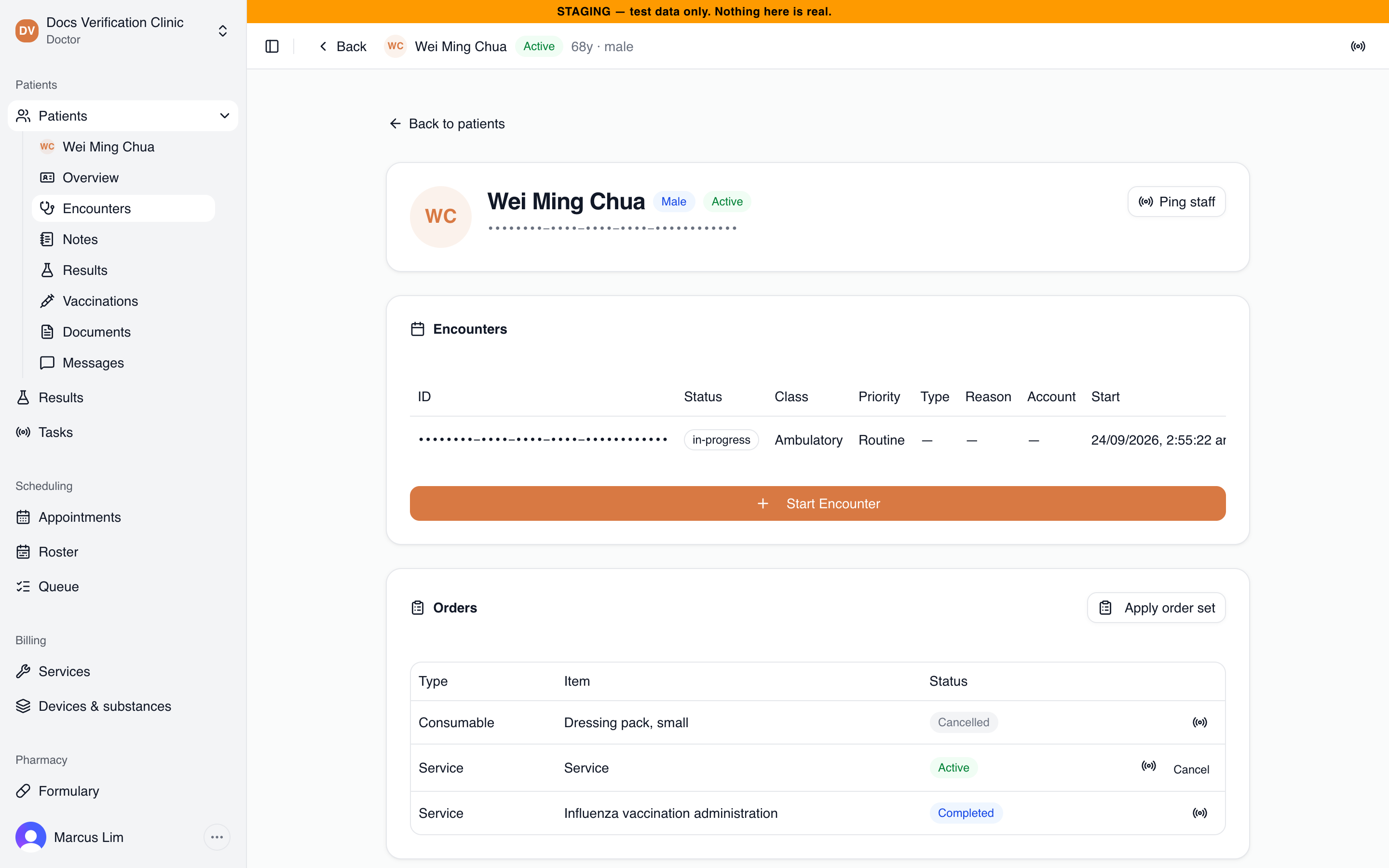
The Encounters page
Starting an AI encounter
An AI encounter is led by an assistant, not by staff. One Start AI encounter window starts it from every place that offers it: the patient list, a service’s patient page and Workstation queue, a visit panel, and the reception queue’s Start AI encounter button.
- Choose the Kind: History taking (“Collects the story before the consult and flags red-flag answers”), Health education (“Explains the condition and plan using your approved content”) or Financial counselling (“Walks through estimated costs, subsidies and payment options”). A service offers the kinds it has turned on. The general clinic offers health education and financial counselling. A kind the patient already has open is not offered again.
- Choose How the patient takes it: Send a link (the patient opens it on their own phone, in the patient portal) or On this device (hand a tablet or kiosk to the patient now, in the clinic). On this device is offered inside a care service only. For it, choose the Conversation mode, Text or Voice, and for voice the Assistant look: Let the patient choose, Orb or Face.
- Enter a Reason, shown to the patient, such as “Starting insulin, from today’s consult”. It is optional, and gives the assistant a head start.
- Inside a service, tick the References and protocols to attach. They start ticked from the kind’s defaults in the service’s settings.
- Select Send link or Hand over the device. A link goes on the channel the patient agreed to be contacted on and expires after 7 days. If the link could not be sent, the window says “AI encounter started, link not sent” and gives the link to copy.
From the patient list you can also send one to several patients. Choose a care service in the sidebar, tick the patients, and select Start AI encounter for n patients. Patients without a phone number are skipped, and every outcome is listed.
A journey step of an AI encounter kind in a service’s visit can also be started by staff from the visit.
AI encounters across services
A patient’s chart has an AI encounters section (/patients/[id]/ai-encounters) listing every AI encounter the organisation started for the patient: from the general clinic and from each care service. Filter by source with the buttons above the list: All sources, Org Level or a service, each with its count. It opens on the service the sidebar is set to. Each row shows the kind and its state. The list shows the reason and a summary, never the transcript. The patient list’s Latest AI encounter column shows the most recent one for each patient, or None.
The Encounters page
Encounters leads with the encounter in progress, then the patient’s other encounters. Its buttons, at the top right (on a phone, at the bottom of the screen), are Go to billing for Clinic Admins and Receptionists, and Start Encounter while no encounter is in progress.
The encounter in progress
The current encounter is shown as a panel with what it is for, its status, its class, when it started, its clinician and service provider, and a short id such as ENC-1A2B3C. Inside it:
- Vitals in this encounter: the readings taken in it, with Record vitals for Clinic Admins, Doctors and Nurses. “No vitals recorded yet.” until there are some. See Vitals.
- Clinical note: the latest note written in it, with its author and time, and how many notes it has. Write a note, or Open notes once one is written, opens the notes workspace.
Without one, the page says No encounter in progress: “Start one to record vitals, notes and orders against it.” for those who can, otherwise “A doctor or nurse starts one when the patient is seen.”
The Orders card follows. It is described in Orders & Order Sets.
The chart header on every section also shows Encounter in progress, with Open to come here.
Past encounters
Past encounters lists the patient’s other encounters, newest first, with the Date (and times), Encounter, Class, Clinician, how many Notes were written in it, and its Status. Chips above it narrow the list to one class, with a count on each, or All. Ten show at a time: Show more adds ten more. With none, it says “No other encounters.”
Clinic Admins, Doctors and Nurses see Record vitals on any past encounter that is still open.
Clinical photos can be linked to an encounter when they are uploaded. They are listed in the chart’s Photos section, not on this page. See Clinical Photos.
Clinical notes
The Clinical notes card, in the right-hand column of Overview, lists notes grouped by encounter, newest first. Each note shows its type, author and time. There are two types:
- Consultation Note: the physician’s note for the consultation. Doctors and Clinic Admins write these.
- Progress Note: a procedure performed or health education given. Doctors, Nurses and Clinic Admins write these.
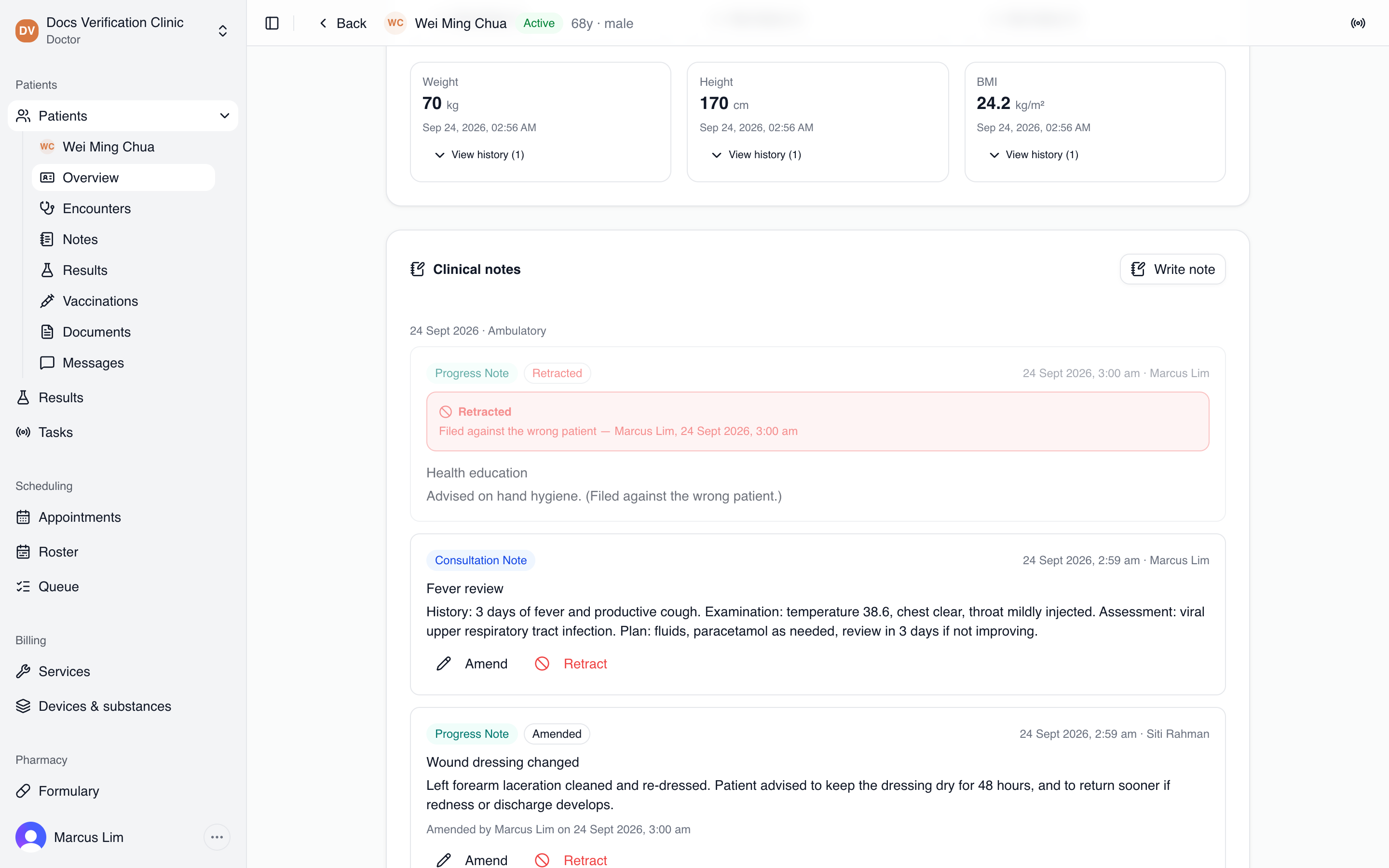
The Clinical notes card
Writing a note
- Select Write note. It appears only when you may write a note and the patient has a current encounter.
- Choose the Type. The list offers only the types your role may write.
- Optionally enter a Title (optional). The note type is the default title.
- Enter the Note text.
- Select Save note.
Your account must be linked to a clinical profile so the note can carry your name. Otherwise you see “Your account has no linked clinical profile yet, so a note cannot be attributed to you.” Notes cannot be filed against an encounter that is finished, cancelled or entered in error.
Amending a note
Select Amend on a note, change the text and select Save amendment. The note is labeled Amended with the name of the person who amended it and when. The earlier text stays in the note’s version history. Any Doctor or Clinic Admin can amend a note, not only its author. Nurses can amend progress notes only.
Retracting a note
Select Retract, enter a Reason for retracting, then select Confirm retraction. Retracting cannot be undone. The note stays in the chart, greyed out and labeled Retracted with the reason, who retracted it and when. A retracted note can no longer be amended.
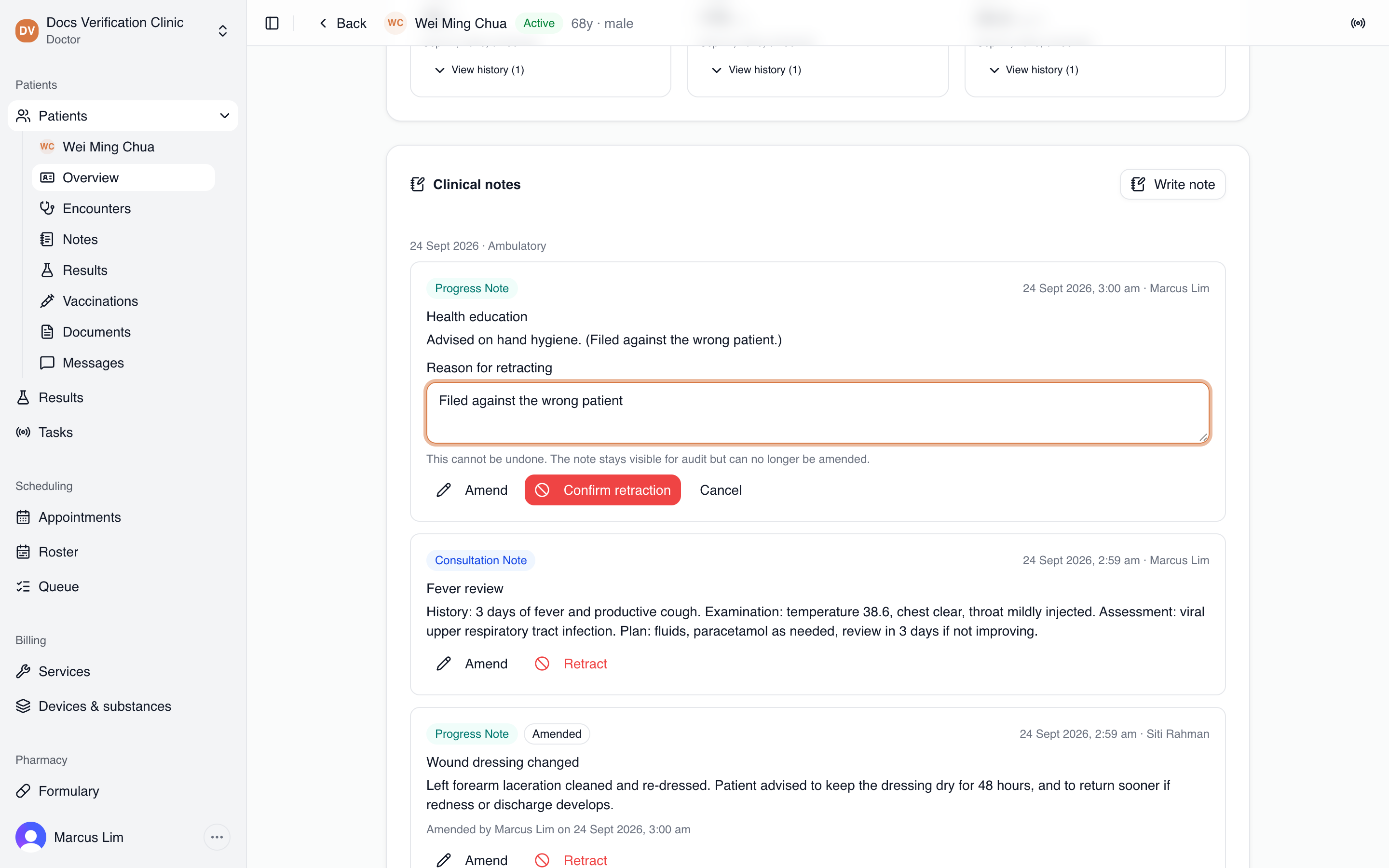
Retracting a note
Receptionists can read notes but cannot write, amend or retract them.
Coding the visit’s diagnoses (Singapore)
The Diagnoses (ICD-10-AM) card sits in the left-hand column of the chart Overview, under Vitals. It covers the current encounter only. It appears for a Singapore organisation that subscribes to CHAS, CDMP, SFL, DEROM, CIDC or MW_HEALTH. Without a current encounter it is not shown. It says: “This visit’s coded diagnoses. Claims and MOH reports take them from here.”
- Under Add a diagnosis, type in Search by code or name, e.g. J06.9 or diabetes and choose a match. A well-formed code that is not on MOH’s lists is offered as Not on MOH’s lists, and a code on MOH’s lists that has no title held as On MOH’s lists, no title held.
- Medbot fills in the CDMP conditions the diagnosis suggests. Remove any that do not apply, or choose Add beside CDMP: to add one.
- To add a complication, type in Add a complication of … under that diagnosis.
- Select Save diagnoses. You see “Diagnoses saved.” Discard drops your unsaved changes.
A visit has at most 20 diagnoses and 10 complications. Remove a diagnosis or complication with its × button.
Clinic Admins and Doctors code diagnoses. Nurses and Receptionists see the card read-only.
If someone else saved the diagnoses after you opened the chart, your save is refused: “The visit’s diagnoses changed since they were loaded. Reload them and make your changes again.” Your unsaved changes stay on screen. Select Reload diagnoses, then make your changes again.
The bill fills the CHAS claim from these diagnoses. See Claims Workflow. A newly coded notifiable disease prepares a disease notification (DEROM) for a doctor to complete, unless the patient already has one for that disease from the last 90 days. Tuberculosis prepares a TB case notification, and later visits of a notified case prepare treatment progress reports (see Reports). A chronic visit’s CIDC report is prepared from these diagnoses when the visit is completed or billed. Both appear in Reports.
Screenings on the Encounters page (Singapore)
Two panels can appear under Orders on Encounters. Every role sees them. Ordering and recording need a current encounter. Otherwise the panel says “Start an encounter to order a screening.” or “Start a visit to record a CDS screening.”
Screen for Life
Shown when the organisation subscribes to Screen for Life (SFL).
- Check eligibility asks HPB which national screenings the patient is due for. A table shows each screening, whether the patient is eligible, the lab subsidy, when they were last screened and when the next is due. Below it, Screening claims on record lists earlier claims.
- To order, choose the Screening and the Test order (First screen, Repeat screen or Second repeat screen). A repeat also needs a Repeat test. Select Order screening. The order keeps what HPB said at that moment.
Clinic Admins, Doctors and Nurses order screenings. Ordered at this visit lists them.
Childhood developmental screening (CDS)
Shown when the organisation subscribes to CHAS.
- Check CDS history lists the milestones MHCP already has claims for.
- To record, choose the Milestone and the Outcome, tick Health booklet completed if it was, and add a Note (optional). Select Record screening.
Medbot warns when the milestone does not fit the child’s age, and when MHCP already has a claim for that milestone, because a second one is rejected unless appealed. Only Clinic Admins and Doctors record screenings.
Both are claimed on the visit’s bill. See Claims Workflow.
Related
- Vitals: record readings on the encounter.
- Orders & Order Sets: place and cancel orders.
- Prescribing & Medications: write, amend and stop prescriptions.
- Vaccinations: record a vaccination.
- Patient Records & Consent: the chart itself.