Tasks & Staff Pings
A ping is a short message from one staff member to another, like a walkie-talkie. Staff use pings to ask a colleague to come to a room, clarify an order, or call back. Care services have tasks of their own, such as approving a plan or answering a patient’s question.
Both are in Notifications: the bell at the top of the screen, and its page at /notifications. Notifications replaced the separate Tasks page and Task Inbox; their old addresses, /tasks and /services/inbox, open it.
Who can do this
| Task | Clinic Admin | Receptionist | Doctor | Nurse |
|---|---|---|---|---|
| Send a ping | Yes | Yes | Yes | Yes |
| Receive, acknowledge, and finish pings | Yes | Yes | Yes | Yes |
| See the pings you sent | Yes | Yes | Yes | Yes |
Only the person a ping was sent to can acknowledge it or mark it done. Nobody can read another person’s pings.
Sending a ping
There are three places to start:
- Ping staff on the Notifications page, or on a service’s notifications page.
- The Ping staff button on a patient’s chart. The ping links to that patient.
- The ping icon at the end of an order row in a patient’s encounter. The ping names that order.
- Select Ping staff. From an order row, select the ping icon (Ping about the order).
- Under To (Choose who to ping), pick a person. The list shows their role and, if they are assigned to a room in today’s open session, the room.
- Type a message under What do you need?, or select a quick message: “Please come chaperone.”, “Can you clarify this order?”, “Patient would like to speak with you again.”, or “Can we talk over a call?”.
- Under Show under, keep General (“The organisation as a whole, not one service.”) or choose one of your services. A ping filed under a service shows in that service’s tab of Notifications and on the service’s notifications page, as well as under All.
- Select Send.
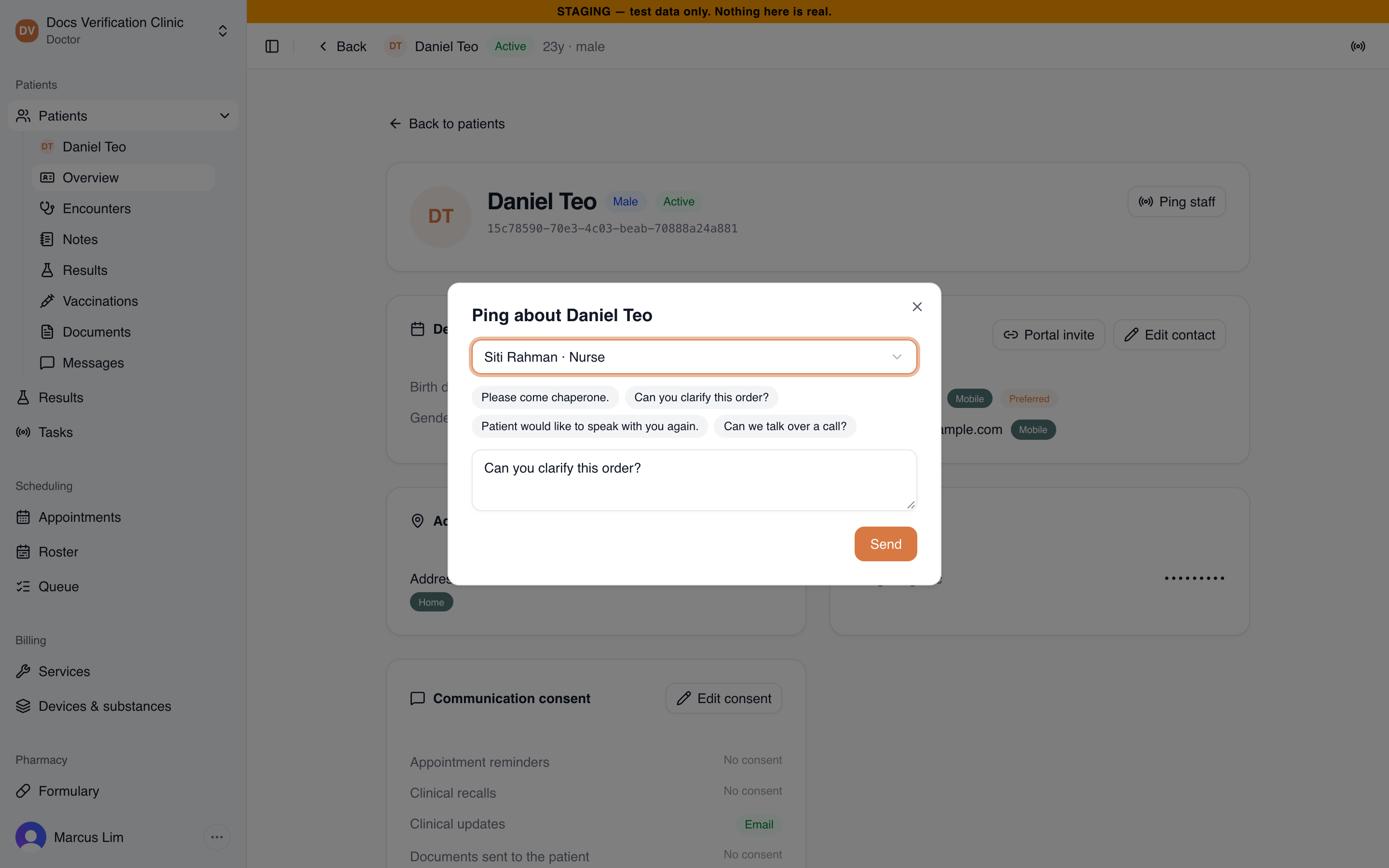
Sending a ping from a patient’s chart
You can ping any active Clinic Admin, doctor, nurse, or receptionist who can work at the current clinic location, except yourself. A message can be up to 500 characters. When you cannot send, you see:
| Message | What to do |
|---|---|
| Write a message first. | Type something. |
| Keep it under 500 characters. | Shorten the message. |
| That person is not available to ping. | Choose someone else. |
Receiving a ping
A new ping adds to the count on the bell, which counts everything that needs you. Medbot also shows a short notice and plays a quiet beep. When several arrive at once, it shows one notice such as “3 new pings”. New pings arrive within about five seconds, so you do not need to refresh.
Select the bell to see the first five items that need you, pings among them, or open Notifications for all of them. Each shows the message, who sent it, the room it was sent to, and how long ago. If it is about a patient, select Open followed by the patient’s name to go to the chart.
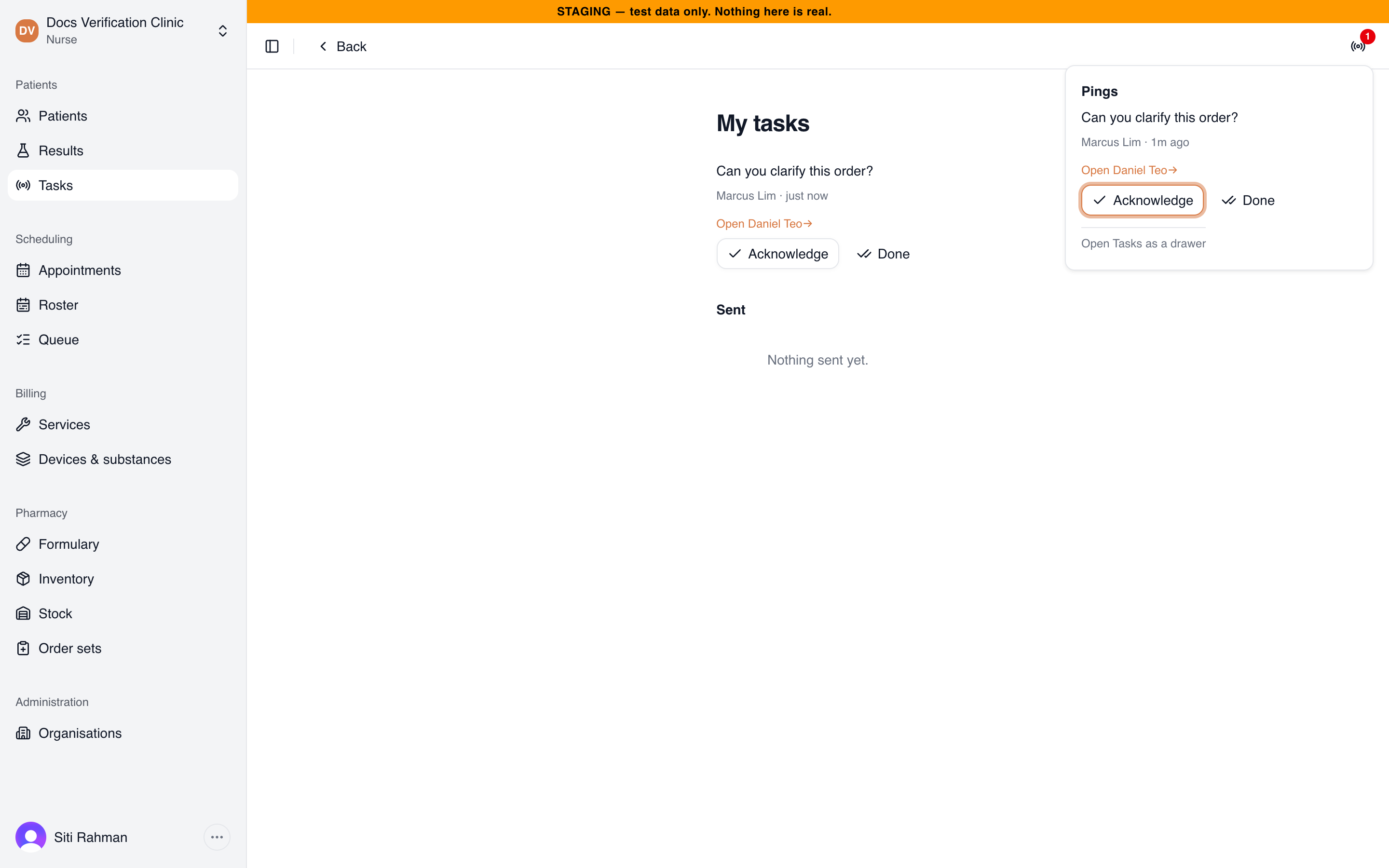
A new ping in the bell (earlier layout, before Notifications)
Then choose one:
- Acknowledge keeps the ping on your list, marked To-do. Use it for “I have seen this and will do it”.
- Done removes the ping from your list.
You can select Done straight away, without acknowledging.
Pings you sent
The Sent list on the Notifications page shows the pings you sent and how far each has gone: Waiting, Acknowledged, or Done.
Service tasks
The care services’ tasks for you are in Notifications, under All and under each service’s tab: tasks assigned to you directly, and unclaimed tasks assigned to a role you hold in a service of this organisation. Each names its service and, when it is about one, the patient, and is marked Overdue once past its due date. Select Review to open the task card and act on it, for example Complete. A service’s own notifications page lists all of its open tasks, whoever they are for.
The tasks come from the services’ own work, such as referrals and pre-visit check-ins and escalations. Task emails link to Notifications; older ones link to /services/inbox, which opens it.
If a task disappears while the list is open, for example because a demo reset removed it, acting on it shows the server’s reason, and the list refreshes and drops it.
Redirecting a task to a doctor
A nurse can pass a patient’s task to a doctor when it needs a doctor’s decision.
- On the task, select Redirect to doctor.
- Choose the Doctor. Medbot suggests one when the service’s care team makes it clear: the patient’s assigned doctor, else whoever is covering the service today, else the only doctor on the care team, and says why (“Suggested: …”). If more than one could take it, it says “More than one doctor could take this. Choose who should answer.” With no doctor on the care team: “No doctor is on this service’s care team. Add one to the care team to redirect tasks.”
- Say Why does this need a doctor?, for example “missed antagonist dose last night, lead follicle 16 mm. Needs a decision on timing.”
- Select Redirect to doctor.
The task moves to the doctor’s Notifications with a Redirected to you badge, under To you on the service’s notifications page. Others see “Redirected to <doctor> by <nurse>” and the reason. The doctor sees who sent it and why, the latest messages with the patient, the latest results, and Open the plan context and Full message history. They can:
- Reply to the patient and Send reply. The reply goes to the patient’s portal thread (WhatsApp, SMS or email only tell them a message is waiting) and closes the task.
- Hand back, with a Note for the nurse, for example “in theatre until 3 pm; Dr Ng is covering”, then Hand back to the nurse. The nurse sees “Handed back by <doctor>:” with the note, and can redirect it again.
Related
- Encounters & Clinical Notes: orders you can ping about.
- Notifications: pings, service tasks and patient messages in one list.
- Services: the care services whose tasks reach Notifications.
- Reception Queue: who is in which room today.