Pre-visit History & Escalations
Three related features help a service hear from patients before and between visits:
- Pre-visit history: the patient answers an AI history before a booked visit, and the clinician starts the consult with it.
- Red-flag rules: warning signs specific to your service that are checked while a patient answers.
- Concerns from patients not booked here: a patient who talks to Ask Medbot about a worrying symptom can choose to share a short summary with a service that takes that kind of concern.
Offering a pre-visit history
Pre-visit history is a History taking encounter. On the service’s Settings, in the AI encounters card, the History taking kind has a Before a booked visit block:
- Offer it on the patient portal when a visit is booked: the patient answers before the visit and chooses whether to send it.
- Text a link to patients without a portal account: sent once, when the visit is booked.
- Offer it at the clinic kiosk on the day: for patients who have not answered it yet. See Kiosk Self-Service.
- About how long: 5, 10 or 15 minutes.
- Red-flag alerts go to: by default the service’s escalation role, or choose another role.
- If no one acknowledges within: Don’t page anyone else, 5 minutes or 10 minutes, and then page the role you choose.
Red-flag rules
The Red-flag rules card on Settings holds “warning signs specific to this service, checked on every answer in a history-taking encounter after Medbot’s own emergency rules”. A match pauses a pre-visit history and tells the patient how to get urgent help. Medbot’s own emergency rules always apply, even with no rules of your own.
Only the service’s owner or an organisation admin can change red-flag rules.
- Click Add a rule.
- What it is: a short description, e.g. “Chest pain spreading to the arm or jaw”.
- Matches (a pattern, not case-sensitive): the words to look for, written as a pattern, e.g.
(arm|jaw).{0,40}(pain|ache). - The patient can: choose what the patient is offered. Call the emergency number for an ambulance is always on. You can add Alert the clinic now and I feel safe, continue the questions.
- The clinic: Alert the care team when the patient asks to (at once on the kiosk), or Only mark it on the note.
- Leave the On switch on, then click Save rules.
Each rule shows Matched N times. Remove one with Remove this rule.
The Pre-visit board
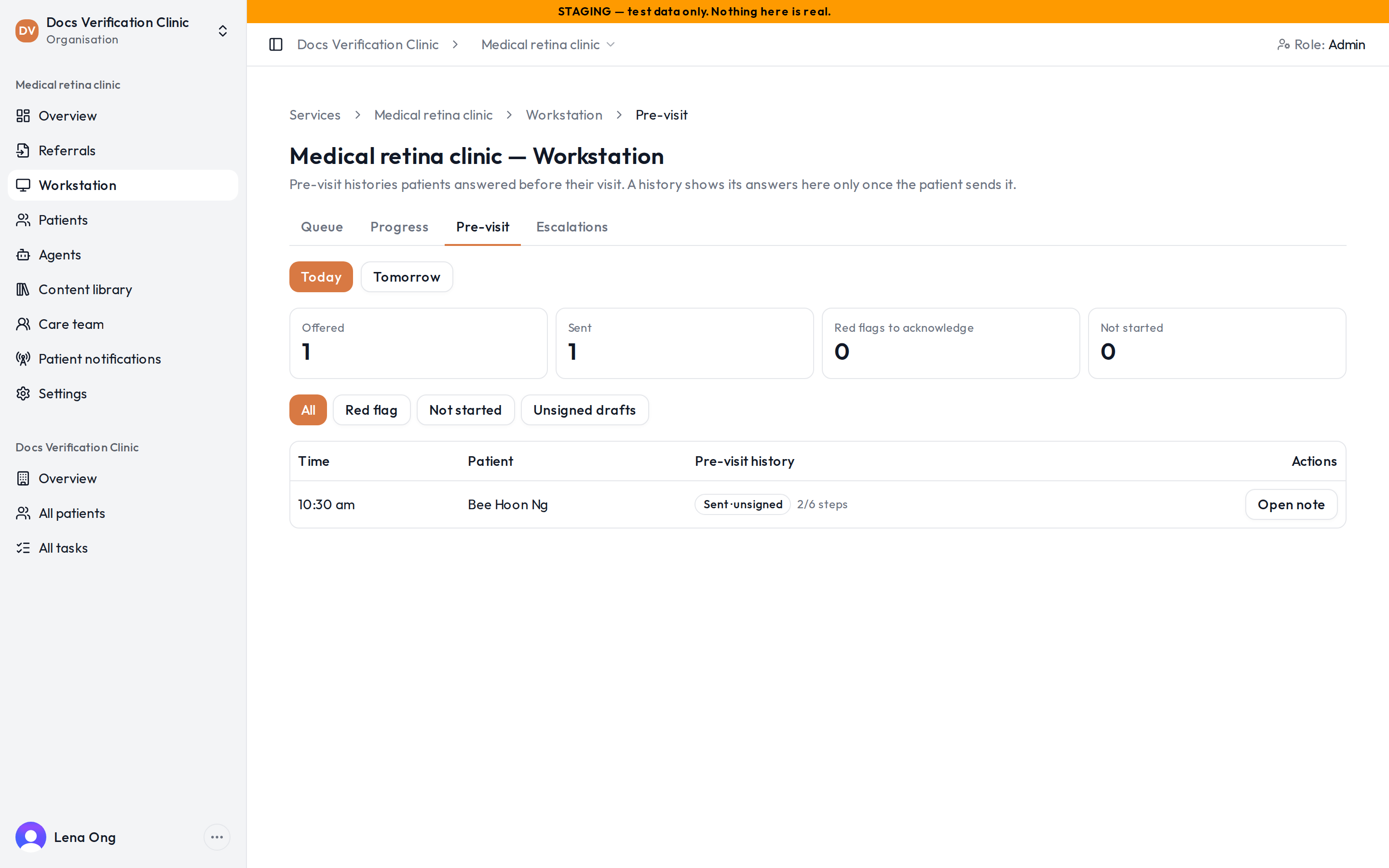
In an Outpatient or Hybrid service, the Workstation’s AI encounters tab ends with History taking before the visit, the board of who has been offered a history. Switch between Today and Tomorrow.
Tiles count Offered, Sent, Red flags to acknowledge (red when there are any) and Not started. Filter by All, Red flag, Not started or Unsigned drafts.
The table shows Time, Patient and Pre-visit history, which is one of: Not started, In progress, Finished, not sent, Sent · unsigned, Added to consult, Cancelled, Not finished or Discarded. A red-flag badge shows the rule that matched and whether it is not acknowledged, acknowledged, resolved, or the patient chose not to alert.
Row actions:
- Open note (once the patient has sent it).
- Offer at kiosk, which adds the history to the kiosk for that patient (“Offered at kiosk” afterwards).
Reading the note
The note is marked Draft by Medbot · Unsigned, with the warning that it is the patient’s own account, recorded by Medbot, and should be checked with the patient before you rely on it. Answers are grouped under note headings, with anything the patient did not answer listed under “Not answered in the session”. If a red flag fired, a timeline records what happened: the patient was told to call the emergency number, chose to alert the clinic, or chose to carry on without an alert.
Click Discard the draft then Discard draft to drop it (or Keep it). The footer reminds you it was “Also saved in the patient’s own health record” and that discarding it here never touches their copy.
In the consult screen, the Pre-visit history section lets you Add to note or Open full note.
Concerns from patients not booked here
When Ask Medbot notices a symptom a clinician should review, the patient can choose to share a short summary with a service that takes them. A service opts in on Settings, in the Concerns from patients not booked here card. Only the service owner or a clinic admin can change it.
- Accept escalations from patients not booked here: lists the service in the patient portal when Medbot notices a concerning symptom in a chat and the patient consents to share it.
- Concerns this service takes: e.g. “Chest pain, palpitations, breathlessness on exertion”.
- Reply promise shown to patients: how many hours you promise to reply within.
Click Save.
The Escalations inbox
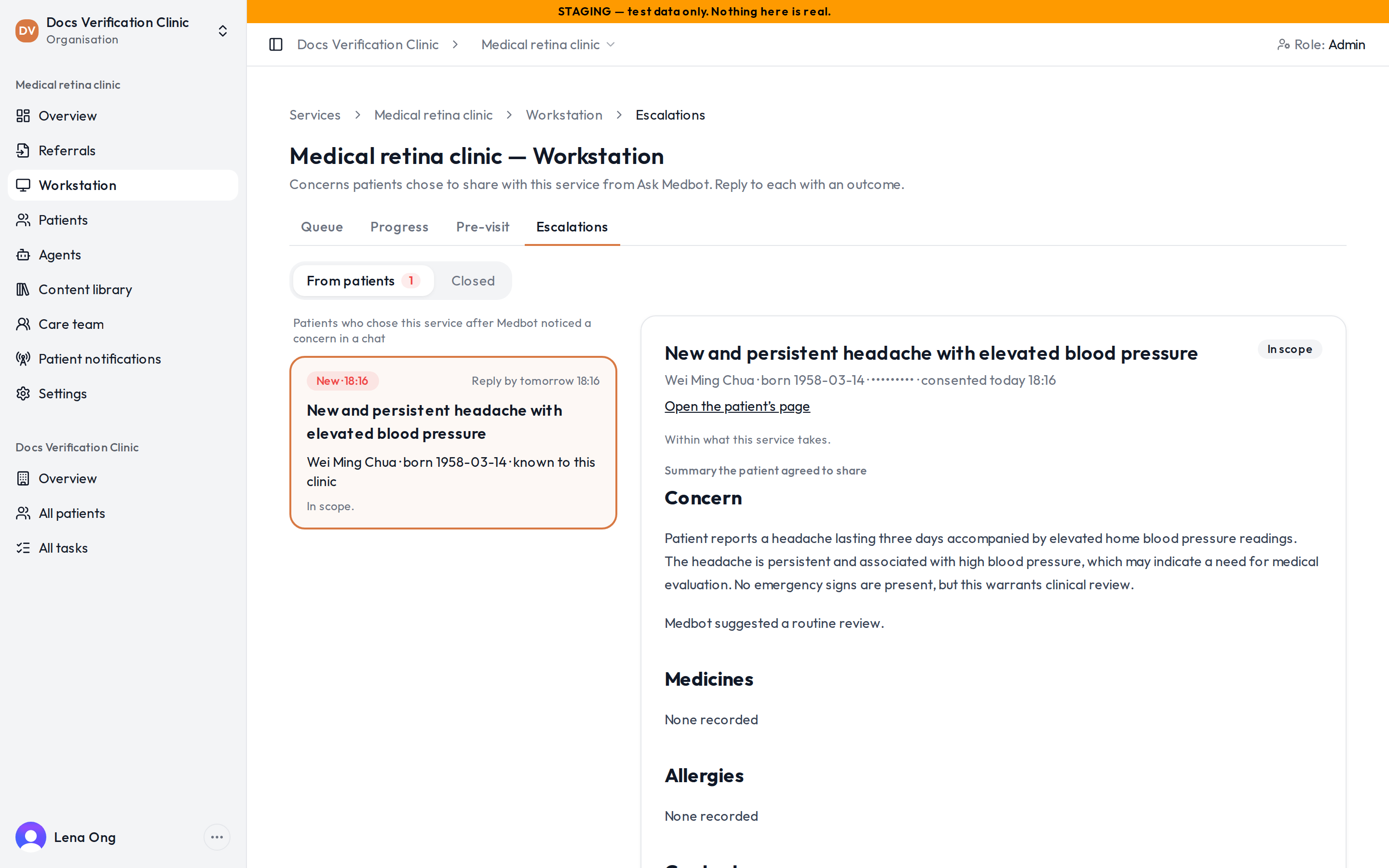
The Workstation’s Escalations tab (available in every mode of care) has two lists: From patients (with a count) and Closed (the last 30 days). Each item shows the patient, whether they are known to this clinic or new to it, whether the concern is In scope or outside the service’s scope, and your reply promise (“Reply by …”, or “Reply overdue since …”).
Open an item to see a timeline: the patient consented and sent it from Ask Medbot, anything they added, who took it, and the outcome. If the patient withdraws it, the item says not to contact them about this concern.
- Click Take this one.
- Choose an Outcome: Book an appointment at this clinic, Suggest another service, Advise the emergency department or No action needed.
- For Suggest another service, pick the service (the list only includes services that take escalations).
- Write a message to the patient.
- Click Send outcome to patient.