IVF & Assisted Reproduction
This guide sets up a fertility centre in Medbot CMS from nothing and then walks through every IVF feature, from the cycles board to the patient’s My cycle in the patient app. It runs in a demo organisation with synthetic patients, so you can follow it on your own or use it to show Medbot to a clinic.
By the end you will have:
- a demo organisation, with you as its administrator
- an IVF and assisted reproduction demo service
- the Orchard Fertility Centre demo set: fourteen treatment cycles at every stage, a care team of four, and a sign-in for every staff member and patient
Preview. IVF cycle tracking is still a preview. Its clinical content, including doses, thresholds and red-flag wording, has not yet been reviewed by a clinician. The demo protocols say so (“DEMO ONLY: … No clinician has reviewed these values”). Do not use them for real patients.
Synthetic data only. Demo patients have no real phone, email or ID number, and their addresses say “(demo address)”. Nothing is ever sent to them. A demo organisation cannot hold real patients or staff. See A demo organisation is sealed.
Before you start
- Who can do it. Anyone signed in to Medbot CMS. You do not need to belong to an organisation, and the demo organisation does not count towards the one organisation you may create.
- What you need. A browser for Medbot CMS, and a second browser profile or private window for the patient app, so you can be signed in as a staff member and a patient at the same time.
- How long it takes. About five minutes to set up. Loading the fourteen patients takes a few minutes more and runs in the background.
- The demo day. The patients are dated relative to the day you load them, so their story is always current. “Today” in this guide is the day you load the set. Load it on the morning of a demonstration so that “tonight”, “tomorrow” and “this week” mean what they say.
Step 1: Create a demo organisation
You can create the demo organisation in either of two places.
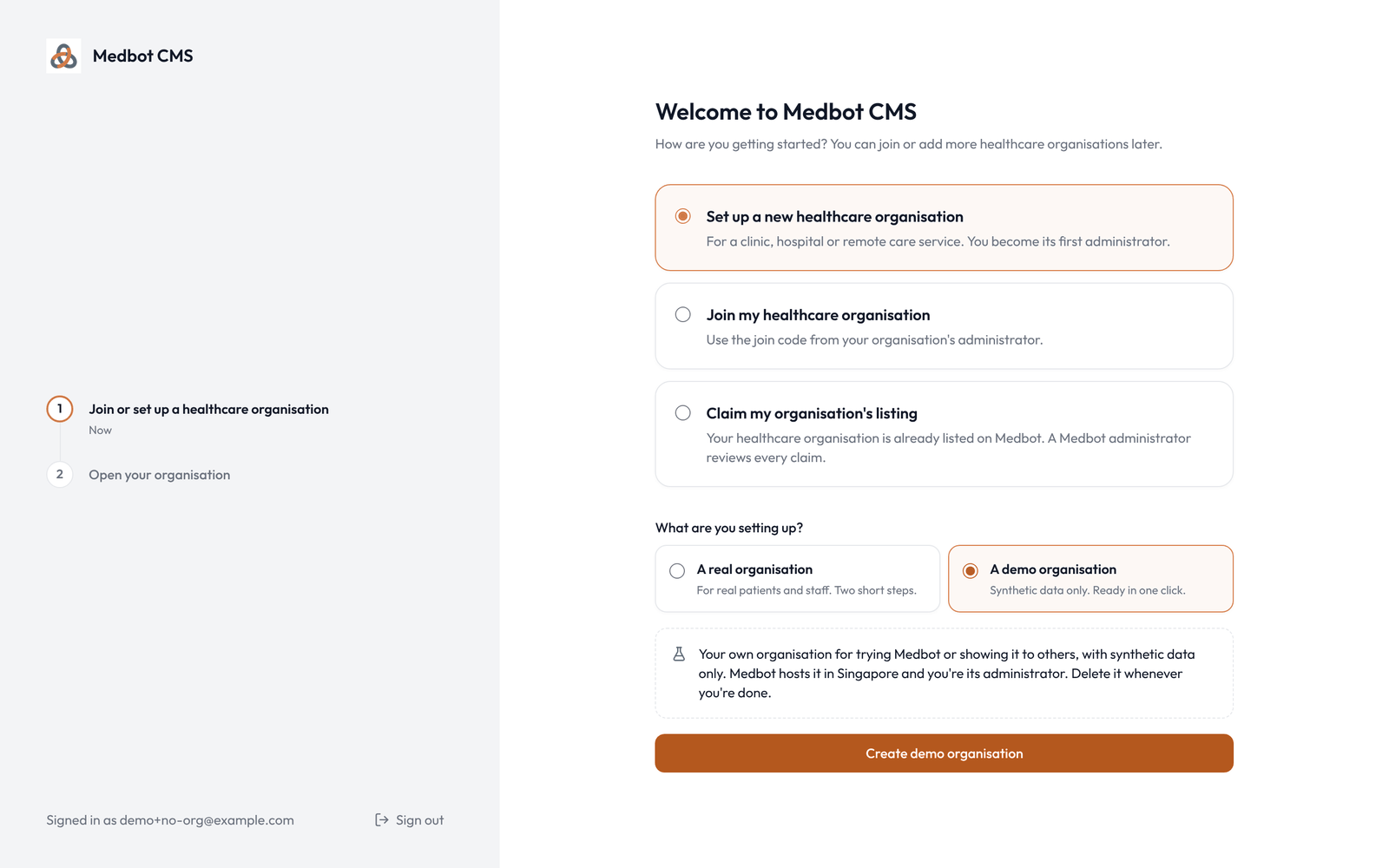
When you first sign in, with no organisation yet:
- On Welcome to Medbot CMS, keep Set up a new healthcare organisation.
- Under What are you setting up?, choose A demo organisation (“Synthetic data only. Ready in one click.”).
- Click Create demo organisation.
If you already belong to an organisation:
- Open the context switcher at the top of the sidebar and select Manage organisations.
- On the dashed Demo organisation card, click Create demo organisation. The card also links to these step-by-step guides.
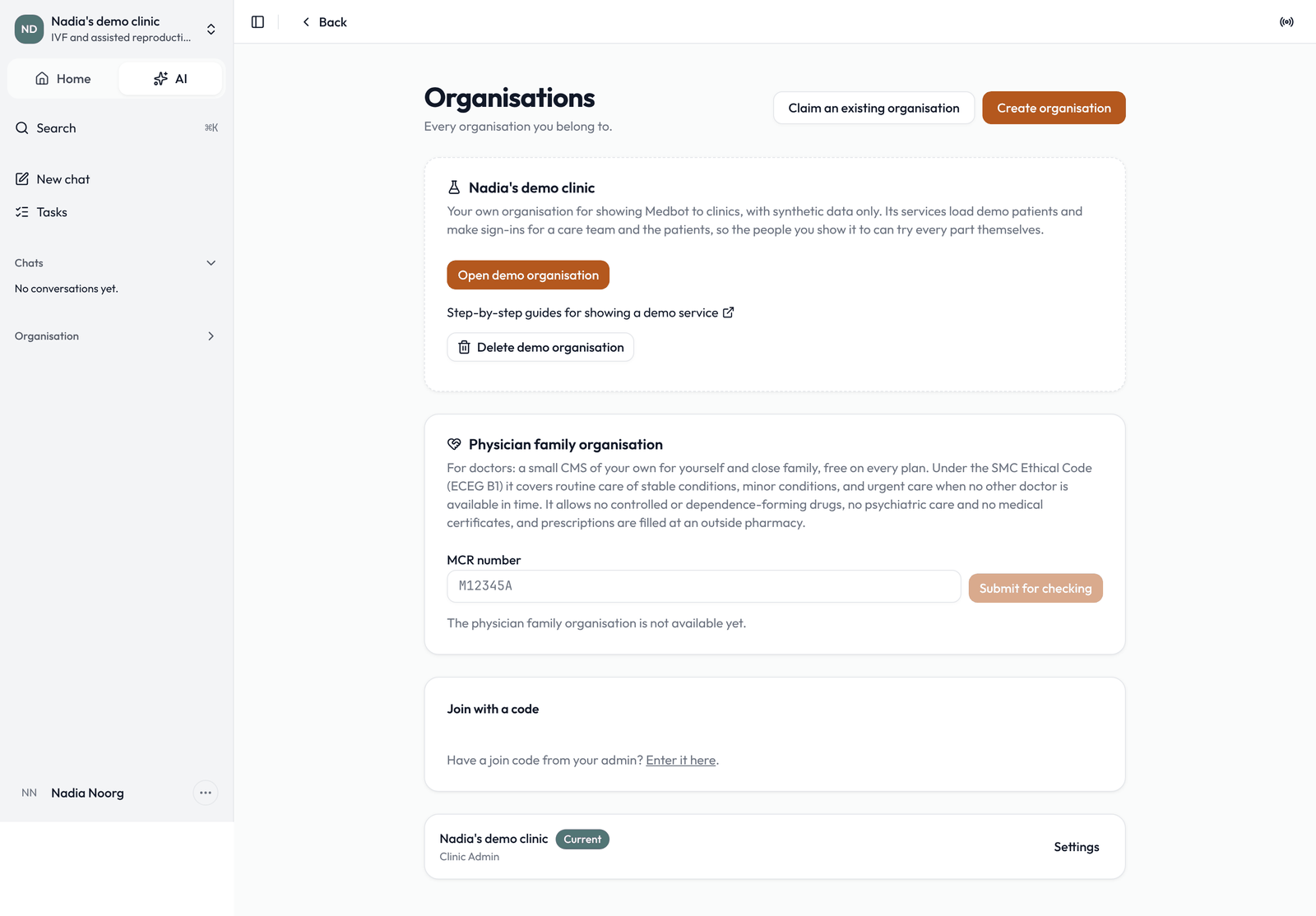
Medbot makes the organisation in Singapore, with you as its first administrator, and switches you into it. It is named after you, for example “Nadia’s demo clinic”. You can have one demo organisation at a time. If you already have one, the same buttons read Open demo organisation. For more, see Your demo organisation.
Step 2: Create the IVF demo service
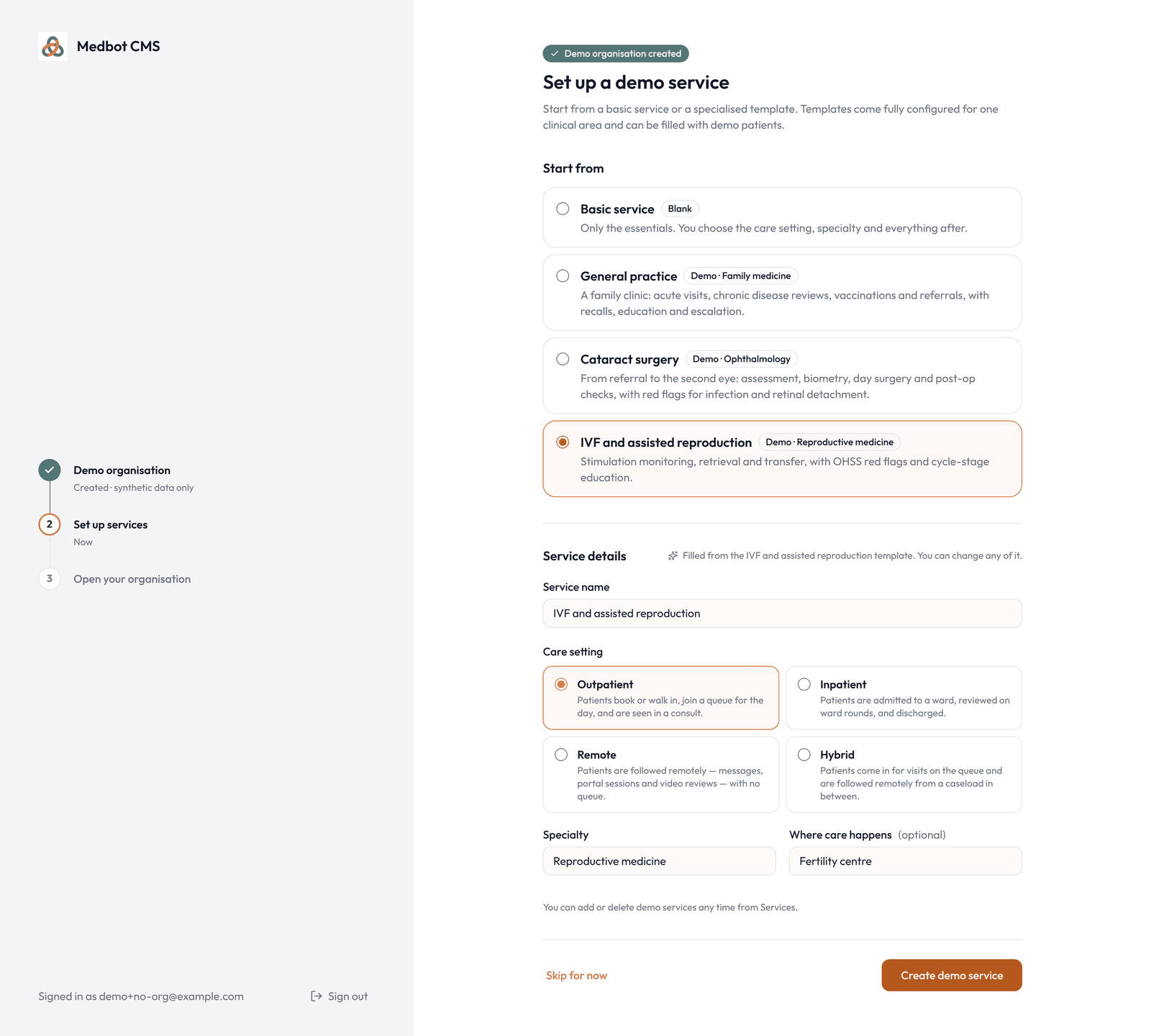
Straight after the demo organisation is made, the first-sign-in flow asks you to Set up a demo service.
- Under Start from, choose IVF and assisted reproduction (Demo · Reproductive medicine): “Stimulation monitoring, retrieval and transfer, with OHSS red flags and cycle-stage education.”
- Under Service details, the template fills in the Service name (IVF and assisted reproduction), the Care setting (Outpatient), the Specialty (Reproductive medicine) and Where care happens (Fertility centre). Change any of them if you like, for example name it “Orchard Fertility Centre”.
- A Step-by-step guide card links back to this page.
- Click Create demo service.
If you skipped this step, or want a second IVF service later, open the context switcher, select All services and click New Service. Choose the IVF and assisted reproduction card, then Create from template. See Create a service from a template.
The template sets up the service’s protocols and instructions, referral criteria, the patient agent, education and red flags for:
- OHSS after the trigger or egg retrieval
- trigger injection errors
- bleeding or pain
It also sets up the visit steps Ultrasound scan, Hormone blood test and Nurse call with plan.
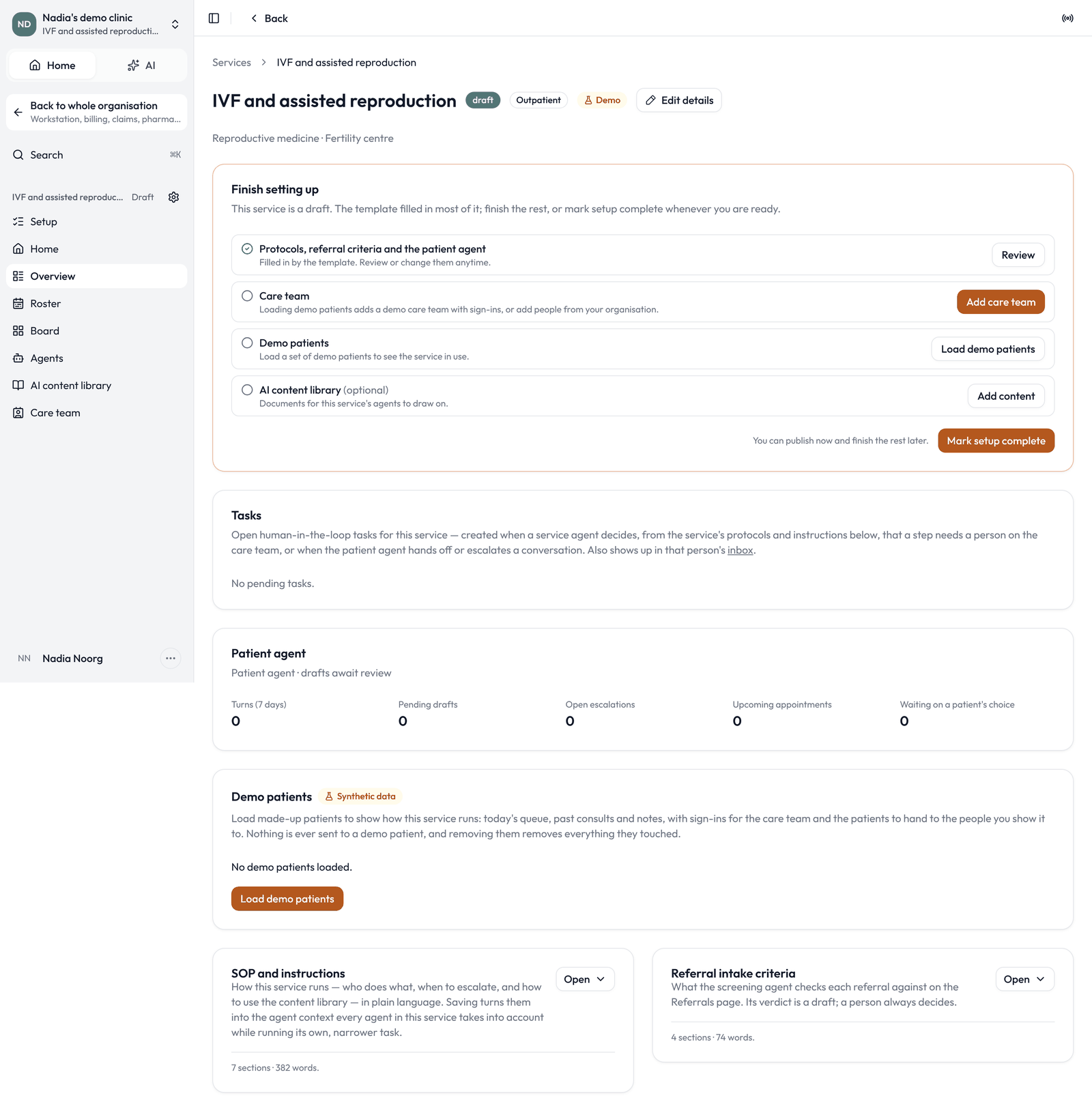
The service opens on its page as a draft, with a Demo chip. The Finish setting up card lists what is left: the care team and the patients. Loading the demo patients does both.
Step 3: Load the Orchard demo patients
- On the service’s Overview, click Load demo patients, either in the Finish setting up card or in the Demo patients panel.
- In Load demo patients, the only set for this template is selected: Orchard Fertility Centre: fourteen cycles (Bundled).
- All fourteen patients are ticked. Leave them all ticked: the board’s numbers in this guide assume the full set.
- Click Load 14 patients.
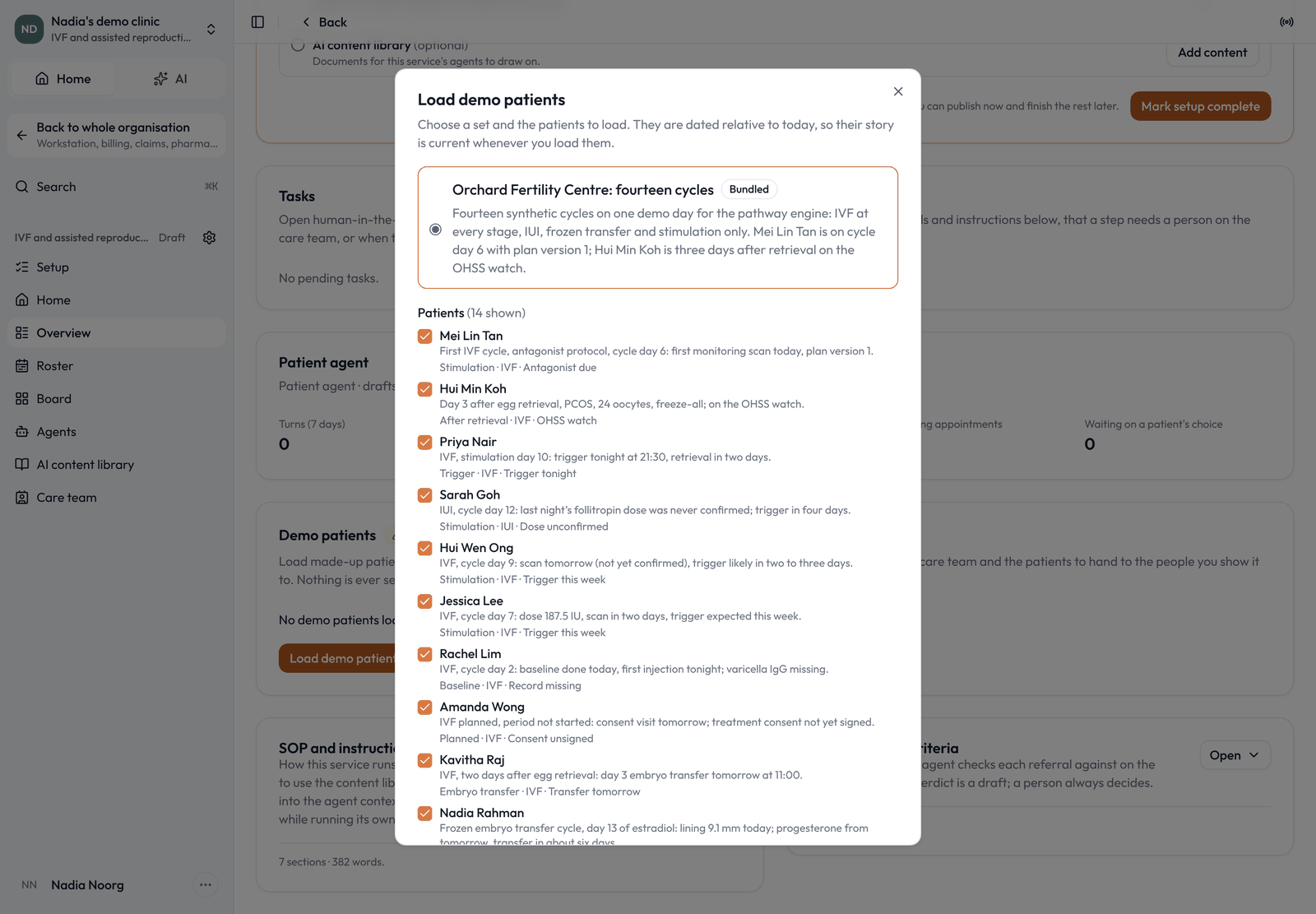
The panel shows progress (“Loading demo patients — 4 of 14 ready.”) and ends with “14 demo patients loaded.” You can leave the page while it runs. Only the service’s owner or an organisation admin can load, reset or remove demo patients.
What the load sets up
Besides the patients’ charts, appointments, notes and portal records, loading the Orchard set:
- Turns on IVF cycle tracking for this service. The service gains a Protocols page, a Cycles tab on its Workstation and a Cycle part on each patient’s page. A reset turns it off again.
- Adds the care team, with sign-ins (below).
- Creates Dr Lim’s protocols: Antagonist protocol (Dr Lim) version 2, which superseded version 1, plus derived IUI, Frozen embryo transfer and Stimulation only protocols. All are shared with the nurse.
- Fills in the clinic calendar, if the organisation has none: opening hours and capacity (6 egg retrievals and 12 scans a session), and a day of leave for Dr Lim on the first Saturday at least three days ahead.
- Adds fertility medicines to the formulary, such as follitropin alfa and cetrorelix, so dictated doses can be checked against it.
- Sets the service’s message approval policy, if it has none, so a nurse approves each plan-change message before the patient sees it.
- Links a partner to every cycle, so the partners’ screening counts on the readiness checklist.
- Runs the rule engine, so every flag you see was raised by Medbot’s rules, not typed in.
- Writes the first weekly review pack.
The demo sign-ins
The load also makes an account for every member of the care team and every patient, listed under Demo sign-ins in the panel. Every account signs in with the one password shown at the top, two words and four digits such as clover-mint-3867. Copy all copies the password and every address, with where each signs in, so you can paste them into a message to the people you are showing.
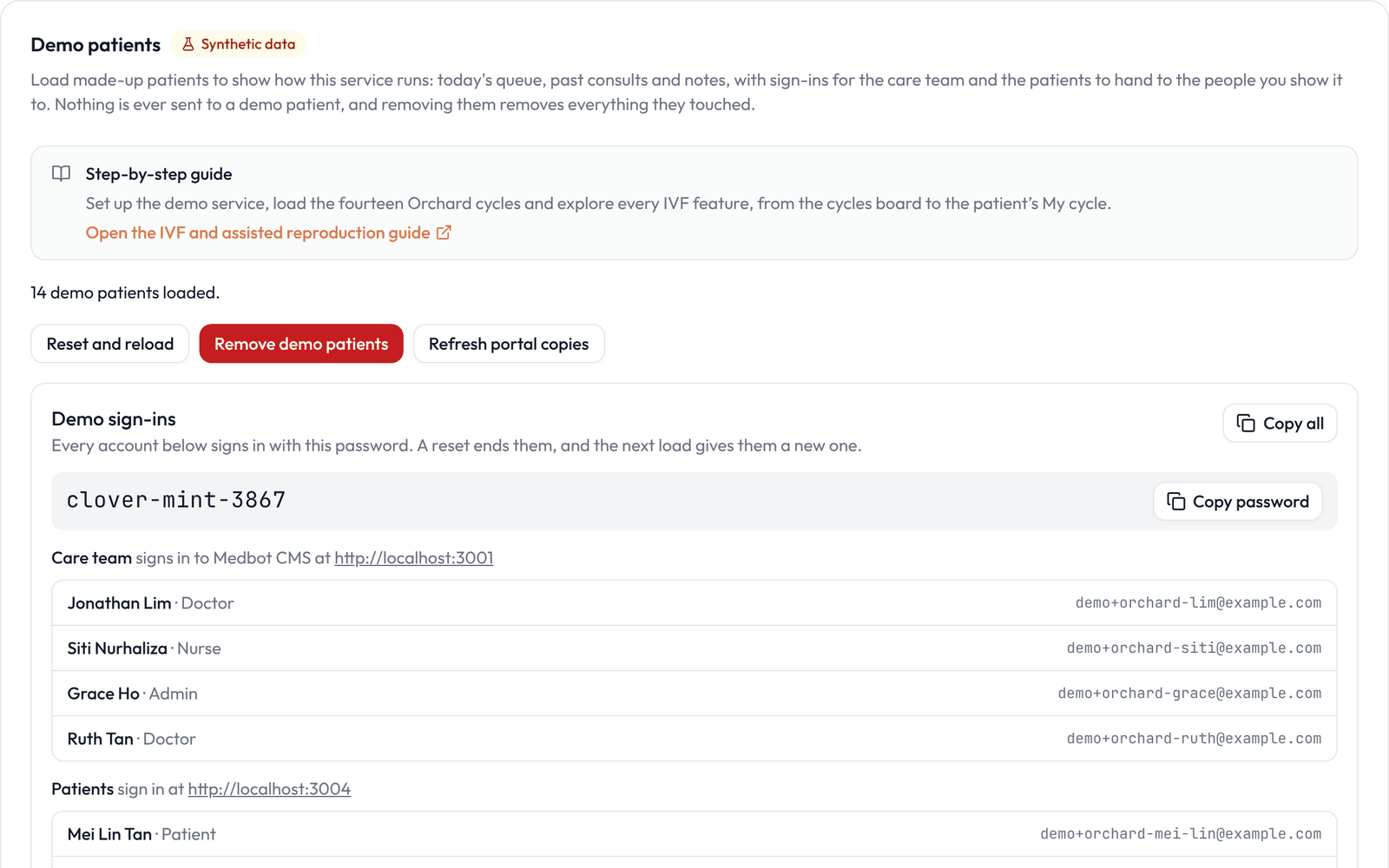
The addresses are plus-addresses of your own email, so anything sent to the care team reaches you. The care team signs in to Medbot CMS. The patients sign in to the patient app.
| Sign in as | Role | Use them to show |
|---|---|---|
Dr Jonathan Lim (you+orchard-lim@…) | Doctor, lead | Owns the protocols and every cycle. Teaches protocols, dictates and approves plans, signs medication orders, handles red flags. |
Siti Nurhaliza (you+orchard-siti@…) | Nurse | The nurse on duty. Can use Dr Lim’s protocols but not change them. Records period starts, confirms schedules, files scans and results, approves messages to patients, works the Tomorrow list. |
Grace Ho (you+orchard-grace@…) | Admin | The organisation’s AI policy, where its data lives, and patients’ audit logs. |
Dr Ruth Tan (you+orchard-ruth@…) | Doctor | A second doctor with no access to Dr Lim’s protocols: their protocol library is empty. |
You, the person who loaded the set, are the service’s owner and an organisation admin.
The fourteen cycles
Each patient is at a different point in treatment. These are the ones the rest of this guide uses most:
| Patient | Cycle | Where she is today | Use her to show |
|---|---|---|---|
| Mei Lin Tan, 34 | IVF, antagonist | Cycle day 6, first monitoring scan today (lead follicle 13 mm, E2 1,840 pmol/L). Varicella immunity missing. | Needs attention, the readiness checklist, the stimulation chart, a dictated plan change, signing orders, the message to the patient, tonight’s doses |
| Hui Min Koh, 33 | IVF, freeze-all | Three days after egg retrieval, 24 eggs, on the OHSS watch | OHSS watch, red flags from the patient app, escalations |
| Sarah Goh, 33 | IUI | Cycle day 12, last night’s dose never confirmed | Dose unconfirmed and the nurse’s follow-up task |
| Amanda Wong, 29 | IVF, planned | Period not started, consent not signed | Recording the period start, the proposed schedule, dictating a starting plan, a blocking checklist item |
| Priya Nair, 36 | IVF | Trigger tonight at 21:30, retrieval in two days | Trigger likely this week |
| Rachel Lim, 35 | IVF | Cycle day 2, first injection tonight, varicella immunity missing | Missing records, a visit the patient has not confirmed |
| Kavitha Raj, 37 | IVF | Embryo transfer tomorrow at 11:00 | The Tomorrow list |
The other seven fill the board: Hui Wen Ong and Jessica Lee (IVF, trigger likely this week), Nadia Rahman and Li Ting Koh (frozen embryo transfer), Grace Chua (two-week wait, pregnancy blood test in two days), Aisyah Binte Omar (IUI, home pregnancy test in ten days) and Michelle Teo (stimulation only, first scan in three days).
Publish the service (optional)
The service works as a draft. To publish it, click Mark setup complete in the Finish setting up card.
Step 4: Explore the IVF features
Each section below follows one feature, using the patient whose story shows it best. You can work through them in order, or jump to the one you want to show. Most of it happens as Dr Lim and Siti, so keep two browser profiles signed in to Medbot CMS, one for each, and a third, phone-sized, for the patient app.
| Part | Sign in as | Where |
|---|---|---|
| The cycles board | Dr Lim or Siti | Workstation → Cycles |
| Protocols | Dr Lim, then Dr Ruth Tan | The service’s Protocols page |
| A patient’s cycle | Dr Lim | Mei Lin Tan → Cycle |
| Change the plan | Dr Lim, then Siti | Mei Lin Tan → Cycle, then Notifications |
| Doses at home | Mei Lin Tan (patient app), then Siti | My cycle, then Sarah Goh in Notifications |
| A new cycle starts | Amanda Wong (patient app), then Siti and Dr Lim | My cycle, then Amanda Wong → Cycle |
| Monitoring scans and results | Siti | Mei Lin Tan → Photos and Results |
| The patient’s My cycle | Mei Lin Tan (patient app) | My cycle |
| Red flags and escalations | Hui Min Koh (patient app), then Siti and Dr Lim | Log → Log a symptom, then the board and Notifications |
| The cycle summary | Dr Lim or Siti | Mei Lin Tan → Cycle |
| Oversight: AI policy, data and audit | Grace Ho | AI policy, organisation settings, a patient’s Audit log |
Signing in as the cast
- Care team: go to Medbot CMS, sign in with the address from Demo sign-ins and the password. On the welcome screen, choose the demo organisation and the IVF and assisted reproduction service. Doctors and nurses land on the service’s Workstation.
- Patients: go to the patient app and sign in the same way. Every screen carries an amber Demo patient banner: “A synthetic record for a demonstration. Nothing here is real.”
The cycles board
The Cycles tab of the service’s Workstation puts every running cycle on one board. Open it as Dr Lim: Workstation → Cycles. It has three views: Board, Tomorrow and Weekly review. The header links to How the Cycles tab works, this section.
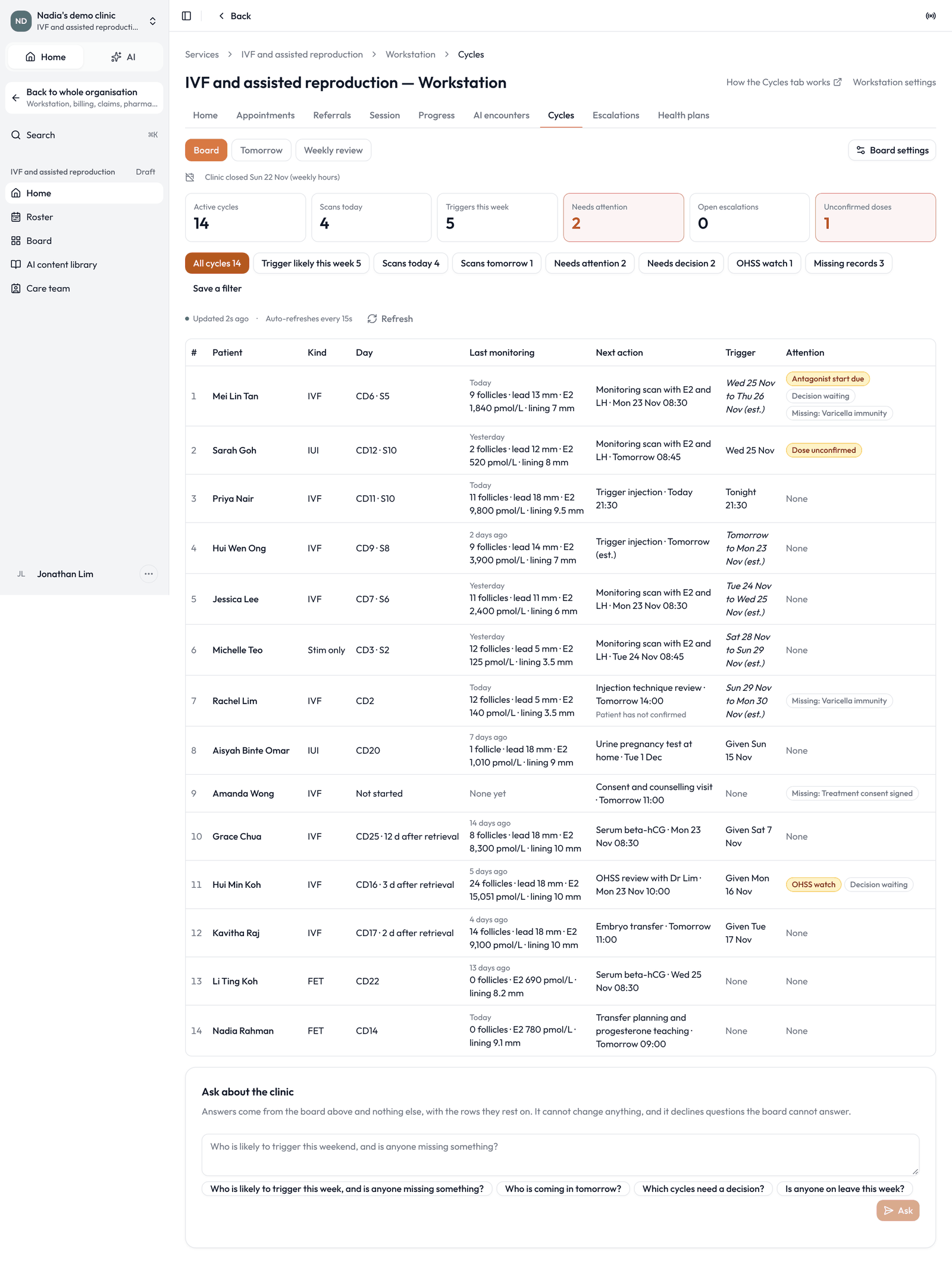
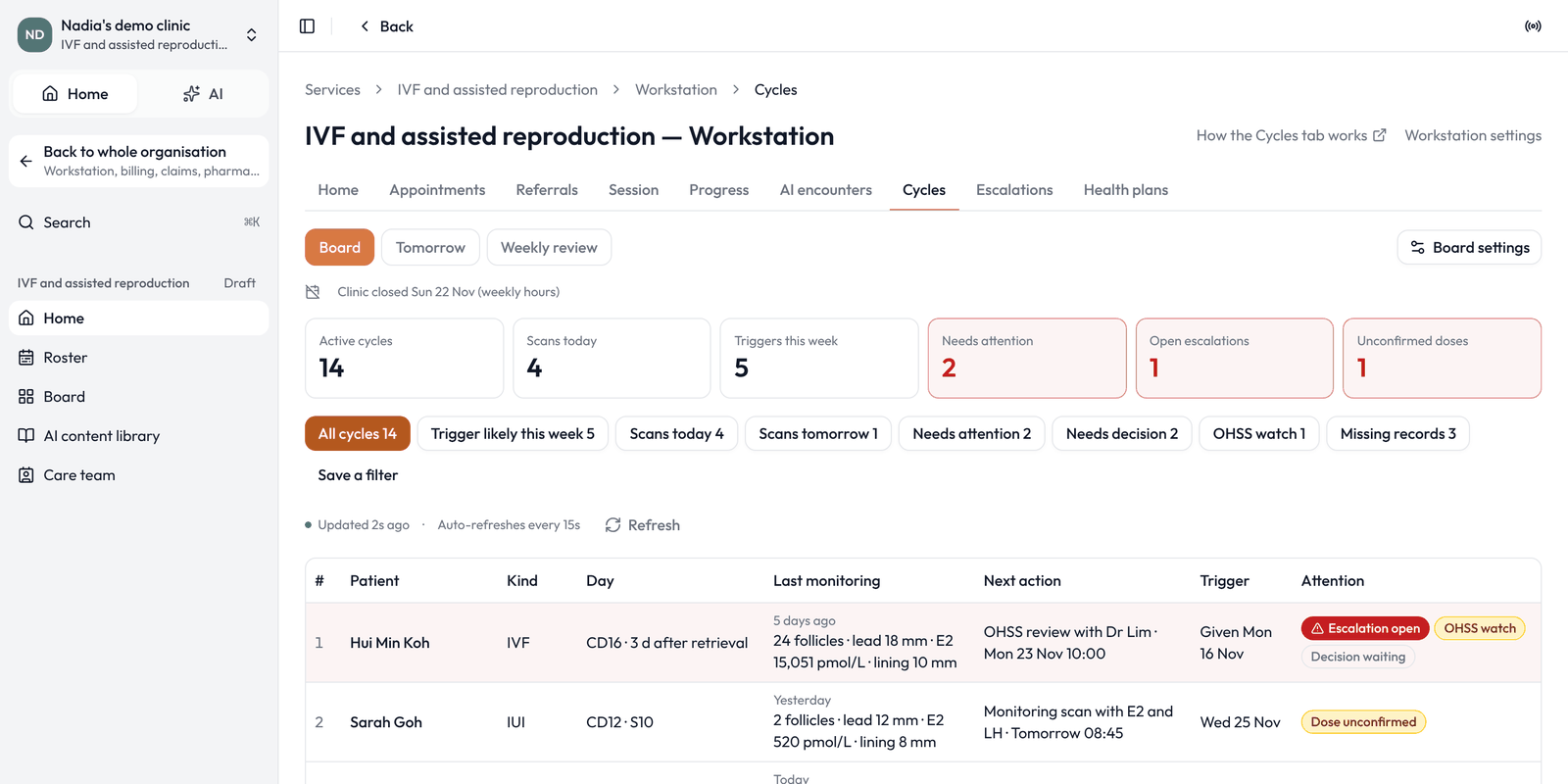
The tiles count the day at a glance: Active cycles (14), Scans today, Triggers this week (5), Needs attention (2), Open escalations (0) and Unconfirmed doses (1). Click Active cycles, Scans today, Triggers this week or Needs attention to filter the board by it. A count that needs action shows in red. A note above the tiles says when the clinic is closed, for example “Clinic closed Sun 22 Nov (weekly hours)”.
The filter chips narrow the board: All cycles, Trigger likely this week, Scans today, Scans tomorrow, Needs attention, Needs decision, OHSS watch and Missing records. Save a filter keeps your own combination, such as “trigger within 3 days and missing records”, for everyone in the clinic.
Try these with the Orchard set:
- Needs attention shows Mei Lin Tan (Antagonist start due: her lead follicle reached 13 mm on day 6 and no antagonist dose is planned for tonight) and Sarah Goh (Dose unconfirmed). A cycle needs attention when it has an unacknowledged warning or an open escalation.
- OHSS watch shows Hui Min Koh. Dr Lim has already acknowledged her watch, so it stays on her row but does not count as needing attention.
- Missing records shows Mei Lin and Rachel Lim (varicella immunity) and Amanda Wong (treatment consent).
- Trigger likely this week shows the five patients due to trigger in the next seven days.
Each row shows the patient, the Kind (IVF, IUI, FET or Stim only), the cycle and stimulation Day (“CD6 · S5”), the Last monitoring (follicles, lead follicle, E2 and lining), the Next action, the Trigger date (an estimate is marked “(est.)”) and the Attention badges, most urgent first. Board settings chooses the columns and the weekly review schedule.
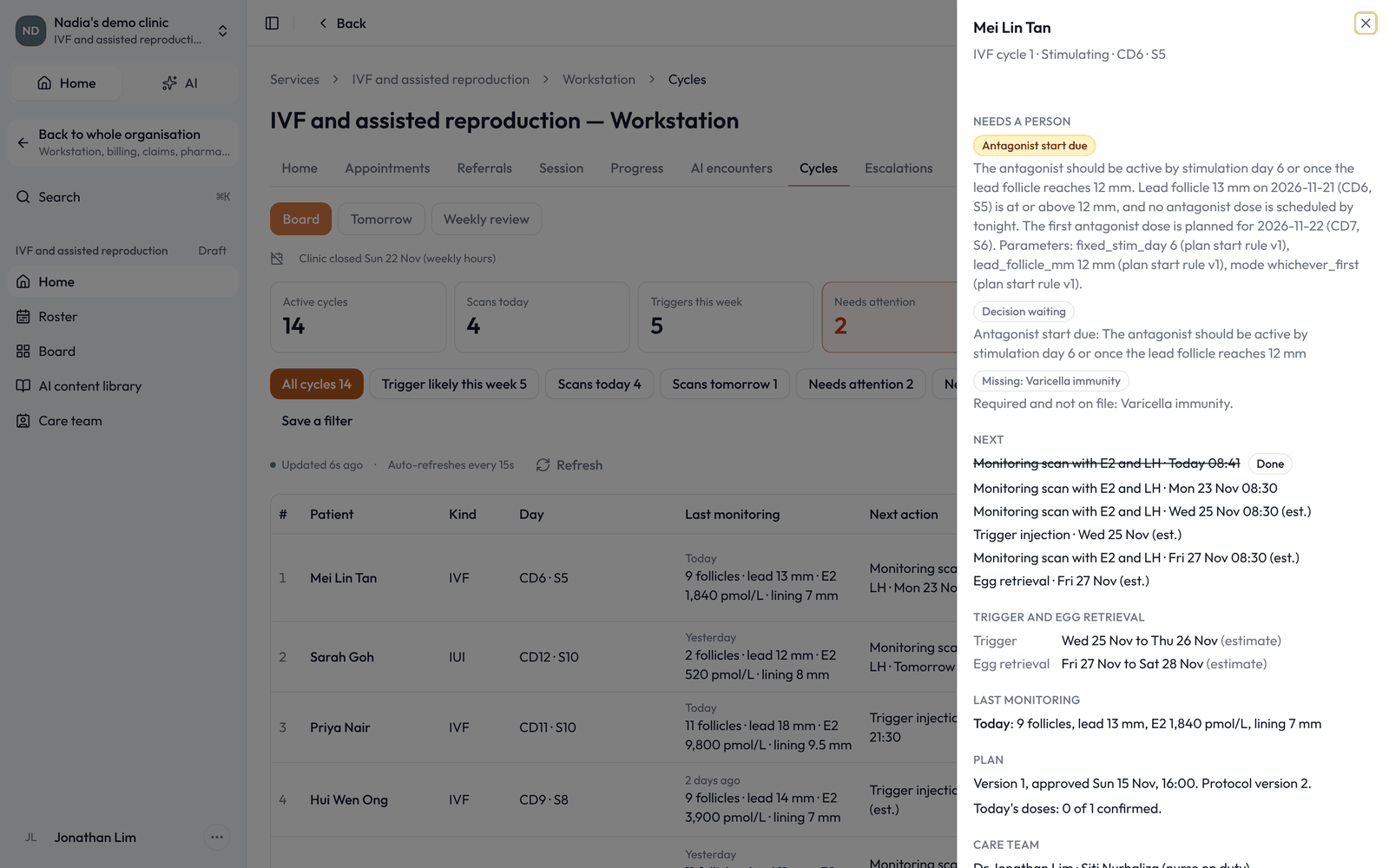
Click a row to open its side sheet. For Mei Lin it explains, in full, why the antagonist is due, lists what is next (scans, the estimated trigger and egg retrieval), her last monitoring, the plan in force (“Version 1, approved … Protocol version 2.”, “Today’s doses: 0 of 1 confirmed.”) and the care team. Open the patient’s cycle takes you to her chart.
Tomorrow
Tomorrow is the nurse’s list for the next clinic day: who is coming in, for what, at what time, and whether they have confirmed. It names the Nurse on duty (Siti Nurhaliza). The tiles count Patients coming, Visits, Not yet confirmed and With something to sort out.
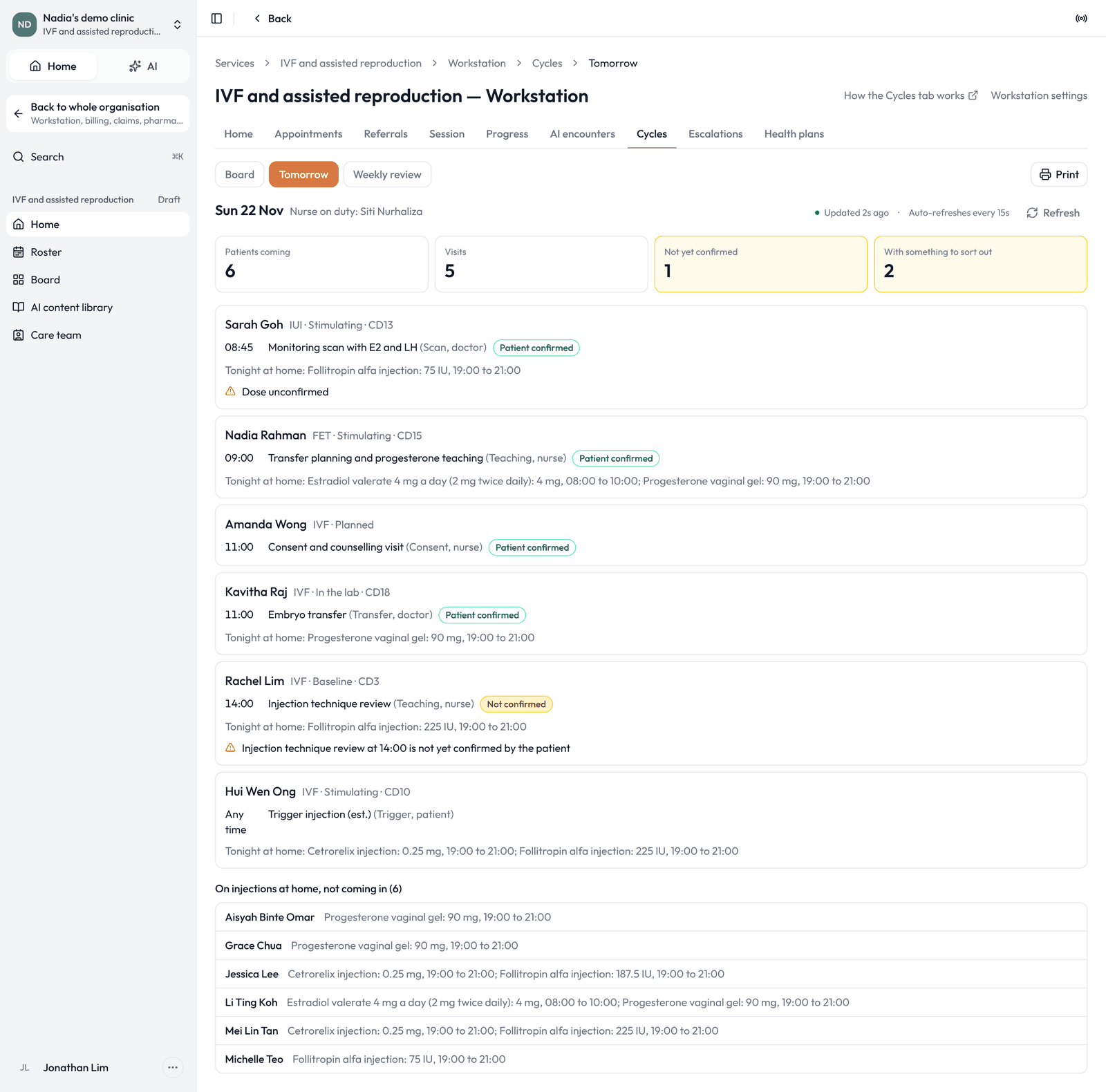
Each card shows the visit with Patient confirmed or Not confirmed, what the patient injects tonight at home, and anything to sort out first, such as Sarah’s Dose unconfirmed or “Injection technique review at 14:00 is not yet confirmed by the patient” for Rachel. On injections at home, not coming in lists everyone else with doses tonight. Print gives a paper copy for the morning huddle.
Weekly review
Weekly review holds the Clinical review pack for the weekly meeting: Needs discussion, Active cycles, Missing checklist items, Open issues, Deviations from the plan, This week, Outcomes pending and Clinic calendar, with every line pointing to its row of the board as it stood when the pack was written. The load writes the first pack. Write a pack now writes another (tick Include the model summary for a short narrative written by the AI and checked against the board), and Board settings writes one on a schedule.
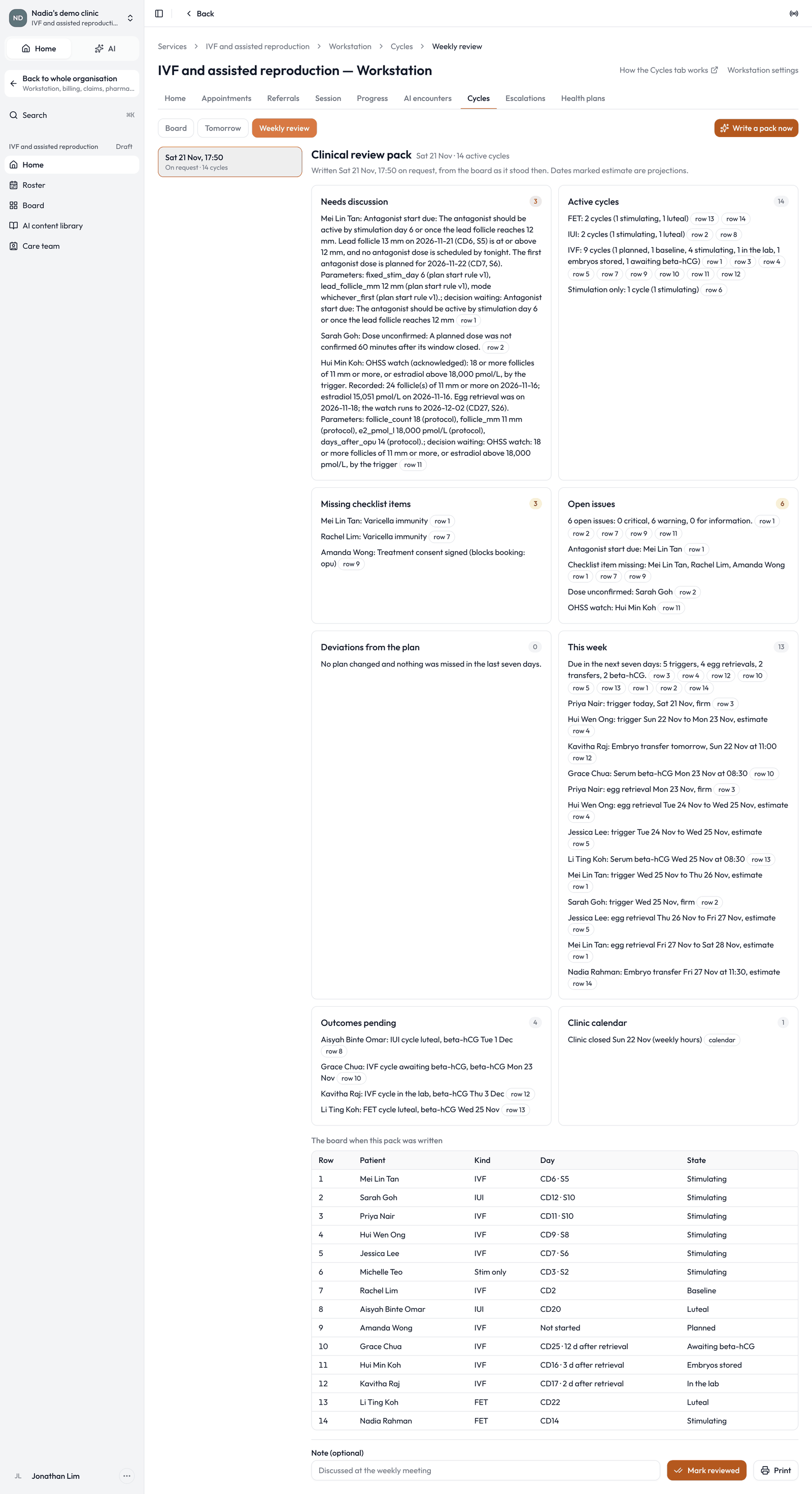
At the meeting, add a Note (optional) such as “Discussed at the weekly meeting” and click Mark reviewed. Print prints it.
Ask about the clinic
Below the board, Ask about the clinic answers questions from the board and nothing else, with the rows each answer rests on. Try the suggestions: “Who is likely to trigger this week, and is anyone missing something?”, “Who is coming in tomorrow?”, “Which cycles need a decision?” or “Is anyone on leave this week?”. It cannot change anything, and it declines questions the board cannot answer. It uses the organisation’s AI policy.
Protocols
A protocol is its doctor’s own. Open the service’s Protocols page (the Protocols button in the service’s header) as Dr Lim. The library lists Antagonist protocol (Dr Lim) at v2 approved, and the derived Frozen embryo transfer, IUI and Stimulation only protocols. Each card shows its owner and who it is shared with (“shared with Siti Nurhaliza (use only)”), how many Prerequisites, Activities, Parameters adopted and Rules adopted it has, and its Versions: version 1 was the conservative baseline, superseded by version 2, on which nine cycles are running.
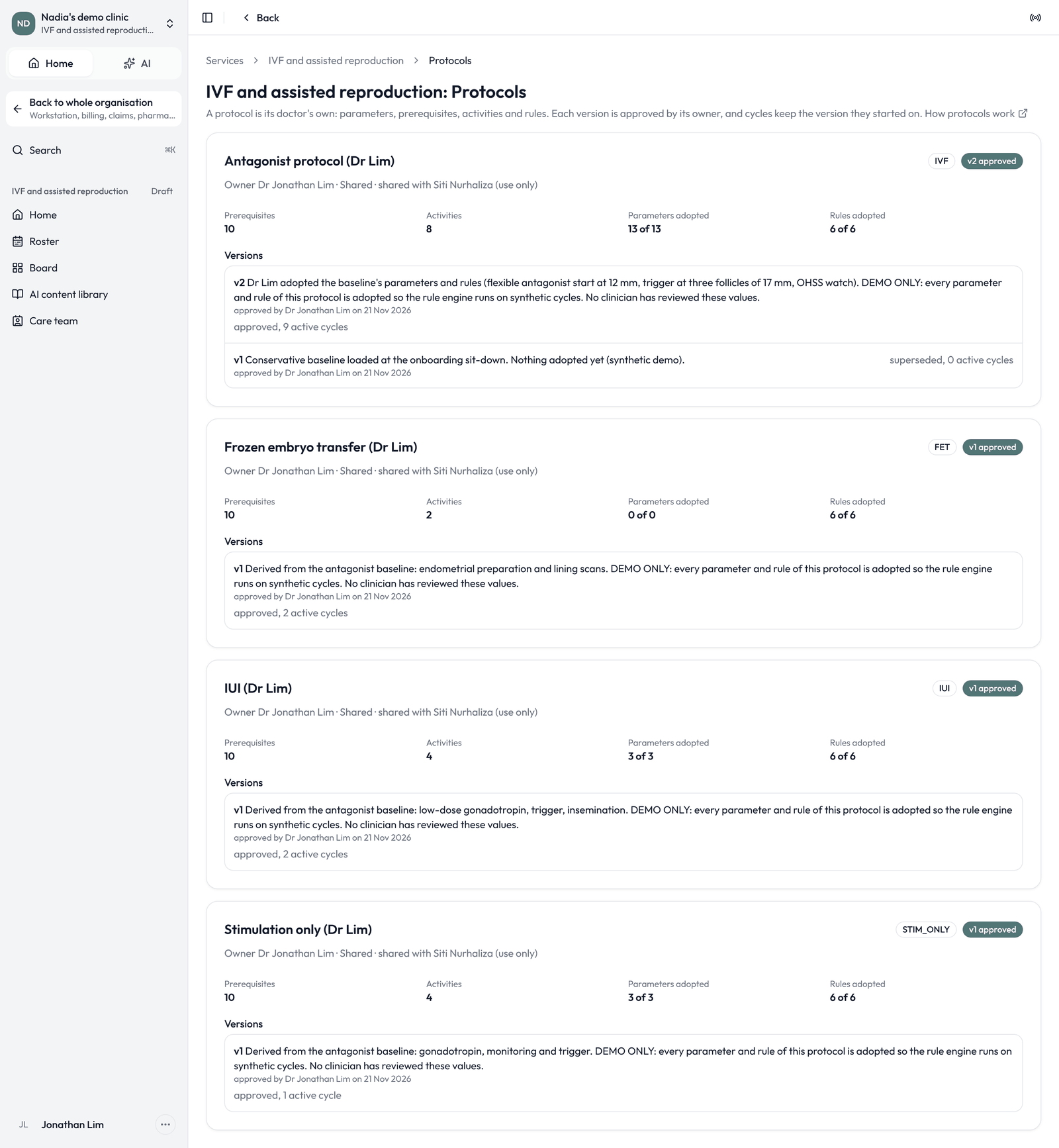
Open Antagonist protocol (Dr Lim) to see:
- Prerequisites, checked against the clinic’s own results for each cycle: HIV, hepatitis B and C and syphilis screening for both partners within six months of egg retrieval, rubella and varicella immunity, AMH, semen analysis, counselling and signed treatment consent. Each says what it blocks, such as “blocks egg retrieval”.
- Activities, placed on the clinic’s calendar when the period starts: the baseline scan, follitropin alfa from stimulation day 1, cetrorelix from stimulation day 6, monitoring scans, the trigger, egg retrieval two days later, progesterone and the pregnancy blood test.
- Parameters, each with its source and who adopted it: for example Antagonist flexible start, lead follicle 12 mm, adopted by Dr Jonathan Lim. “A default is only in force once the owning doctor has adopted it.”
- Rules, which remind and flag against those values: Antagonist start due, Dose not confirmed, Checklist item missing, Trigger criteria met, OHSS watch and Luteal support missing. “A rule that is not adopted is shown as not evaluated, never as passing.”
Teach this protocol
Dr Lim changes his own protocol by saying or typing what changes. In Teach this protocol, type “Start the antagonist at 13 millimeters, not 12.” (or click the microphone and say it), then Read it. Medbot shows each change against version 2, the old value struck through, with its source. Values you did not say are flagged for you to confirm before you approve.
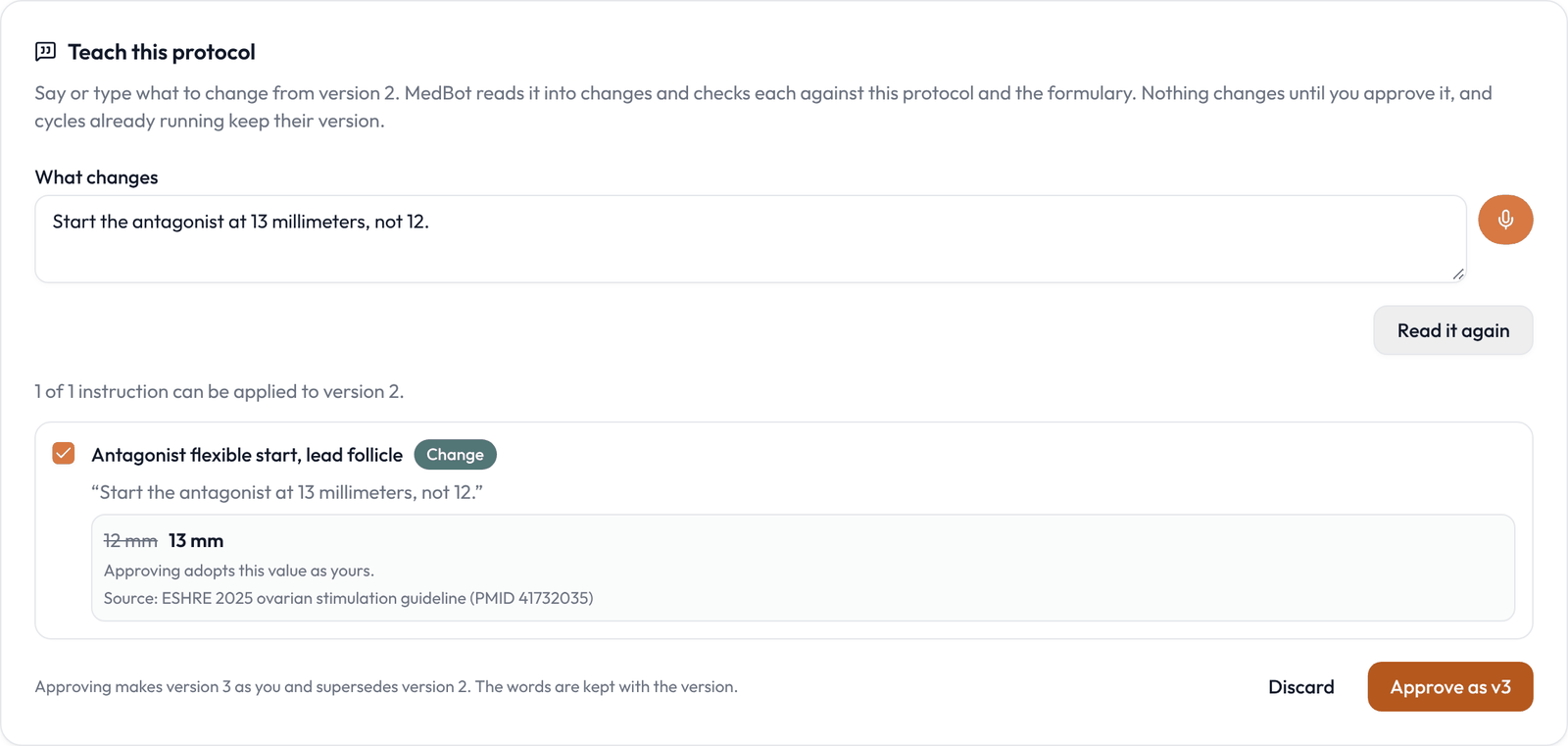
Approve as v3 makes version 3, as Dr Lim, and supersedes version 2. Cycles already running keep the version they started on. Only the protocol’s owner can teach, adopt or approve it. Siti sees “You can use this protocol. Only its owner changes it.”
What another doctor sees
Sign in as Dr Ruth Tan and open Protocols: “No protocol you can use yet”. A protocol is shared only with the people its owner chooses. Dr Tan could start her own with Start from the conservative baseline, in which every default is unadopted until she teaches or adopts it.
A patient’s cycle
Open Mei Lin Tan from the board, as Dr Lim. Her page opens on the Cycle part. Use the expand button at the top of the panel to give it the full width.
Before the consult is what to read before seeing her: the cycle (IVF cycle 1, stimulating, cycle day 6, the protocol and the responsible doctor), the open issues in full, the Plan versions with the doctor’s reason, her Results table (follicles, lead follicle and E2 by date), the estimated trigger and egg retrieval, and anything she Asked the assistant since the last visit.
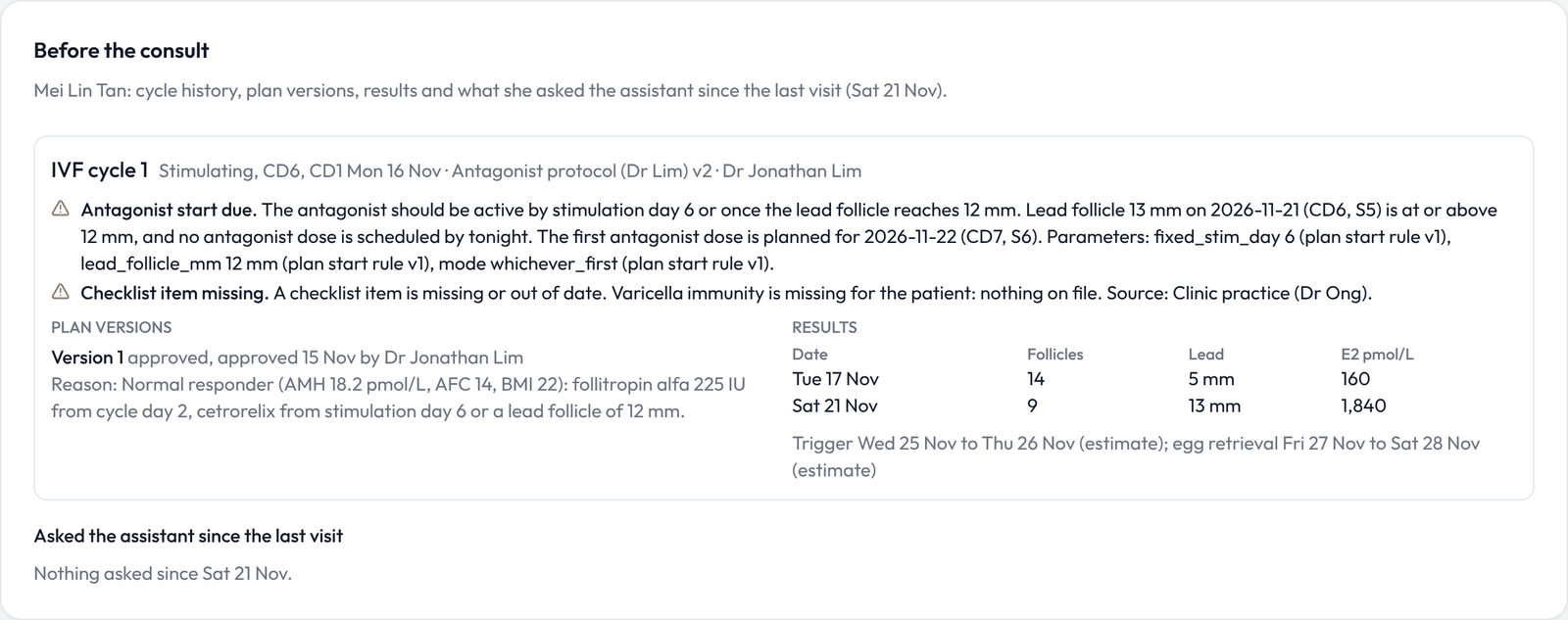
Partner shows her linked partner, Daniel Tan: “The partner’s screening and semen results count toward this cycle’s checklist. Linking does not give them access to the patient’s record.” In a real service, Link partner finds the partner among the clinic’s patients or registers them. In a demo organisation every cycle already has its partner, and no one new can be registered.

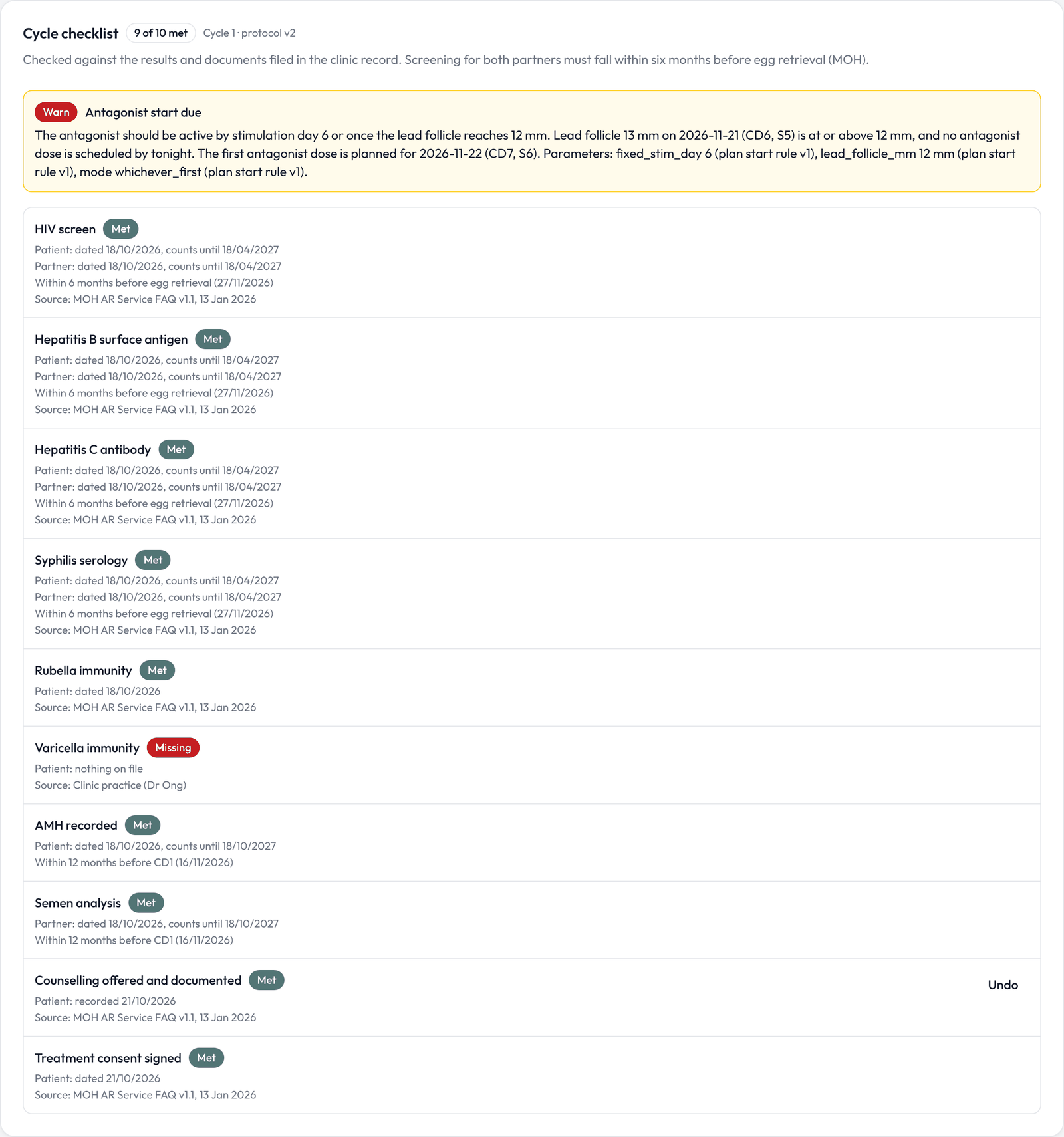
Cycle checklist is the readiness checklist: “9 of 10 met”. Each item says whose result counts (the patient’s, the partner’s or either), its date, how long it stays valid, and its source. Varicella immunity is Missing. An item that blocks a step says so, as Amanda Wong’s does: “Until the items marked below are met, egg retrieval cannot be booked.” The cycle’s warnings, such as Antagonist start due, appear above the list. Doctors, nurses and admins can attest an item such as counselling with Mark as done, and Undo it.
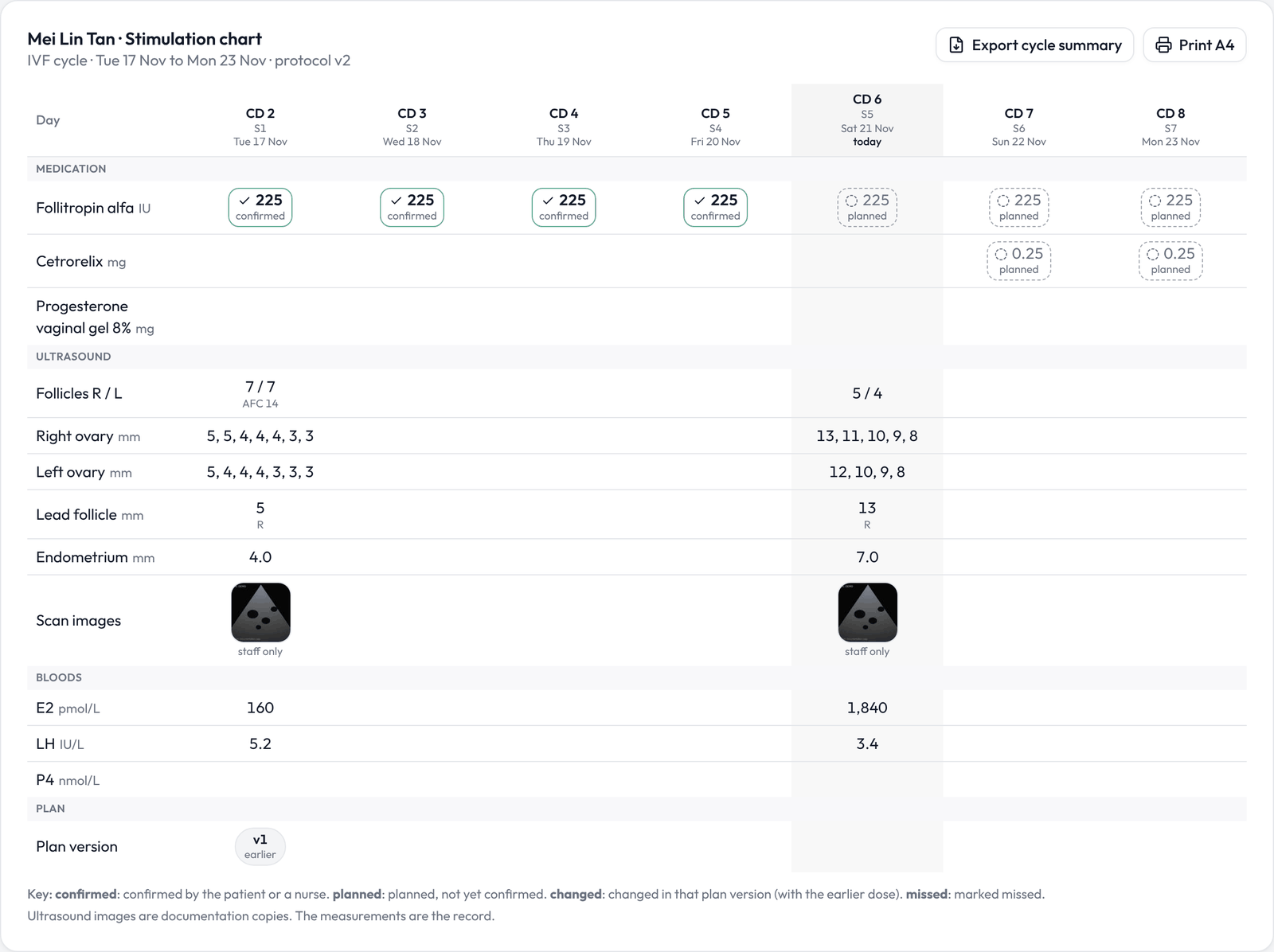
The Stimulation chart lays the cycle out day by day: doses (confirmed by the patient or a nurse, planned, changed or missed), the ultrasound (follicles right and left, each ovary’s follicle sizes, the lead follicle, the endometrium and the scan images), the bloods (E2, LH, P4) and the plan version in force. Today’s column is shaded.
Change the plan
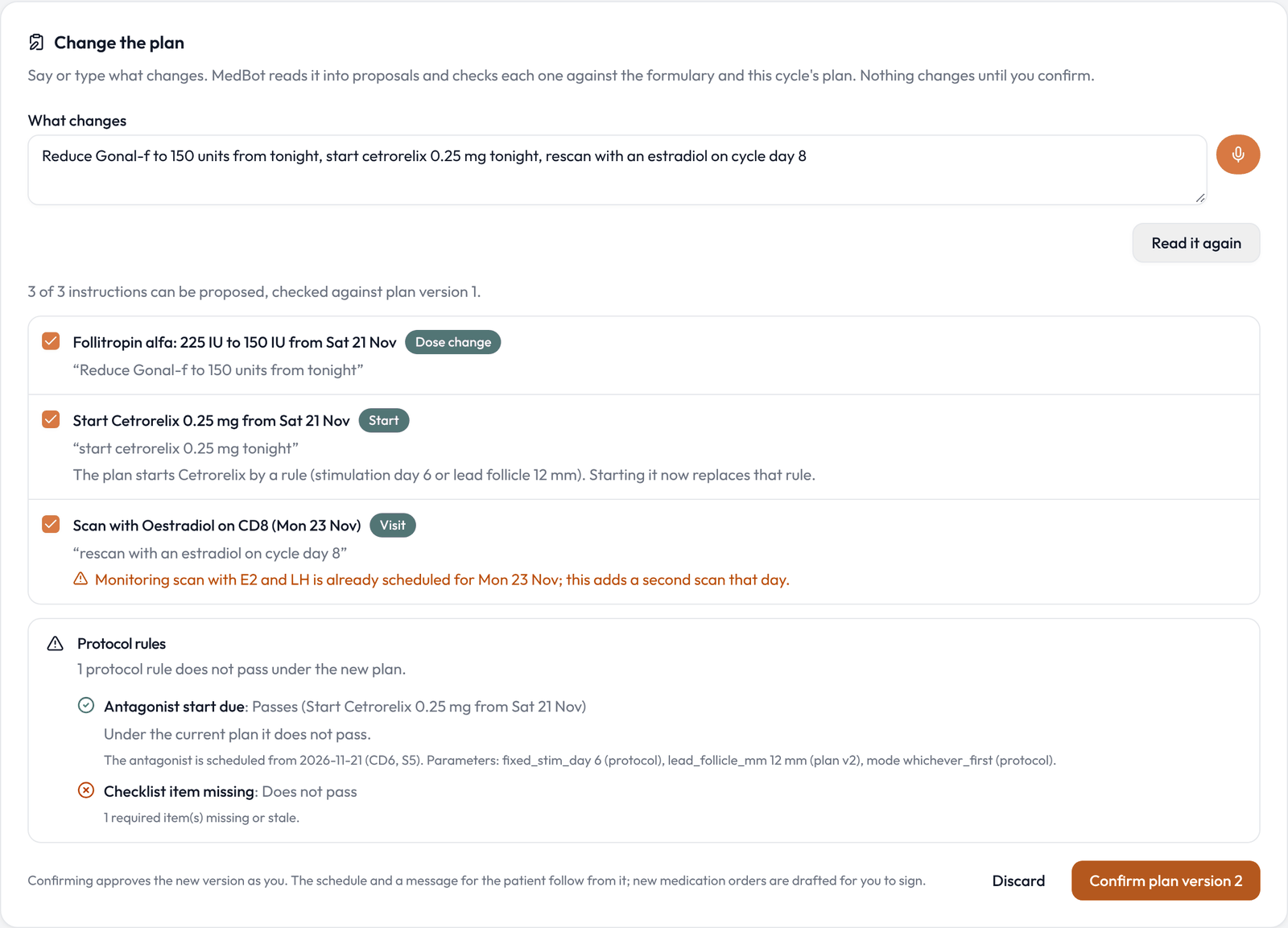
Mei Lin’s scan today shows a 13 mm lead follicle, so the antagonist is due. Dr Lim changes her plan by dictation.
- In Change the plan on her Cycle, type or say: “Reduce Gonal-f to 150 units from tonight, start cetrorelix 0.25 mg tonight, rescan with an estradiol on cycle day 8”.
- Click Read it. Medbot reads it into proposals and checks each against the formulary and her plan: “3 of 3 instructions can be proposed, checked against plan version 1.”
- Dose change: Follitropin alfa 225 IU to 150 IU, from today. Medbot knows Gonal-f is follitropin alfa.
- Start: Cetrorelix 0.25 mg from today, with the note that starting it now replaces the plan’s start rule.
- Visit: a scan with oestradiol on cycle day 8, with a warning that a monitoring scan is already booked that day.
- Protocol rules shows the effect on the rules: Antagonist start due now passes; Checklist item missing still does not (varicella).
- Untick any proposal you do not want, then click Confirm plan version 2.
The card confirms “Plan version 2 is in force” with what changed. From here, Medbot:
- reschedules the rest of the cycle from today and books the new visit
- drafts the medication orders, unsigned, for Dr Lim to sign
- drafts a message to the patient, which is sent according to the service’s message approval policy
Only a doctor can confirm a plan. AI reads the dictation; nothing changes until the doctor confirms, and orders change only when the doctor signs.
Sign the medication orders
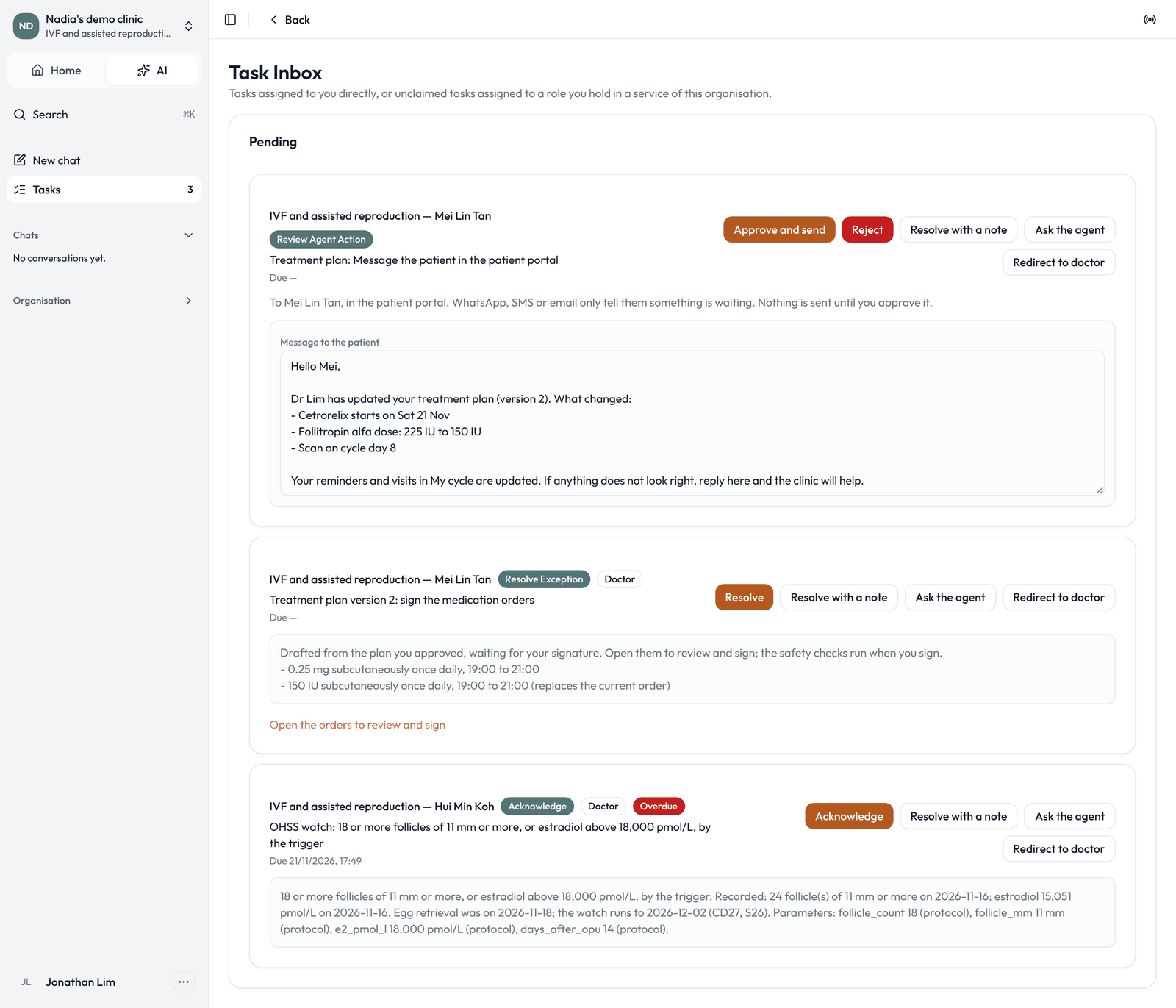
As Dr Lim, open Notifications (the bell at the top of the screen). Treatment plan version 2: sign the medication orders lists the drafted orders: cetrorelix 0.25 mg, and follitropin alfa 150 IU, which replaces the current order.
- Click Open the orders to review and sign. The consult opens with the orders panel listing the Unsigned medications.
- Click Review and sign. Sign 2 orders? shows each order with its safety checks, for example “Already taking Follitropin alfa 300 IU pre-filled pen” and the allergy status not being recorded.
- Choose what happens After signing (Finish the encounter or Keep the encounter open) and click Sign and finish encounter, or Keep as drafts.
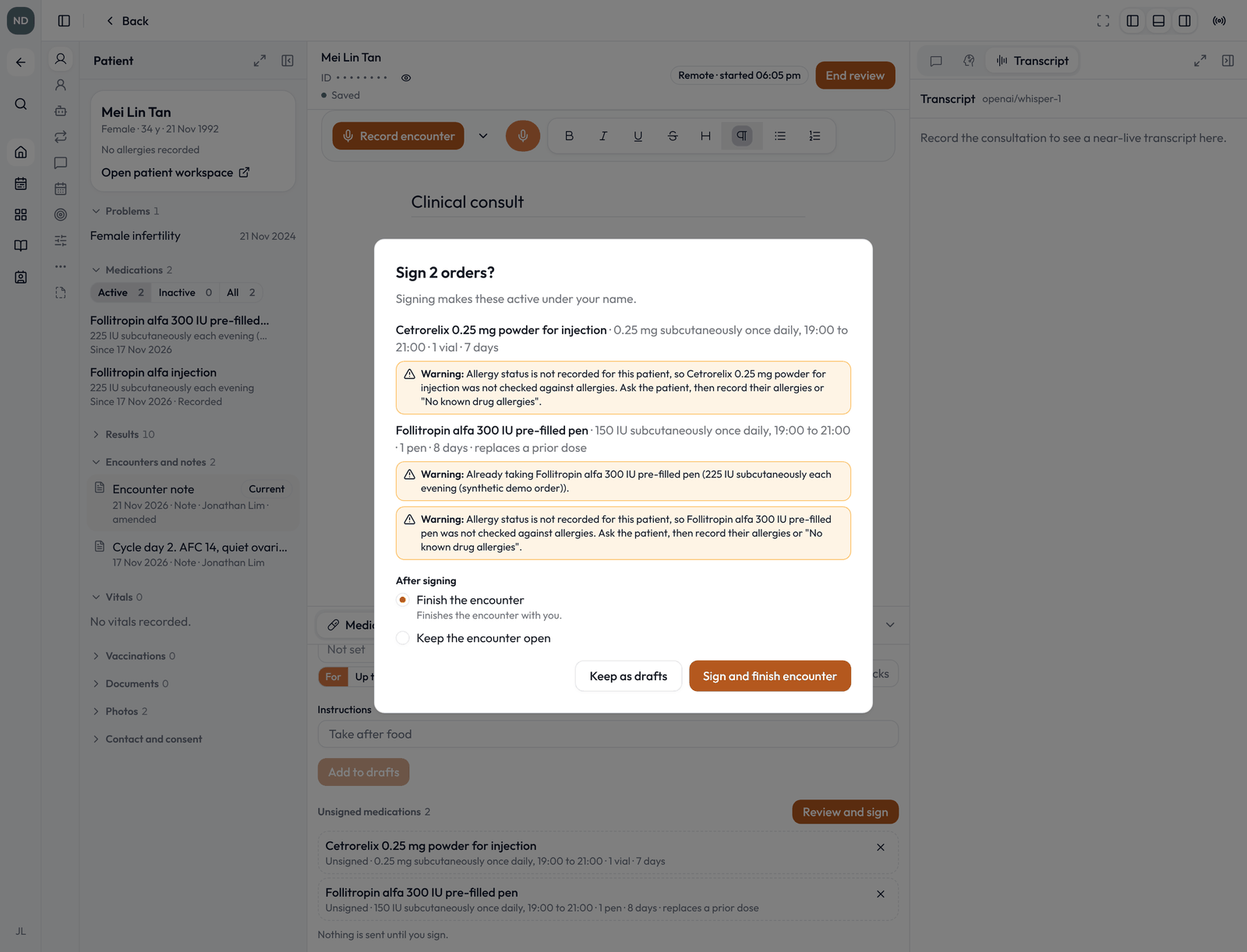
Signing is the one place an order becomes active, so the safety checks run there. Ordering must be turned on for your deployment; see Prescribing & Medications.
Approve the message to the patient
The same change drafts a message to Mei Lin. With the demo’s approval policy, a nurse approves it first. As Siti, open Notifications. Treatment plan: Message the patient in the patient portal shows the draft:
Hello Mei, Dr Lim has updated your treatment plan (version 2). What changed: Cetrorelix starts on Sat 21 Nov; Follitropin alfa dose: 225 IU to 150 IU; Scan on cycle day 8. Your reminders and visits in My cycle are updated. If anything does not look right, reply here and the clinic will help.
Edit it if needed, then click Approve and send. “Nothing is sent until you approve it.” Other choices are Reject, Resolve with a note, Ask the agent and Redirect to doctor. How plan-change messages are handled is set per service under Message approval policy; see Patient Agent.
Doses at home
Patients confirm each dose in the patient app, and Medbot follows up any that are missed.
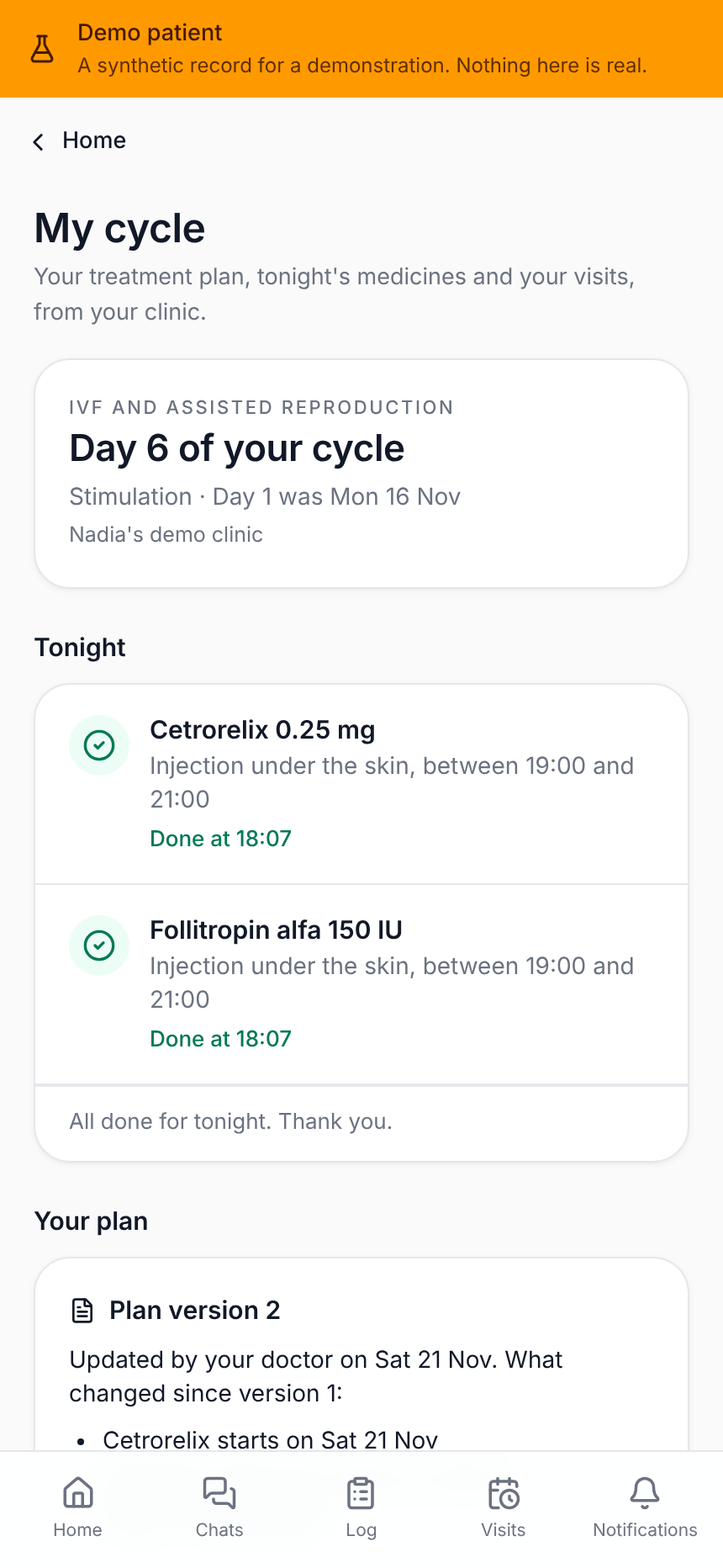
Confirming tonight’s doses. Sign in to the patient app as Mei Lin Tan and open My cycle. Tonight lists her two injections with their window: “Cetrorelix 0.25 mg, Injection under the skin, between 19:00 and 21:00” and “Follitropin alfa 150 IU”. Plan version 2 is already in force. Tap I’ve done both. Each dose shows “Done at” the time, and “All done for tonight. Thank you.” On her Stimulation chart in the CMS, tonight’s doses turn confirmed.
A missed dose. Sarah Goh never confirmed last night’s follitropin. An hour after the window closed, the Dose not confirmed rule raised Dose unconfirmed on the board and a task for the nurse. As Siti, find Dose not confirmed: Follitropin alfa 75 IU in Notifications: “The patient was reminded and has not tapped “I’ve done it”. Call to check whether the dose was taken, and record what happened.” After calling, click Patient took the dose or Dose missed. Open the patient’s cycle goes to her chart.
A new cycle starts
Amanda Wong is waiting for her period to start treatment. This shows how a cycle gets its dates.
From the patient app
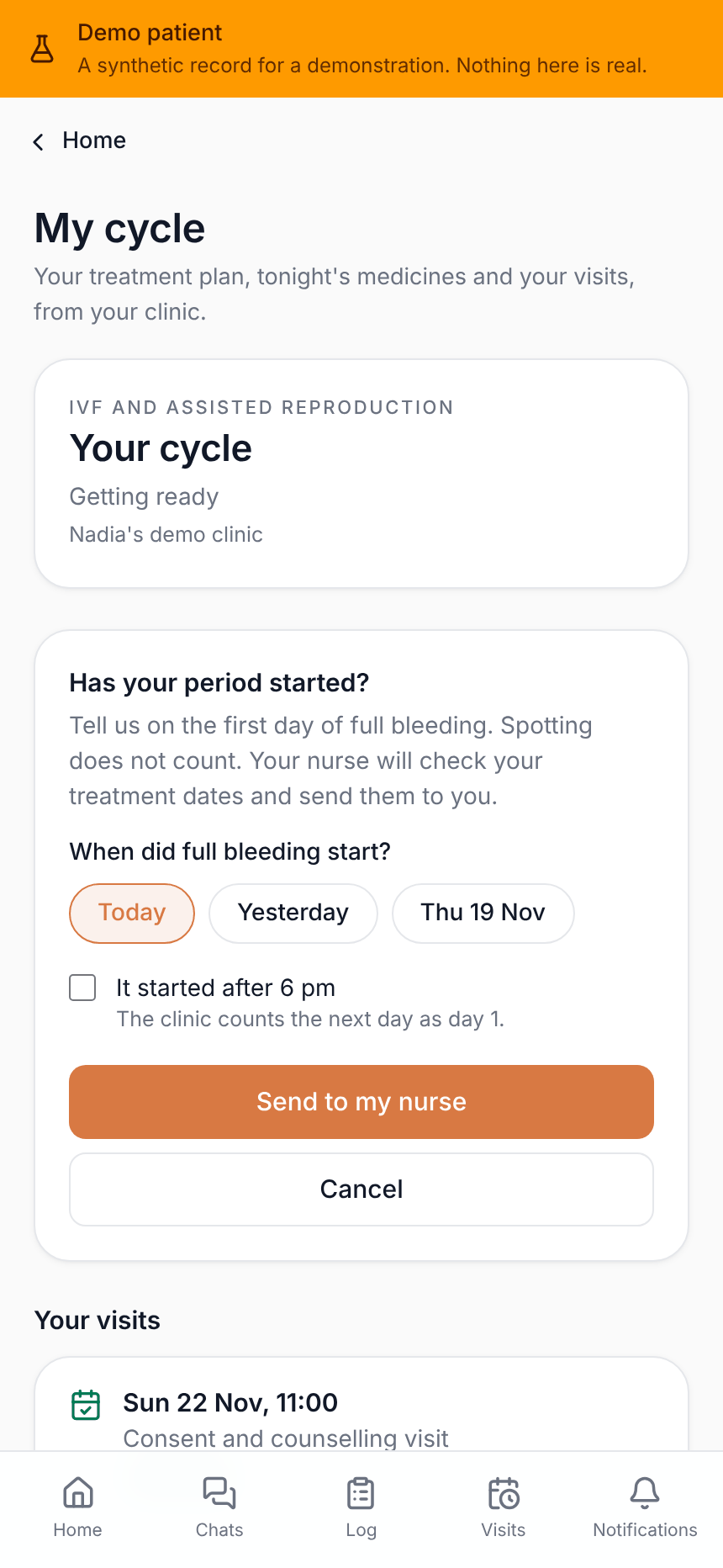
- Sign in to the patient app as Amanda Wong and open My cycle. It asks Has your period started? (“Tell us on the first day of full bleeding. Spotting does not count.”).
- Tap My period started, choose when full bleeding started (Today, Yesterday or an earlier day), and tick “It started after 6 pm” if it did: the clinic then counts the next day as day 1.
- Tap Send to my nurse. My cycle now reads “Day 1 of your cycle”, “Starting treatment”.
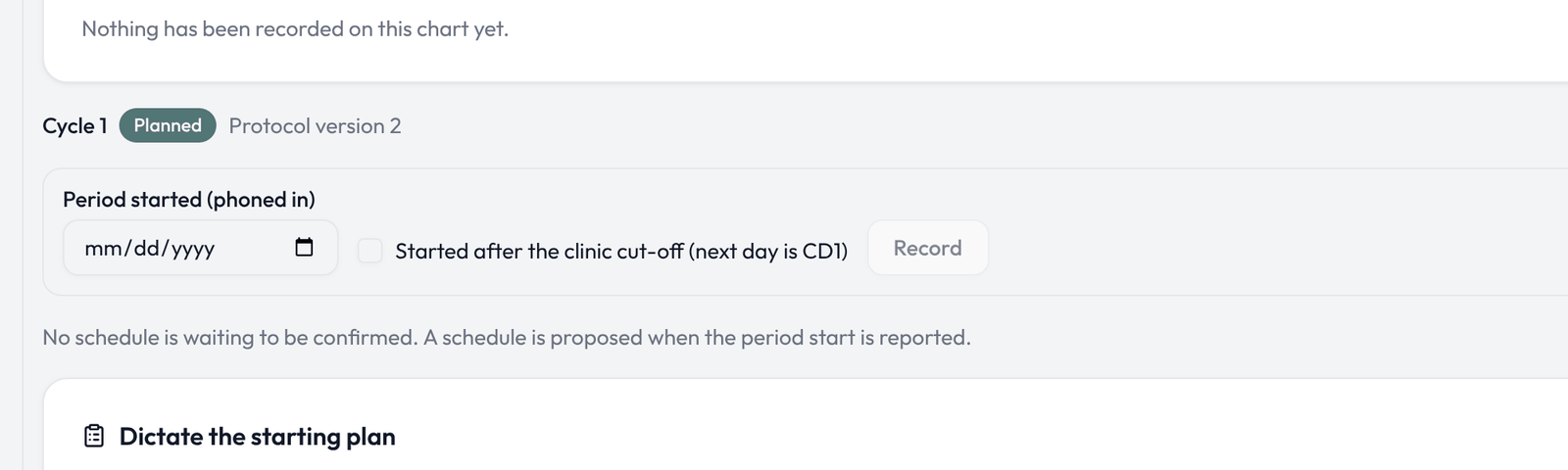
A patient can also phone it in. On her Cycle in the CMS, a nurse or doctor enters the date under Period started (phoned in), ticks Started after the clinic cut-off (next day is CD1) if needed, and clicks Record.
Confirm the proposed schedule
Medbot projects the cycle’s visits from the protocol and the clinic calendar, and asks the nurse to check them. As Siti, Notifications has Period reported: CD1 Sat 21 Nov. Confirm the schedule. with Confirm as proposed, or Open the schedule to adjust dates, which opens Amanda’s Proposed schedule.
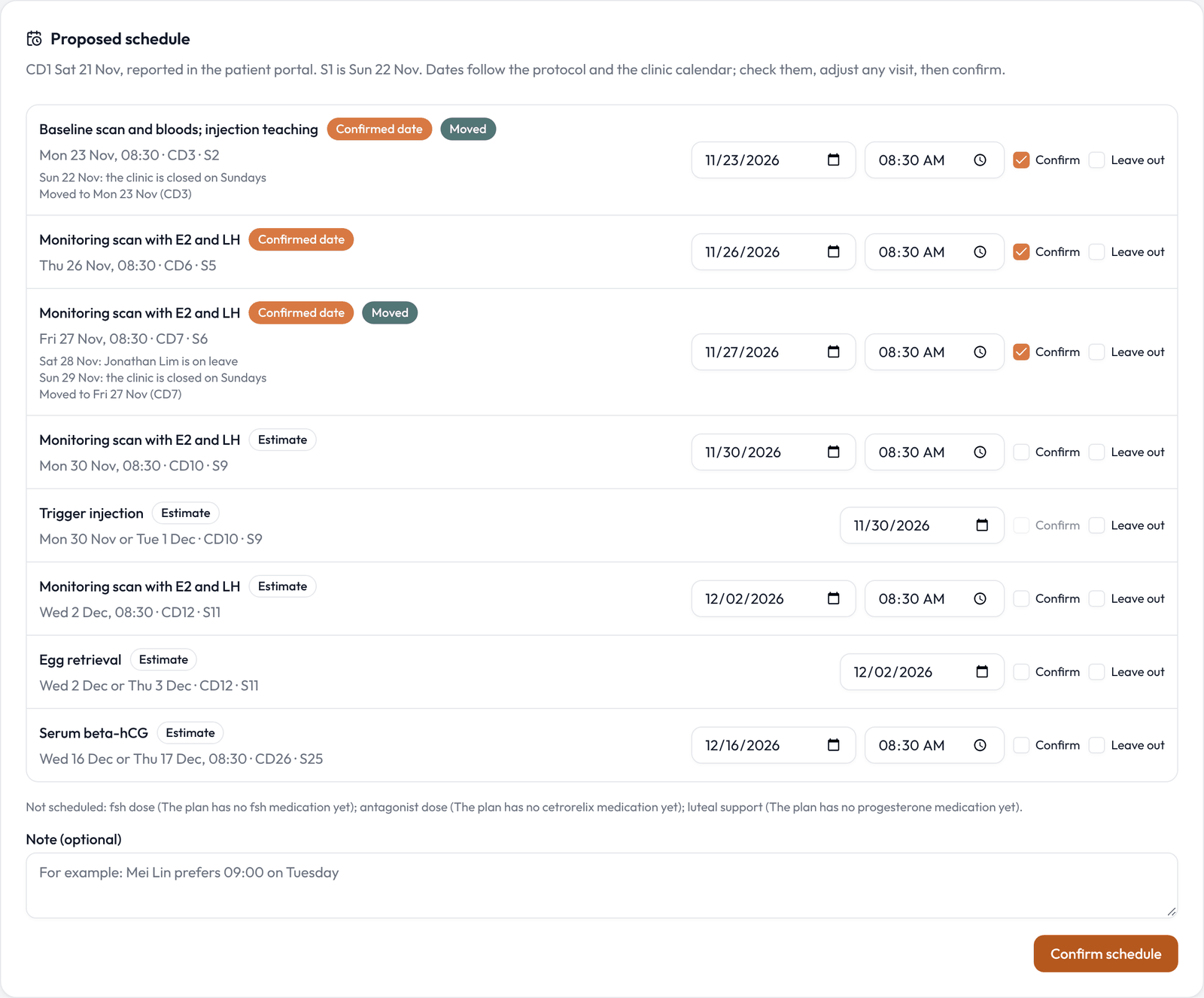
Each visit shows its date, cycle day and stimulation day, as a Confirmed date or an Estimate. Visits that fell on a closed day or the doctor’s leave are already Moved, with the reason: “Sun 22 Nov: the clinic is closed on Sundays”, “Sat 28 Nov: Jonathan Lim is on leave”. Confirm or Leave out each one, add a Note (optional), and click Confirm schedule. Only a doctor or nurse can confirm a schedule. The patient then sees the visits in My cycle to confirm.
The schedule also says what it could not place yet: “Not scheduled: fsh dose (The plan has no fsh medication yet)”. Amanda has no plan.
Dictate the starting plan
As Dr Lim, open Amanda’s Cycle. Dictate the starting plan takes the whole plan in one go: “This cycle has no plan yet. Say or type the medicines with their doses and days, and the scans.”
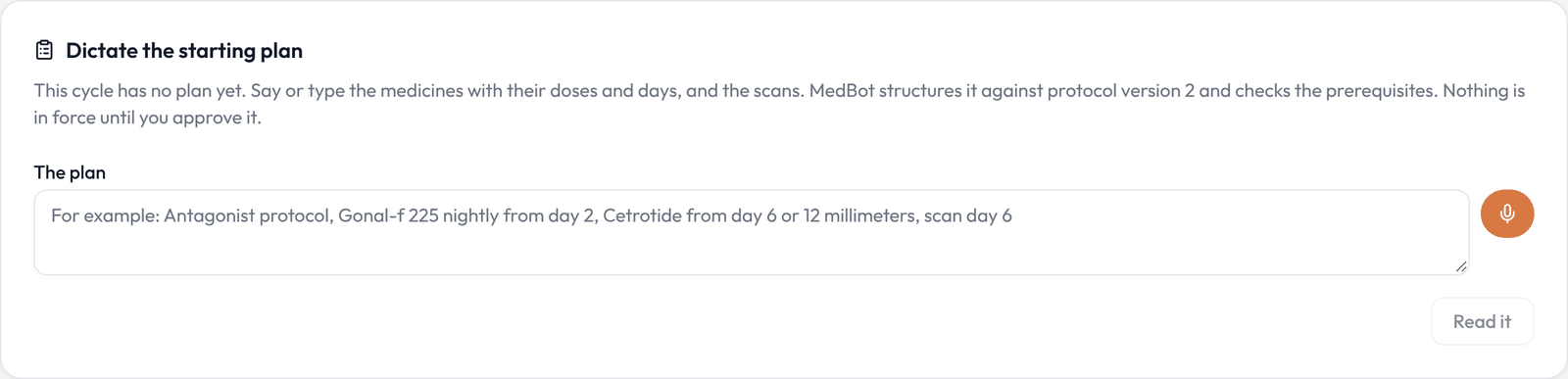
Type or say, for example, “Antagonist protocol, Gonal-f 225 units nightly from day 2, cetrorelix from day 6 or at 12 millimeters, scan on day 6”, then Read it. Medbot structures it against the protocol, shows where it Differs from the protocol, and checks the prerequisites. Amanda’s unsigned consent shows as missing; you can still approve, and Medbot raises a task for the nurse for each missing item. Click Approve plan version 1, and the plan’s doses join the schedule and My cycle.
Monitoring scans and results
The nurse files each monitoring visit’s measurements, and the rules re-check the cycle as they arrive.
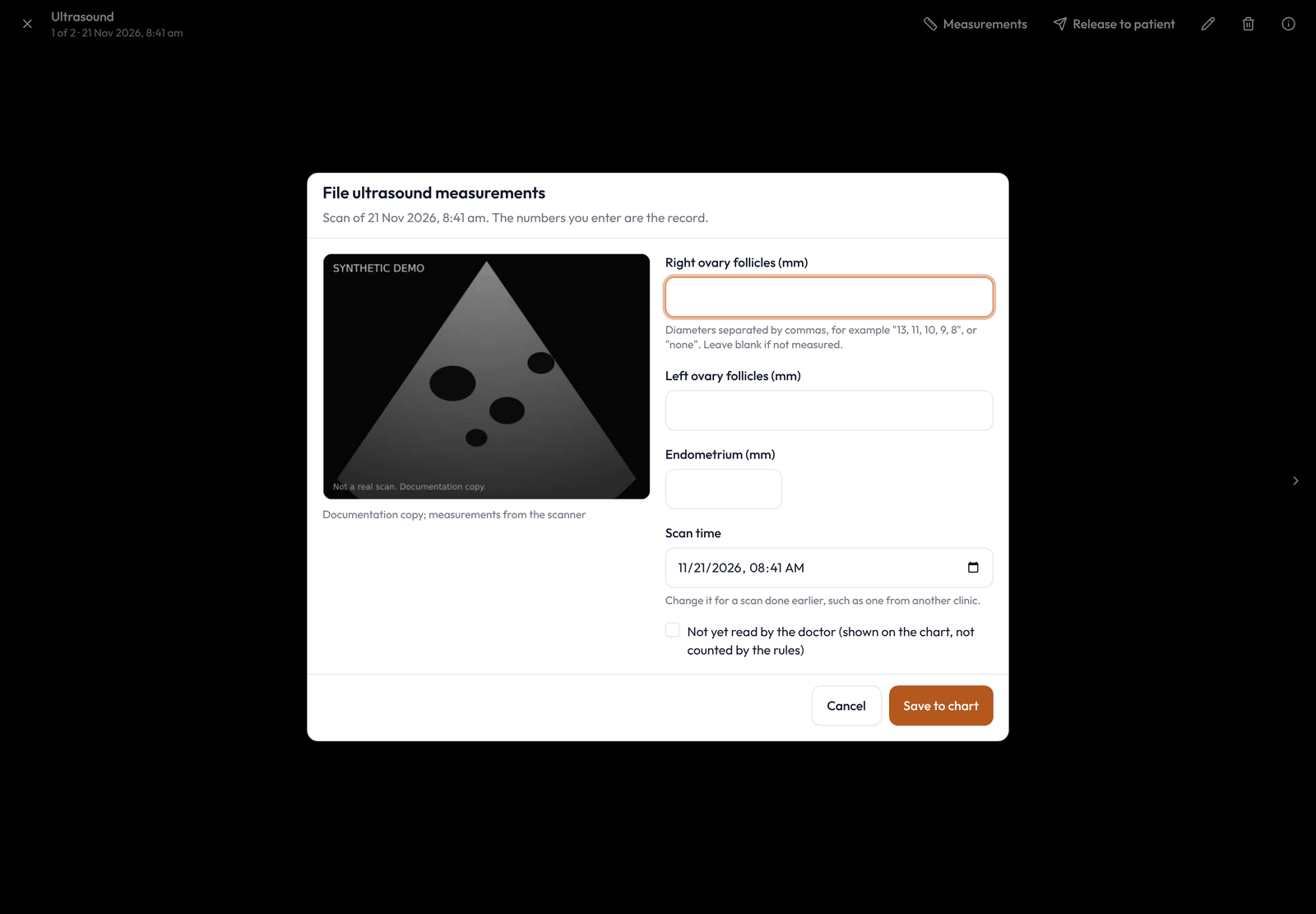
Ultrasound. As Siti, open Mei Lin’s chart → Photos and open an Ultrasound image.
- Measurements opens File ultrasound measurements: Right ovary follicles (mm) and Left ovary follicles (mm) as diameters separated by commas (for example “13, 11, 10, 9, 8”, or “none”), Endometrium (mm) and the Scan time. Tick “Not yet read by the doctor” to show a value on the chart without the rules counting it. Click Save to chart: “The numbers you enter are the record.”
- Release to patient shares the image with the patient, under Scan images in her My cycle. Withdraw from patient takes it back. Only doctors and nurses can measure or release.
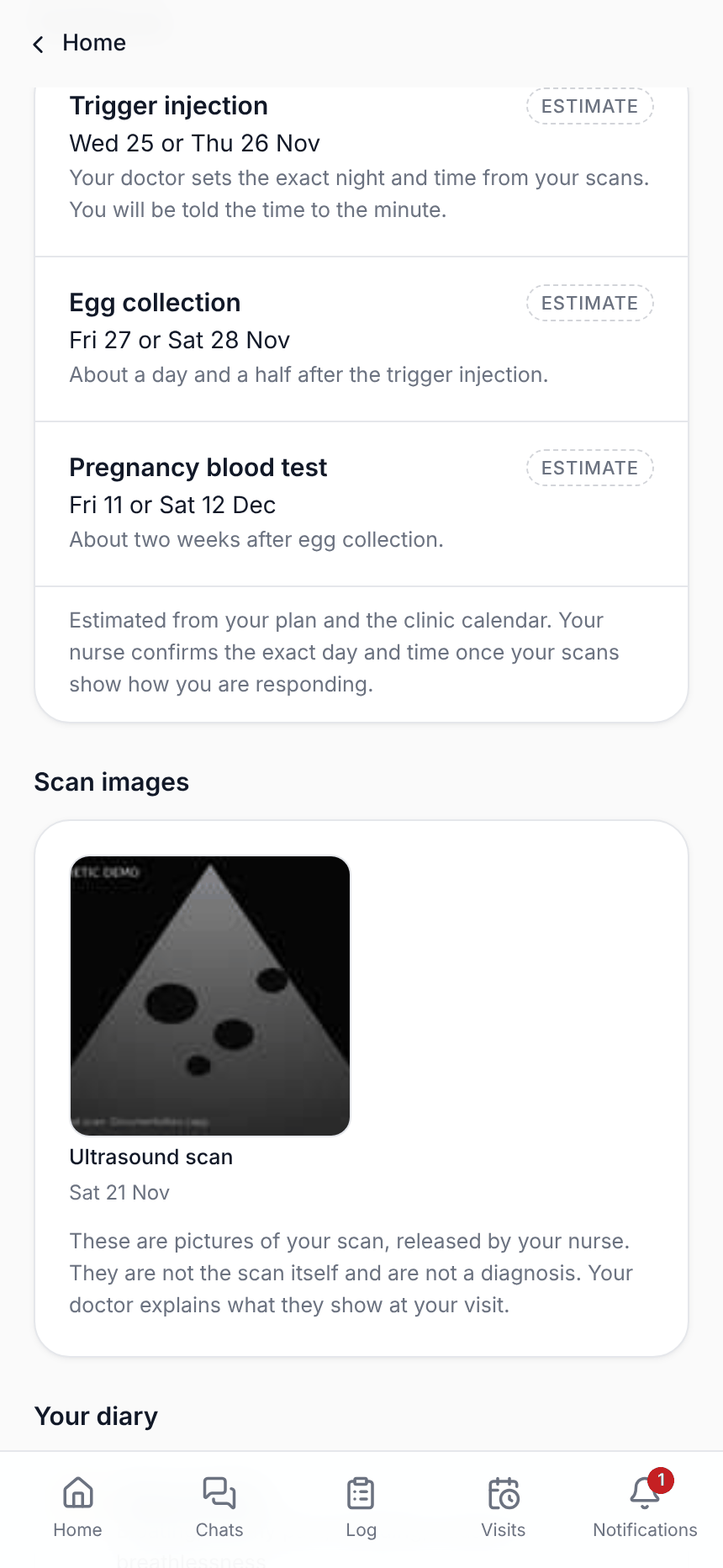
Once released, the patient sees the image under Scan images in My cycle:
A scan printout can also be photographed from a phone with Add photos → Ultrasound. See Clinical Photos.
Hormone results. File an E2 or LH result on Results with File result: see Diagnostic Results. Filed results appear on the stimulation chart and in Before the consult, and the rules run again: a lead follicle at the antagonist threshold raises Antagonist start due, three follicles at 17 mm raise Trigger criteria met, and a high count or E2 at the trigger starts the OHSS watch.
The patient’s My cycle
Sign in to the patient app as Mei Lin Tan. The home screen’s My cycle card says what needs doing (“Tonight: 2 medicines to confirm”). My cycle has:
- The cycle: “Day 6 of your cycle”, the stage in plain words (“Stimulation”) and when day 1 was
- Tonight: the doses to confirm
- Your plan: the plan version and what changed since the last one, in plain words
- Your visits: each visit, Confirmed or “Please confirm you can come”
- Coming up: the trigger injection, egg collection and pregnancy blood test, each an Estimate: “Your nurse confirms the exact day and time once your scans show how you are responding.”
- Scan images: the images a nurse has released. “These are pictures of your scan, released by your nurse. They are not the scan itself and are not a diagnosis.”
- Your diary: How you feel (bloating, tummy pain, bleeding, nausea or breathlessness) and Weight and tummy measurement, each morning, with “Severe tummy pain, trouble breathing, heavy bleeding or fainting: call 995 or go to the nearest emergency department now.”

Her care team’s assistant in Chats and Ask Medbot answers dose and visit questions from her plan, and leaves anything about results to her nurse. See Patient Agent.
Red flags and escalations
Hui Min Koh is three days after egg retrieval, on the OHSS watch. This shows what happens when a patient reports a warning sign.
- In the patient app, as Hui Min Koh, open Log → How you feel (or My cycle → Your diary → How you feel). Bloating is the first choice for an IVF patient.
- Choose Something else and describe it: “Very swollen, 2 kg heavier since yesterday, hard to breathe lying down”. Tap Save symptom.
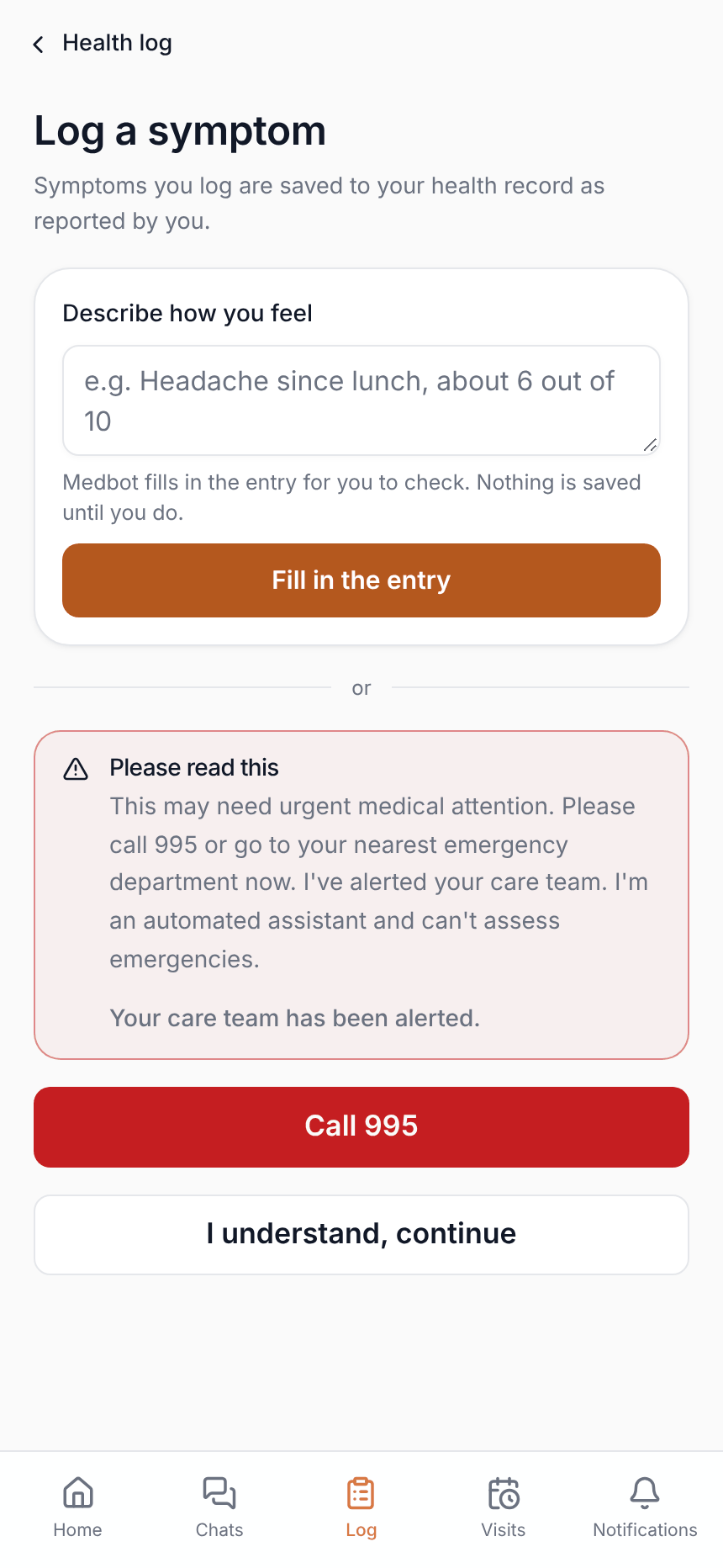
- The service’s red-flag rules match it at once, before any AI is involved. Please read this: “This may need urgent medical attention. Please call 995 or go to your nearest emergency department now. I’ve alerted your care team.” with Call 995 and I understand, continue.
On the care team’s side:
- The board’s Open escalations tile turns to 1, and Hui Min’s row moves to the top with Escalation open.
- The nurse’s Notifications has EMERGENCY — Red flag for Hui Min Koh, with the rule it matched and her words.
- Her page’s In this service part has an Escalations card, with Acknowledge and Resolve. Resolving asks for a Resolution note (optional): what was done, and what happens next. Resolving either the task or the escalation resolves both.

Red-flag screening runs on the diary, the service’s chat, Ask Medbot and SMS. The template’s rules cover possible OHSS, breathlessness, little urine, vomiting, severe pain, heavy bleeding, fever, fainting, a swollen leg and trigger injection problems. See Pre-visit History & Escalations.
The cycle summary
On a patient’s Stimulation chart:
- Export cycle summary saves a PDF summary of the cycle to the patient’s chart (“Cycle summary saved to the patient chart.”) and downloads it. Doctors, nurses and admins can export.
- Print A4 prints the chart for the paper file.
Oversight: AI policy, data and audit
Sign in as Grace Ho, the admin.
- AI policy (Home → AI policy) decides which AI providers and regions the organisation’s AI may use, and its default model. It covers the plan and protocol dictation, Ask about the clinic, the review pack’s summary and the patient assistant. See AI Policy.
- Where your data lives, from the organisation’s Settings (See where your data lives), lists where the clinical record, the database and files are kept, and who handles them.
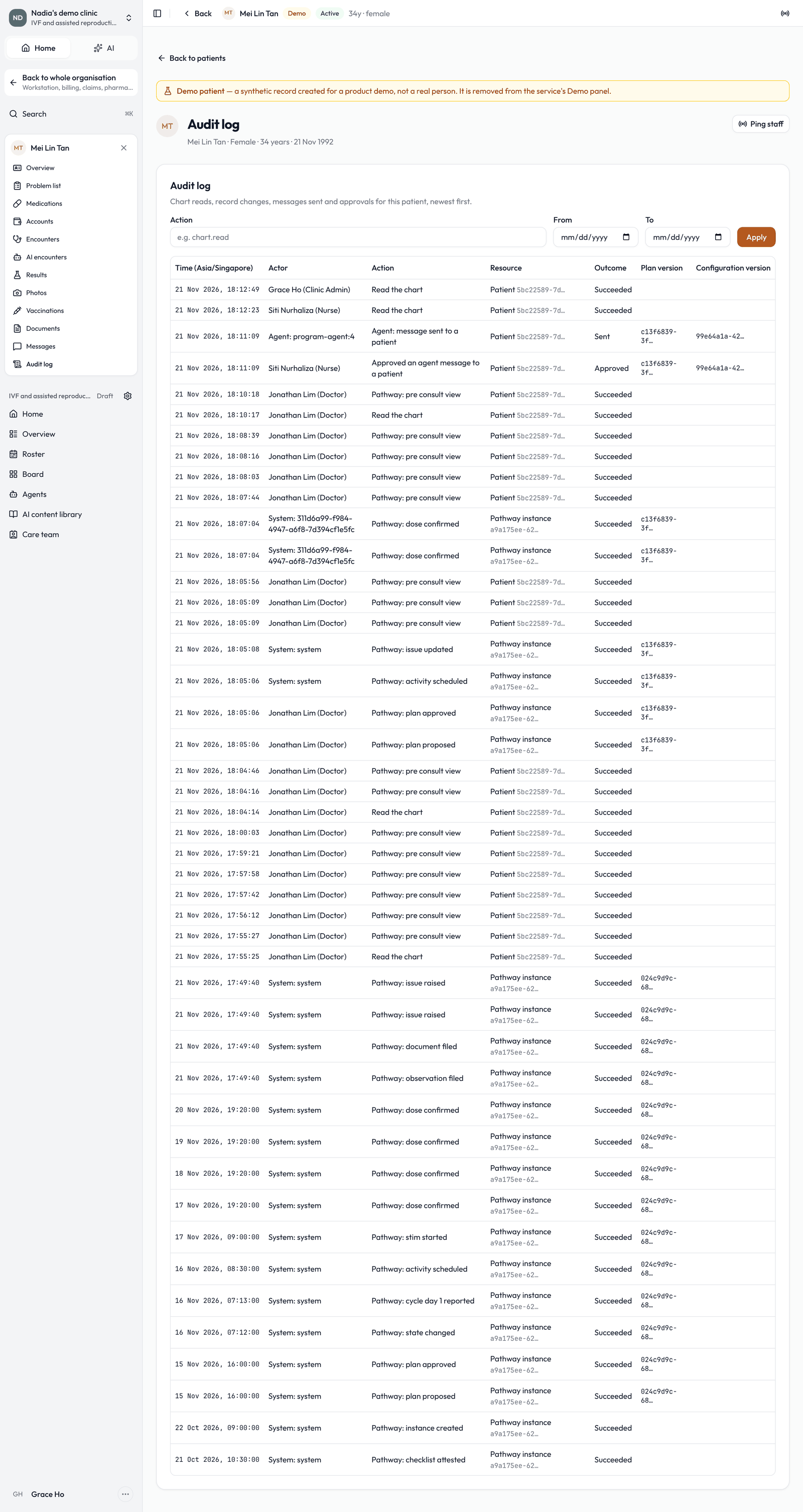
- A patient’s Audit log (on the patient’s chart, for administrators) lists every chart read, change, approval and message. For Mei Lin it shows Siti approving the message, the agent sending it with the plan version, and each dose she confirmed. Filter it with Action.
Reset or remove the demo
On the service’s Demo patients panel, as its owner or an organisation admin:
- Reset and reload deletes everything the demo patients have, including what you did while demoing, and loads them again dated from today. Do this before each demonstration to start from the numbers in this guide. It also ends the demo sign-ins; the next load gives them a new password.
- Remove demo patients deletes them and everything they touched, and turns IVF cycle tracking off again for the service.
To remove everything, delete the demo organisation from its card on Organisations. See Remove or reset the demo and Deleting your demo organisation.
In a real service
Outside a demo organisation, IVF cycle tracking is turned on per service by Medbot; contact Medbot to try it. Once it is on, doctors, nurses and admins start each cycle from the patient’s page in the service with the Start a cycle card: choose the Protocol and the Responsible doctor, enter Cycle day 1 if known, and click Start cycle. The cycle opens as planned on the protocol’s approved version, and everything in this guide follows from there. A doctor first needs a protocol: Start from the conservative baseline on the Protocols page, then teach and adopt it. See IVF Cycles.
Troubleshooting
- No Cycles tab, Protocols page or Cycle part. IVF cycle tracking turns on when the Orchard set loads. Check the Demo patients panel says “14 demo patients loaded”. If loading failed, use the panel’s retry.
- The numbers differ from this guide. The story is dated from the day you loaded it, and the board reads the real clock. Use Reset and reload on the morning of a demonstration.
- A demo sign-in does not work. A reset ends the sign-ins and the next load gives a new password. Copy it again from Demo sign-ins.
- “Read it” fails. Dictation, Ask about the clinic and the review pack’s summary need an AI model that the organisation’s AI policy allows.
Related pages
- Demo Services: demo organisations, templates, demo patients and sign-ins
- IVF Cycles: the feature reference
- Workstation, Patient Agent and Pre-visit History & Escalations
- Prescribing & Medications, Clinical Photos and Diagnostic Results