Find Care
Find a clinic or service helps you find clinics, ask the ones on Medbot to see you, or ask one that is not on Medbot to contact you.
Open it from the menu, under Care, or from Profile, then Preferences, then Find a clinic or service. Only the patient can use it, not a caregiver.
Medbot offers you real clinics only. Demo organisations are never listed.
Search
The page lists clinics on Medbot first, then others Medbot knows of. Search by name, area or specialty and select Search.
Each result shows the name, address and up to three specialties, with a badge: Connected, On Medbot or Not on Medbot yet. Select View to open it:
- A clinic on Medbot opens its own page, where you book or ask for an appointment.
- A clinic not on Medbot yet opens Ask them to contact you.
If nothing matches, you see “No clinics match your search.”
A clinic on Medbot can choose not to be listed in Find care. Its own patients still see it.
In the mobile app, the results keep their buttons: Connect for a clinic on Medbot (see Ask a clinic to see you), Request an appointment for a clinic you are connected to, and View for one not on Medbot yet.
A clinic’s page
A clinic on Medbot has its own page in Find care, with:
- its photo, logo and description, with an On Medbot badge, Book online if it takes bookings through Medbot, and Connected if you are connected to it
- What they offer: each service and how you book it, Open times, Clinic confirms or Doctor’s referral
- Call and Their website, where the clinic gives them
- Book an appointment
- Not sure what you need?: “Tell Ask Medbot about your symptoms. It takes your history and sends a referral to the right service, with your health record attached.” Select Ask Medbot. See Ask Medbot.
In an emergency, call 995. The page says so too.
Book an appointment
Book an appointment depends on whether the clinic knows you:
- A clinic you are connected to. It opens the appointment form with the clinic filled in: pick an open time with one of its services, or tell the clinic when you prefer to attend and it confirms.
- A clinic you are not connected to. It opens Book an appointment at <clinic>. Choose a Service, a Preferred date and Time of day, give the Reason for the visit, tick the consent box and select Send request. “This is a request, not a confirmed booking.” The clinic’s staff check your details, connect you to your record there with your consent, then confirm a time or propose another, and reply in Medbot Health. The request is listed under Your requests.
If the clinic does not take bookings through Medbot, the page says “<clinic> does not take bookings through Medbot. Contact them directly.” If none of its services can be booked from Find care, Book an appointment asks the clinic to see you instead, as Connect does. See Ask a clinic to see you.
Connect is a request, not a link. It goes to the clinic’s reception, who accept it by naming your chart there, and offer you a time, or decline it. You are told either way. Until the clinic accepts, nothing of yours is connected.
Find care near you
Select Find care near you (“Clinics, A&E, pharmacies and dentists nearby”) to see places near where you are. Choose what you are looking for: GP clinic, Emergency (A&E), Hospital, Pharmacy, Dentist or Specialist. Select Use my location to sort by distance, or Medbot uses the postal code in your profile. Your location is used only for that search and is not saved.
Medbot clinics come first, headed by the clinic’s name and the kinds of care it offers, for example “Diabetes clinic · Physiotherapy”. A clinic you are connected to shows Your clinic. The places after them come from the map and may be out of date, so call ahead to check opening hours and services. Each row has Directions, Call, Website and Map where they are known. In an emergency, call 995 and do not wait to find a place here.
You can also reach it from Ask Medbot, under the question box.
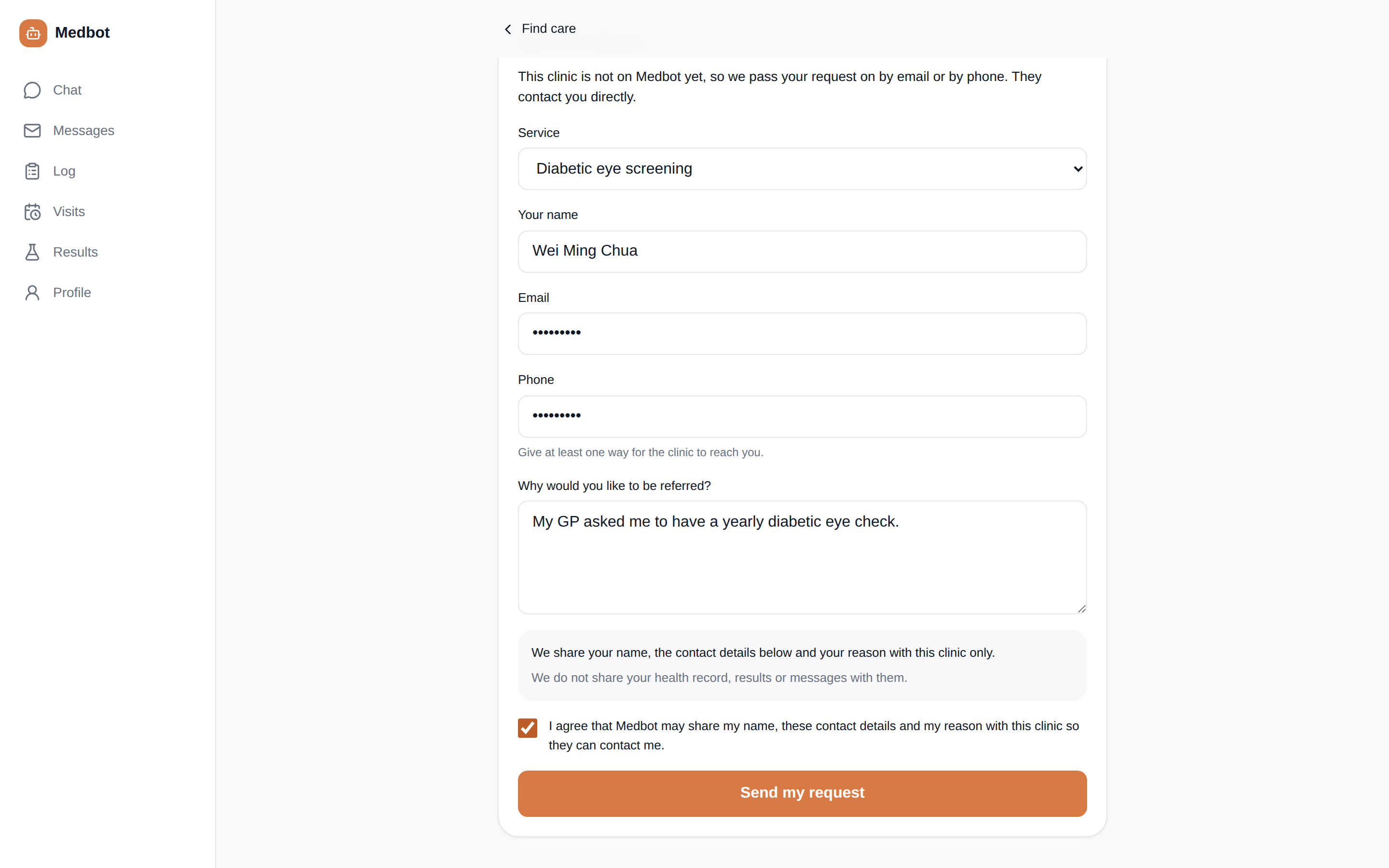
Ask them to contact you
For a clinic that is not on Medbot yet, select View. The Ask them to contact you page shows what the clinic offers and its phone or website, if known. You can also contact them yourself.
- Choose a Service, or leave “The clinic, any service”.
- Check your name, email and phone. Give at least one way for the clinic to reach you.
- Under “Why would you like them to contact you?”, say why.
- Tick the consent box.
- Select Send my request.
Medbot passes your request on to the clinic by email or phone, and they contact you directly. No appointment is booked in Medbot. Only your name, contact details and reason are shared. Your health record, results and messages are not.
Follow your requests
Select Your contact requests. Each request shows the service, the clinic, the date and a status: Received, Passed to the clinic, In touch, Closed or Withdrawn. Select Withdraw to cancel a request.
Contact requests are also listed in Appointments, beside your appointment requests and your requests to join a clinic. The page there says what each kind does.