Editor
Introduction
The Medbot workspace featuers a rich text editor with various features to assist your writing. The primary features are autocomplete, command palette, and bubble menu.
Editor Features
Autocomplete
The autocomplete feature assists in your clinical note writing by providing suggested continuations of the text you write. You can accept an autocomplete suggestion by pressing the Tab key on your keyboard, and you can dismiss a suggestion by pressing the Escape key.
 Editor Autocomplete
You can customize the behavior of autocomplete in settings. Visit medbot.me/settings to see what customization options are available.
Command Palette
The Command Palette provides quick access to text Editing tools, Agents, Templates, and Continue with AI features. Activate the Command Palette by pressing the / key when prompted on a new line.
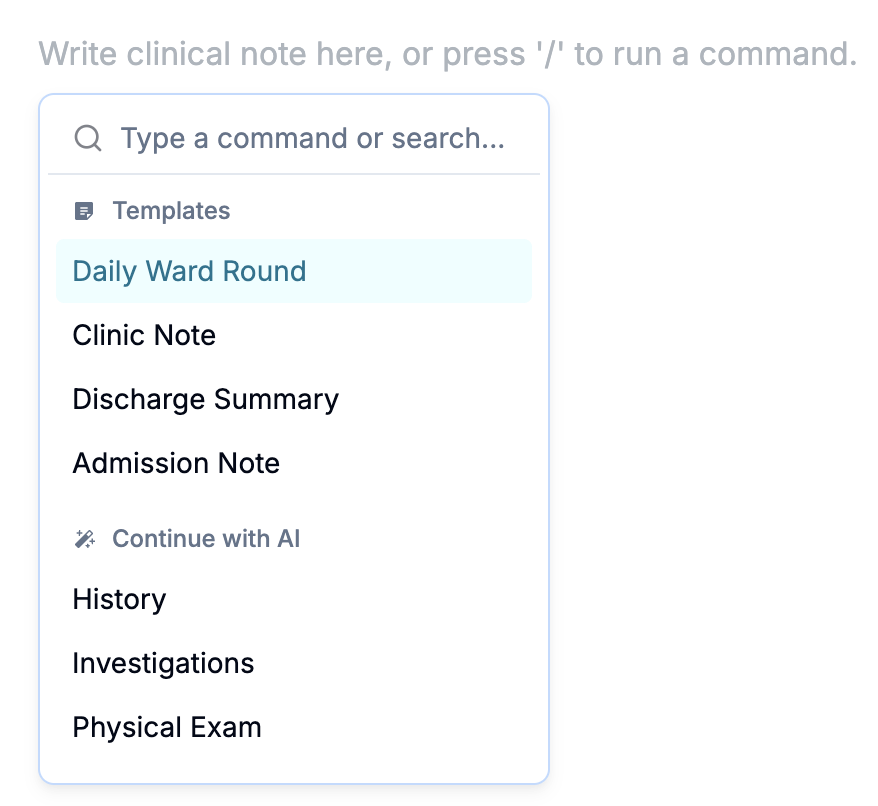 Editor Command Palette
Bubble Menu
The Bubble Menu gives you access to editing tools, text refining features, ask AI feature, and selection agents to process selected text in the editor.
 Editor Bubble Menu
Text Refining
The Bubble Menu provides text refining features for selected text in the editor. You can use text refining in two ways:
- Quick Refine to use default settings to quickly refine selected text.
- Prompt Refine to instruct the text refining AI on how to proceed.
 Editor Text Refining
You can customize text refining behavior in settings .
Ask AI
The Ask AI feature lets you ask the chat AI about text in your editor. To use it, simply select some text in the editor and click Ask AI in the bubble menu. This will open up the chat window in the sidebar with your selected text attached as context. You can write a prompt and ask the AI about the selected text.
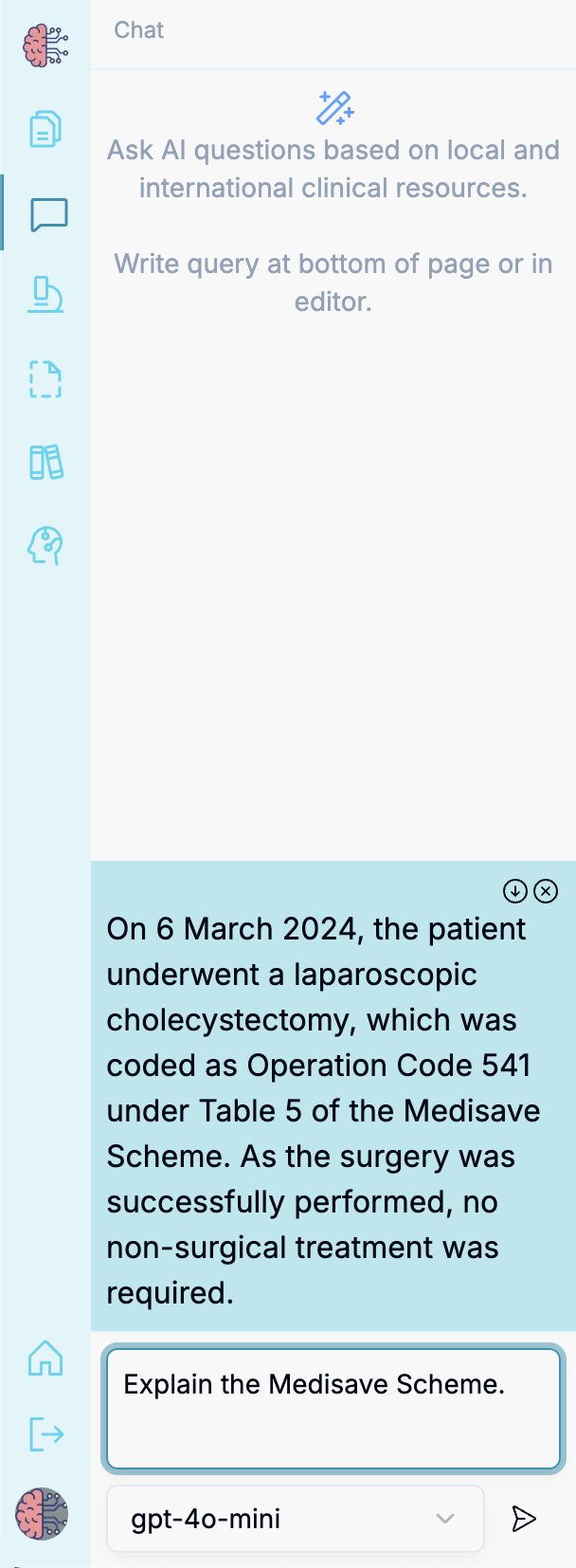 Editor Ask AI
Selection Agents
You can use the Bubble Menu to invoke selection agents in the editor. These agents will process your selected text and stream their outputs into the editor itself. The final output from selection agents will be highlighted once the agents have finished streaming.
 Editor Selection Agents