Appointments
Appointments is the organisation’s list of booked visits. Find it on the Appointments tab of Patients (/patients/appointments) in the Home tab, beside the Queue and Patient list. The old addresses /appointments and /workstation/appointments open it. Receptionists and Clinic Admins book, edit, and cancel appointments and answer booking requests from the patient portal and Find care. Every appointment is for one service: the booking form and booking requests ask which. Doctors and nurses can look at the list but not change it. A service’s own appointments are on its Workstation.
Who can do this
| Task | Clinic Admin | Receptionist | Doctor | Nurse |
|---|---|---|---|---|
| See the appointment list | Yes | Yes | View only | View only |
| Book a new appointment | Yes | Yes | No | No |
| Book with the agent | Yes | Yes | No | No |
| Edit or cancel an appointment | Yes | Yes | No | No |
| Answer a booking request | Yes | Yes | Find care requests sent to doctors | Find care requests sent to nurses |
| Place a request that needs a service | Yes | No | No | No |
A doctor or nurse who opens the booking page sees a message that says which roles are allowed. A doctor or nurse sees Booking requests only when the organisation sends Find care appointment requests to their role (see Requests from Find care).
Finding appointments
The list shows every appointment with the patient, practitioner, date, time, duration, service, and status. Narrow it with the patient search box, the practitioner filter, and the date filter. All three apply together. Select Clear date to remove the date filter.
| Status | What it means |
|---|---|
| Booked | Confirmed and upcoming. |
| Arrived | The patient has checked in. |
| Fulfilled | The visit is finished. |
| Cancelled | Cancelled. |
| No-show | The patient did not come. |
Times are always shown in Singapore time, whatever the time zone of your computer.
Booking an appointment
- Select New Appointment.
- Search for the patient and select them. Their details appear below the search box.
- Choose the Service: one of your organisation’s services that takes appointments (an inpatient service does not). With only one, it is chosen for you; with none, the form says “No service takes appointments yet”.
- Choose the Clinic location, the Date, and the Time. Times run from 8:00 AM to 5:30 PM in half hour steps.
- Choose the Duration: 15, 30, 45, 60, or 90 minutes.
- Choose the Practitioner. Only doctors and nurses who can work at the chosen location are listed, doctors first. A nurse is shown with (nurse-led visit) after their name. See the Session tab and Nurse-led visits.
- Choose the Service type. You can also choose a Reason and add Notes.
- Select Book appointment.
You return to the appointment list. The new appointment shows as Booked.
Nurse-led visits
Book a nurse as the Practitioner for a visit that a nurse runs without a doctor. The nurse leads the visit:
- At check-in the visit stays with the nurse. No doctor is rotated onto it. See Reception Queue.
- The lead nurse starts the visit and closes it with Complete visit.
- A doctor can also close it. If a doctor sees the patient during the visit, it becomes a doctor-led visit.
- A Clinic Admin can close any visit, and can hand an open visit to another doctor or nurse with Change lead on the queue.
In Singapore organisations, a scheme claim for a nurse-led visit is held for an administrator. See Claims Workflow.
Two bookings at the same time
A booking is refused when the patient or the practitioner already has an appointment that overlaps the time. The form stays open and shows a message such as “Marcus Lim already has an appointment that overlaps this time”. The message shows the times in UTC, which is eight hours behind Singapore time. Choose a different time. The same check applies when you edit an appointment and when you accept a booking request.
Booking with the agent
Select Use agent to book by describing the visit in words. The agent looks up the patient and the doctor and suggests a booking. A staff member reviews the suggestion, chooses the Service the appointment is for, and approves it before anything is booked.
Responding to portal booking requests
Patients can ask for a visit from the patient portal and from a clinic’s page in Find care. A request is not a booking. It waits in Booking requests (/patients/appointments/requests) until staff answer it. A request to change an existing appointment is marked Change of time, and one to book a past visit again Book again.
- Select Booking requests. The page counts the requests waiting.
- Read the Requested date, the Time preference, and the Reason.
- Under Exact appointment time, set the Date, Time, and Duration, and choose the Assigned clinician. Choose the Service too, unless the patient already asked about one (it is chosen for you) or your organisation has only one. A request to change the time of an existing appointment keeps that appointment’s service. As when booking, a nurse is listed with (nurse-led visit).
- Choose one of the answers below.
| Answer | What it does |
|---|---|
| Accept and book | Books the appointment at the time you set. |
| Counter-propose | Offers the patient a different time. Fill in the time and the clinician first. A note is optional. |
| Reject | Declines the request. A Review note is required. |
What the patient sees: after Counter-propose, the patient’s request shows Clinic proposed a new time, your note, and the buttons Accept proposed time and Decline proposed time. When the patient accepts, the appointment appears in your list as Booked and the request leaves Booking requests. The request card does not update by itself, so reload the page to see it go.
Note: An appointment made from an accepted counter-proposal currently shows Your doctor as its practitioner, not the doctor’s name.
Requests that need a service
When booking, a patient chooses what they need: one of the services the clinic offers, or I’m not sure. A request sent with I’m not sure reaches the organisation without a service, and an administrator places it.
- A Clinic Admin’s Booking requests has two tabs: By service and Needs a service (
?queue=needs-service). Other roles see one list. - Each active Clinic Admin is emailed once when such a request arrives. The email names the clinic and links to the tab; it never names the patient or repeats their note. The request also shows in Notifications as Task · Request needs a service, with Assign a service.
- To place it, choose the Service and the time, and select Counter-propose. The request then carries the service and moves to By service.
Requests from Find care
An organisation listed in Find care can take bookings there (see Public profile). A patient the clinic already knows books as from the portal. A patient the clinic does not know sends an appointment request with the service, a preferred date and time of day, and a reason, and agrees to share their details.
Such a request is marked New patient, from Find care, with what the patient told Medbot. Before you can confirm a time, Find or add the patient record: “This patient asked from Find care before your clinic knew them. Link their record to confirm a time; it connects their Medbot account to it, with the consent they gave when asking.” The patient’s Name, Date of birth, Phone and Email are shown. Find their record, or add one, and select Link record. Then accept or propose a time as for any request. You can reject the request before linking.
Who answers these requests is set in Appointment requests go to, under the Public profile: Receptionists, Nurses or Doctors. Admins and receptionists can always act on them. Self-referrals with a history from Ask Medbot still arrive in Referrals, not here.
Editing and cancelling
Select the three dot button at the end of an appointment row, then choose Edit or Cancel appointment.
Edit opens a form with the Date, Time, Duration, Practitioner, Service type, Reason, and Notes. You cannot change the patient, the location or the service: to move an appointment to another service, cancel it and book a new one. Select Save changes.
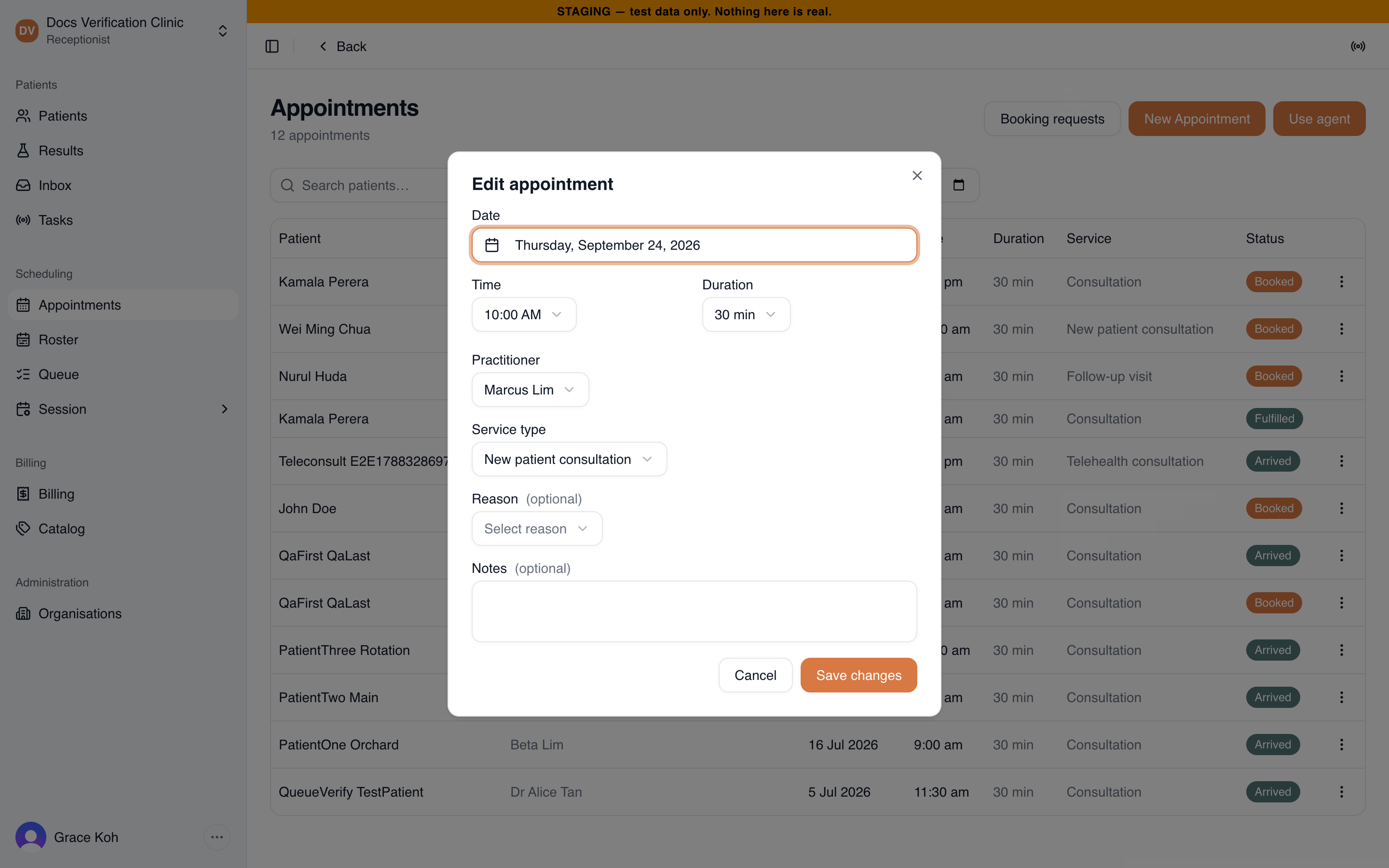
Editing an appointment
Cancel appointment asks you to confirm. The appointment shows as Cancelled. A cancelled appointment can be reopened from the Reception Queue.
Cancelled, no-show, and fulfilled appointments have no menu, so they cannot be edited or cancelled.
Related
- Reception Queue: check in the patients booked for today.
- Workstation: Session tab: who is on duty in each service today.
- Patient Portal: how the portal connects to the clinic.