Demo Services
A demo service is a fully configured service filled with made-up patients, so you can show how a service runs, or learn it yourself, without touching real records. Demo patients have no real phone, email or ID number, so nothing is ever sent to a real person.
Step-by-step guides. Use Cases walks through a demo service from creating the demo organisation to every feature it shows. Start with IVF & Assisted Reproduction.
Demo services live only in a demo organisation: your own organisation for showing Medbot, with synthetic data only. Loading demo patients there also makes demo sign-ins for the care team and the patients, so the people you show it to can sign in as each person and try every part themselves. Nothing demo remains in a clinic’s real organisation.
Your demo organisation
Anyone signed in may make one demo organisation, on a deployment that can make organisations (Medbot’s production service does).
- In Medbot CMS, open the context switcher at the top of the sidebar and select Manage organisations. On Organisations, the dashed Demo organisation card says “Your own organisation for showing Medbot to clinics, with synthetic data only.”
- Select Create demo organisation. Medbot makes a demo organisation, in Singapore, with you as its first admin, and switches you into it, on Home.
- Later, select Open demo organisation on the same card.
When you first sign in to Medbot CMS with no organisation, the first-sign-in page offers Create demo organisation too, and Create organisation links to it (“Only trying Medbot out?”). See Getting Started. From there you go on to Set up a demo service, from a basic service or a template: see Your organisation’s first service.
A demo organisation does not count towards the one organisation you may create, and it is not billed or held to plan limits. If the card is missing, the server cannot make organisations just now.
A demo organisation is sealed
A demo organisation holds synthetic data only, and only its maker and the demo sign-ins that loading patients creates can see it. Medbot enforces this on the server, not only in the screens:
- No real people come in. It has no join code, no Add staff, no staff invitations or access requests, and no Seed data or CSV seeding. Patients cannot be registered, invited, given a caregiver or brought in through self-registration or pathway partners; only demo patients are admitted to its services.
- Every service is a demo service, whatever way it was made.
- It cannot reach a real record. A demo patient is never matched to a real person’s health record by national identifier and birth date.
- It is hidden from others. It does not appear in Care near me or clinic lists in the patient app, and its demo sign-in accounts do not appear when someone searches for a person to share with. Platform administrators see it labelled as a demo.
Deleting your demo organisation
The person who made a demo organisation can delete it, and then make a new one.
- On the Demo organisation card on Organisations, select Delete demo organisation.
- Confirm Delete <name>? with Delete: “Its demo patients are removed from every service, the demo sign-ins stop working, and the organisation and its services leave every member’s list. You can make a new demo organisation afterwards.”
- Medbot first removes the demo patients from each service, waiting for any load still running, and the card shows “Removing demo patients from <services>…” until they are gone. Then the organisation is deleted.
If removing patients from a service fails, the wait stops and you can try again. If it takes longer than a few minutes, the card says “Its demo patients are still being removed. Come back in a few minutes and delete it again.”
The demo sign-in addresses are not lost: the next demo organisation that loads the same people reuses them.
Create a service from a template
-
Open the context switcher at the top of the sidebar, select All services and click New Service (administrators can select New service in the switcher directly). In a demo organisation, the page says “Start from a blank service, or try a demo service: a template that comes fully configured for one clinical area and can be filled with demo patients.”
-
Under How to start this service, choose a template:
Template Specialty What it sets up General practice Family medicine A family clinic: pre-visit history before acute visits and chronic reviews, red flags for chest pain, stroke signs, breathing difficulty and low blood sugar, vaccination, foot screen and eye screening steps, and health education and financial counselling agents tuned for primary care. Cataract surgery Ophthalmology An eye clinic and day surgery list: visual acuity, eye pressure, dilation and biometry steps, red flags for a painful red eye or worsening vision after surgery and for flashes, floaters or a curtain, a pre-operative history on the portal, and eye-drop, eye-shield and recovery education. IVF and assisted reproduction Reproductive medicine A fertility centre: monitoring visits with scan and hormone blood-test steps, red flags for OHSS after the trigger, trigger errors and bleeding or pain, injection-technique and cycle-stage education, and written cost estimates from the clinic price list. In a demo organisation, choosing a template that has a step-by-step guide, such as IVF and assisted reproduction, shows a Step-by-step guide card linking to it.
-
The Name is pre-filled with the template’s name; change it if you like. The template sets the specialty, protocols, referral criteria, AI encounters, red flags, agents and visit steps. You can change any of them afterwards. Every template makes an Outpatient service; change the mode later with Edit service details if you need to.
-
Click Create from template.
The service opens on its page as a draft, skipping the setup wizard: see Finish setting up.
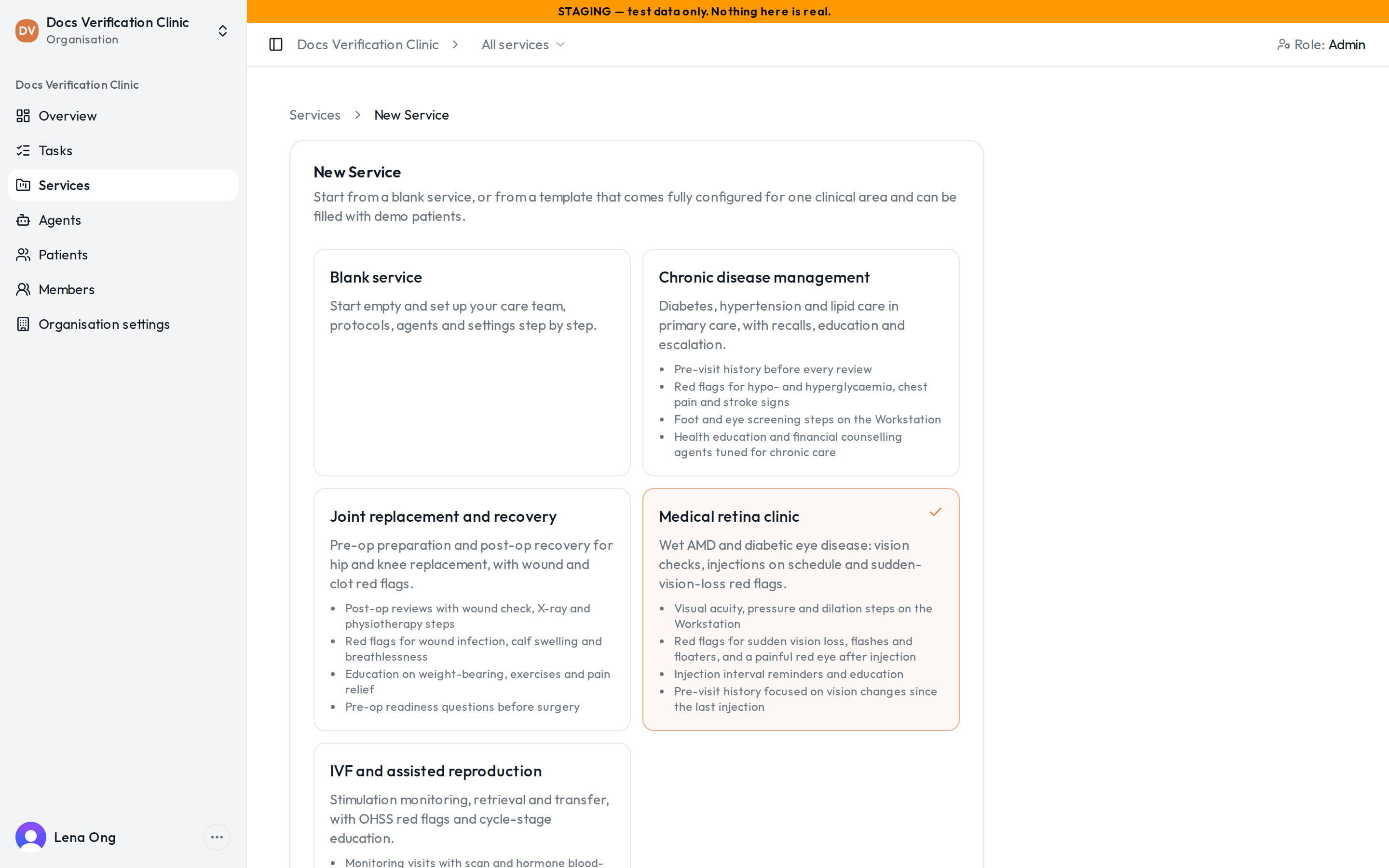
In a demo organisation the service shows an amber Demo chip beside its status (“Demo data - synthetic, not a real patient record”). Any member of the organisation can create one.
Finish setting up
A templated service stays a draft until you publish it. In place of the usual draft banner, its owner sees a Finish setting up card: “This service is a draft. The template filled in most of it; finish the rest, or mark setup complete whenever you are ready.” Each row is ticked once done, and links to its wizard step:
| Row | What it asks for |
|---|---|
| Protocols, referral criteria and the patient agent | ”Filled in by the template. Review or change them anytime.” (Review) |
| Staff | ”Add the people from your organisation who run this service.” In a demo organisation, “Loading demo patients adds demo staff with sign-ins, or add people from your organisation.” (Add staff) |
| Demo patients (in a demo organisation) or Patients | Load demo patients, or Add patients from the organisation’s patient directory. |
| AI content library | Optional. Documents for the service’s agents to draw on. (Add content) |
A demo load ticks both the staff and the patients. Select Mark setup complete to publish the service at any time; once everything is in place the card says “Everything this service needs is in place. Mark setup complete to publish it.” In the wizard, a templated service’s Patients and publish step shows the Demo patients panel in a demo organisation, so you can load them there and then Finish setup.
Templates in a real organisation
The same templates are offered in every organisation, with the same configuration, but only in a demo organisation do they make a demo service. Elsewhere the new-service page calls them “a template that comes configured for one clinical area”, and the service they create is an ordinary service, a draft until you finish setting it up, with no Demo chip and no demo patients.
Load demo patients
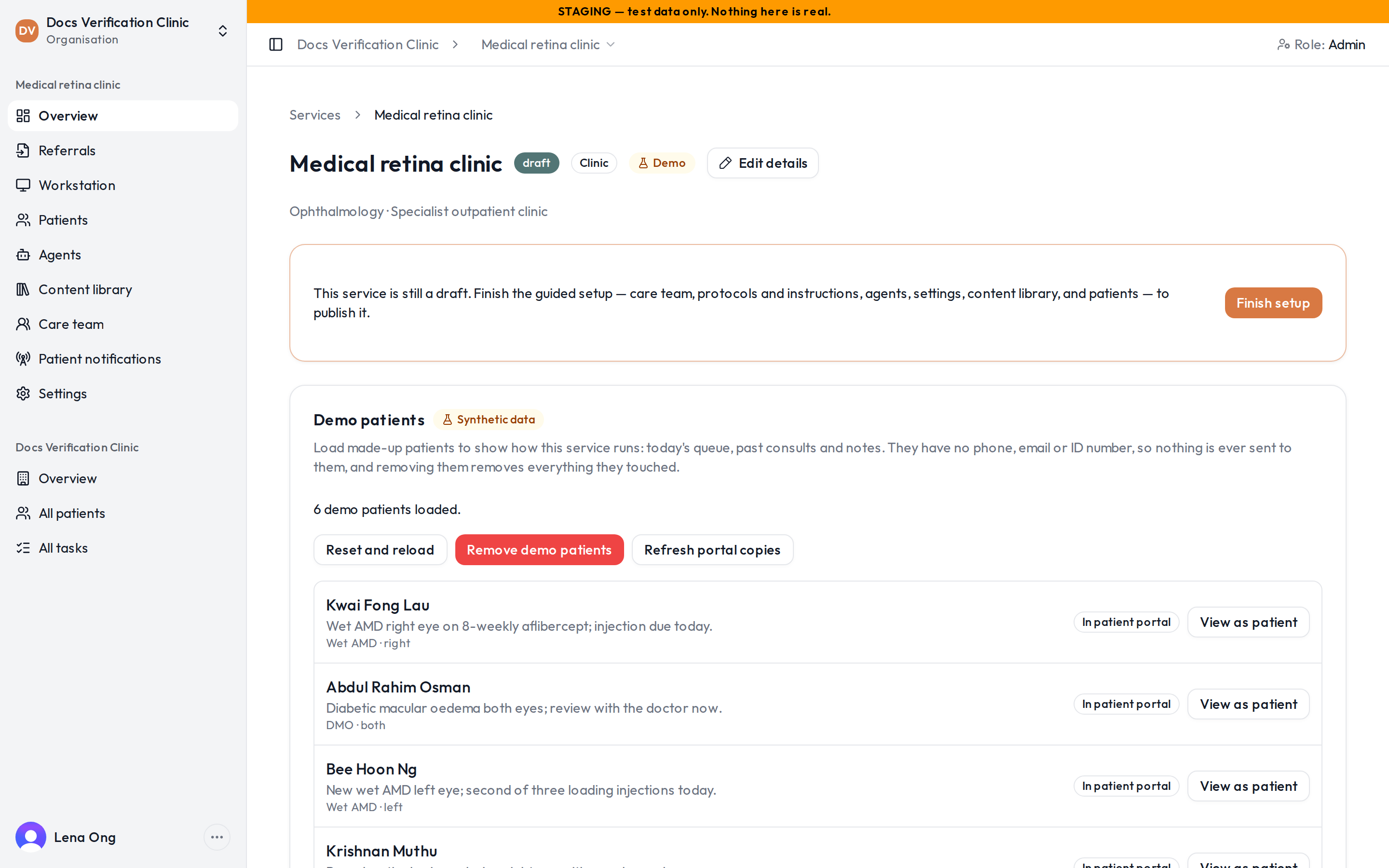
The Demo patients panel (with a Synthetic data chip) sits on a demo service’s Overview, below the patient agent card. For a service you made without a template, owners and organisation admins find it at the bottom of Settings, above the Danger zone. Everyone with access to the service can see the panel; only the service owner or an organisation admin sees the buttons that change it, and the sign-ins.
-
Click Load demo patients.
-
In Load demo patients, choose a Demo patient set. Each shows a name, a Bundled badge and a description. A set already loaded in another service is greyed out.
Each template has one set: General practice — a morning clinic (seven patients: diabetes, hypertension and kidney disease reviews, a fever, a stomach bug and a cataract referral), Cataract surgery — clinic and day surgery list (six patients from a new referral to second-eye surgery, including a day 4 patient with increasing pain and redness) and Orchard Fertility Centre: fourteen cycles (IVF at every stage; see the IVF guide).
-
Choose which patients to load. If the set has several conditions, archetypes or sites, filter with Condition, Archetype and Site. Quick buttons choose One per archetype, Two per archetype, All shown or None; or tick patients individually under Patients (N shown).
-
Click Load N patient(s).
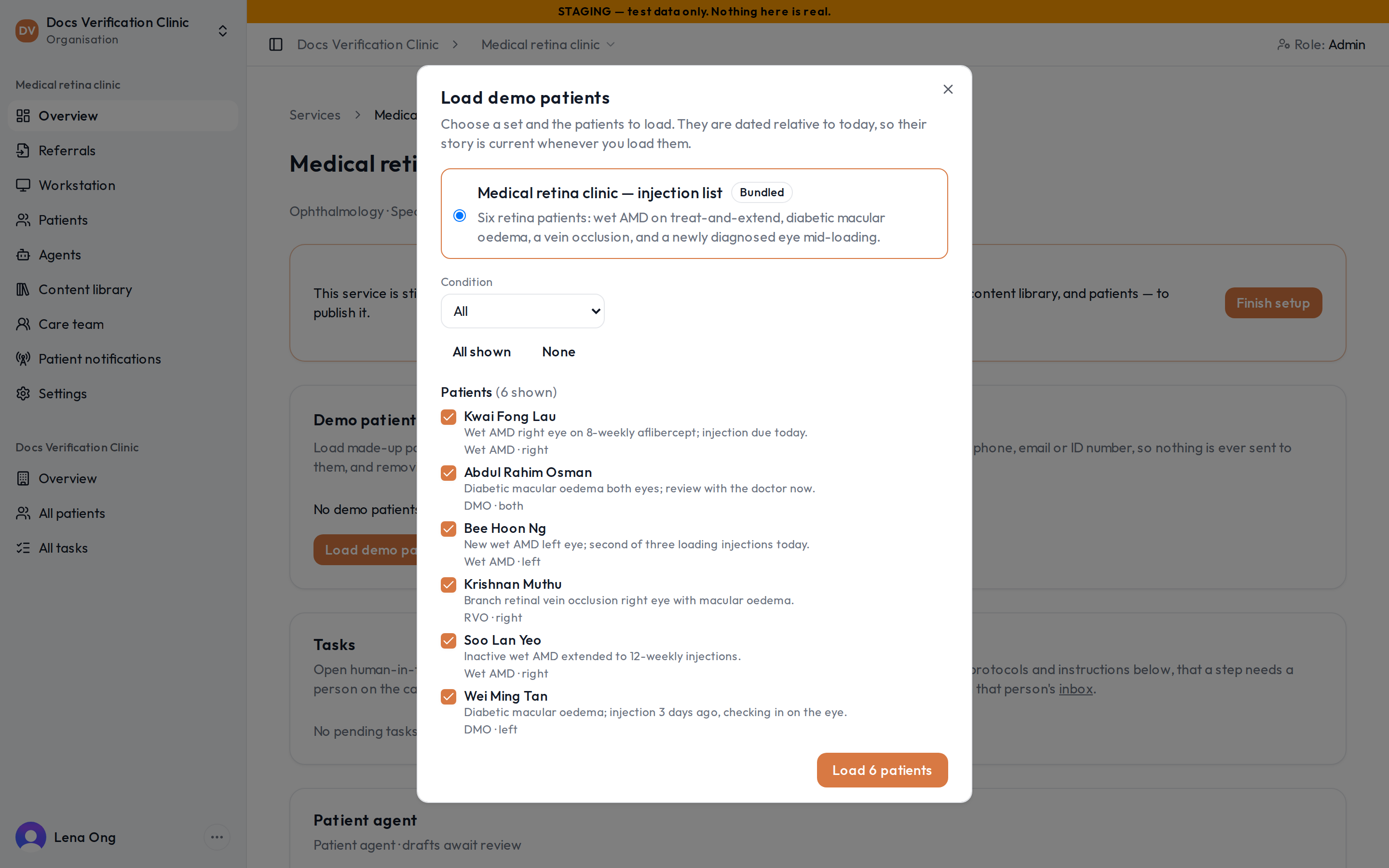
Patients are dated relative to today, so their story is current whenever you load them. The panel’s status line tracks progress (“Loading demo patients - N of M ready.”) and ends with “N demo patients loaded.” If some steps fail it says so, and you can try again.
In a demo organisation, a service made from a template with a step-by-step guide shows a Step-by-step guide card at the top of the panel, linking to it: for the IVF template, IVF & Assisted Reproduction.
Each loaded patient shows their name (a link to their patient page), a summary and tags. An In patient portal badge appears once their portal copy is ready. Demo patients carry a Demo chip in the cohort roster, on their patient page, and on the Workstation boards. Use the link at the foot of the panel to see them in today’s queue on the Workstation.
Demo sign-ins
A load also makes accounts for a cast of staff and for every demo patient, so a clinic being shown Medbot can sign in as each of them. They are listed in the Demo sign-ins section of the panel, for the service owner and organisation admins.
- Who. Every set has its own cast with one lead doctor, a nurse and an admin: for example the General practice set has Dr Aisha Rahman (the lead doctor), Melissa Tan (nurse) and Kumar Pillai (admin), and the IVF set has Dr Jonathan Lim (the lead doctor), Siti Nurhaliza (nurse, covering the Nurse role), Grace Ho (admin) and Dr Ruth Tan. Each demo patient gets a sign-in linked to their own portal record. The lead doctor becomes the practitioner on the run’s appointments and plans.
- Addresses. Plus-addresses of the email of the person who loaded the set, for example
you+orchard-lim@yourdomainfor a staff member andyou+orchard-mei-lin@yourdomainfor a patient. The accounts are created already verified, so no invitation or code is sent. The care team’s ordinary notifications go to those addresses, so you receive them. - Password. One per load, two words and four digits such as
maple-river-4821, shown at the top of the section. “Every account below signs in with this password. A reset ends them, and the next load gives them a new one.” Copy password copies it; Copy all copies the password and every address, with where each signs in, as text to paste into a message to the client. - Where. The section says where the Care team signs in (Medbot CMS) and where Patients sign in (the patient app).
While signed in with a demo patient’s sign-in, every patient app screen carries an amber Demo patient banner: “A synthetic record for a demonstration. Nothing here is real.”
Seeing the patient portal as a demo patient
There is no View as patient button. To see the patient portal as a demo patient, sign in to the patient app with that patient’s demo sign-in, listed in Demo sign-ins. The panel says so beneath the patient list. A demo patient’s own portal can no longer be reached from the account of the person who made the demo organisation. If you added demo patients to your own patient account earlier, they keep working until you remove them (Remove all demo patients on the Family page of the patient app, or Remove on one of them) or the demo is reset.
Remove or reset the demo
These buttons are for the service owner and organisation admins:
- Refresh portal copies: re-syncs the patient portal copies.
- Reset and reload: after you confirm Reset and reload the demo?, deletes everything the demo patients have (charts, appointments, visits, notes and portal copies, including anything you added while demoing) and reloads them dated from today. The records are purged, so their earlier versions go with them, not only their latest copy.
- Remove demo patients: after you confirm Remove the demo patients?, deletes the demo patients and everything they touched. If removal does not finish, the panel says so and offers Retry removal.
A reset also ends the demo sign-ins: their sessions end, the staff leave the care team and rota, and the patient links are revoked. The next load reuses the same addresses with a new password.
A reset or removal first cancels the demo patients’ pending tasks, so Notifications left open do not offer tasks that are about to disappear. Removing a large demo can take a few minutes, and the panel shows only what the removal itself ran into.
A service that still has demo patients cannot be deleted. Remove them first, so their records are deleted from the patient portal too.
Demo patients loaded before demo organisations
A service in a real organisation that was filled with demo patients before this change keeps them until you remove them. Its Demo patients panel says “Demo patients now load only in a demo organisation (open yours from Organisations). Remove the ones still in this service.” and offers only Remove demo patients.