Workstation
The Workstation is a service’s Patients page and every role’s home in the service: Clinic Admins, receptionists, doctors, nurses, patient service associates and allied health professionals all land here when they choose the service. It holds the service’s day (today’s queue, the ward census or the remote caseload), its patient list, appointments, referrals and session, and the consult screen. Staff move patients through their visit from here.
Open it from Patients, the first item under the service’s name in the sidebar (/services/<service>/workstation). The page is titled Patients, with a row of tabs (Workstation views) and, at the end of the row, a gear that opens Workstation settings over the page.
The tabs
Which tabs a service has depends on its Mode of care and on whether it runs a queue (Run a queue, in the service’s Queue and sessions settings):
| Service | Tabs |
|---|---|
| Outpatient or Hybrid that runs a queue | Queue, Patient list, Appointments, Referrals, Session, AI encounters, then Caseload (Hybrid only), Escalations, Health plans |
| Outpatient or Hybrid with its queue off | Patient list, Appointments, Referrals, AI encounters, then Caseload (Hybrid only), Escalations, Health plans |
| Inpatient | Census, Patient list, Referrals, Rounds, Escalations, Health plans |
| Remote | Caseload, Patient list, Appointments, Referrals, Escalations, Health plans |
A service with IVF cycles turned on also has a Cycles tab: see IVF Cycles. Escalations is described in Pre-visit History & Escalations, Health plans in Health Plans, Appointments in Appointments and Referrals in Referrals. For the census, rounds and caseload see Modes of Care.
The first tab is where the page opens. Older addresses for the service’s queue, appointments, referrals and patients open the matching tab.
How the queue works
Only a service has a queue. A service that runs one has its own clinic location, a queue prefix for its numbers (for example GP001, GP002, restarting each day) and one session a day with its own staff on duty, rooms and displays. The front desk, the patient portal and the self-service kiosk all check patients into the service’s open session:
- a patient checked in at reception, who checked themselves in on the patient portal, or who checked in at the kiosk joins the queue
- a patient with a booked appointment (including one booked by the patient in the portal) shows as Not yet arrived until they arrive
- check-in is refused while the service’s session has not started (“Today’s session for <service> hasn’t started”) or after it has closed (“<service> has closed for today”)
- starting a step that maps to a queue stage (nurse, doctor, investigations, dispensary) moves the patient to that stage
- finishing the visit takes the patient’s number off the queue and the waiting-room screen
The patient’s side
On the day of the visit, patients follow the same visit on the patient portal:
- Self check-in, by scanning the counter QR code or entering the location’s code and choosing the service, while its session is open and it takes self check-in. They get a queue number.
- A live queue tracker that tells them where to go next.
- Sessions your clinician arranged: AI financial counselling or health education sessions that staff arrange for this visit.
- A visit outcome screen at the end: what was found, medicines started, next steps and billing.
The Queue tab
The Queue tab shows today’s queue under a line about today’s session: Session open (with who the next check-in goes to), Not started (with Start today’s session for the front desk, or “Today’s session starts at the first check-in, with the staff rostered today.” when the service starts its day by itself), or Session closed. Manage session (View session for other roles) opens the Session tab.
What the tab shows depends on your role:
- The front desk (Clinic Admins, receptionists and patient service associates) runs the service’s queue here: check-in, Add to queue, handing over tickets, payment, routing, changing the lead clinician, remarks, Did not come and the Missed Queue. See Reception Queue. Call reads Call to <room> and preselects the room the lead clinician has in today’s session.
- Doctors and nurses work the queue from the board described below, with the Missed Queue under it.
- Allied health professionals read the queue.
The board
The board refreshes itself every few seconds, and shows how fresh it is. Refresh reloads it immediately.
| Control | Options |
|---|---|
| Day | Today or Tomorrow. Tomorrow is a read-only list of who is booked, with their appointment, doctor and pre-visit status. |
| Show | This service’s patients (the cohort) or Everyone in today’s queue (Everyone booked tomorrow on the Tomorrow view) |
| Filter | All patients, Waiting, In progress, Escalated, Completed, Not arrived, each with a count |
| I am running | Choose the step you are running today, for example Running Vitals. Patients waiting for it are marked Waiting for you and listed first, and a line says how many are waiting. Not running a step turns it off. |
| My room | Choose the room you are working in. The room today’s session gives you is chosen for you. |
Click the Queue or Appointment column header to sort.
| Column | Shows |
|---|---|
| Queue | The patient’s queue number. |
| Patient | Name, with sex and age under it, the masked ID and a Demo chip for demo patients. |
| Remarks | The front desk’s remarks for the visit. |
| Appointment | The booked time. |
| Notifications | An Urgent or Acknowledged escalation, and unanswered portal Messages. |
| AI encounters | The patient’s AI encounters for this visit. |
| Progress | How many steps are left, of how many. Hover for the breakdown. |
| Now and suggested next | The current step, and the steps that usually come next. |
Banners at the top say when:
- patients have raised an issue through the patient portal and need acknowledging
- patients on today’s list did not answer the pre-visit check-in (“Ask about how they have been before the consult.”)
Row actions:
- Mark arrived checks in a patient who is booked but not yet here.
- Add to service enrols a patient from the queue into this service’s cohort.
- Call (then Call again) calls the patient to your room. Choose My room first, otherwise the button explains “Choose “My room” above to call patients to it”.
- Start consult opens the consult, and also calls the patient in when you have chosen My room.
- Open visit opens the visit panel. The row’s menu also has View patient, which opens the patient’s page in the service.
Call, Did not come and Return to queue follow one rule, here and at the front desk: the front desk may move anyone; a doctor or nurse may move a patient whose visit they lead (a doctor also one booked with them), or any patient of a service they work on whom nobody leads. Allied health may move no one. A patient who was called and did not come goes to the Missed Queue, where a clinician returns only the patients they lead; calling a missed patient also returns them to the queue.
The visit panel
Open visit opens a side panel for the patient’s visit:
- the queue number and appointment time, and whether the patient is Waiting to be called, Called to <room>, or Called, did not come: in the Missed Queue, with Call, Call again and Did not come
- Escalation, if there is one, with Acknowledge and Resolve. Resolving asks for an optional resolution note.
- Unanswered portal message, if the patient is waiting on a reply.
- Today’s steps: every step of the visit with its status and who started or completed it. For a step not yet started: Start followed by the step name in lower case (for example Start vitals), or for a step the patient can do with the AI assistant, Start AI encounter (on a clinic device, see AI Encounters & Kiosk) or Start with staff. A step under way has Skip, and an AI session has View session.
- The consult step has Start clinical consult, or Resume clinical consult once started. If you have chosen My room and the consult has not started, Start consult and call in also calls the patient.
- Add next steps: the steps to add to the visit, grouped as Already planned, Usually next (the usual next steps of the step just completed and of the steps done) and Other steps from the service’s catalogue. Tick them and select Add step (or Add <N> steps). Nothing is added until you confirm.
- Finish visit: finishes the visit even if some steps have not started. The dialog names the steps that will be skipped, and “Finishing takes the patient’s number off the queue and the waiting-room screen, and shows them their visit summary.”
- Record that the patient left, with a reason, for a patient who left before the visit was finished.
The Patient list tab
Patient list lists the service’s patients, laid out like the organisation’s Patient list: search by name, NRIC, phone or date of birth, a status filter, View to choose the columns, and the columns Patient, Contact, Birth Date, Gender, Pending tasks, Latest AI encounter and Status.
Each row offers what your role can do from here:
- In today’s queue, or Add to queue (for the front desk, in a service that runs a queue)
- Book appointment
- Start AI encounter and Start Encounter (see Starting an encounter from the Workstation)
- in the row’s menu, View patient and Remove from service
Add patient finds a patient in the organisation, or registers a new one, and adds them to the service. See Adding a patient to the service.
Starting an encounter from the Workstation
Start Encounter opens the record the service’s mode calls for: in a service that runs a queue, it checks the patient in as a walk-in and opens the consult (the patient’s appointment today, if they have one); in a clinic with its queue off, a consult with no visit; in a Remote service, a review. An inpatient’s encounter stays a ward round. The button starts the common case straight away; the chevron beside it opens More options: Encounter class, Priority (only a priority where the service runs a queue) and Reason (optional).
Clinic Admins, doctors, nurses and allied health professionals start encounters. A patient service associate’s button reads Start financial counselling and starts manual financial counselling, recorded on the consult screen.
The Session tab
A service that runs a queue has a Session tab: its day, from start to close. The front desk (Clinic Admins, receptionists and patient service associates) runs it. Everyone on the queue can read it, and a doctor or nurse can change their own room.
- Start today’s session: puts the staff rostered today for the service on duty and opens check-in. If the service starts its day by itself, the first check-in or booking starts it instead.
- At a glance: Waiting, With a clinician, Seen, Missed Queue and Booked, not arrived.
- Who is on duty (On duty now once open): each person’s Room, what they are doing Now (with a patient, Free or Off duty), Seen today, an On duty switch, and for doctors Takes check-ins, with Next check-in beside the doctor the next patient goes to. Add someone who is not on the roster from Someone not on the roster. “Changes apply straight away: the next check-in skips anyone off duty or not taking check-ins. Each clinician’s room is where their Call sends patients.”
- Rooms at <location>: each room, who has it, and a switch to mark it unavailable, with a note (“Why it can’t be used, e.g. Doppler out for repair”). A room another service is using today shows who has it. Rooms are added in Organisation Settings.
- Displays: the waiting-room screens, room-door screens and check-in QR codes at the location that show this service, with whether each is Online, Offline or Never connected. A Clinic Admin adds a display, chooses the services a waiting-room screen shows, and revokes one. See Display Boards.
- Self check-in: “One code for the location. Patients scan the counter QR or enter the code, then choose <service> from the services open now.”
- Close today’s session: lists each patient still in the queue (Booked, not arrived, Waiting, With a clinician or In the Missed Queue) with a choice of Keep the visit open, Mark as left or Book for tomorrow. Reopen session opens it again the same day. A session also closes by itself at the time set in the service’s settings, or at midnight.
Patient steps
Under the session is Patient steps: the service’s catalogue of the steps a visit can go through, such as Registration, Vitals, Investigations, Consult, Financial counselling, Health education, Medications collection and Follow-up appointment. It replaces the visit journeys and the Progress tab.
| Field | Meaning |
|---|---|
| Name | Shown to staff, e.g. “Vaccination”. |
| Order | Position in the list. |
| Key | A short identifier, e.g. vaccination. Every step needs one. |
| Queue stage | None, Nurse queue, Doctor queue, Investigations, Dispensary queue or Completed. Starting the step moves the patient to that stage. |
| AI encounter | For a step the patient can do with the AI assistant: History taking, Health education or Financial counselling. |
| At check-in | Whether every visit starts with this step at check-in. |
| Usually next | The steps that usually follow this one. They are suggested first under Add next steps. |
Add step adds a step; each row has Edit and Delete. Changes apply to new visits. A visit already under way keeps its steps.
The AI encounters tab
AI encounters gathers the AI encounters of the service’s visits:
- Today’s visits: patients in today’s queue with an AI encounter, and its state.
- Health education and financial counselling: those Open, and those Ended, last 30 days, with Patient, Encounter, Status and Started. “No health education or financial counselling is open. Start one from a patient in the Patient list or the queue.”
- History taking before the visit: the pre-visit history board, for today or tomorrow. See Pre-visit History & Escalations.
The clinical consult
Start clinical consult opens the consult screen for the visit: Medbot’s notes editor, with the patient’s note for this visit, under the service’s breadcrumb. Beside the note are the patient’s chart and Orders and Medications tabs, where you draft and sign prescriptions, lab and imaging orders and service orders (see Orders & Order Sets). If the patient did a pre-visit history, a Pre-visit history section offers Add to note and Open full note, and a pre-visit check-in summary offers Add to note.
- The note saves automatically.
- Record the consult with the encounter recorder. On this screen it transcribes every 45 seconds, and a Transcript pane beside the note shows the conversation almost live. Pause and resume without losing the microphone.
- When the recording ends, review the AI-drafted note section by section and add what you want.
Ending the consult
Click End consult when you are done. Medbot reads your plan in the note and proposes next steps, but nothing reaches the patient until you confirm. The dialog End consult: next steps for <patient> shows:
- the rationale, and a checklist of proposed steps. Each carries a badge: Portal, Kiosk, In clinic or Task. Untick anything that should not happen.
- Add another step, to add one of the service’s other journey steps yourself.
- Unsigned orders: any prescription, lab, imaging or service drafts. “Drafts are not sent. Sign them on the Orders and Medications tabs before you end the consult.”
- Tell the patient by SMS or WhatsApp that steps are waiting, with a portal link only. This is disabled if the patient is not on the portal. Its starting value comes from your Workstation settings.
- Propose a health plan next, when the patient is on the portal. Ending the consult then opens the patient’s Health plan tab with targets suggested from their recent results, to check and send. See Health Plans.
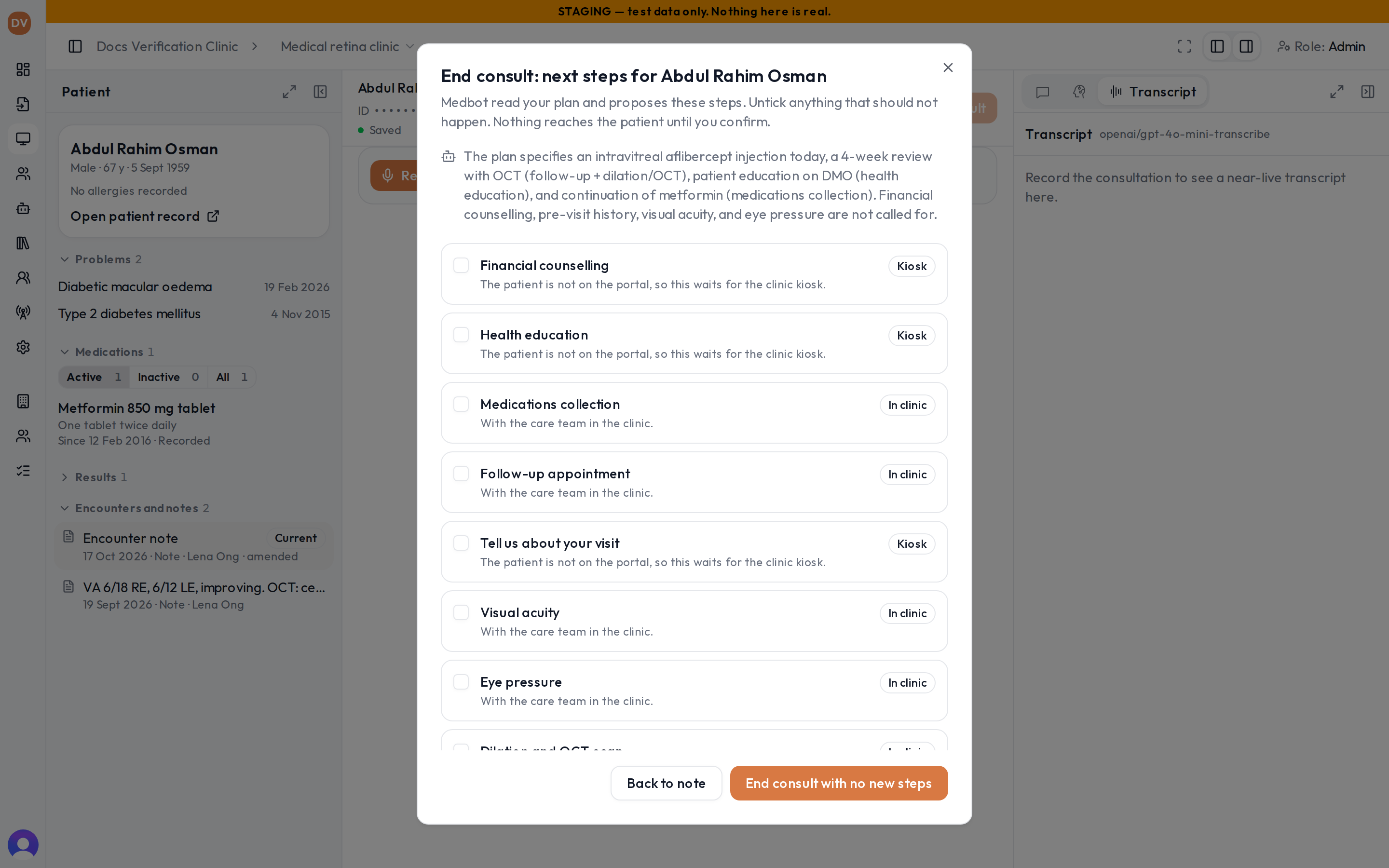
Click Confirm <N> step(s) and end consult (or End consult with no new steps). Medbot adds the steps, completes the consult step and shows “Consult ended”. If notifying the patient fails, the consult still ends.
Settings
Workstation settings
The gear at the end of the tab row opens Workstation settings over the page:
- For a service that runs a queue: Default to only my assigned patients, When ending a consult, tell the patient about new steps by default, and Set this service’s requeue places (Requeue places, 1 to 20: “A requeued patient of this service goes after this many patients who are ready to be seen”). Otherwise requeue follows the organisation’s default. A doctor’s own setting still applies to their patients.
- For an Inpatient service: Wards this service rounds on, Census order, and the Wards at the service’s clinic location.
- For a Remote or Hybrid service: Unanswered message needs attention after (hours).
Click Save settings. The service’s clinic location is set in the service’s settings, under General.
Queue and sessions settings
A Clinic Admin sets how the service runs its queue in the service’s settings (the gear beside the service’s name), under Queue and sessions:
| Setting | What it does |
|---|---|
| Run a queue | ”Checked-in patients get a queue number and are called from the Workstation. A queue service runs one session a day, with its own staff on duty, rooms and displays.” Off, an Outpatient or Hybrid service has no Queue or Session tab and opens on its Patient list. |
| Queue prefix | Up to six characters. Numbers read <prefix>001, <prefix>002 and restart each day. It must differ from the other services at the service’s clinic location. |
| Close the session automatically at | Midnight or a time. Anyone still waiting keeps their visit, and the session can be reopened until midnight. |
| Start the session at the first check-in | Uses today’s roster for who is on duty. Off: check-in stays closed until the front desk starts the session. |
| Share new patients among doctors on duty | Check-in assigns doctors who take check-ins in turn. Off: the front desk picks a doctor for each patient. |
| Self check-in | Patients can check in with the counter QR or code while the session is open. |
Click Save queue settings. See Modes of Care.