Referral Requests
For Medbot platform administrators only (admin and superadmin).
When a patient asks, through Medbot, to be referred to a provider in the directory, the request appears here. Open Referral requests in the platform admin panel in Medbot CMS (/admin/directory/interests; the old address in the Medbot app redirects there).
The provider is emailed automatically when the listing or service has a referral email. The email carries a link, never the patient’s reason.
Work a request
The tabs are Open, New, Sent, Contacted, Closed and Withdrawn. Open a request to see its detail page.
- In Next step, Medbot says who holds the request: “Nobody has taken this one yet.”, “You have taken this one.” or “Another admin has taken this one.” Select Take this one so colleagues know you are handling it; Release hands it back. If another admin holds it, the button is Take over, and Medbot asks Take over this request? (“Another admin has taken it and may be working on it. Taking it over assigns it to you instead.”) before it does.
- Once the provider has been told, select Mark as passed on. In the dialog, enter Sent to: an email address, or something like “Phoned reception”.
- When the provider has been in touch with the patient, select Patient contacted.
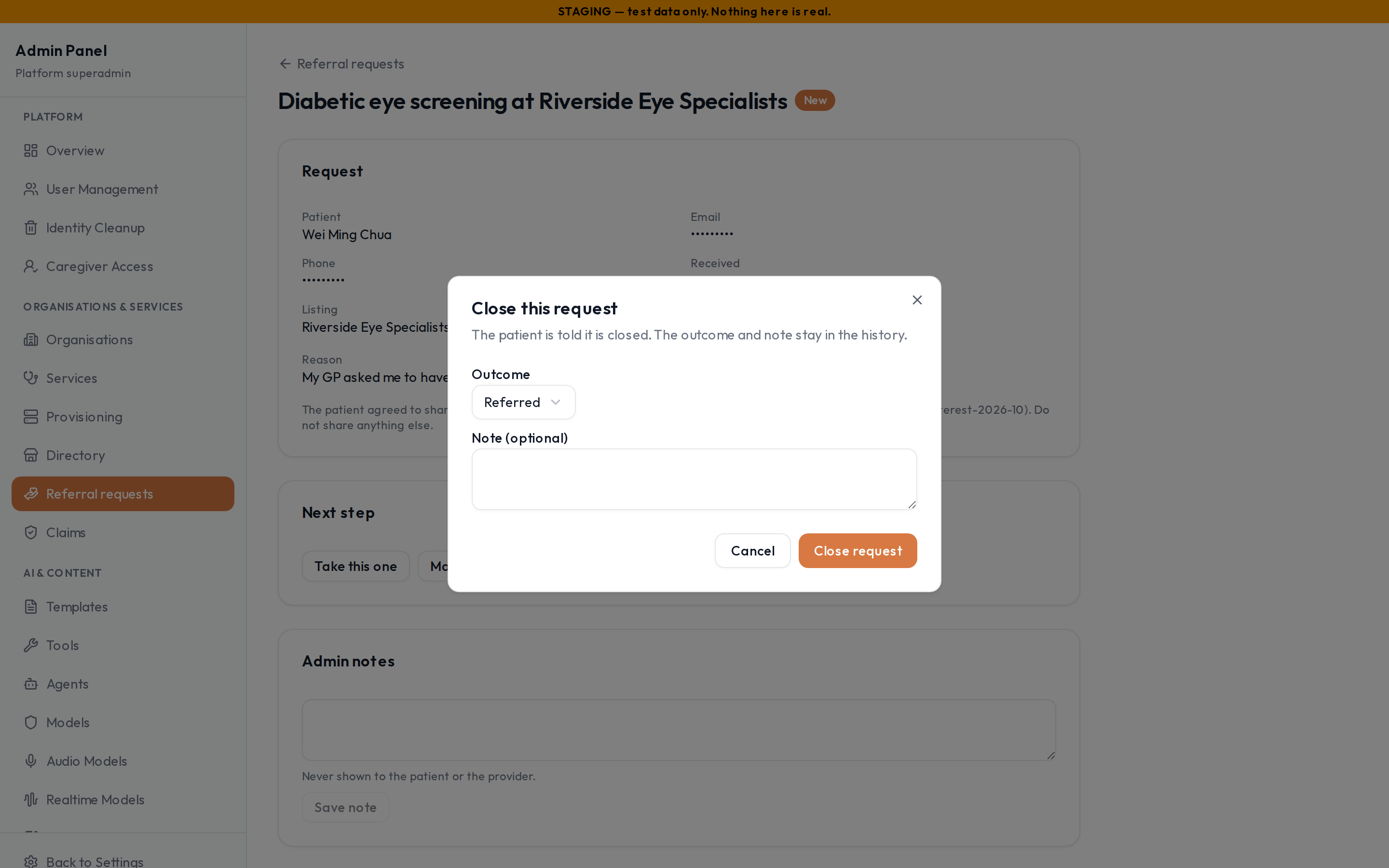
- Select Close to finish. In Close this request, choose an Outcome: Referred, Declined by the provider, Could not reach the patient, Duplicate request, No reply in time or Other, with an optional Note (optional).
Use Admin notes and Save note for internal comments; they are never shown to the patient or the provider. A request marked “Now on Medbot” means the provider has since been claimed.
What the patient sees
The patient sees a simpler status in Medbot Health: Received, Passed to the clinic, In touch, Closed or Withdrawn.