Patient Agent
The patient agent is an AI agent that enrolled patients chat with in the patient portal, in their own time. In the portal it appears as “<Service> assistant”. It only ever replies to a message the patient sent. It never starts a conversation on its own.
SMS, WhatsApp and email do not carry the conversation. They only tell a patient that something is waiting in the portal (see Patient Notifications). If a patient replies to one of those messages, they get an automatic reply that points them to the portal, and their message lands in the Inbox for the care team.
What it can do
| Capability | What the patient can do | What the agent may do on its own |
|---|---|---|
| Appointments | Ask for a new appointment, move an existing one, cancel one, ask when their next one is | Read the patient’s own appointments; book or move one directly into an open slot on a care team member’s published availability; cancel outright |
| Health education | Ask questions about their condition, an upcoming procedure, pre-procedure preparation, or medication they were given | Answer from the service’s own content library and the patient’s own context only, showing a picture from the library when one helps; hand off anything outside that scope |
| Symptom triage | Report a new or changed symptom between consults | Classify urgency; on a red flag, immediately redirect to emergency services and escalate to whoever covers the escalation role |
| Education & counselling | Go through a counselling or education protocol, step by step | Take consent, walk through the protocol from the content library, and record what the patient understood or agreed (with the Education & counselling sessions tool) |
| Full encounter | Need a longer conversation than chat allows | Send a link to a full AI encounter on the patient portal (with the Hand over for a full encounter tool) |
Setting it up
The patient agent is on by default for a new service: the Patient agent default agent is created and bound for you. You only need to act if you want to change its instructions or settings.
1. Author the agent
Rewrite the default Patient agent, or create another service agent with Audience = Patient on the Agents page. It gets the patient tool set, and the safety preamble is always added on top of your instructions.
2. Settings
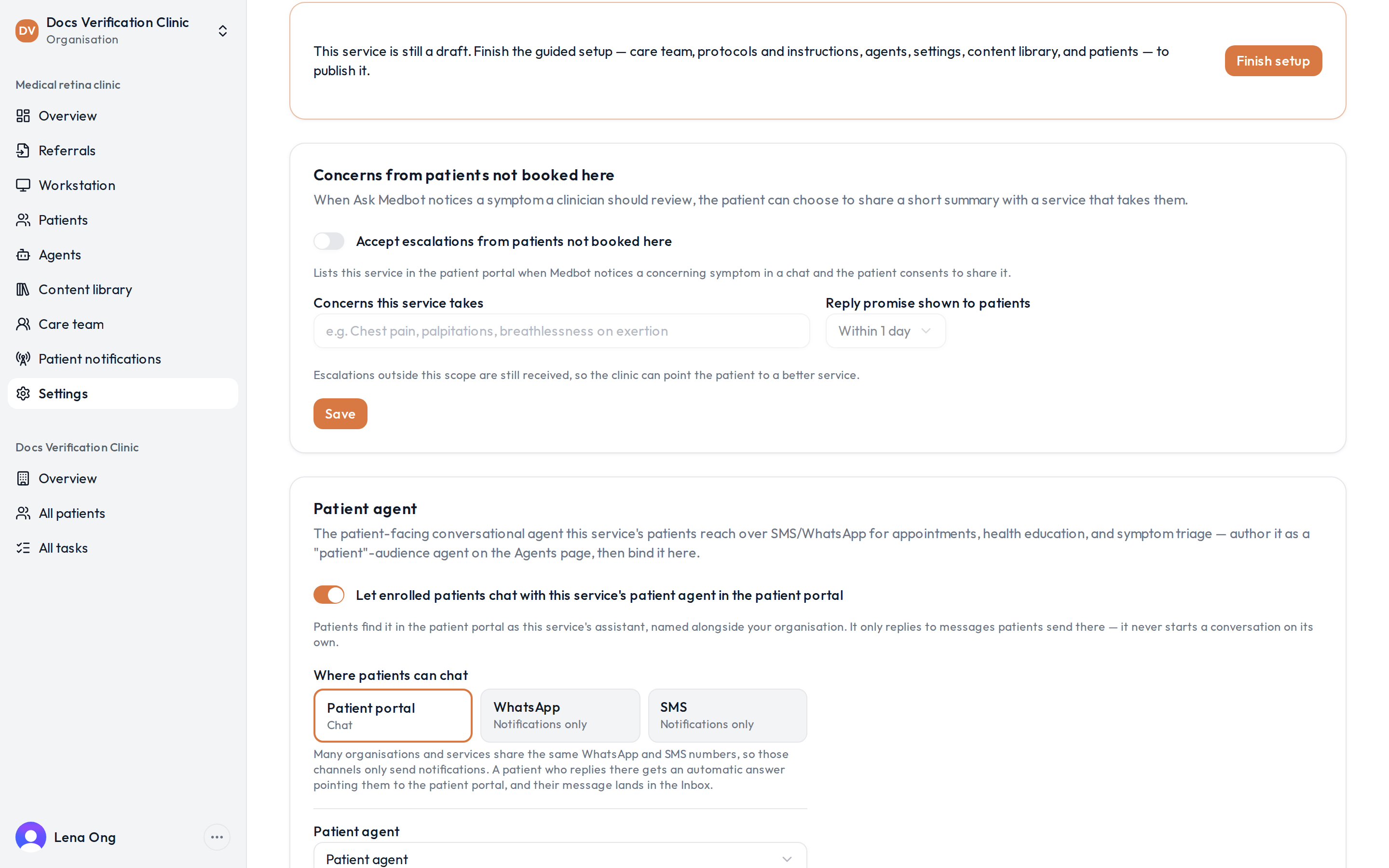
On the service’s Settings, the Patient agent card:
- Let enrolled patients chat with this service’s patient agent in the patient portal: the on switch.
- Where patients can chat: Patient portal is Chat. WhatsApp and SMS show Notifications only.
- Patient agent: a dropdown of this service’s active Patient-audience agents. If there are none, it points you to the Agents page.
- Escalation role: which organisation role (Admin, Doctor, Nurse or Receptionist) is notified on a red flag, a failed turn or a hand-off. It is resolved through Coverage to whoever is covering that role right now.
- Emergency number: e.g.
995. - Emergency message: a template, seeded with a default, that must keep the
{emergencyNumber}placeholder. Sent immediately and unedited whenever the red-flag screen fires. - Offer education & counselling sessions proactively: lets a staff service agent message patients to ask whether they would like to go through a counselling protocol from the content library, based on where they are in their care. The patient agent still never starts a conversation; it handles the reply.
- Agent that sends the offer: a staff agent that can message patients.
- Also check right after an encounter note is saved: otherwise offers are only considered on scheduled agent runs.
Click Save.
Subagents
A patient agent can call linked workflow subagents, but only those set to let the agent decide; Every run is not available to it. See Service Agents → Subagents.
Message approval policy
On the service’s Settings, the Message approval policy card decides “which patient messages an agent may send as drafted, which wait for staff to approve, and which a person always writes.” It applies to every agent in the service, the patient agent included. Only the service owner or a clinic admin can change it.
Each kind of message has its own setting:
| Kind of message | What it covers |
|---|---|
| Informational answer (T0) | An answer from the plan and approved clinic content, for example when the next scan is. |
| Routine clinical reply (T1) | A protocolised reply to a routine symptom or question, drafted from the clinic’s approved advice. |
| Plan-change instruction | A message that tells the patient what changed in their treatment plan. |
| Clinical judgement (T2) | Anything that needs a nurse’s or doctor’s judgement. An agent never sends it. |
| Results and bad news | Always given by a person. Cannot be changed. |
| Emergency template (T3) | The fixed emergency message, sent at once when a red-flag rule matches or the assistant flags an emergency. A model never writes it. Cannot be changed. |
The choices are:
- Follow each agent’s “Review before sending”: nothing changes. Service agents use their own Review before sending switch and the patient agent its reply mode. For Clinical judgement, this lasts only until any other kind is set; from then on it waits for approval.
- Off: a person writes it.
- Prepare only: staff approve before it is sent. The draft waits in Notifications.
- Auto submit: sent as drafted and logged.
Next to each setting are the numbers from past review tasks: how many were approved unedited, edited or rejected, and how long staff took to decide. Read them before you let a kind of message go out without review. Saving a change that sends a kind of message with less review than before shows a warning naming it.
Use the conservative defaults fills in the recommended settings. Start from how it works today copies the patient agent’s current reply mode. Clear the policy goes back to each agent’s own setting. Select Save policy.
Templated reminders and notices (enrolment, appointment and dose reminders) are sent by the system whatever is chosen here.
Approving an agent’s drafted message is recorded in the audit log under your name, just before the message itself.
Configuration history
The Configuration history card on Settings lists every change to the service’s agent prompts and settings, approval policy, red-flag rules, content and instructions. Each version shows its number, when it took effect, who made it, and what changed. The first entry is the configuration as it stood when history began. Every agent run and every message an agent sends records the version it ran under, so you can tell which setup produced a given message.
Safety design
A few things are true regardless of settings, and are not configurable away:
- Emergency screening runs on the patient’s message. A hit sends your Emergency message and opens an escalation.
- It never invents an appointment, clinician name, result, or clinical fact. Appointments only ever come from the appointment tools; anything the agent doesn’t know, it hands off to the care team rather than answering.
- It never diagnoses, changes a prescription, or interprets an unreleased result.
- It discloses that it’s an automated assistant, not a clinician, at the start of every new conversation and on request.
Drafts awaiting review
The patient agent replies in the portal directly. If a patient has an older stored reply that was drafted for review, a Draft awaiting review card appears at the top of their page (above the tabs, so it is never missed):
- Read the drafted reply, along with its detected intent and triage band badges.
- Either:
- Click Approve & send to deliver it exactly as drafted, or
- Edit the text in place, which changes the button to Send edited reply, or
- Click Discard to drop the draft entirely (nothing is sent).
Escalations
An Escalations card on the patient’s page (General tab) lists everything the patient agent has flagged: a Red flag, an Agent-flagged triage, a failed turn (Agent turn failed), an Out of scope hand-off, or something Staff flagged manually. Each shows its severity, status, and timestamp.
- Click Acknowledge to mark an open escalation as seen.
- Click Resolve once it’s been handled. A Resolution note (optional) box opens (“What was done, and what happens next.”). Select Resolve escalation. The note shows on the card afterwards.
Each escalation also raises a task in the covering role’s Notifications and on the service page. Resolving either one resolves both. Whoever resolves it is recorded.
If no one was actively covering the configured escalation role at the time, the card notes that the service owner was notified instead as a fallback — a visible signal that the rota needs attention.
Preview chat
Before patients use the agent (or after editing it), use Preview chat from that agent’s row on the Agents page:
- Pick a real cohort patient to test against. The preview uses their actual context in this service.
- Type messages as if you were that patient and see the agent’s replies in a sandbox chat window.
Nothing in a preview is sent to the patient or saved to their message history — appointment bookings and escalations run in a simulated dry-run mode only.
Recommended rollout
Before the first real patients are enrolled, use Preview chat to walk through appointment, education, red-flag and out-of-scope scenarios, and keep an eye on the Open escalations and Pending drafts figures on the service Overview.