Patient-Facing Displays
A display is a screen at the clinic that patients look at: a board in the waiting room that shows which queue ticket is being called, a screen on a room door, or a tablet at the counter that shows the check-in QR code. It needs no sign-in. Displays belong to a clinic location. A Clinic Admin sets them up in the Displays card of a service’s Session tab (/services/<service>/workstation/session).
Who can do this
| Task | Clinic Admin | Receptionist | Doctor | Nurse |
|---|---|---|---|---|
| See the location’s displays | Yes | Yes | Yes | Yes |
| Add a display | Yes | No | No | No |
| Change the services a waiting room board shows | Yes | No | No | No |
| Revoke a display | Yes | No | No | No |
Reception controls what a board shows by calling patients to rooms. See Reception Queue.
Adding a display
- Open a service’s Workstation, then its Session tab.
- In Displays, select Add display.
- Enter a Name, for example “Lobby TV”.
- Choose the Type:
- Waiting room (full board). Under Services shown, tick the services whose numbers it shows. “With every service ticked, the board also shows services added here later.”
- Room door (single room), and choose the Room. It “shows the latest patient called to its room, whatever the service.”
- Self check-in: QR only (counter tablet): “For a tablet at the front desk. It shows only the check-in QR code patients scan with their phone camera. The code changes every minute, so it only works at the clinic.” For patients without the Medbot app, walk-ins and pre-visit questions, run the self check-in kiosk instead: it shows the same QR code.
- Select Create.
A window, “<name> is ready”, shows the display’s web address. Open that address on the display device, or select the copy button. The address is shown only once. If you lose it, revoke the display and add a new one.
The Displays list shows each display’s Name, Type, Room, what it Shows (its services, “Every service”, “Its room’s latest call” or “Check-in QR code”), Last seen and Status (Online, Offline or Never seen). Last seen reads, for example, ”42s ago” or “5m ago”, and after an hour the date and time in Singapore time.
To change what a waiting room board shows, select Edit services on its row (“The waiting list and calls this board shows”).
What each display shows
A display updates itself about every four seconds, so nobody needs to reload it. It never shows a patient’s name.
The waiting room board shows the location name and the time of the last update, in Singapore time (for example 14:03:09). Under Now serving it lists the ticket last called for each room, with the room name. Under Waiting it lists the tickets of patients who have checked in and not been called, or “No one else waiting.” Before anyone is called it says No patients called yet. Beside the queue it shows Check in with your phone: the location’s check-in QR code, which patients scan with their phone camera to check in in the Medbot app, and “No camera? Enter <code> in the app”. See Clinic Card & Check-in.
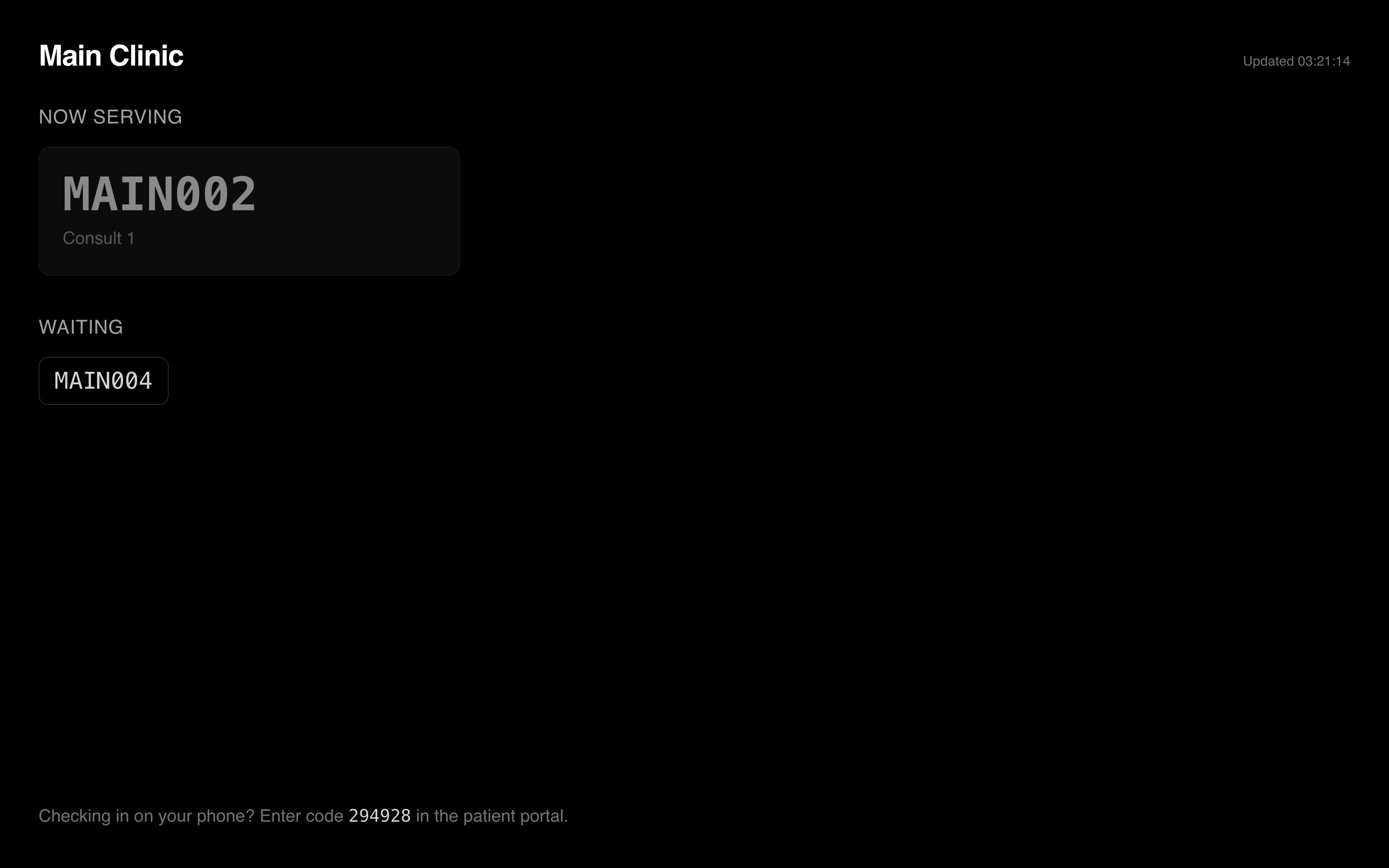
A waiting room board (earlier layout, before the check-in QR code)
A room door screen shows the room name and only the ticket called to that room, with the words Now serving.
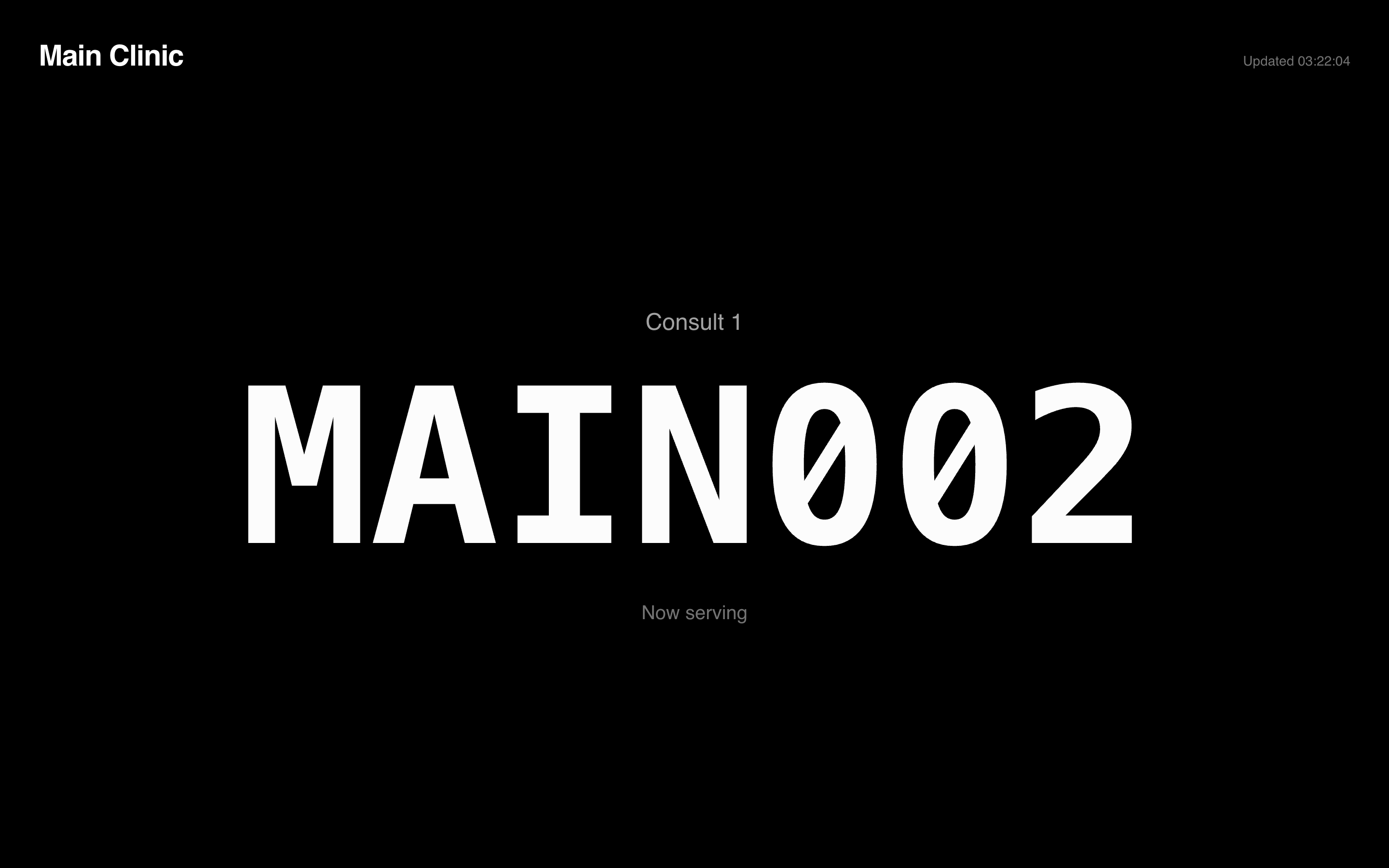
A room door screen
A counter tablet shows only Have an appointment? Check in here, the QR code with “New code every minute, so it only works here”, the steps Open your camera, Scan this code and Tap Check in, the code to type, and “No smartphone? Please see the front desk.”
The QR code changes every minute. If the screen loses its connection and stops getting new codes, it takes the old one down and says “Please see the front desk to check in”, so a patient never scans a code that no longer works.
A ticket stays on a board until the patient is routed to another stage or called again.
Revoking a display
In the Displays list, select Revoke on the display. There is no confirmation, and the status changes to Revoked at once. A revoked display, or a wrong address, shows “Display deactivated — contact reception.” A revoked display cannot be turned on again. Add a new one instead.
Note: Treat the display address like a key. Anyone who has it can open the board.
Related
- Workstation: Session tab: today’s session, staff on duty and rooms.
- Reception Queue: calling patients to rooms.
- Clinic Card & Check-in: how patients check themselves in.