Documents & Certificates
A patient’s Documents section lists their letters, memos, referral letters, and medical certificates. Open it from the patient’s chart, in the sidebar under the patient’s name. Voided documents stay in the list, marked Voided, so the history is kept.
Who can do this
| Task | Clinic Admin | Receptionist | Doctor | Nurse |
|---|---|---|---|---|
| See documents, and download, print, or email them | Yes | Yes | Yes | Yes |
| Compose a letter or memo | Yes | No | Yes | Yes |
| Compose a referral letter | Yes | No | Yes | No |
| Issue a medical certificate | No | No | Yes | No |
| Void a letter or memo | Yes | No | Yes | Yes |
| Void a referral letter or medical certificate | Yes | No | Yes | No |
You can void only the kinds of document you are allowed to compose. A nurse can void a memo but not a referral.
A medical certificate prints the issuing doctor’s MCR number, so it can only be issued while working as a Doctor. A Clinic Admin does not see Issue medical certificate. Someone who is both a Clinic Admin and a Doctor switches to their Doctor role first (see Switching role). Otherwise the request is refused with “A medical certificate carries the issuing doctor’s MCR number, so it can only be issued while working as a doctor. Switch to your Doctor role to issue one.” A Clinic Admin can still void a medical certificate.
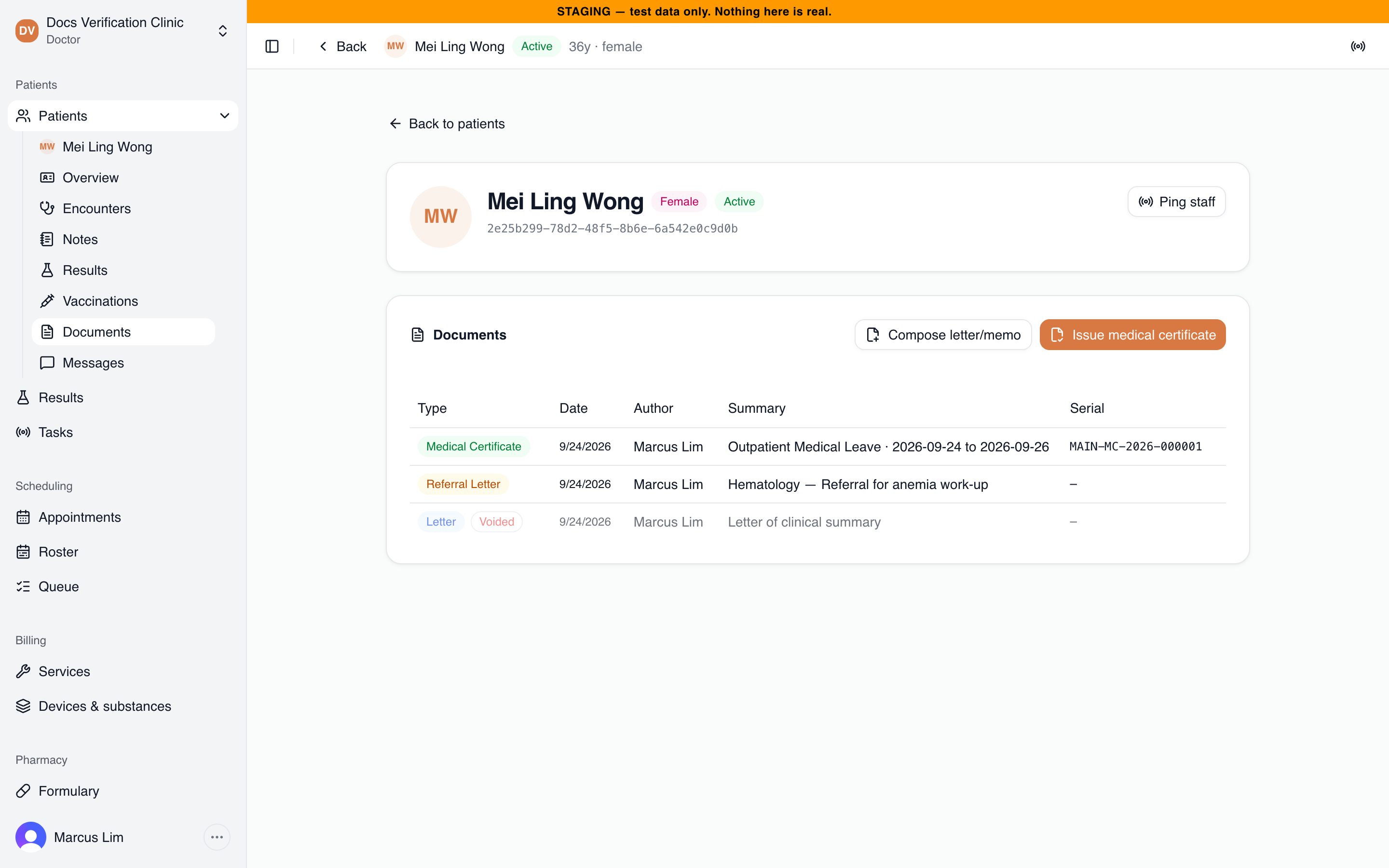
The Documents section
Composing a letter, memo, or referral
- Select Compose letter/memo.
- Choose the Type: Letter (for the patient or a third party), Memo (an internal note filed against the record), or Referral Letter (to another physician or specialist). Nurses see only Letter and Memo.
- For a referral, enter the Specialty, for example “Hematology”. It is required. You can also enter who it is Referred to (optional).
- For a letter, you can enter To (optional) and Recipient email (optional).
- Enter the Subject and the Body.
- Select Compose letter, or Compose referral letter.
The button stays disabled until the required fields are filled. Medbot confirms with a message such as “Letter composed.” The document then appears in the list with its author and date.
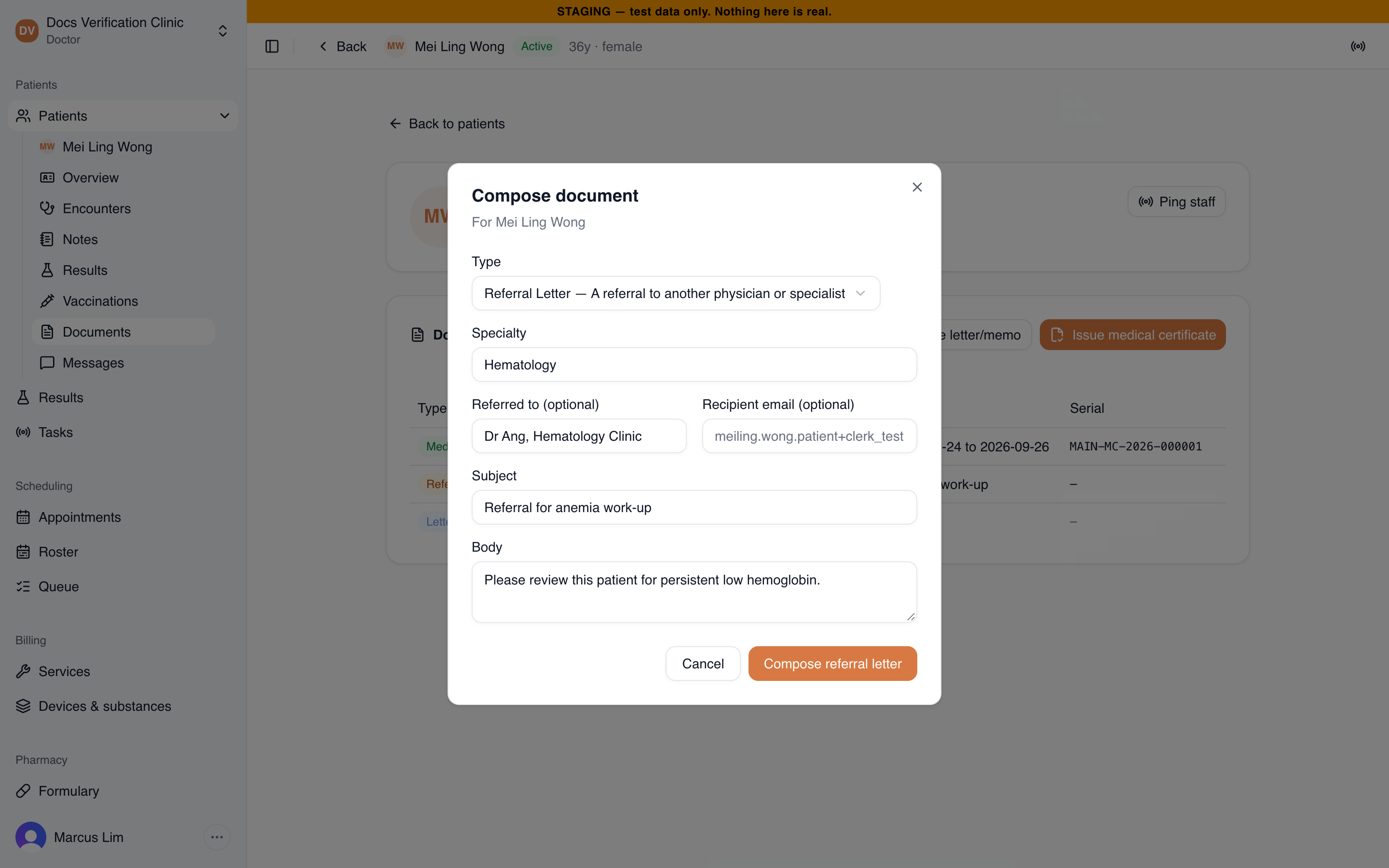
Composing a referral letter
Issuing a medical certificate
A physician family organisation cannot issue medical certificates: the option is not offered there.
- Select Issue medical certificate.
- Choose the Leave type: Outpatient Medical Leave (not fit for work or school), Light Duty (fit for light duties only), or Hospitalization Leave (admitted or hospitalized). No other types exist.
- Enter the Start date and End date. The end date must be on or after the start date.
- Check Number of days. Medbot counts both the first and last day, so 25 to 27 September is 3 days. You do not enter it.
- Optionally, add Comments (optional).
- Select Issue certificate.
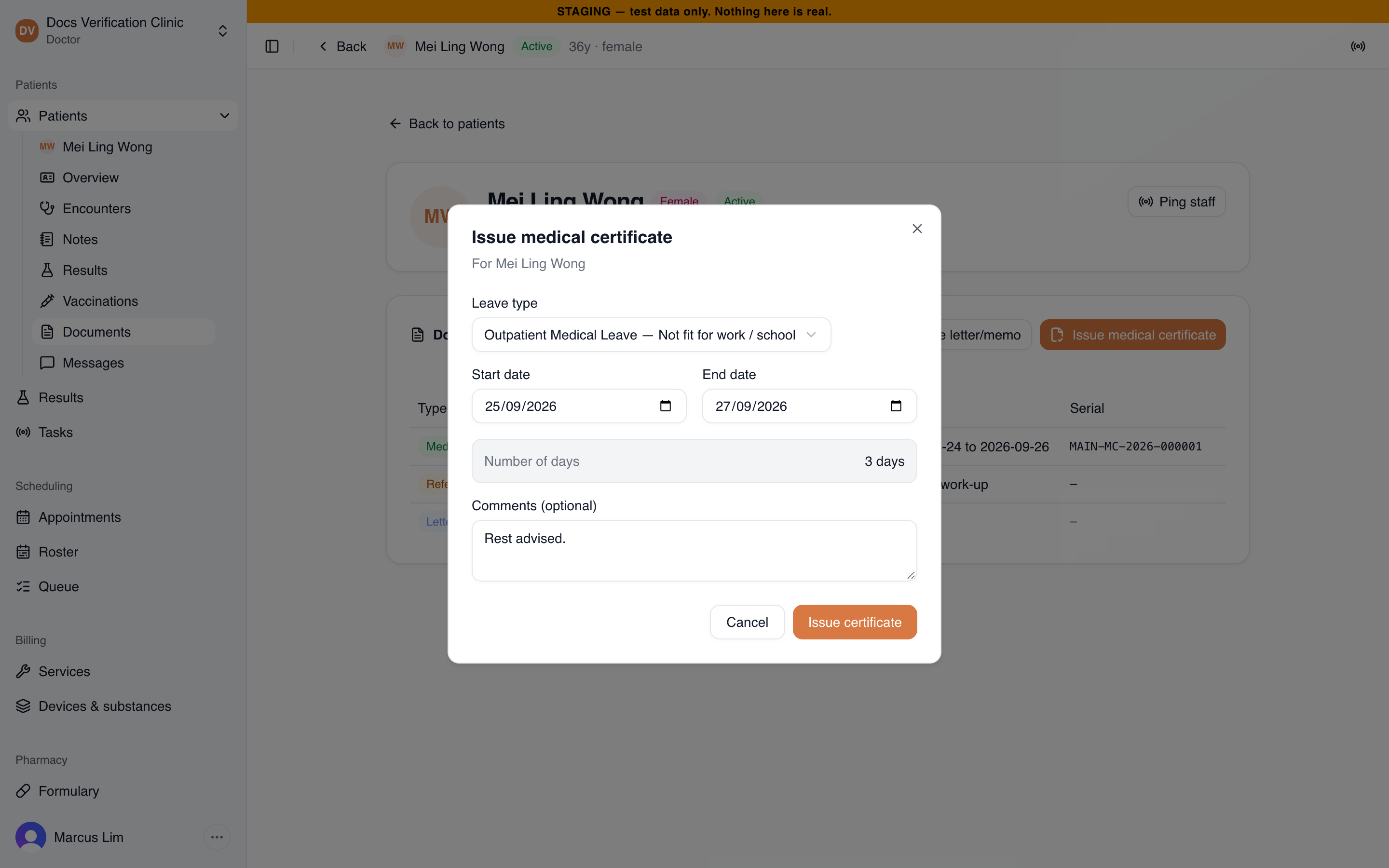
Issuing a certificate
Each certificate gets a serial number for its clinic location and year, such as MAIN-MC-2026-000001. The count for each location and year starts at 000001 and goes up by one. A serial is never reused, even if the certificate is voided.
If you see “Your account is missing a linked practitioner profile or medical license number; contact an admin before issuing certificates.”, ask a Clinic Admin to complete your staff record.
Downloading, printing, and emailing
Select a row to open the document. From the keyboard, move to the document’s summary with Tab and press Enter. Everyone who can see documents can use Download, Print, and Email.
Download and Print make the PDF on Medbot’s servers from the full chart, the same way as the emailed copy, so all three copies of a document are the same. A medical certificate names the patient by their NRIC or FIN, or else their passport number (labelled Passport No.); an MRN or a retired number is never printed under “NRIC / FIN”. The number stays masked on the screen. If a download or print fails, the message says why: the document was voided, you may not open it, a certificate is missing details (such as its serial, leave type, period or number of days), or Medbot could not be reached.
Dates on a medical certificate or letter PDF are printed in the clinic’s format, for example “4 Sept 1979”, and as the day in Singapore, whatever the computer’s own time zone or language.
For Email, the address starts as the patient’s email. Medbot sends the document as a PDF attachment, but only if the patient has consented to it. It checks two consents in the patient’s communication consent: Documents sent to the patient for the patient’s own address, and Documents sent to a third party for any other address. See Patient Records & Consent.
| Message | What it means |
|---|---|
| Enter a valid email address. | The address is not written correctly. |
| The patient has not consented to document delivery to their email address. | Ask the patient, then record consent on their chart. |
| The patient has not consented to document delivery to a third party by email. | The address is not the patient’s. Record that consent first. |
Sending email needs an email sender to be set up for your Medbot deployment. If it is not, the send fails and you see a message that email is not configured. Ask whoever runs your deployment.
Voiding a document
Voiding marks a document as made in error. Use it to fix a mistake: void the original, then compose or issue a new one.
- Open the document and select Void.
- Type a Reason for voiding.
- Select Confirm void.
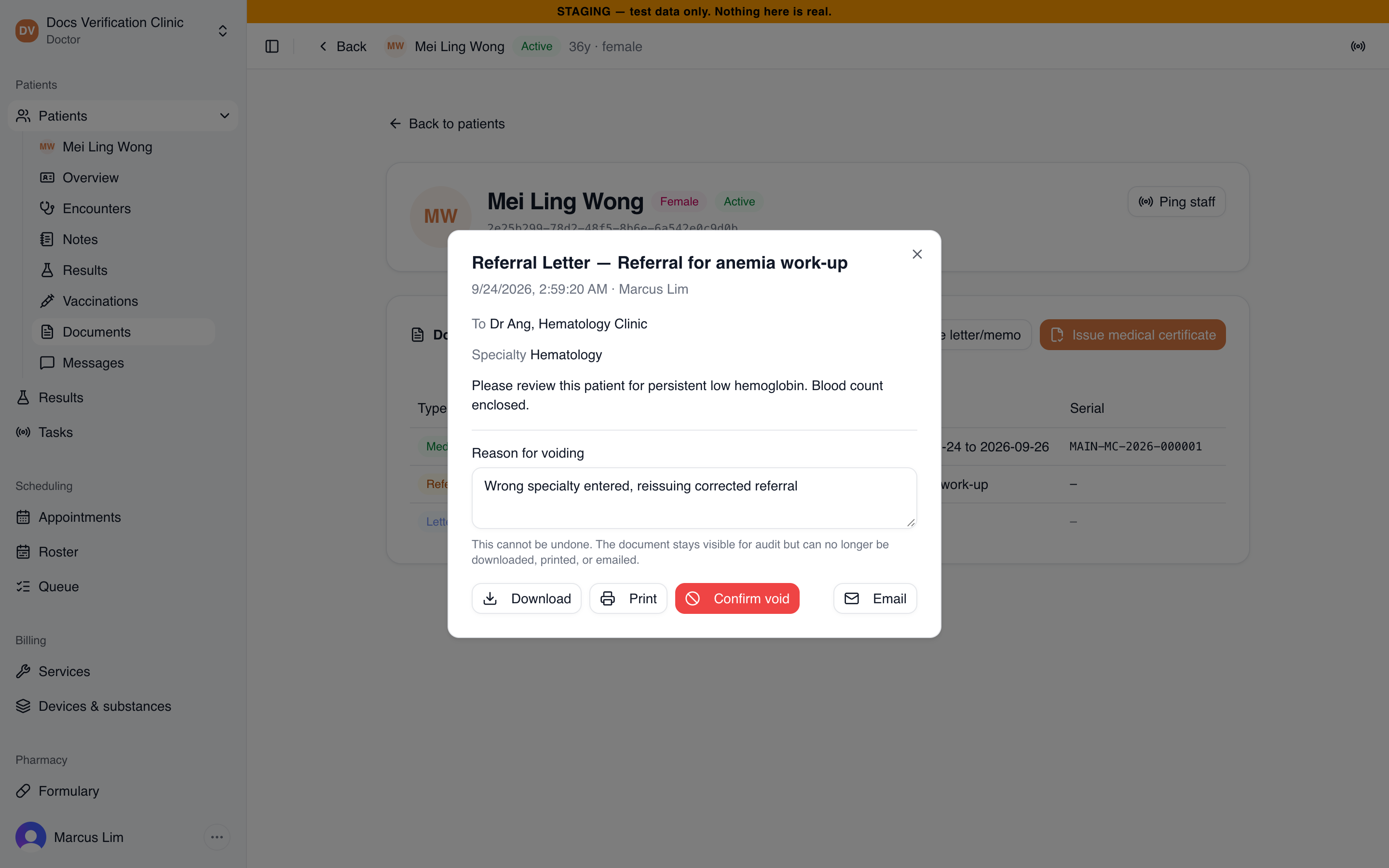
Voiding a referral letter
Voiding cannot be undone. The document stays in the list with a Voided label, the reason, who voided it, and when. A voided document can no longer be downloaded, printed, or emailed. Its serial number is not reused.
Referral letters and NEHR
In Singapore, where the organisation contributes referrals to NEHR, referral letters also go to the patient’s national record:
- While a Clinic Admin or doctor writes a Referral, a note says “Sent to NEHR when composed.” If the letter will be held, a second note says “Held for consent before NEHR.” and lists what holds it. A doctor then confirms the patient’s consent on Reports before it is sent.
- The Documents card has an NEHR column with each referral letter’s status. Opening a referral letter shows National record (NEHR).
- Voiding a referral letter that NEHR has, or may have, sends a cancellation, and the button reads Void and cancel in NEHR.
See SmartCMS Reports: On the patient’s Documents and While a referral is written.
Checking a document
Each document’s PDF carries a QR code and a link. Anyone who scans it, such as an employer or a school, opens a public page with no sign-in. The page says Document is valid or Document has been voided. It shows only who the document is for, its type, who issued it, and its date. For a medical certificate it also shows the leave type, dates, and serial.
It never shows a letter’s text or a certificate’s comments, because these can carry a diagnosis. A voided document’s link still opens, showing that it was voided, so a replaced certificate visibly fails the check. An unknown or expired link shows Document not found.
Result explanations
When a doctor approves a result explanation, its PDF is added to the patient’s Documents as a Result explanation. Any staff member can select it, then Open PDF or Print. Doctors and nurses also see View the explanation. A result explanation cannot be voided from Documents. A doctor withdraws it from the explanation page, and it then shows as Withdrawn and can no longer be opened or printed. A version replaced by a revision is hidden.
What the patient sees
The patient can read documents and letters in the patient app. See Patient.
Related
- Patient Records & Consent: communication consent and the patient’s chart.
- Clinic Messaging: sending a message rather than a document.
- Staff: adding a license number to a staff record.