Health Status & Log
The Health tab shows your Health status: today’s food, activity and goals, from what you and your devices log. It is also where you log symptoms, readings, meals and exercise. Your clinic can see what you log, but nobody watches it as it happens.
In an emergency, call 995. Do not use the log to ask for help.
What you see
Health status has, from the top:
- Log something, one button. It opens in place, so you do not leave the page. See Log something.
- The day, for example “Today, 25 Nov”. Use the arrows for the Previous day and Next day, and Back to today to return.
- Calories: see Calories in and out.
- Protein and Carbohydrate: see Protein and carbohydrate.
- Recent entries: your Latest 5 entries, newest first, with View all logs. See All your logs.
- Your health plan: your active goals with their progress, with Add a goal and See your plan, or Set a goal if you have no plan yet. See Health Plan.
An entry from a photo has a From photo badge. A meal Medbot estimated from your words has an Estimated badge. One added by a family member has Entered by a caregiver. One synced from a connected watch or scale has a Garmin badge. With nothing logged yet, you see “Nothing logged yet” and a hint to start.
After you save, a banner says “Vitals saved.”, “Symptom saved.”, “Meal saved.” or “Exercise saved.” After you change an entry, it says “Your changes are saved.”
Logs and Health plan are also in the menu, under My health record.
Calories in and out
The Calories card compares what you ate with what you burned that day:
- Calories in: from the meals you logged with calories, for example “From 3 meals”. If some meals had no calories, it says how many did, for example “2 of 3 meals had calories”.
- Calories burned: Medbot’s estimate of what your body burns at rest and with everyday movement, plus the workouts you logged or your watch synced, for example “1,650 resting and everyday · 320 workouts”.
- Net balance: Deficit (“You burned 400 kcal more than you ate”), Surplus (“You ate 200 kcal more than you burned”) or Even. Today’s says So far today.
The resting and everyday burn is an estimate from your age, height, sex and latest weight. To see it and your net balance, Medbot needs your body details. Until you add them, the card says See your net balance with Add your details, and calories burned counts your workouts only (“Workouts only · resting burn not included”).
If a workout you typed is the same as one your watch synced, it is counted once, and the card says so.
For some people, calorie numbers or a net balance are not helpful. When your record suggests that, Health status leaves them out without saying why, and calories burned counts your workouts only.
Every number here is an estimate, not a measurement.
Protein and carbohydrate
Each card shows the grams in today’s meals, for example “45 g today”, against the goal in your health plan: “Your goal: at least 60 g” or “Your goal: under 150 g”, or “Clinic goal” for one a clinic set. It then says how you are doing: “15 g below your goal so far”, “20 g above your goal”, Goal met or Within your goal. With no goal, it says “No goal in your plan”.
All your logs
Select View all logs, or Logs in the menu. Logs lists “Everything you, your caregivers and your devices have logged, newest first”, grouped by day, with the calories eaten and burned in workouts for each day.
- Under Days, choose Today, Last 7 days, Last 30 days or All time, or Or pick a day.
- Under Type, choose All types, Diet, Exercise, Vitals or Symptoms.
- Select Clear filters to start again.
Fifty entries show at a time. Select Show older entries for more. With nothing for your filters, it says “Nothing logged for these filters”. Select See this day on a day to open its Health status.
Body details
Medbot uses your height, weight and sex to estimate the calories your body burns at rest, so Health status can show your net calories for the day.
Medbot asks for them once, when you set up your account (About your body). Select Skip for now if you prefer. You can add or change them later from Add your details on Health status, or from Profile, then Preferences, then Body details.
- Height in cm and Weight in kg.
- Sex for this estimate: Female or Male. “Bodies at rest burn energy at different rates. Medbot uses this only for the estimate.”
Your age comes from your date of birth. Your weight is saved to your health log, and later weigh-ins update the estimate. Select Save details.
Log something
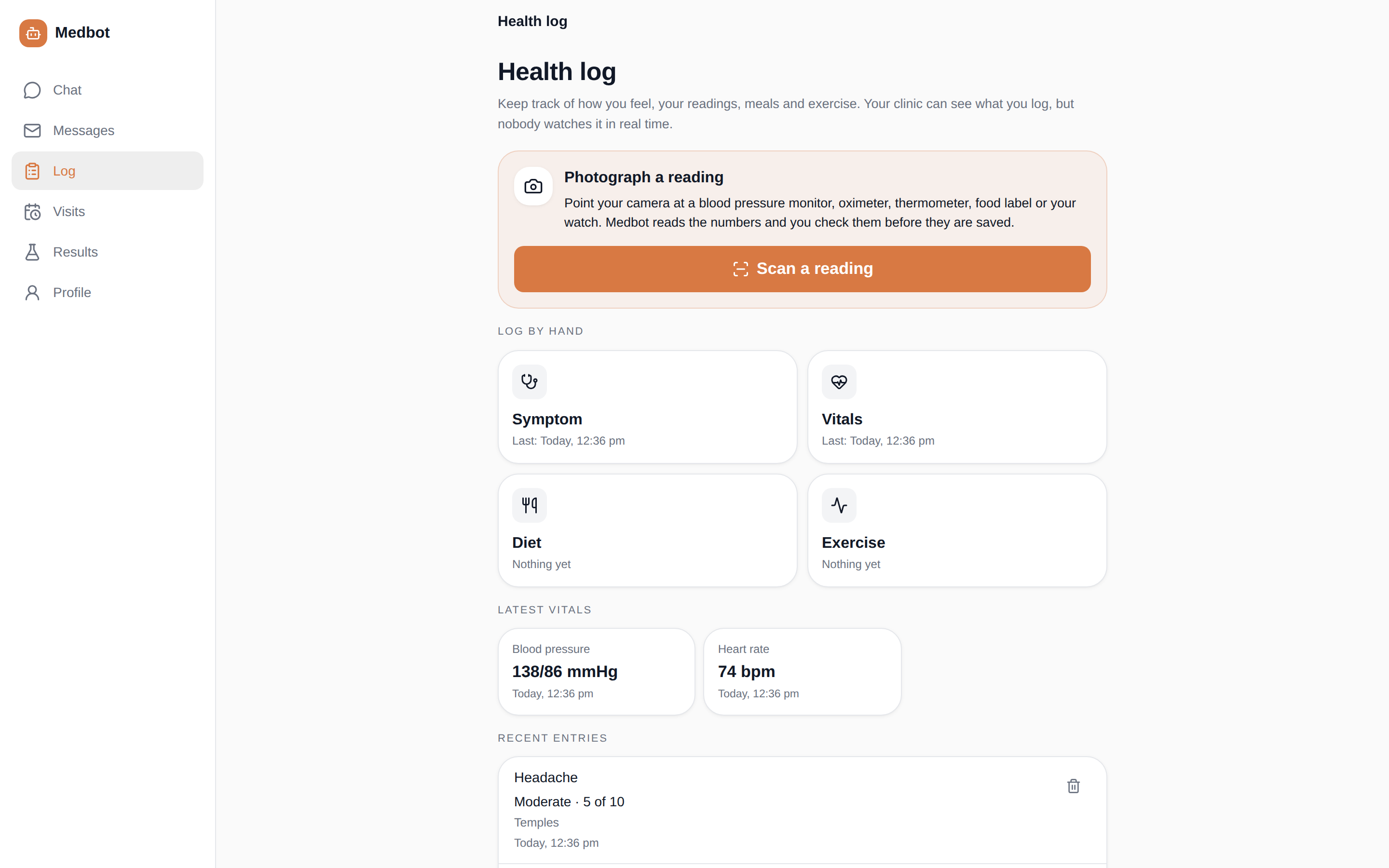
Select Log something. The panel that opens has:
- Tell Medbot what to log, a box. Write it in your own words, for example “Chicken rice for lunch, BP 128/82”, and select Fill in the entry. Medbot fills in the matching form for you to check: “Check what Medbot filled in. Change anything that is wrong before you save. Nothing is saved until you do.” If it cannot find anything to log, it says so and you can try again or choose a kind below.
- Four tiles, Symptom, Vitals, Diet and Exercise, each showing your latest entry, such as “Last:” and when, or how many meals you have logged today.
- Photograph a reading, with Scan a reading for a monitor, plate, food label or watch.
Each of the symptom, vitals and exercise pages also starts with its own “describe it” box, with Enter it yourself under it for the form. The meal page works its own way. See Log a meal.
If your words read as an emergency, Medbot shows This may need urgent care with the emergency advice and logs nothing.
Log a symptom
- Select Symptom.
- Under What are you feeling?, pick one, for example Headache, Fever, Cough or Dizziness. Pick Something else to describe it yourself.
- Under How bad is it?, choose from 0 (None) to 10 (Worst possible).
- Say When it started. Tick I still have it, or say How long it lasted.
- Optionally say where it is and add notes.
- Select Save symptom.
Symptoms you log are saved to your health record as reported by you. The page reminds you: for chest pain, trouble breathing or signs of a stroke, call 995 now.
Log vitals
- Select Vitals and say When you took them.
- Fill in only what you measured. Leave the rest blank. You can enter Blood pressure (top and bottom number, plus your position and arm), Heart rate and SpO2, Breathing rate, Temperature (and where you measured it), and your Weight in kilograms.
- Select Save vitals.
If a number looks wrong, the screen tells you. For example, the top blood pressure number should be higher than the bottom one.
Log a meal
- Select Diet. The meal page opens on Describe what you ate. Write what you had, for example “Chicken rice with an extra egg, and a teh tarik”, and select Estimate calories.
- Medbot shows “Medbot estimated these from your description”: one line for each food or drink, each number marked Estimate, with the totals as “about” a number. Estimates, not measurements. Medbot looks each item up in food composition references, such as the Health Promotion Board’s data and Open Food Facts, before it estimates, and scales the values to your portion. An item says where its values came from: “Values from” the source, or “Values found on the web (” the site ”), not yet checked by Medbot” for a value Medbot found on a trusted nutrition site that its team has not reviewed yet. An item with no reference keeps Medbot’s own estimate. Select an item to change its portion, carbohydrate or protein, and change any number you know better. Select Edit your description to start again.
- Choose Breakfast, Lunch, Dinner or Snack, and When you ate, then save. Nothing is saved until you do.
Other ways in, under the box:
- Photograph your plate: Medbot estimates from the photo, which is not kept.
- Scan a nutrition label, for packaged food and drinks.
- Enter each item yourself: add each Food or drink, and optionally its portion, calories, carbohydrate and protein in grams, and type of food. You can tick a sweet drink. Select Add another food or drink for more.
Calories, carbohydrate and protein count towards a health plan goal such as carbohydrate a day or sweet drinks a week.
If Medbot cannot find any food or drink in your words, it says so, and you can try again or enter it yourself. There is a limit on how many estimates you can ask for in an hour. If your words read as an emergency, Medbot shows the emergency advice instead.
Log exercise
- Select Exercise and choose an Activity, such as Walk, Run, Gym or Yoga.
- Enter When you started and Duration. Distance, calories burned and How hard was it? (Light, Moderate or Hard) are optional.
- Select Save exercise.
If you felt unwell while exercising, log a symptom as well.
Scan a reading
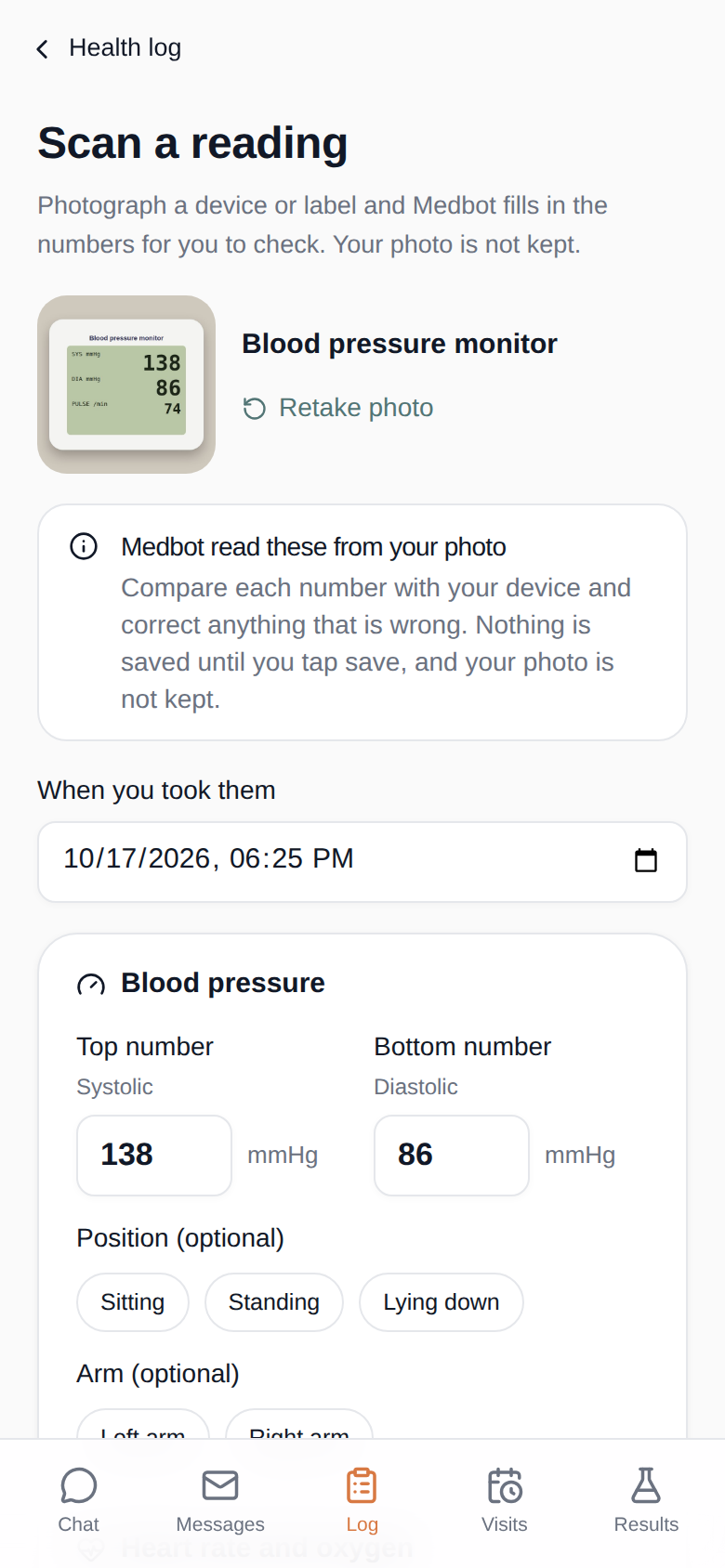
Photograph a device or label and Medbot fills in the numbers for you to check. Your photo is not kept.
- Select Scan a reading.
- Choose what you are photographing: Blood pressure monitor, Oximeter, Thermometer, Nutrition label, Meal or Watch or treadmill. Medbot shows tips for each, for example to fill the frame with the monitor’s screen and avoid glare.
- Select Take photo, or Choose from your photos.
- Wait while Medbot reads it. Then you see “Medbot read these from your photo”.
- Compare each number with your device and correct anything wrong. A meal photo is shown as an estimate instead, one line per item, which you can change. Nothing is saved until you save it.
- Save. The entry shows From photo.
Medbot may flag a number it was unsure of, or an estimate, or say it could not see the unit. Check these. Select Retake photo to try again, or Enter the numbers yourself to type them in.
If a photo cannot be read or is too large, the screen says so and suggests typing the numbers in. If you scan many photos in an hour, you may be asked to type or try later.
Log from Home or Ask Medbot
You can also log without opening the Health tab. On Home, type what you ate, drank, felt, measured or did into the Ask Medbot box. Ask Medbot answers with a draft entry for you to check, then Save to health log. See Log something by telling Medbot. Log something on Home also opens the Vitals, Meal, Symptom and Exercise forms, and its Photograph your monitor and Photo of your plate items open your camera. See Log something. In Ask Medbot, the paper clip sends a photo of a reading or a meal.
Medbot reads a photo into a card in the conversation, with the same form as here, already filled in. Check the numbers, then save. Nothing is saved until you do, and your photo is not kept. The entry then appears here with From photo. See Send a photo or a file.
Home also shows your logging streak and your latest entries. See Your readings.
Readings from a connected device
If you connect Garmin, readings arrive in your log on their own, marked Garmin: resting heart rate, steps, sleep, stress level, and blood pressure, SpO2 and weight when your Garmin devices record them. One reading is kept per measure per day, and a newer one for the same day replaces it.
With Workouts turned on, each run, walk, ride or other workout your watch records arrives as an exercise entry, with the calories it burned. A workout you change later in Garmin Connect™ is updated here. Health status counts synced workouts in Calories burned, and a workout you also typed in yourself is counted once.
Synced readings show on Home and to your care team like the ones you log. They do not count towards your streak, and Medbot does not check them for warning signs. When you disconnect, you choose whether to keep them.
Change or delete an entry
Each entry you entered has a pencil to change it and a Delete button.
- Change. Select the pencil. Change entry opens the entry in the form it was logged with: “Change what you logged, then save. It replaces the entry in your health log.” Change what is wrong and select Save changes. A change is checked for warning signs like any new entry.
- Delete. Select Delete on an entry, then Delete again to confirm (or Keep).
A reading synced from a connected device cannot be changed here, because it is the device’s, so it has no pencil.
Caregivers
A caregiver with “Can make changes” access can add, change and delete entries. A read-only caregiver sees “You cannot add to this record.” See Caregivers & Family Access.