Service Agents
Service agents are AI agents you author for one service, on its Agents page (/services/<service>/agents, under the service’s name in the sidebar, for Clinic Admins). An agent is never a person: it works for, or alongside, the care team, and it always receives the service context, the relevant care team and patient context, the tools you give it, and any subagents you link to it.
Audiences
Every agent has an audience, which decides who it serves and which tools it can have. Audiences replace the old care roles.
| Audience | What it is for | How it runs |
|---|---|---|
| Staff | Work on behalf of the care team: chasing patients, preparing summaries, requesting reviews. | On demand, scheduled once, or daily. |
| Patient | A patient-facing conversational agent in the patient portal. Badged Patient-facing. | Only in reply to a patient’s message, once bound in Settings. See Patient Agent. |
| Onboarding | Assess each patient as they join the cohort. Badged Runs on add. | Automatically when a patient is added, once bound in Settings. Can also be run on demand. |
Default agents
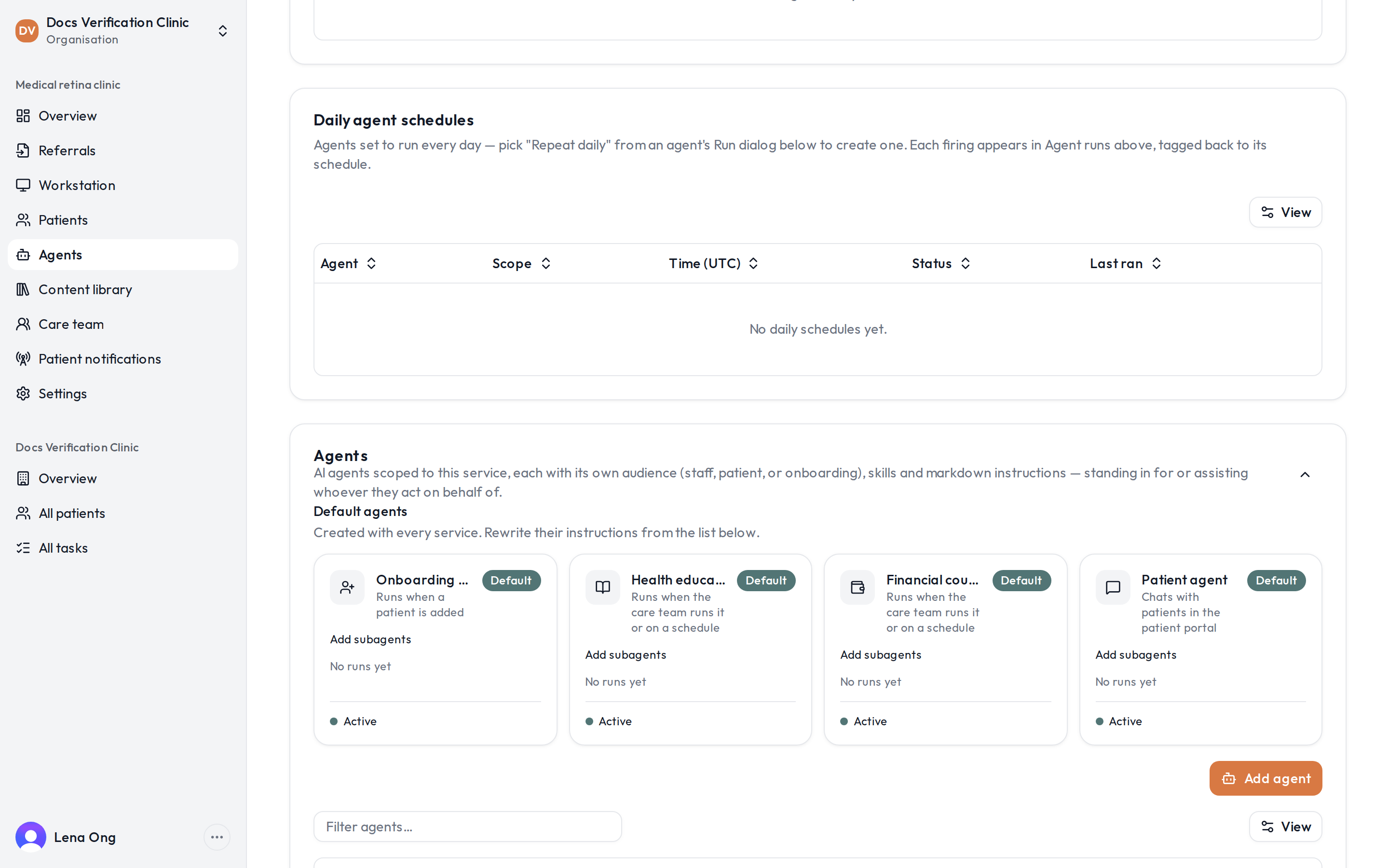
Every service is created with four default agents, shown as Default agents cards at the top of the Agents page (“Created with every service. Rewrite their instructions from the list below.”). Each card has a Default badge, a status (Active, Inactive or Missing), chips for its subagents and an Add subagents link, which reads Manage subagents once the agent has any.
| Agent | When it runs |
|---|---|
| Onboarding | When a patient is added to the cohort. |
| Health education | When the care team runs it, or on a schedule. |
| Financial counselling | When the care team runs it, or on a schedule. |
| Patient agent | Chats with patients in the patient portal. |
A service created before the defaults existed may show a Missing card. Click Add missing default agents to create them. Edit a default agent like any other from the Agents table below the cards.
Each default card and table row also has a Latest run panel: “Latest run · when · status”, with a dialog (“<agent> · latest run”) that shows what the run did, or “No runs yet”.
Creating an agent
On the Agents page, click Add agent. This opens a full-page editor with two sections, Agent and Subagents, and a footer with Cancel and Create agent. Editing an existing agent opens the same page from Edit on its row, and the footer button reads Save agent.
In the Agent section:
- Name: e.g. “Dietitian follow-up agent”.
- Audience: Staff, Patient or Onboarding.
- Status: Active or Inactive.
- Model: the organisation’s default model, or a specific one.
- MCP tools (Staff and Onboarding) or Patient agent tools (Patient): what the agent may call while it runs. The list depends on the audience (below).
- Description: a short summary of what it does.
- Agent markdown: its instructions, in markdown.
To delete an agent, click Delete agent on its row and confirm in Delete agent?.
The table shows each agent’s name, audience, status, tools, model and Subagents (Manage or Add subagents). Agents created before tools were standardised may show their old freeform skills as dashed Legacy tag badges; edit the agent to pick proper tools instead.
Staff and onboarding tools (“MCP tools”)
| Tool | What it lets the agent do |
|---|---|
| Send Twilio message | Message the patient over SMS or WhatsApp. |
| Send email | Send an email notification. |
| Clinical resources | Search, browse and read the service’s content library. |
| Request human task | Hand off to a human when it needs input, review or approval. The task appears in Notifications for everyone on the service’s staff, and on the service page. |
| Notify patient | Send the patient a short message from the care team. It appears in the service’s chat in their patient portal; WhatsApp, SMS or email only tell them something is waiting. |
| Email staff | Email whoever covers a care team role today, falling back to the service owner. |
| Hand over a session | Offer the patient a health education or counselling session in their patient portal, with the content it should cover. |
Tasks raised with Request human task are not assigned to a role: the whole care team sees them.
Review before sending
When you tick Notify patient, Email staff or Hand over a session, a section appears with a Review before sending switch. With it on, patient notices, staff emails and session handovers wait in Notifications until the service’s staff approve them. Each review task is assigned (an email to staff goes to the role it targets), shows an editable draft, and can be approved with Approve and send or rejected. Rejecting sends nothing.
For Email staff, choose which roles the agent may email under Staff it may email.
Patient agent tools
| Tool | What it lets the agent do |
|---|---|
| Appointments | List the patient’s appointments and open slots, and book, move or cancel against published availability. |
| Clinical resources | Read the service’s own resources for education and preparation questions. |
| Triage escalation | Flag an urgent (not emergency) symptom to the covering role, on top of the always-on red-flag screen. |
| Hand off to care team | Pass on a question outside the service’s scope, or one it is unsure of. |
| Education & counselling sessions | Walk the patient through a counselling or education protocol step by step, recording consent and what they understood or agreed. |
| Hand over for a full encounter | Send the patient a link to a full AI encounter (history taking, education or counselling) when SMS turns are not enough. |
A fixed safety preamble is always layered on top of a patient agent’s instructions and cannot be removed by them.
Subagents
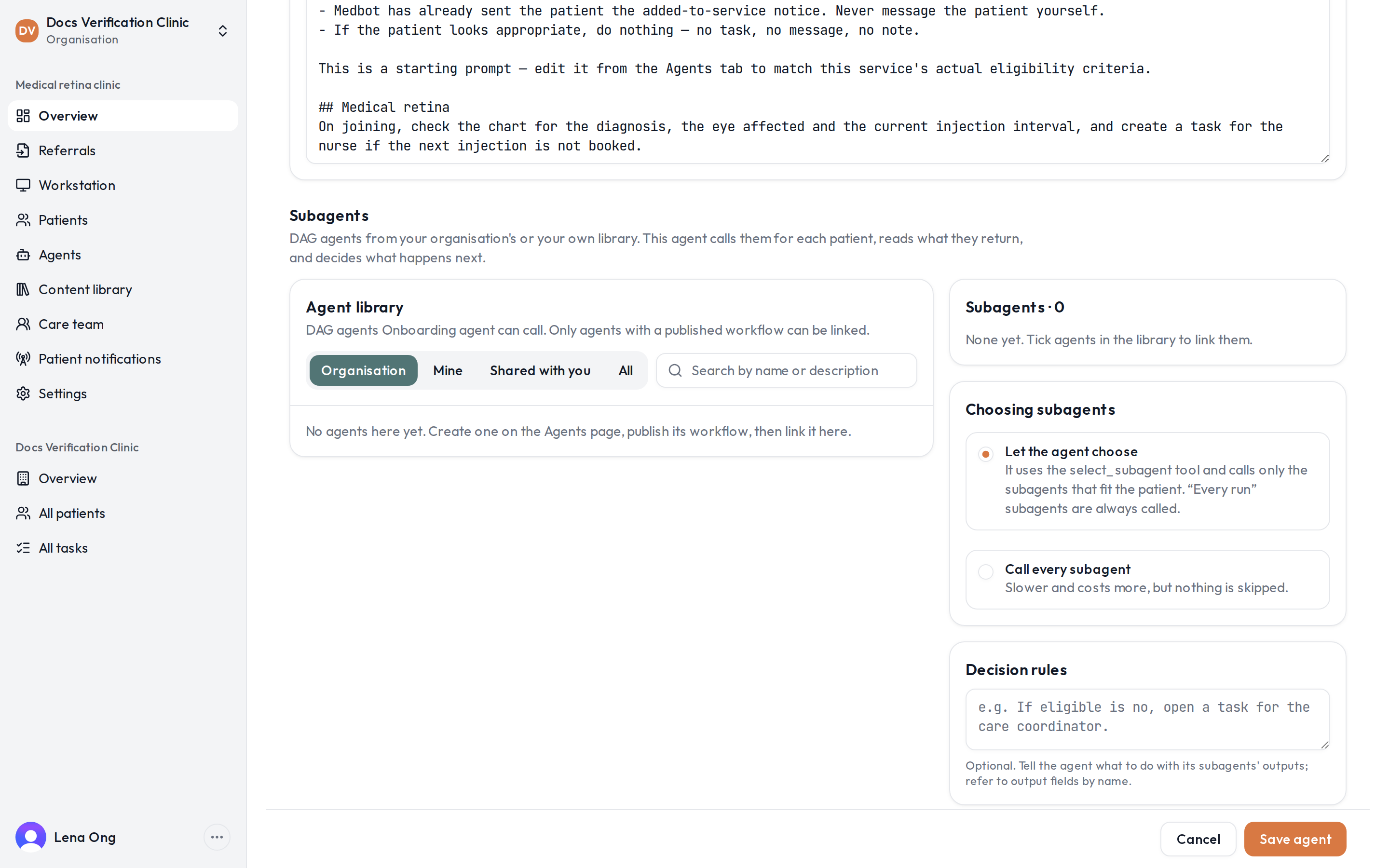
An agent can call subagents: DAG agents (workflow agents) from your organisation’s or your own library. The agent calls them for each patient, reads what they return, and decides what happens next.
Open the Subagents section of the agent editor (or Manage / Add subagents on the agent’s row, or Add subagents / Manage subagents on a default agent card):
- Browse the Agent library. It lists DAG agents the agent can call; only agents with a published workflow can be linked, and drafts show a Draft badge and cannot be chosen. Use the Organisation, Mine, Shared with you and All filters or Search by name or description. Suggestions are ranked by how often clinicians agreed with them.
- Select a subagent to link it. For each one, choose when it is called: Every run, or let the agent decide, and fill in When to call <name> so the agent knows when it applies. Remove a link with its remove button.
- Under Choosing subagents, pick Let the agent choose (subagents set to Every run are always called) or Call every subagent (slower and costs more, but nothing is skipped).
- Optionally write Decision rules, for example “If eligible is no, open a task for the care coordinator.”
- Save with Create agent or Save agent. On the standalone subagents page the button is Save subagents.
An agent can have up to 10 subagents, and a Patient agent cannot use Every run. Any care team member can link their own or the organisation’s agents; linking shared, public or default agents from elsewhere needs an organisation admin. A linked agent that has no live version shows Skipped on runs.
The onboarding agent
The Onboarding default agent is already bound in Settings → On patient added. Each time a patient is added to the cohort, it reviews them against the service and raises a task only when the patient clearly looks out of scope, so staff are not flooded with a task per patient. It does not message the patient: Medbot sends the single enrolment notice itself.
Rewrite its instructions for your service, switch it off, or bind a different onboarding agent from Settings → On patient added (“Assess the patient with the onboarding agent”). The bound agent carries a Bound badge.
Running a staff agent
Each staff (and onboarding) agent’s row has a Run button:
- Who to run against: the whole cohort, or selected patients.
- When: Run now, Schedule for later (a date and time), or Repeat daily (a time of day in UTC, until you cancel it).
- Click Run now, Schedule run or Start daily schedule.
A patient agent has no Run button, since it only ever replies to a patient. It has Preview chat instead; see Patient Agent.
Runs and schedules
Above the agent list on the Agents page:
- Agent runs: every run against this service’s cohort, manual or scheduled.
- Daily agent schedules: every active daily schedule, with its agent and time. Cancel one here.
Service agents and the Agents library
Service agents belong to one service. They are separate from the organisation’s Agents (Agents at Org Level in Medbot CMS, /agents), the agent library where agents are built, validated and refined before a service agent calls them as subagents, and from your personal agents in the Medbot web app. Agents there can be personal or shared with the whole organisation, and a personal, public or default agent can be copied into the organisation.