Notes and Folders
Notes in the sidebar opens the notes browser, headed Notes. It lists your folders and notes. Open a note to write in the workspace.
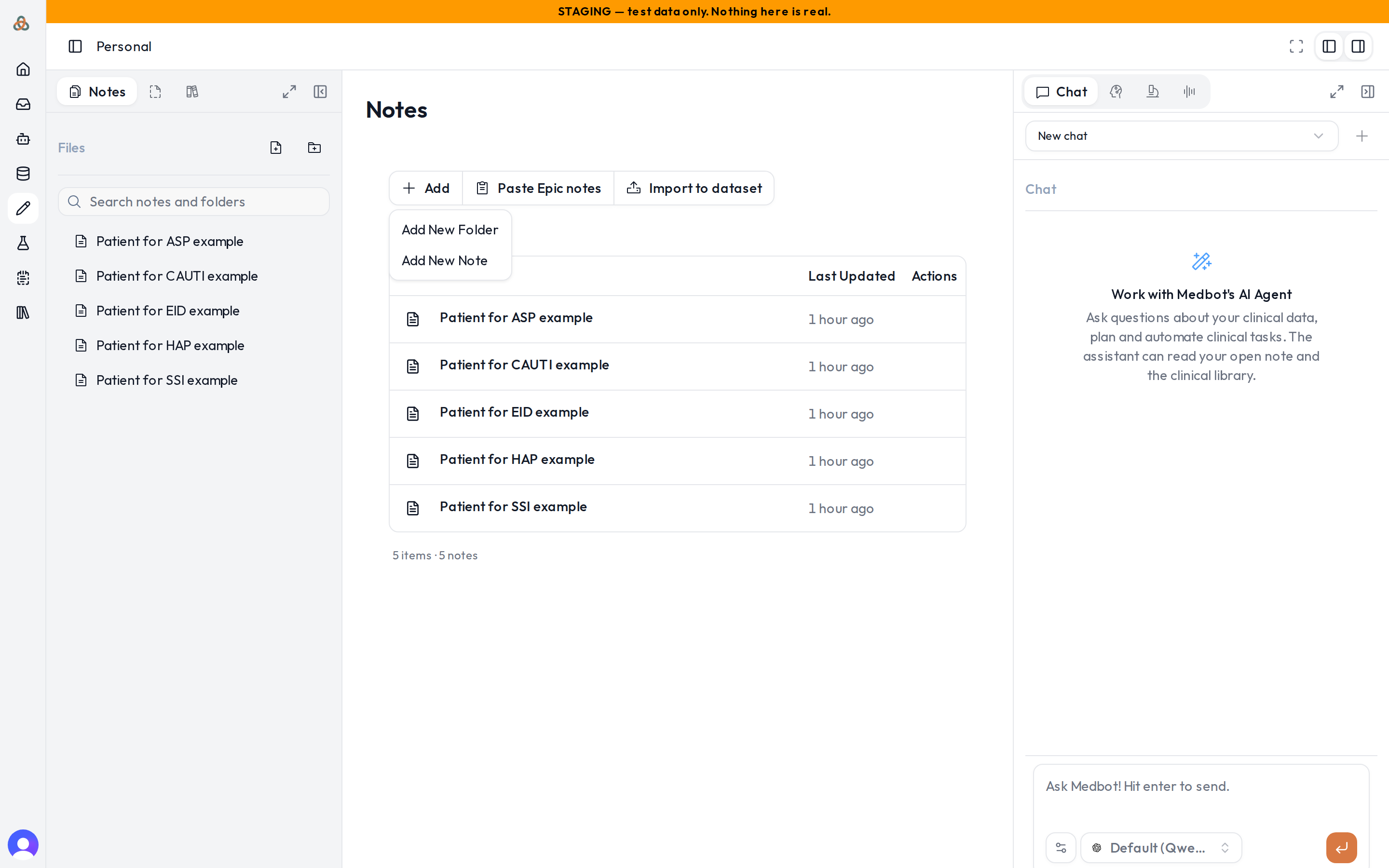
Create and organise
- Select Add, then Add New Folder or Add New Note.
- Open a row’s actions menu for Open, Rename, Move, Share (folders), Archive or Delete. You can also drag an item into another folder.
- To act on several items, tick them. Clear selection and Delete selected appear; deleting asks you to confirm.
An empty folder shows “This folder is empty”.
Saving a note
Medbot saves as you type. Beside the note’s folder path and title, the status reads Unsaved changes, Saving…, Saved or Could not save. Select Save now to save immediately.
A brand-new note you have not saved yet shows a save button with a folder picker, so you can choose where it goes.
If the note was changed somewhere else while you had it open, a dialog says This note changed elsewhere. Choose Keep mine to save over the other version, or Reload to see it (your unsaved changes here are discarded).
To remove the note, use Delete in the header and confirm.
Last updated on