Note Agents
Note agents (previously called non-form agents) process clinical notes rather than a whole patient record or a form. You define what a note agent does with its System instructions and Expert knowledge when you create the agent.
Creating Note Agents
Choose A single note under How the agent is called in step 2 of the agent wizard.
Agents called on the Whole patient record read a patient’s record through FHIR tools when they are run from the agent page or a conversation about a patient (see Running Agents). In the notes editor they are offered as selection agents, and process the text you select.
Using Note Agents
From the workspace
Note agents can be used from the sidebar or from the bubble menu in the workspace, depending on the type of the agent. In the context of the workspace, there are two types of note agents:
- Full-text agents
- Selection agents
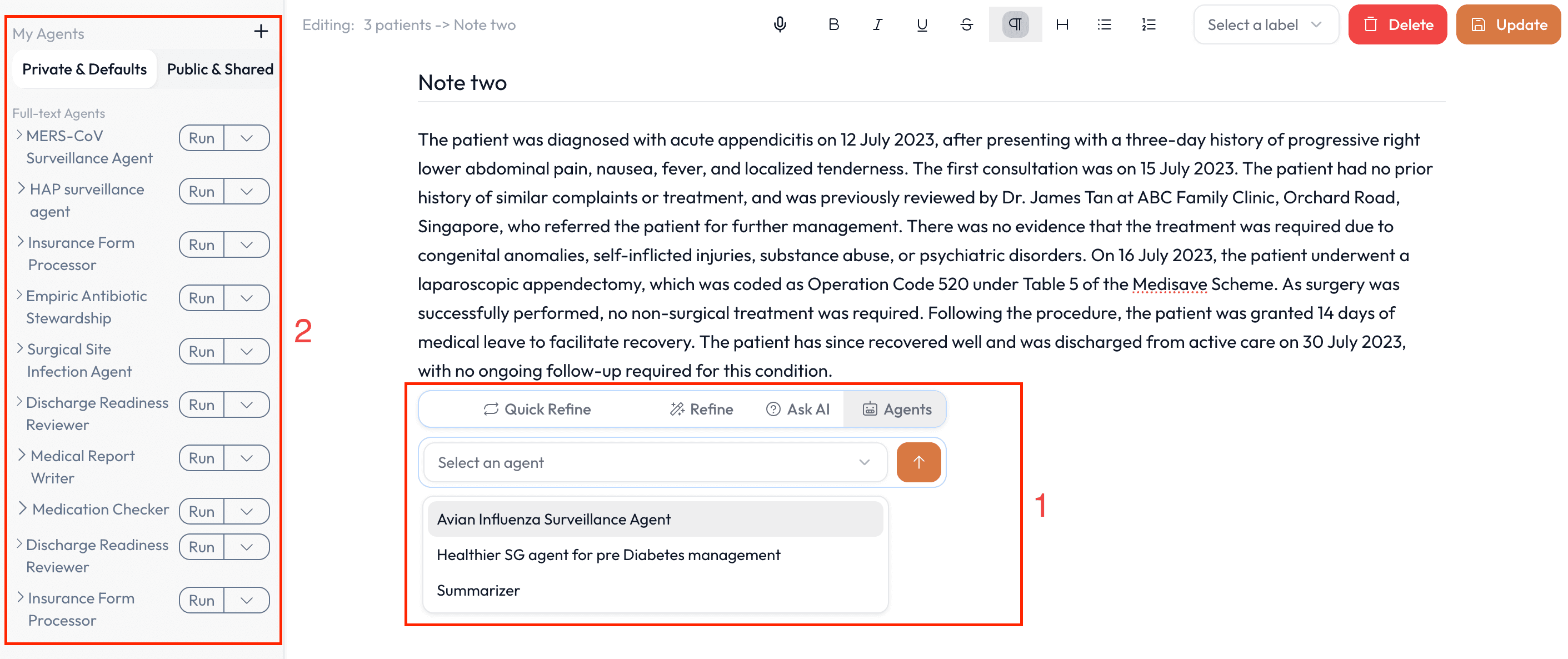
Full-text agents (called on A single note) process the whole content of an open note in the workspace. They can be used from the My Agents tab in the workspace sidebar. You only need to have the note that you want to process open in the workspace to use a full-text agent.
Selection agents work by processing a selection from an open note in the workspace. They can be used from the bubble menu. You need to select text in the workspace to use a selection agent.
The image below shows (1) selection agents in the bubble menu and (2) full-text agents in the My Agents tab of the sidebar.
From the file browser
Note agents can be used to process notes in a folder in a similar manner to form agents. Visit medbot.me/notes and click the Agents button under Actions on a folder of your choice. This will bring up a dialog where you can select the agent you want to use.
The results will be shown in the dialog itself and will follow the agent’s system instructions and expert knowledge you defined while creating the agent.