Appointments
Appointments is the clinic’s list of booked visits. Find it at Scheduling → Appointments (/appointments). Receptionists and Clinic Admins book, edit, and cancel appointments and answer booking requests from the patient portal. Doctors and nurses can look at the list but not change it.
Who can do this
| Task | Clinic Admin | Receptionist | Doctor | Nurse |
|---|---|---|---|---|
| See the appointment list | Yes | Yes | View only | View only |
| Book a new appointment | Yes | Yes | No | No |
| Book with the agent | Yes | Yes | No | No |
| Edit or cancel an appointment | Yes | Yes | No | No |
| Answer a booking request | Yes | Yes | No | No |
A doctor or nurse who opens a page for booking or booking requests sees a message that says which roles are allowed.
Finding appointments
The list shows every appointment with the patient, practitioner, date, time, duration, service, and status. Narrow it with the patient search box, the practitioner filter, and the date filter. All three apply together. Select Clear date to remove the date filter.
| Status | What it means |
|---|---|
| Booked | Confirmed and upcoming. |
| Arrived | The patient has checked in. |
| Fulfilled | The visit is finished. |
| Cancelled | Cancelled. |
| No-show | The patient did not come. |
Times are always shown in Singapore time, whatever the time zone of your computer.
Booking an appointment
- Select New Appointment.
- Search for the patient and select them. Their details appear below the search box.
- Choose the Clinic location, the Date, and the Time. Times run from 8:00 AM to 5:30 PM in half hour steps.
- Choose the Duration: 15, 30, 45, 60, or 90 minutes.
- Choose the Practitioner. Only doctors who can work at the chosen location are listed. See Session Setup.
- Choose the Service type. You can also choose a Reason and add Notes.
- Select Book appointment.
You return to the appointment list. The new appointment shows as Booked.
Note: The patient search box in the booking form currently lists only the first 20 patients of your organization. A patient beyond that cannot be found by name there.
Two bookings at the same time
A booking is refused when the patient or the doctor already has an appointment that overlaps the time. The form stays open and shows a message such as “Marcus Lim already has an appointment that overlaps this time”. The message shows the times in UTC, which is eight hours behind Singapore time. Choose a different time. The same check applies when you edit an appointment and when you accept a booking request.
Booking with the agent
Select Use agent to book by describing the visit in words. The agent looks up the patient and the doctor and suggests a booking. A staff member reviews the suggestion and approves it before anything is booked.
Responding to portal booking requests
Patients can ask for a visit from the patient portal. A request is not a booking. It waits in Booking requests until staff answer it.
- Select Booking requests. The page counts the requests waiting.
- Read the Requested date, the Time preference, and the Reason.
- Under Exact appointment time, set the Date, Time, and Duration, and choose the Assigned doctor.
- Choose one of the answers below.
| Answer | What it does |
|---|---|
| Accept and book | Books the appointment at the time you set. |
| Counter-propose | Offers the patient a different time. Fill in the time and the doctor first. A note is optional. |
| Reject | Declines the request. A Review note is required. |
What the patient sees: after Counter-propose, the patient’s request shows Clinic proposed a new time, your note, and the buttons Accept proposed time and Decline proposed time. When the patient accepts, the appointment appears in your list as Booked and the request leaves Booking requests. The request card does not update by itself, so reload the page to see it go.
Note: An appointment made from an accepted counter-proposal currently shows Your doctor as its practitioner, not the doctor’s name.
Editing and cancelling
Select the three dot button at the end of an appointment row, then choose Edit or Cancel appointment.
Edit opens a form with the Date, Time, Duration, Practitioner, Service type, Reason, and Notes. You cannot change the patient or the location. Select Save changes.
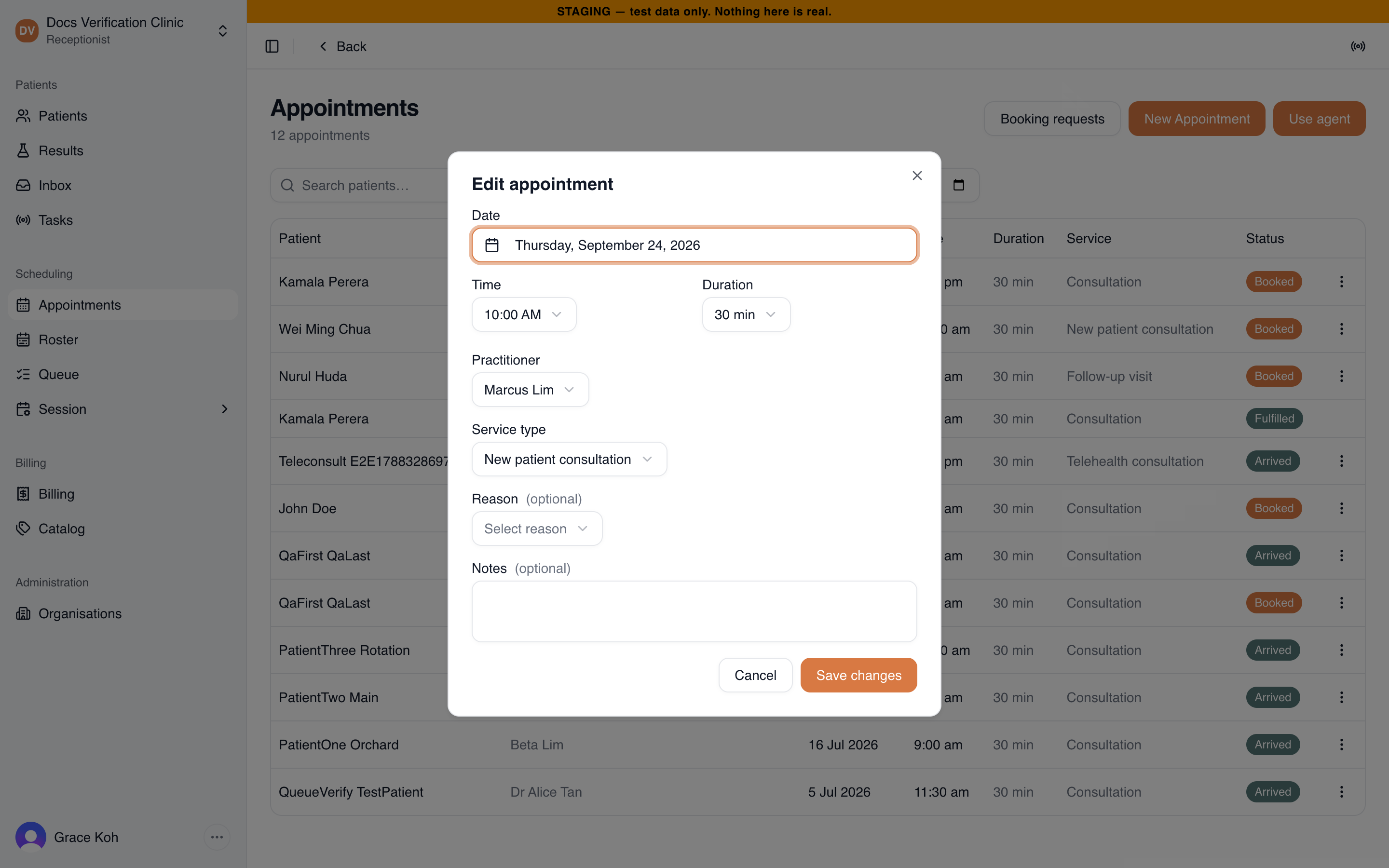
Editing an appointment
Cancel appointment asks you to confirm. The appointment shows as Cancelled. A cancelled appointment can be reopened from the Reception Queue.
Cancelled, no-show, and fulfilled appointments have no menu, so they cannot be edited or cancelled.
Related
- Reception Queue: check in the patients booked for today.
- Session Setup: choose which doctors work at a location.
- Patient Portal: how the portal connects to the clinic.