Tasks & Staff Pings
A ping is a short message from one staff member to another, like a walkie-talkie. Staff use pings to ask a colleague to come to a room, clarify an order, or call back. Your pings appear in the bell at the top of the screen and on the Tasks page at Patients → Tasks (/tasks).
Who can do this
| Task | Clinic Admin | Receptionist | Doctor | Nurse |
|---|---|---|---|---|
| Send a ping | Yes | Yes | Yes | Yes |
| Receive, acknowledge, and finish pings | Yes | Yes | Yes | Yes |
| See the pings you sent | Yes | Yes | Yes | Yes |
Only the person a ping was sent to can acknowledge it or mark it done. Nobody can read another person’s pings.
Sending a ping
There are two places to start:
- The Ping staff button at the top of a patient’s chart. The ping links to that patient.
- The ping icon at the end of an order row in a patient’s encounter. The ping names that order.
- Select Ping staff. From an order row, select the ping icon (Ping about the order).
- Under Choose who to ping, pick a person. The list shows their role and, if they are assigned to a room in today’s open session, the room.
- Type a message under What do you need?, or select a quick message: “Please come chaperone.”, “Can you clarify this order?”, “Patient would like to speak with you again.”, or “Can we talk over a call?”.
- Select Send.
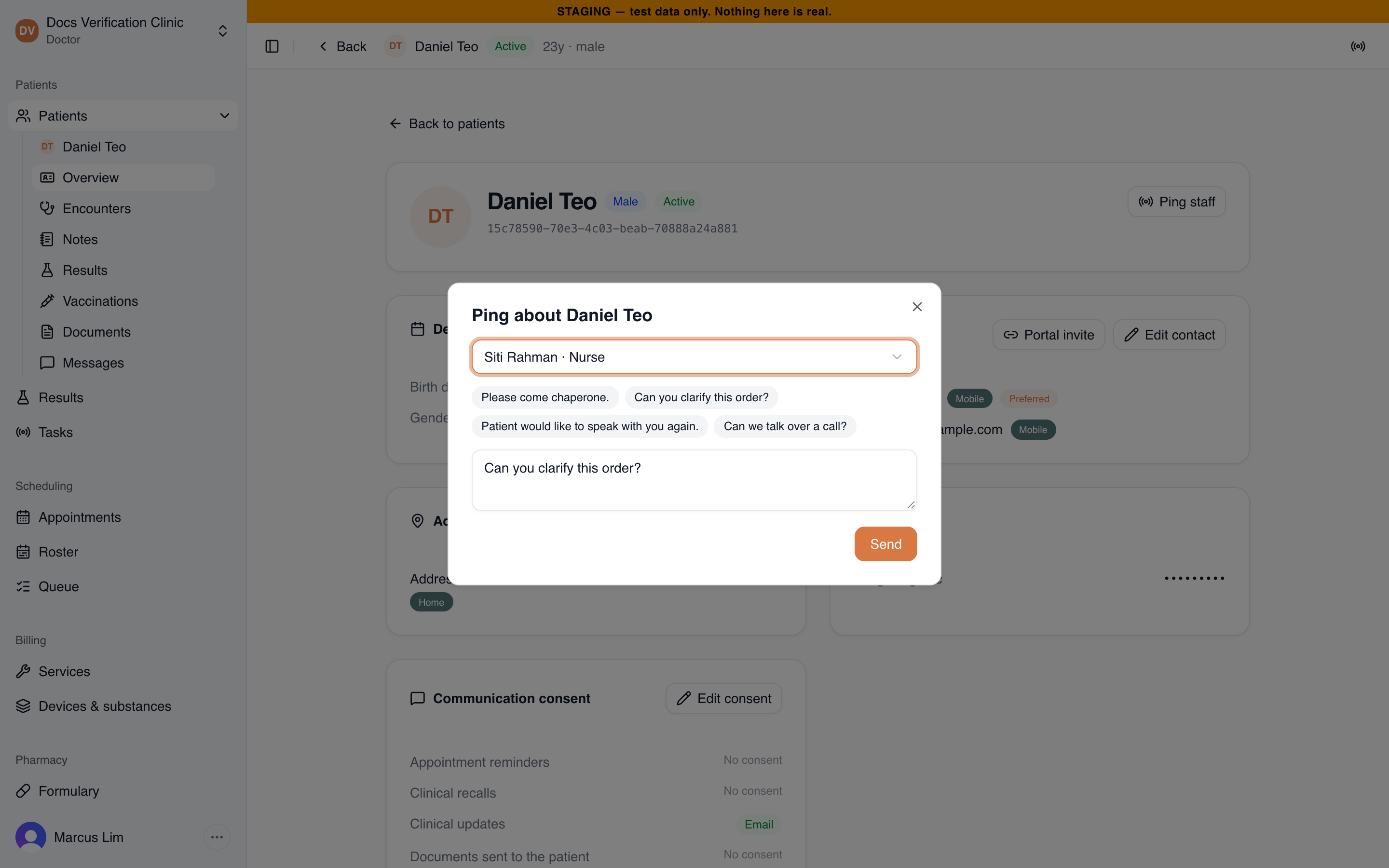
Sending a ping from a patient’s chart
You can ping any active Clinic Admin, doctor, nurse, or receptionist who can work at the current clinic location, except yourself. A message can be up to 500 characters. When you cannot send, you see:
| Message | What to do |
|---|---|
| Write a message first. | Type something. |
| Keep it under 500 characters. | Shorten the message. |
| That person is not available to ping. | Choose someone else. |
Receiving a ping
A new ping shows as a red number on the bell. Medbot also shows a short notice and plays a quiet beep. When several arrive at once, it shows one notice such as “3 new pings”. The list updates about every five seconds, so you do not need to refresh.
Select the bell to see your pings. Each shows the message, who sent it, the room it was sent to, and how long ago. If it is about a patient, select Open followed by the patient’s name to go to the chart.
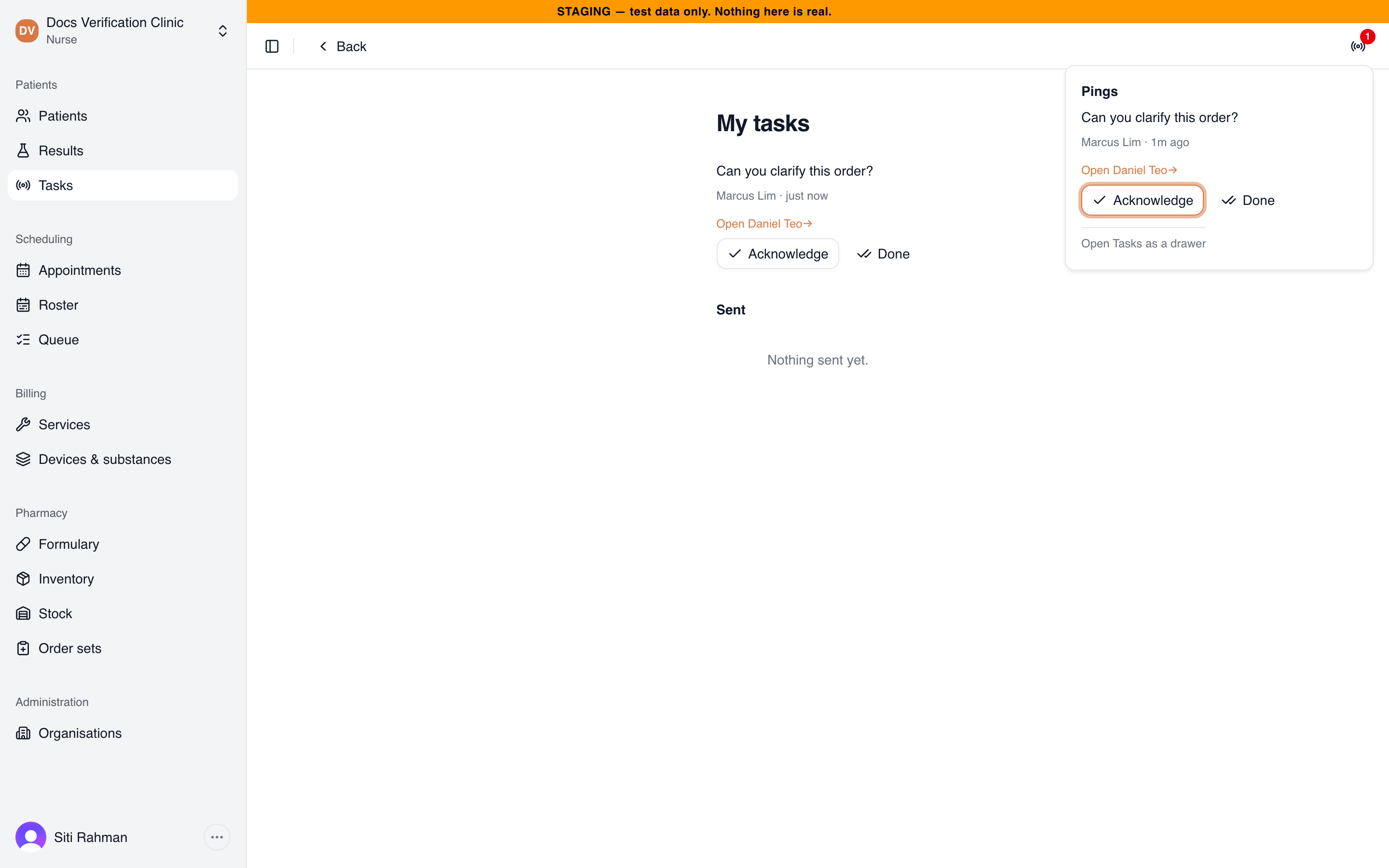
A new ping in the bell and on the Tasks page
Then choose one:
- Acknowledge keeps the ping on your list, marked To-do. Use it for “I have seen this and will do it”.
- Done removes the ping from your list.
You can select Done straight away, without acknowledging.
The Tasks page
My tasks lists your open and acknowledged pings, newest first. Under Sent you see the last 20 pings you sent and how far each has gone: Waiting, Acknowledged, or Done. When nothing is waiting, the page says “Nothing pending.” or “Nothing sent yet.”
At the bottom of the bell list, Open Tasks as a drawer or Open Tasks as a page changes what the Tasks menu item does for you. Your choice is remembered in your browser.
Related
- Encounters & Clinical Notes: orders you can ping about.
- Reception Queue: who is in which room today.