Clinic Messaging
Medbot CMS has two places for patient messages. The Inbox (/inbox) holds conversations that patients send to the clinic from the patient app. The Messages section of a patient’s chart lets a clinician message one patient directly.
Who can do this
| Task | Clinic Admin | Receptionist | Doctor | Nurse |
|---|---|---|---|---|
| Read and reply to clinic inbox threads | Yes | Yes | No | No |
| Close an inbox thread | Yes | Yes | No | No |
| Read a patient’s Messages section | Yes | Yes | Yes | Yes |
| Send a message from a patient’s chart | Yes | No | Yes | No |
A Doctor or Nurse who opens /inbox sees a message that the page needs the admin or receptionist role. The clinic inbox is for front desk messages, never for an individual clinician.
The clinic inbox
Find it at Patients → Inbox (/inbox). Each open thread is one patient, with the most recent first. Select a thread to read it. Patient messages and clinic replies are shown in order, with the name of the staff member who replied.
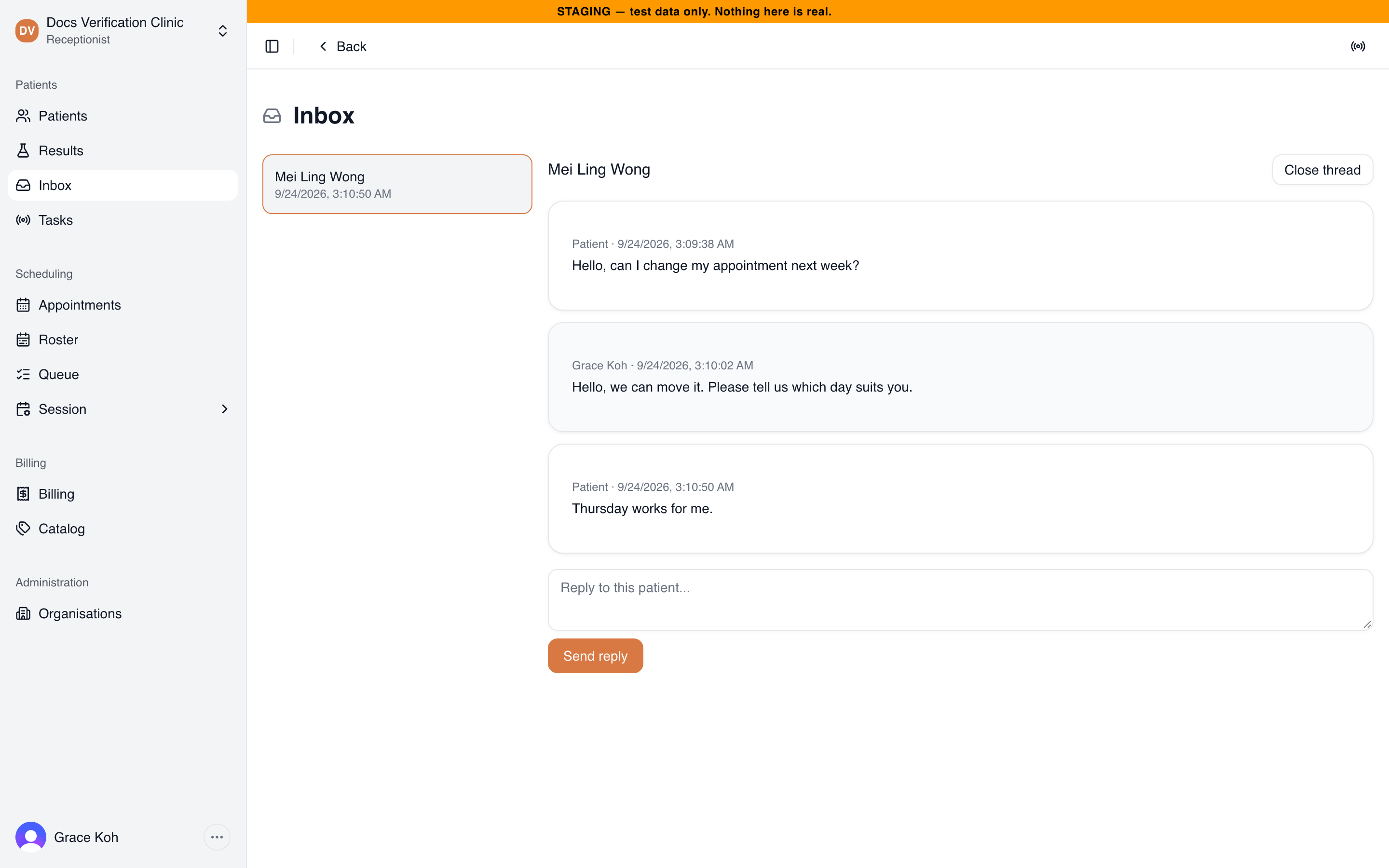
An open thread in the clinic inbox
To reply, type in Reply to this patient… and select Send reply. Replies can be up to 2,000 characters. The patient reads the reply in the patient app under The clinic.
Replies are front desk answers, not clinical advice. Send anything clinical through your clinic’s usual process.
Select Close thread when a conversation is finished. It leaves the list. If the patient writes again, the thread opens again with its whole history.
You can reply only while a thread is open. If a patient record was deleted, the thread shows record gone and a warning that the record no longer exists. Replying is disabled. Select Close thread instead.
A patient can also reach this inbox through Ask Medbot when it spots a red flag. Medbot then hands the concern to the staff instead of answering. If the patient is connected to several clinics, every one of them gets it.
Messaging a patient from their chart
Open the patient, then Messages. The section shows how a new message would go out, for example “New messages go out by Email to name@example.com.” Below it is a table of messages sent, with Type, Channel, Status, Sent, and Message.
- Select New message.
- Enter a Subject (optional, up to 120 characters).
- Enter the Message, up to 2,000 characters.
- Select Send.
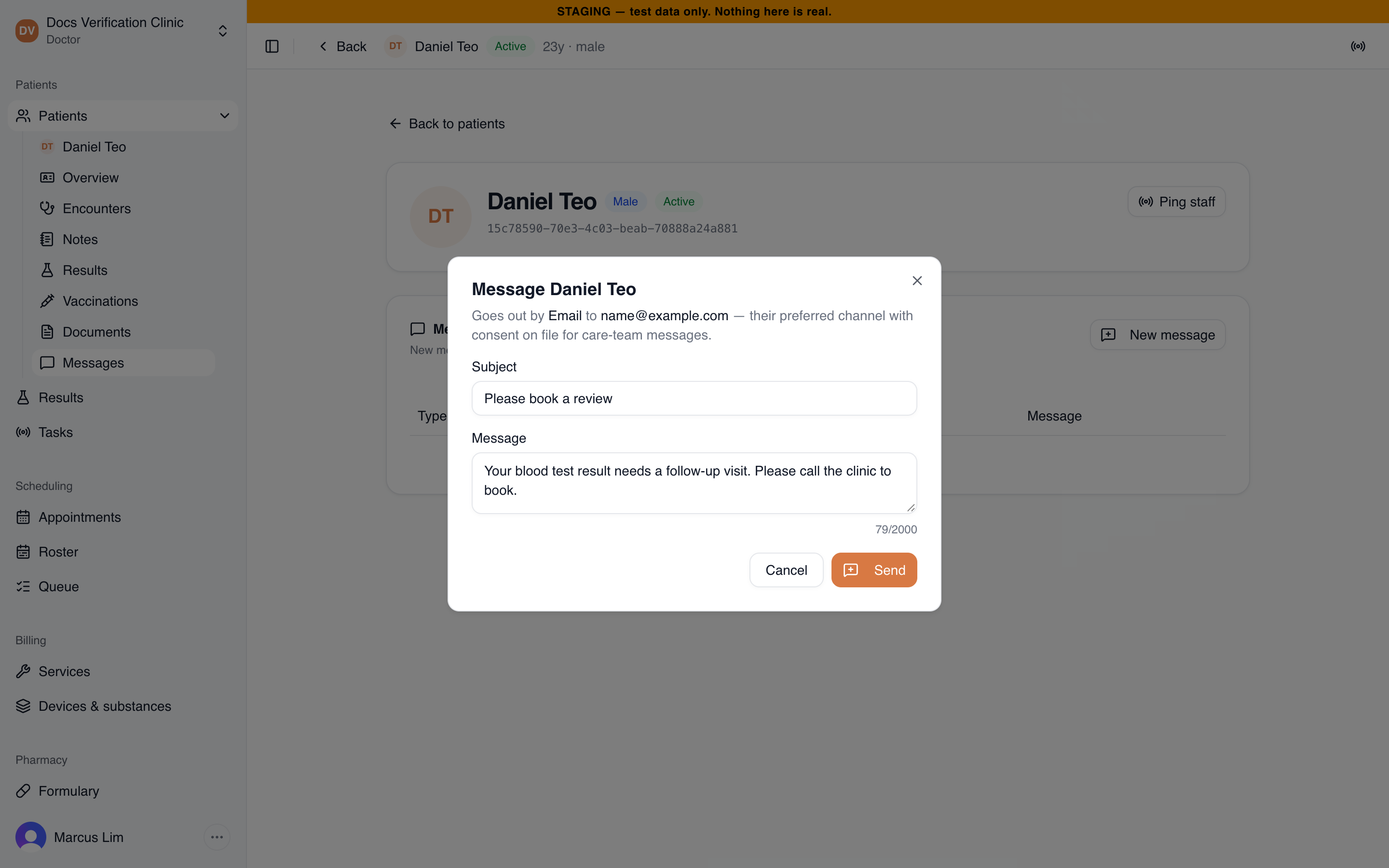
Sending a message from the chart
Which channel is used
Medbot picks the channel for you. It only uses a channel when the patient has an address for it and has agreed to it. If the patient’s preferred contact is a phone, the order is WhatsApp, SMS, then email. Otherwise it is email, WhatsApp, then SMS.
The agreement is the Clinical updates consent on the patient’s overview. Consent is deny-by-default, so a channel with no tick is never used. See Patient Records & Consent.
When a message cannot be sent, the section says so and New message is disabled:
| Notice | Reason |
|---|---|
| The patient has not consented to be contacted this way. Messages cannot be sent to this patient. | There is an address, but no consent for it. |
| The patient has no phone or email on file. Messages cannot be sent to this patient. | Add contact details first. |
| This patient is recorded as deceased. / This patient record is inactive. | The patient cannot be contacted. |
Message status
| Status | What it means |
|---|---|
| Delivered | The provider confirmed delivery. |
| In transit | Sent, not confirmed yet. |
| Not delivered | The provider could not deliver it. |
| Sent | Sent, with no delivery report from the provider. |
| Not sent | Medbot could not send it. The Message column shows why. |
| Send outcome unknown | Medbot could not confirm whether it went out. |
| Unknown | The provider reported a state Medbot does not recognize. |
While any message is unconfirmed, Check delivery appears. Select it to ask the providers for updates.
The Type column also lists system notices such as Message from care team, System notification, and Clinic inbox message. Conversations in the clinic inbox are separate from this list.
What the patient sees
Replies from the clinic inbox arrive in the patient app under The clinic. Care team messages go out by email, SMS, or WhatsApp. See Patient.
Related
- Patient Portal: how patient actions reach staff.
- Patient Records & Consent: editing communication consent.
- Documents & Certificates: sending a document by email.