Orders & Order Sets
Orders record the services, consumables and medications requested for a patient during a visit. Order sets are saved bundles you apply to an encounter in one step. Orders live in the Orders card on a patient’s Encounters page. Order sets live at Pharmacy → Order sets (/order-sets).
Who can do this
| Task | Clinic Admin | Receptionist | Doctor | Nurse |
|---|---|---|---|---|
| See an encounter’s orders | Yes | Yes | Yes | Yes |
| Apply an order set to an encounter | Yes | No | Yes | Yes |
| Cancel an order | Yes | No | Yes | Yes |
| Open the Order sets page and build your own sets | Yes | No | Yes | Yes |
| Edit, share, retire or delete a set someone else owns | Yes | No | No | No |
A Receptionist who opens /order-sets sees “This action requires one of the following roles: admin, doctor, nurse.” Receptionists can read the Orders card but have no Apply order set or Cancel buttons.
The Orders card
The Orders card lists the orders of the patient’s current encounter. See Encounters & Clinical Notes for what current means. Each row shows the type (Service, Consumable or Medication), the item and its status. Without a current encounter the card says “Start an encounter to place or apply orders.”
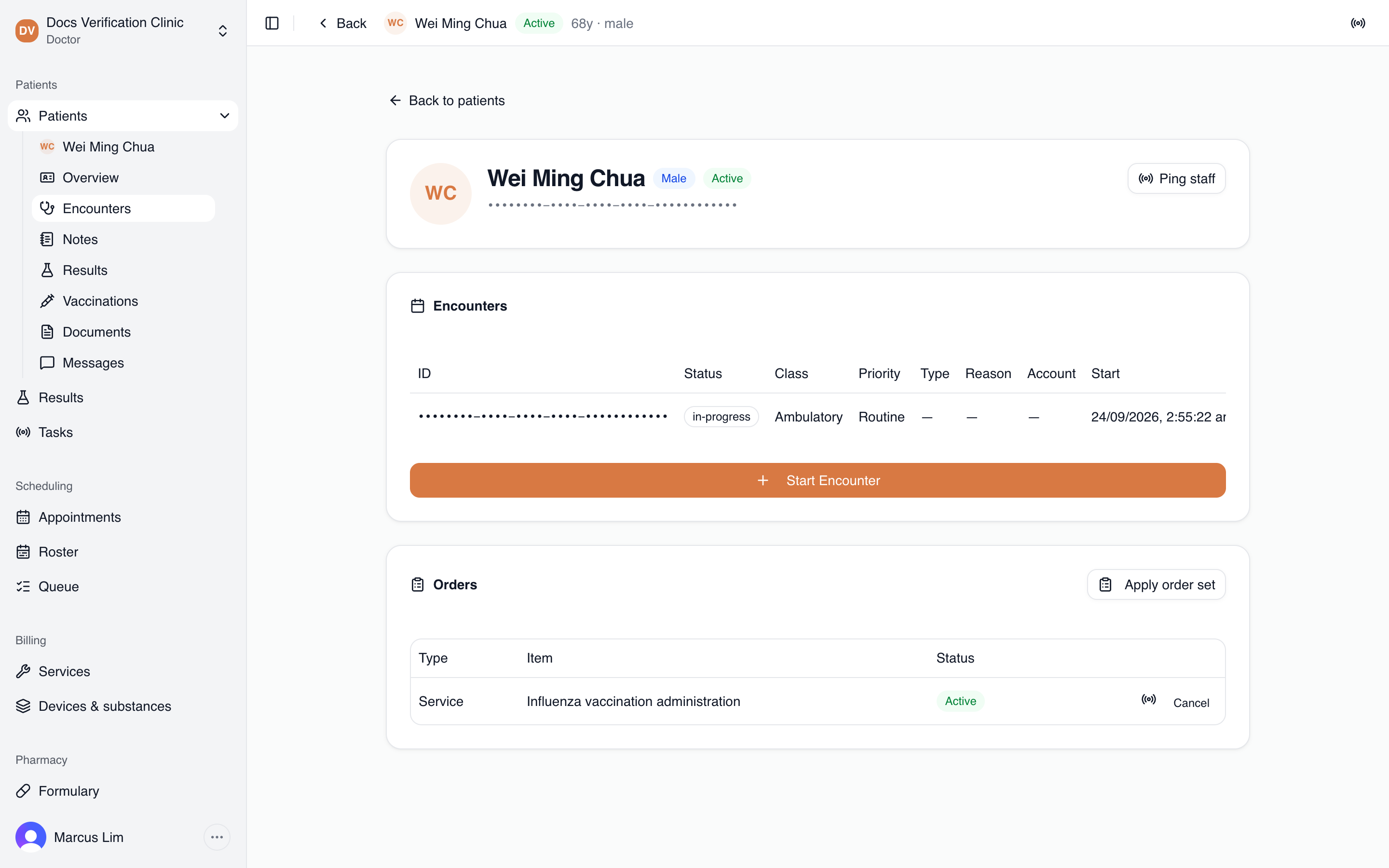
The Orders card
Orders come from three places:
- Apply order set adds one order for each item in a set.
- Order service on the Vaccinations page orders a vaccination service.
- Medication orders for the encounter also appear in the list.
The Orders card has no button to add a single service or consumable by hand.
Cancelling an order
Select Cancel on a row. You can cancel a service or medication order while it is a draft, active or on hold. You can cancel a consumable order while it is a draft, active or suspended. You see “Order cancelled.” and the status becomes Cancelled. Completed and cancelled orders cannot be cancelled. The app says the order “can no longer be cancelled.”
Each row also has a radio icon (Ping about the item) that sends a staff ping about that order. See Tasks & Staff Pings.
Order sets
The Order sets page has three lists:
| List | What it shows |
|---|---|
| Mine | Sets you created |
| Shared with me | Sets a colleague shared with you |
| Clinic-wide | Sets shared with every practitioner who can place orders |
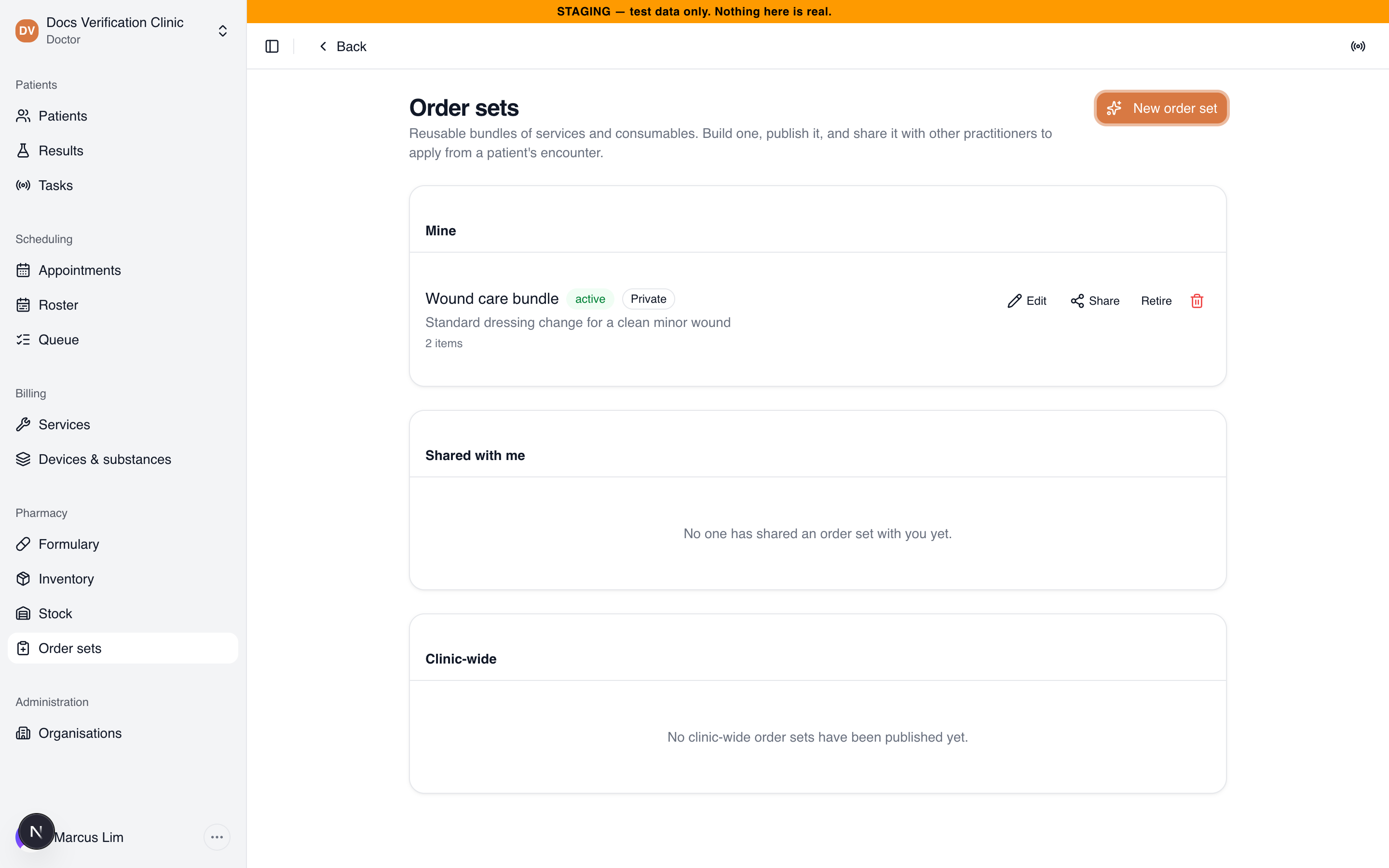
The Order sets page
Each set shows its title, a status of draft, active or retired, a visibility label (Private, Shared or Clinic-wide, for your own sets), its description and its number of items.
Building a set
- Select New order set.
- Enter a Title and optionally a Description (optional).
- Under Items, search “Search services and consumables…” and select each item. Set a quantity for each consumable. Remove an item with the X beside it.
- Tick Publish now to make the set usable immediately. Publishing needs at least one item. Otherwise the set is saved as a draft you can keep editing.
- Select Save.
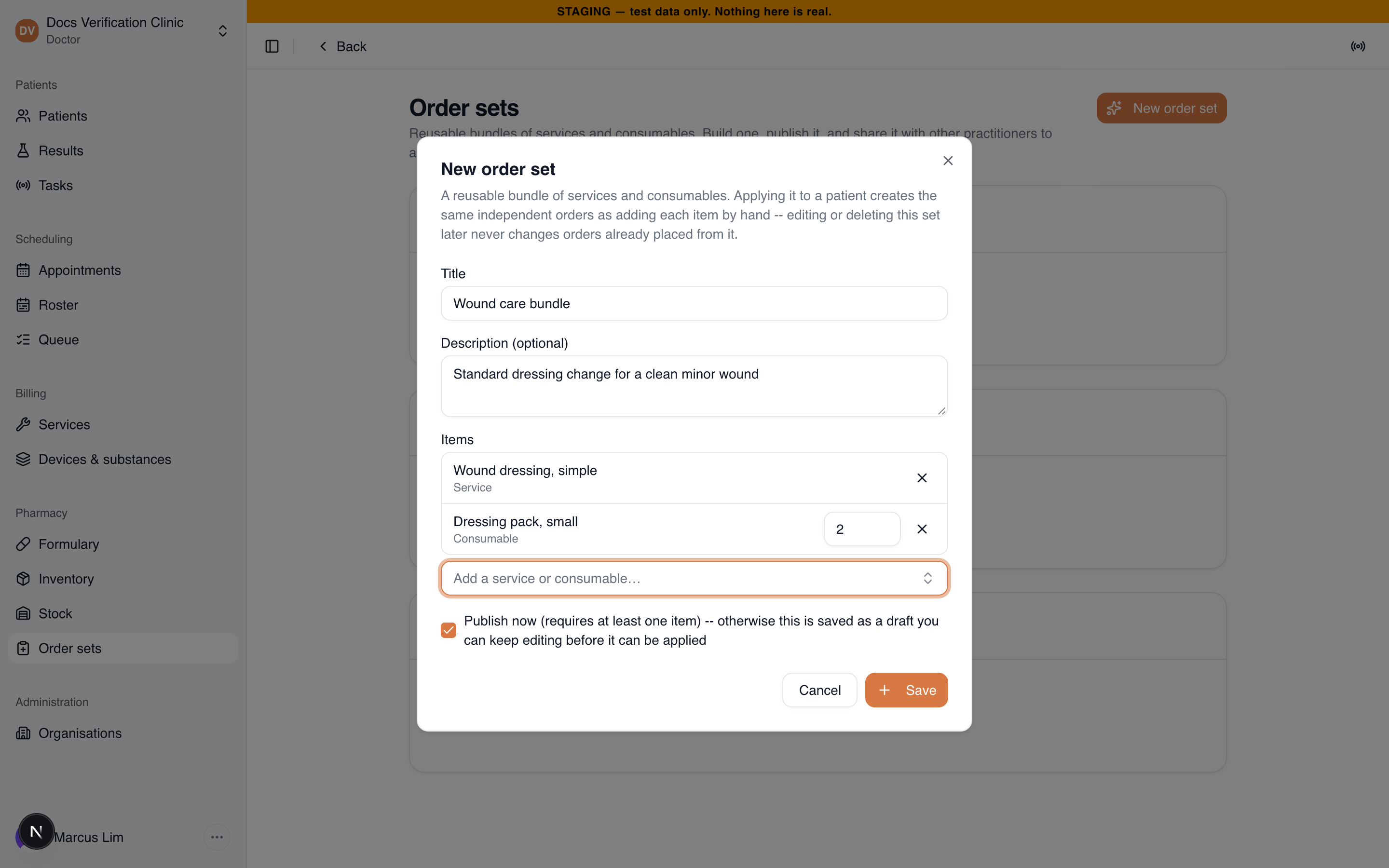
The New order set dialog
Only active services and consumables can be added. Vaccination services cannot. Saving a set that contains one shows “is a vaccination service and can’t be added to an order set — use the vaccination workflow instead.” Remove that item first.
Editing or deleting a set later never changes orders already placed from it.
Sharing a set
Select Share on a set. Choose Private (only you), Shared (you and the practitioners you pick) or Clinic-wide (every practitioner who can place orders). For Shared, tick the practitioners. Only Clinic Admins, Doctors and Nurses are listed. Select Save sharing.
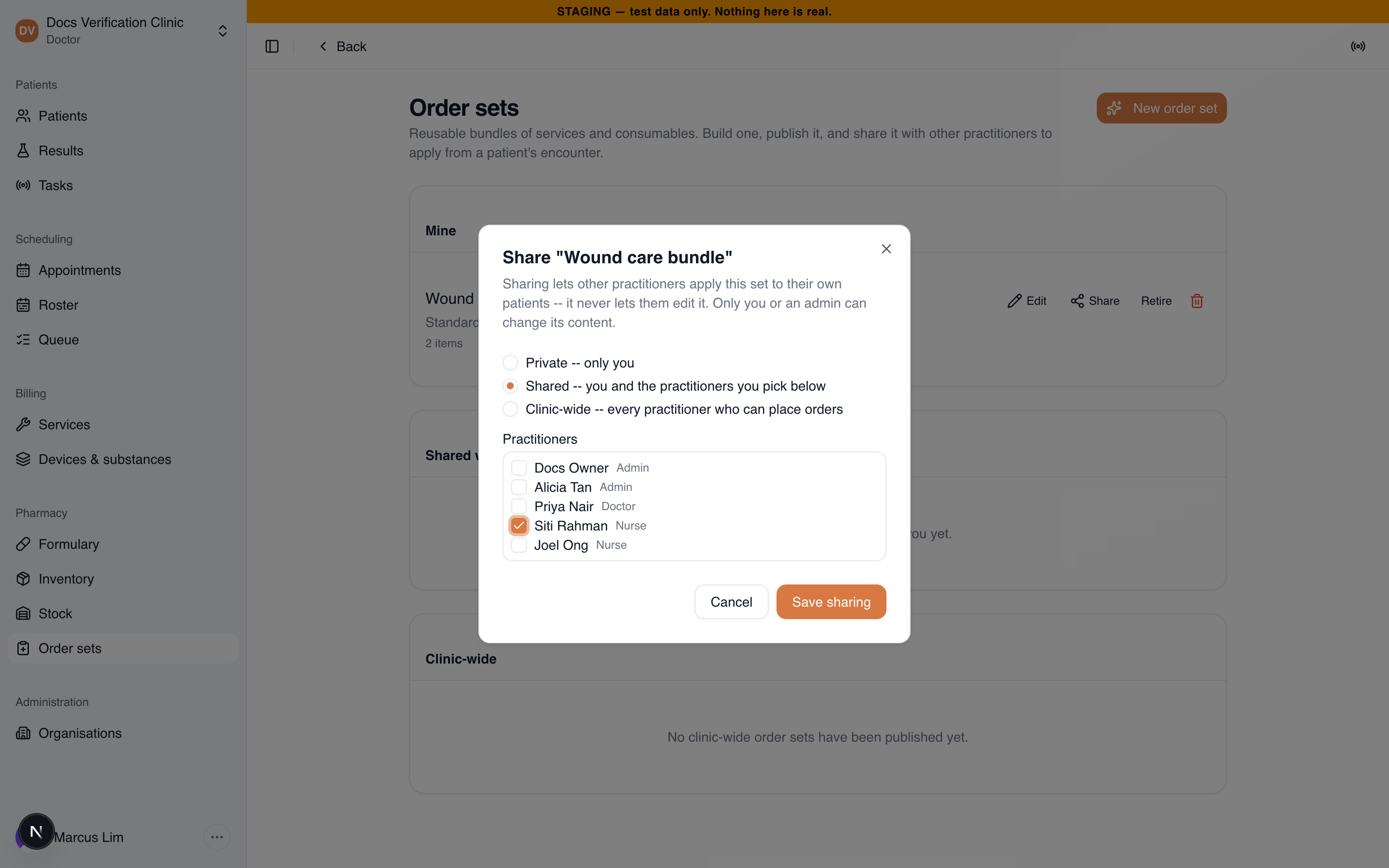
The Share dialog
Sharing lets others apply a set to their own patients. It never lets them edit it. Only the owner or a Clinic Admin can edit, share, retire, publish or delete a set. Other people see the set without those buttons.
Publishing, retiring and deleting
Publish makes a draft or retired set active. Retire stops people applying it. Only active sets can be applied. A draft or retired set is not offered, even to its owner. Delete removes a set for good after you confirm.
Applying a set to an encounter
- Open the patient’s chart, select Encounters and make sure an encounter is In Progress.
- In the Orders card, select Apply order set.
- Choose a set. Its description and item count appear.
- Select Apply.
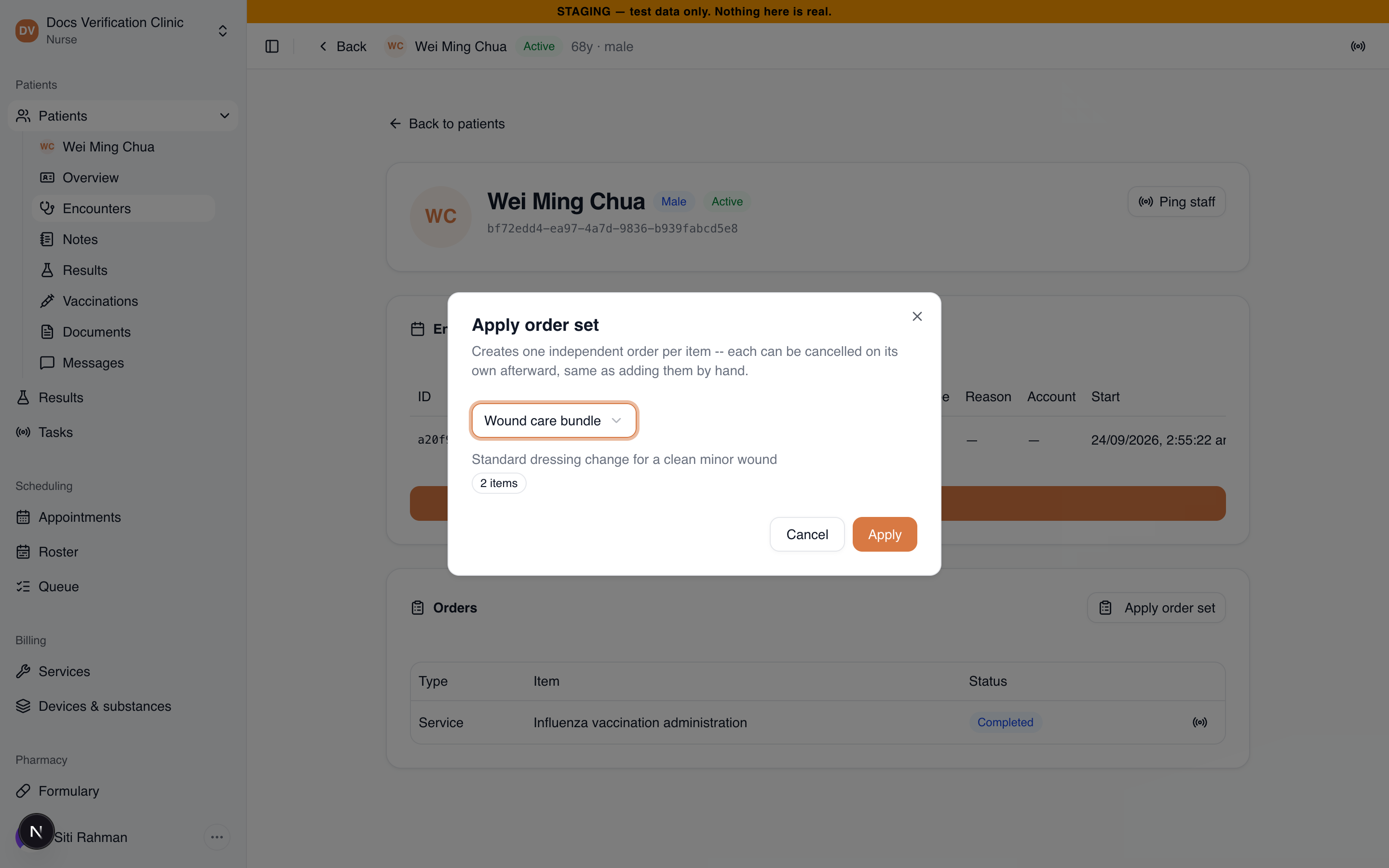
Applying a set
You see “Applied” with the set’s name. The dialog then lists each item with a tick when its order was created, or the reason it failed. If some items fail you see how many. The others are still ordered. Each item becomes its own order and can be cancelled on its own.
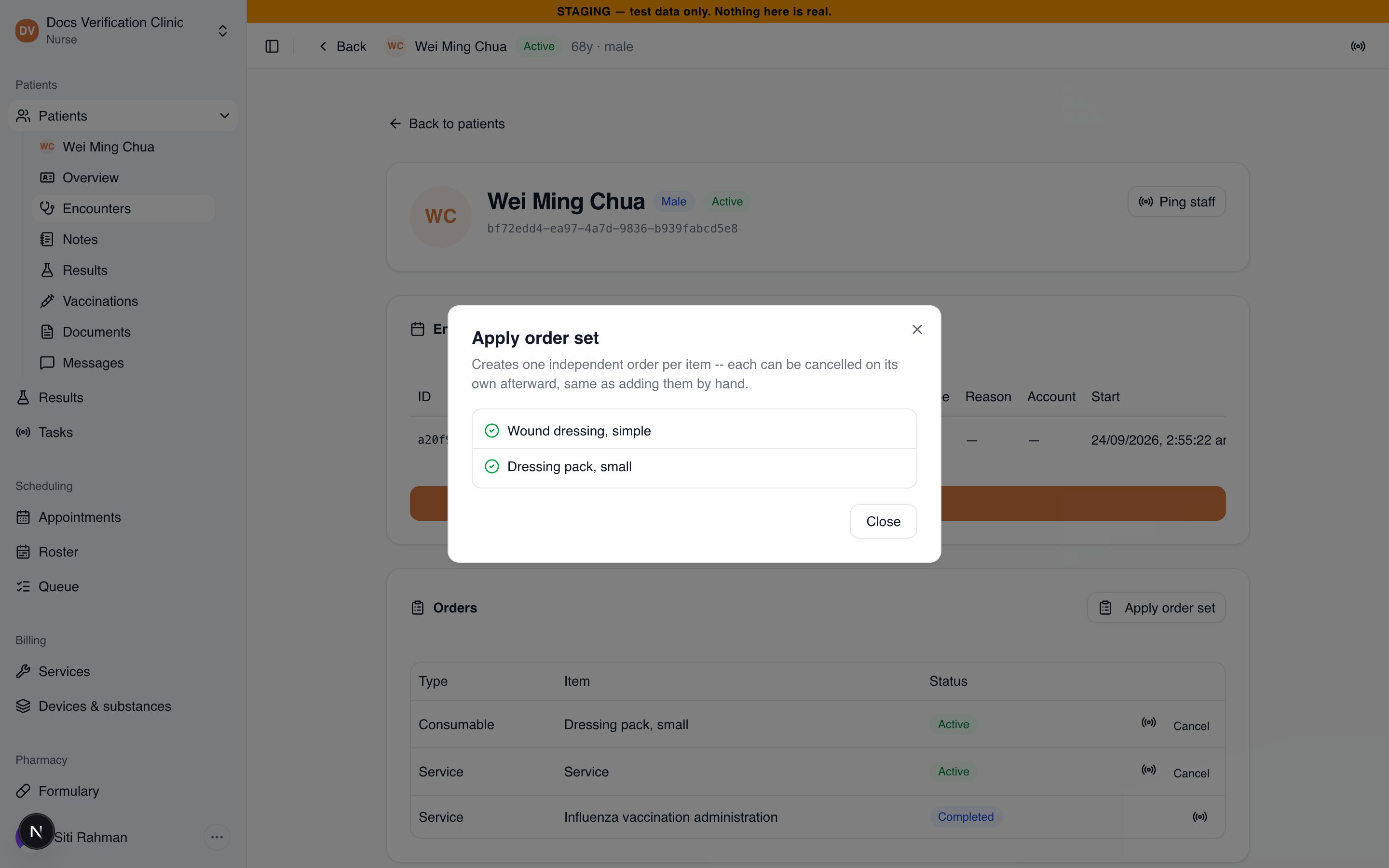
The result of applying a set
You can apply sets that are active and either yours, shared with you or clinic-wide. If a set is not available you see “This order set is not available to apply.”
Related
- Encounters & Clinical Notes: the encounter the orders belong to.
- Billable Catalog: where services are defined.
- Services & Consumables: the items you can add to a set.
- Formulary: medications.