Rostering
The roster is the clinic’s staff schedule. Find it at Scheduling → Roster (/roster). It is a week grid with one column for each day and one row for each role: Doctors, Nurses, and Reception. Receptionists and Clinic Admins build and change the week. Only a Clinic Admin can publish it.
Who can do this
| Task | Clinic Admin | Receptionist | Doctor | Nurse |
|---|---|---|---|---|
| See the roster | Yes | Yes | View only | View only |
| Add, edit, or cancel a shift | Yes | Yes | No | No |
| Assign or replace the staff member on a shift | Yes | Yes | No | No |
| Create a recurring pattern of shifts | Yes | Yes | No | No |
| Publish a week | Yes | No | No | No |
Every role can open the roster. Doctors and nurses see the grid without any buttons for changing it.
Building a week of shifts
Use the arrows to move between weeks, or select Today. Weeks start on Monday.
- In a day’s cell, select Shift.
- Check the Date and Role. Set the Start time and End time.
- Choose the Session: Morning, Afternoon, Evening, or Full day. You can add a Label, for example “Cover for Dr Tan”.
- Select Save. A message says “Shift created”.
The shift appears in the grid with its times, its session, and Unassigned. To put someone on it, select the swap icon (Assign staff), choose a Staff member, add a Reason if you like, and select Assign. The list only offers staff of the right role, so a Doctor shift lists only doctors. A person cannot be put on two shifts that overlap. Once a shift has someone on it, the same icon reads Replace staff, and the earlier names stay on the shift as a history.
The pencil icon (Edit shift) changes a shift or cancels it.
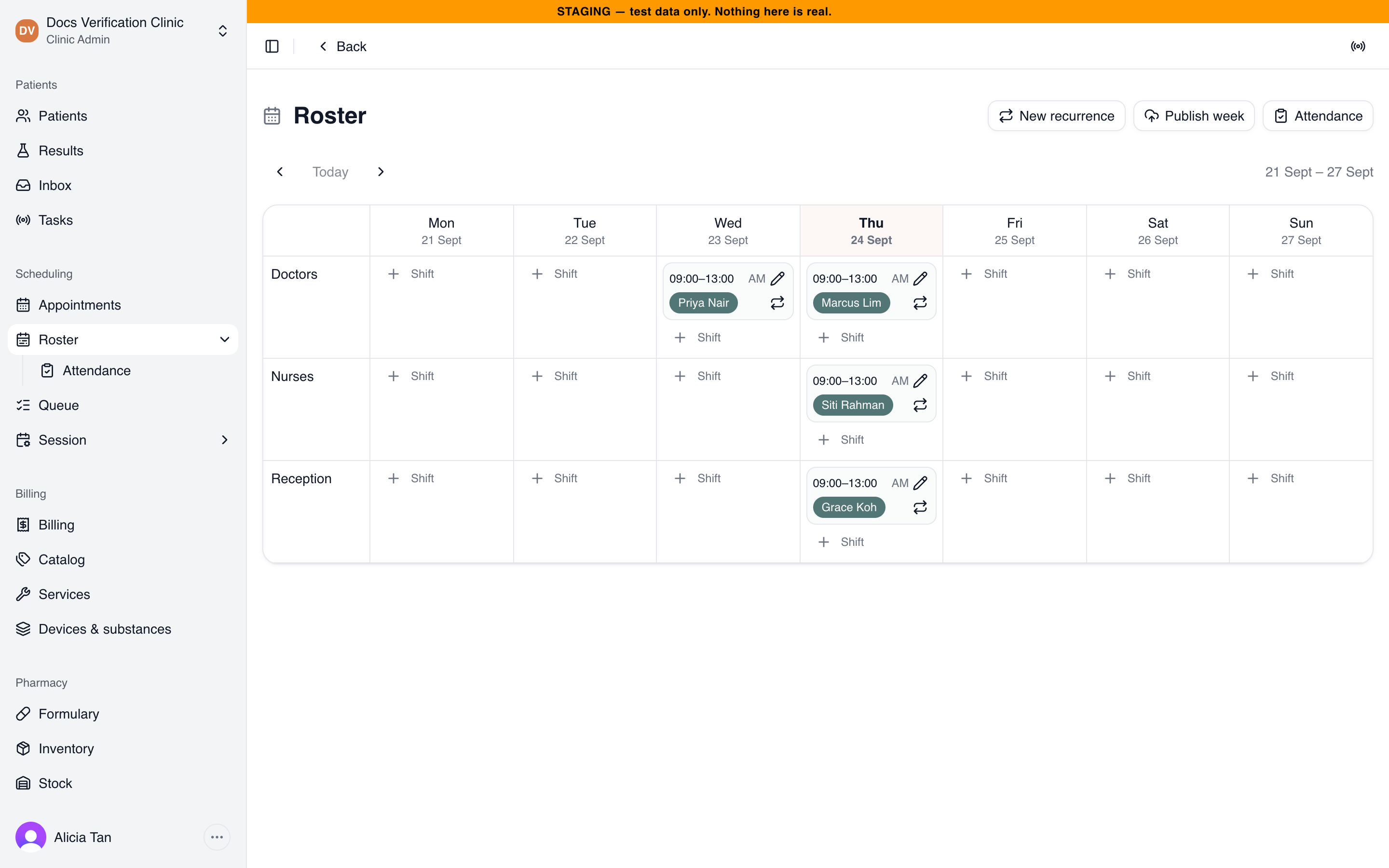
A week of shifts with staff assigned
Recurring shift patterns
Select New recurrence to make a repeating pattern in one step. Tick the Days of week, set the Start time, End time, Role, and Session, and choose Starting from and For how many weeks. You can choose who to Assign to and add a Label. Select Generate shifts. Running the same pattern again is safe, because it skips the dates that already have shifts.
The roster assistant
Some Medbot deployments show a Roster assistant box above the grid. It is not shown when the deployment has no assistant turned on. Type the change you want in plain words, for example “Dr Tan is working Thursdays 12 to 5pm for the next 4 weeks”, and select Preview. The assistant lists what it would do and marks anything that deletes or cancels. Select Apply to run the changes, or Discard to drop them. Nothing changes until you select Apply.
Publishing a week (Clinic Admin only)
Select Publish week when the week is settled. A message says how many shifts were published, for example “Published 3 shifts”. Publishing does two things:
- It turns the week’s draft shifts into published shifts. Published shifts can start counting toward Attendance.
- If the week includes today and a session is open, it marks the rostered staff as working in that session.
Draft shifts do nothing until they are published. Publishing again publishes only the drafts added since.
How it fits together
When today’s session is opened in Session Setup, the doctors, nurses, and receptionists rostered for today are marked as working. There is no separate step to start the day. Attendance is checked against published shifts.
Related
- Attendance: what happened against each published shift.
- Session Setup: who is working today.