Encounters & Clinical Notes
An encounter is the record of one visit. Doctors and nurses attach vitals, notes, orders and vaccinations to it. Find encounters in a patient’s chart under Encounters (/patients/[id]/encounters). Clinical notes appear on the chart Overview.
Who can do this
| Task | Clinic Admin | Receptionist | Doctor | Nurse |
|---|---|---|---|---|
| See a patient’s encounters | Yes | Yes | Yes | Yes |
| Start an encounter | Yes | No | Yes | Yes |
| Read clinical notes | Yes | Yes | Yes | Yes |
| Write a consultation note | Yes | No | Yes | No |
| Write a progress note | Yes | No | Yes | Yes |
| Amend or retract a consultation note | Yes | No | Yes | No |
| Amend or retract a progress note | Yes | No | Yes | Yes |
| Code the visit’s diagnoses (Singapore) | Yes | No | Yes | No |
| Order a Screen for Life screening (Singapore) | Yes | No | Yes | Yes |
| Record a developmental screening (Singapore) | Yes | No | Yes | No |
The Start Encounter button is visible to every role. A Receptionist who submits the form sees “Something went wrong while starting the encounter.” Ask a Doctor, Nurse or Clinic Admin to start it.
Starting an encounter
- Open the patient’s chart and select Encounters, or select Start Encounter in the actions menu on the Patients page.
- Choose the Encounter class: Ambulatory (the default), Emergency, Virtual, Home Health or Inpatient.
- Choose the Status: Planned, Arrived, Triaged or In Progress (the default).
- Choose the Priority: Routine (the default), Urgent, ASAP or STAT.
- Optionally enter a Reason for visit (optional).
- Select Start Encounter.
Clinic Admins also see an Account field to link a billing account. See Billing.
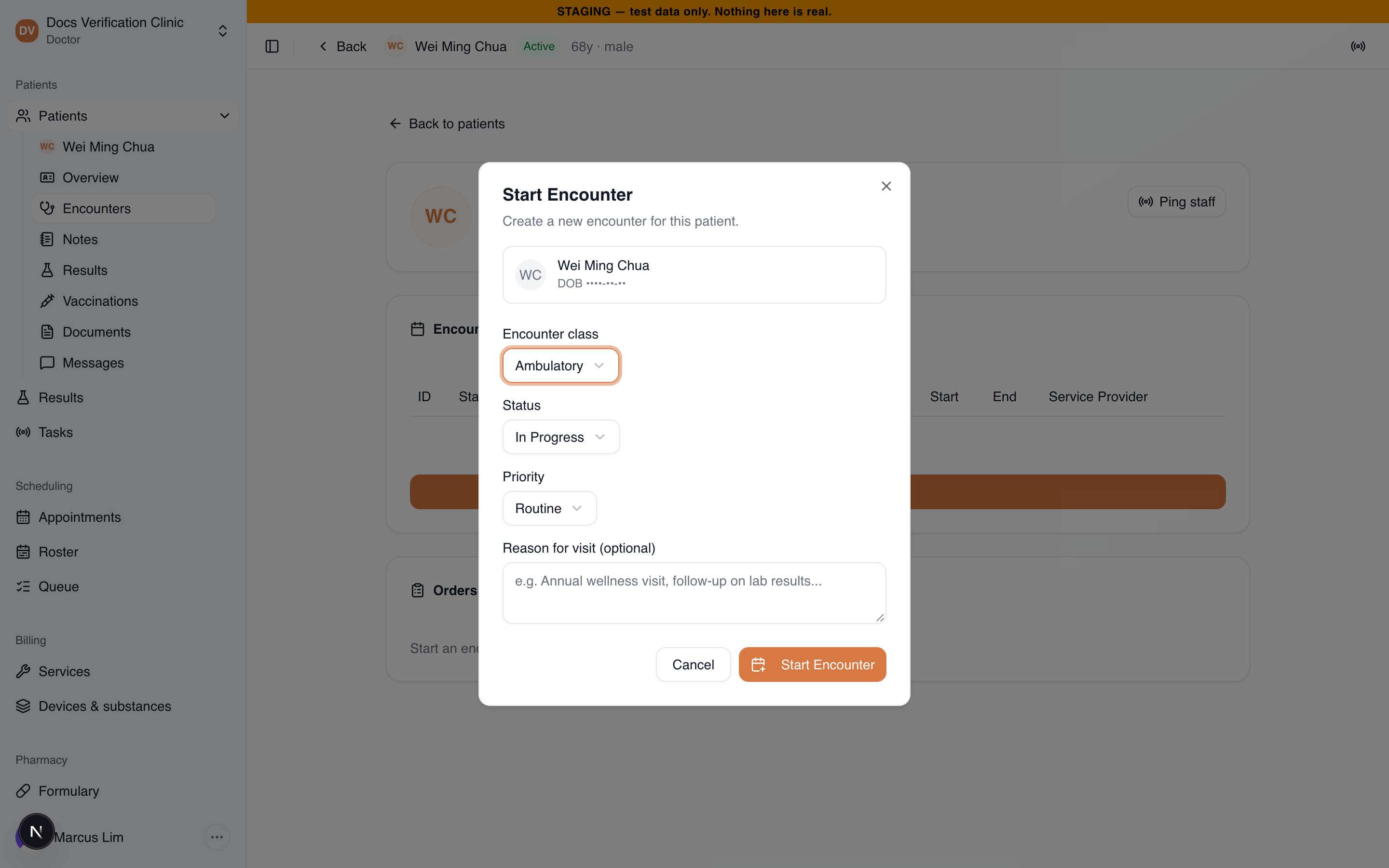
The Start Encounter dialog
You cannot start an encounter for an inactive patient. The button is disabled and the app says “Cannot start an encounter for an inactive patient.”
Which encounter counts as current
Vitals, notes, orders, order sets and vaccination orders attach to the patient’s current encounter. The current encounter is the most recently started one with status In Progress. An encounter that is only Planned, Arrived or Triaged is not current. Without a current encounter the chart says so and hides Write note, Apply order set and Order service.
Encounters and the queue
A doctor who selects Start consultation on the Reception Queue lands on Encounters for that exact queue appointment. The dialog then says “Create a new encounter for this patient’s visit in today’s queue.” The new encounter is linked to that appointment, and the queue row moves to Consultation.
An encounter started from the chart without going through the queue is still linked to the patient’s visit if they are checked in on the queue and their visit is not finished. If they are not checked in, the encounter is not linked to any appointment and does not appear on the queue.
If the visit already has an open encounter, Start Encounter reuses it instead of starting a second. A billing account chosen in the dialog is added to it if it has none. An encounter is never linked to a visit that is already finished, cancelled or a no-show, even if the page still points at it. Medbot links the patient’s open visit instead, if there is one.
When a Clinic Admin or Nurse starts the encounter, the doctor assigned on the queue appointment is recorded as the attending doctor. When a doctor starts it, they are.
Visits from the queue finish when the doctor selects Complete visit. The chart has no control to finish an encounter.
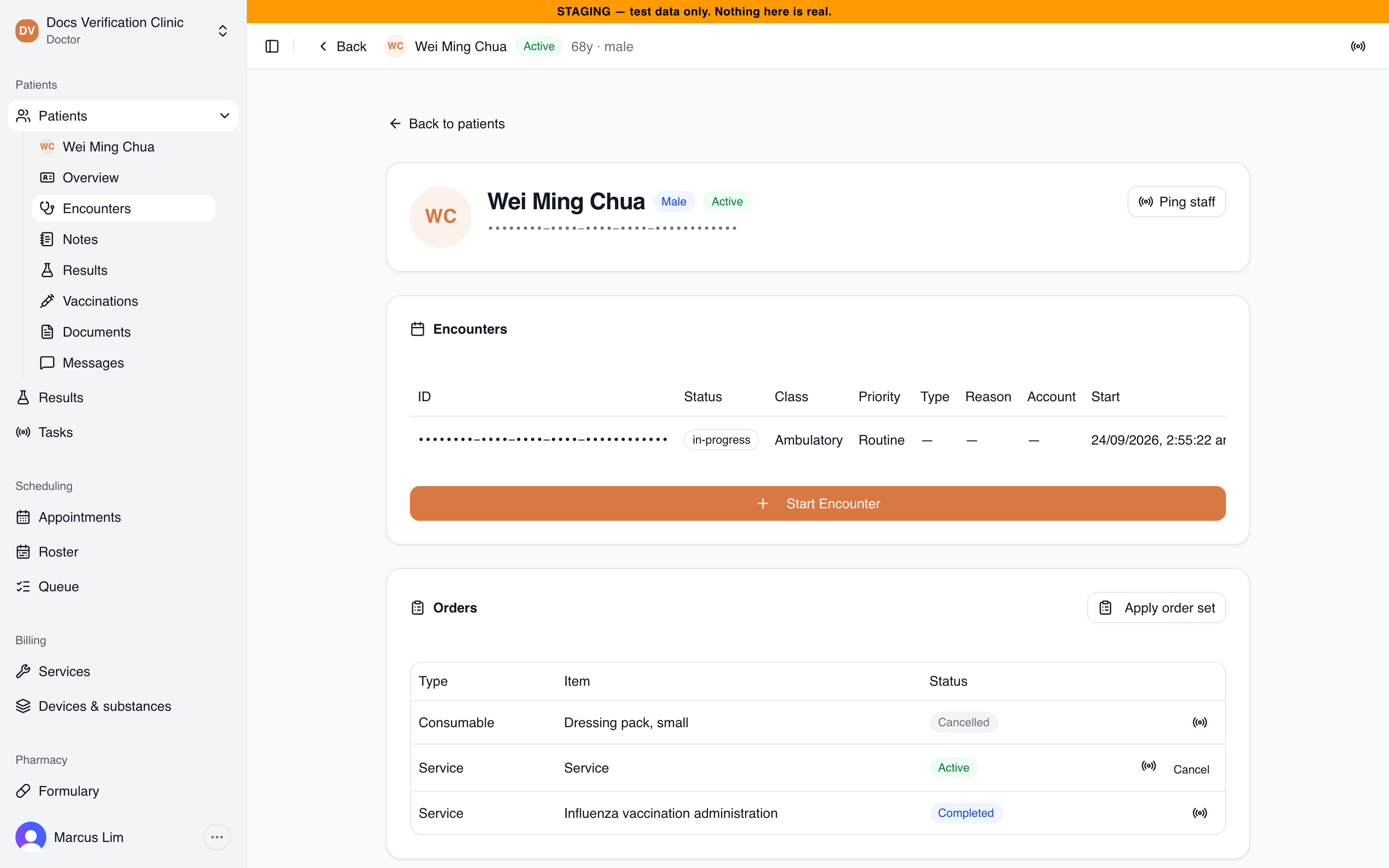
The Encounters page
The encounters table
Each row shows the ID, status, class, priority, type, reason, account, start and end time, and service provider. Newest rows come first. Clinic Admins, Doctors and Nurses see Record vitals on any encounter that is still open. See Vitals. The Orders card below the table is described in Orders & Order Sets.
Clinical notes
The Clinical notes card on Overview lists notes grouped by encounter, newest first. Each note shows its type, author and time. There are two types:
- Consultation Note: the physician’s note for the consultation. Doctors and Clinic Admins write these.
- Progress Note: a procedure performed or health education given. Doctors, Nurses and Clinic Admins write these.
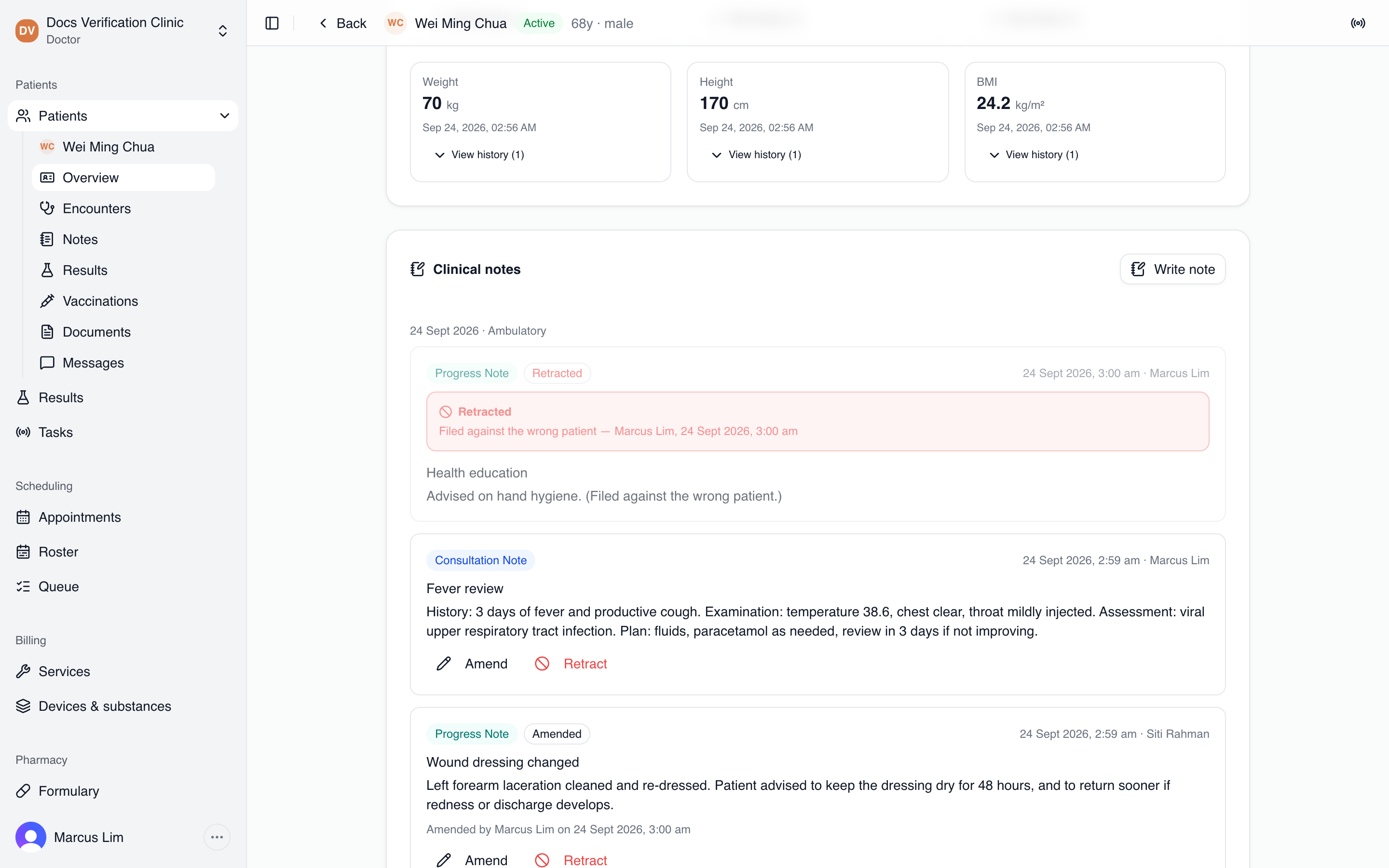
The Clinical notes card
Writing a note
- Select Write note. It appears only when you may write a note and the patient has a current encounter.
- Choose the Type. The list offers only the types your role may write.
- Optionally enter a Title (optional). The note type is the default title.
- Enter the Note text.
- Select Save note.
Your account must be linked to a clinical profile so the note can carry your name. Otherwise you see “Your account has no linked clinical profile yet, so a note cannot be attributed to you.” Notes cannot be filed against an encounter that is finished, cancelled or entered in error.
Amending a note
Select Amend on a note, change the text and select Save amendment. The note is labeled Amended with the name of the person who amended it and when. The earlier text stays in the note’s version history. Any Doctor or Clinic Admin can amend a note, not only its author. Nurses can amend progress notes only.
Retracting a note
Select Retract, enter a Reason for retracting, then select Confirm retraction. Retracting cannot be undone. The note stays in the chart, greyed out and labeled Retracted with the reason, who retracted it and when. A retracted note can no longer be amended.
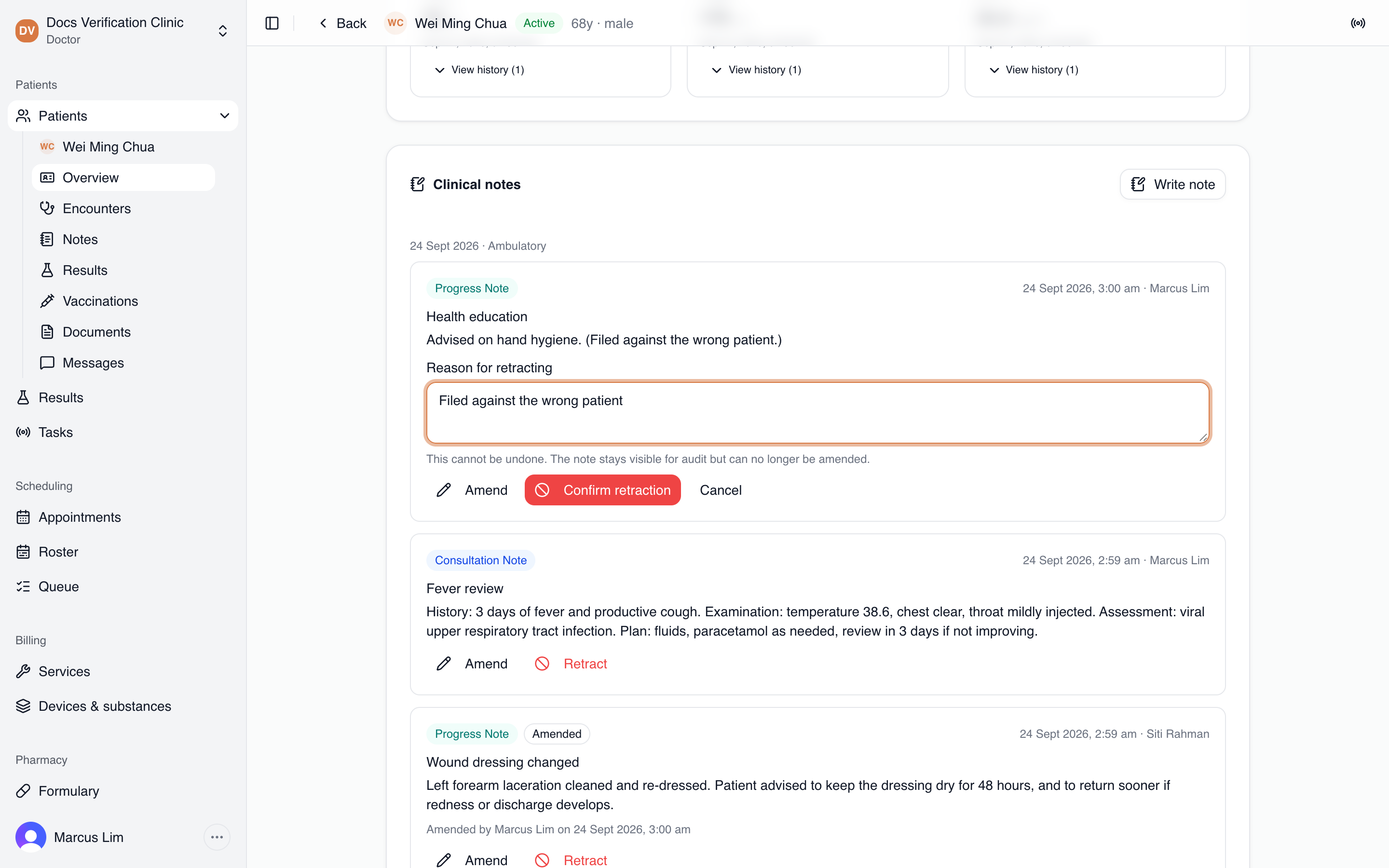
Retracting a note
Receptionists can read notes but cannot write, amend or retract them.
Coding the visit’s diagnoses (Singapore)
The Diagnoses (ICD-10-AM) card sits on the chart Overview, above Clinical notes. It covers the current encounter only. It appears for a Singapore organisation that subscribes to CHAS, CDMP, SFL, DEROM, CIDC or MW_HEALTH. Without a current encounter it is not shown. It says: “This visit’s coded diagnoses. Claims and MOH reports take them from here.”
- Under Add a diagnosis, type in Search by code or name, e.g. J06.9 or diabetes and choose a match. A well-formed code that is not on MOH’s lists is offered as Not on MOH’s lists.
- Medbot fills in the CDMP conditions the diagnosis suggests. Remove any that do not apply, or choose Add beside CDMP: to add one.
- To add a complication, type in Add a complication of … under that diagnosis.
- Select Save diagnoses. You see “Diagnoses saved.” Discard drops your unsaved changes.
A visit has at most 20 diagnoses and 10 complications. Remove a diagnosis or complication with its × button.
Clinic Admins and Doctors code diagnoses. Nurses and Receptionists see the card read-only.
If someone else saved the diagnoses after you opened the chart, your save is refused: “The visit’s diagnoses changed since they were loaded. Reload them and make your changes again.” Your unsaved changes stay on screen. Select Reload diagnoses, then make your changes again.
The bill fills the CHAS claim from these diagnoses. See Claims Workflow. A newly coded notifiable disease prepares a disease notification (DEROM) for a doctor to complete. A chronic visit’s CIDC report is prepared from these diagnoses when the visit is completed or billed. Both appear in Reports.
Screenings on the Encounters page (Singapore)
Two panels can appear under Orders on Encounters. Every role sees them. Ordering and recording need a current encounter. Otherwise the panel says “Start an encounter to order a screening.” or “Start a visit to record a CDS screening.”
Screen for Life
Shown when the organisation subscribes to Screen for Life (SFL).
- Check eligibility asks HPB which national screenings the patient is due for. A table shows each screening, whether the patient is eligible, the lab subsidy, when they were last screened and when the next is due. Below it, Screening claims on record lists earlier claims.
- To order, choose the Screening and the Test order (First screen, Repeat screen or Second repeat screen). A repeat also needs a Repeat test. Select Order screening. The order keeps what HPB said at that moment.
Clinic Admins, Doctors and Nurses order screenings. Ordered at this visit lists them.
Childhood developmental screening (CDS)
Shown when the organisation subscribes to CHAS.
- Check CDS history lists the milestones MHCP already has claims for.
- To record, choose the Milestone and the Outcome, tick Health booklet completed if it was, and add a Note (optional). Select Record screening.
Medbot warns when the milestone does not fit the child’s age, and when MHCP already has a claim for that milestone, because a second one is rejected unless appealed. Only Clinic Admins and Doctors record screenings.
Both are claimed on the visit’s bill. See Claims Workflow.
Related
- Vitals: record readings on the encounter.
- Orders & Order Sets: place and cancel orders.
- Vaccinations: record a vaccination.
- Patient Records & Consent: the chart itself.