Patient Portal
The patient portal is the patient-facing side of Medbot. A clinic’s patients sign in to their own Medbot account to ask questions about their record, message the clinic, request appointments, read visit summaries and results, and keep their details current. It is not an emergency service. Portal messaging is for non-urgent contact only.
The portal is a separate app from Medbot CMS, with its own sign-in. The Patient tab documents it from the patient’s point of view. This page covers the CMS side: how staff connect a patient to the portal, and where each portal action reaches staff.
If you knew the old portal: the CMS used to serve patients itself at
/portal, with its own one-time-code sign-in and its own two-step check for contact changes. That section has been retired. The patient app carries over everything it did. See What changed.
Who can do this
| Task | Clinic Admin | Receptionist | Doctor | Nurse |
|---|---|---|---|---|
| Make a portal invite for an existing patient | Yes | Yes | Yes | Yes |
| Invite a new patient to self-register | Yes | Yes | No | No |
| Answer portal messages in the clinic inbox | Yes | Yes | No | No |
| See, invite and revoke a patient’s caregivers | Yes | Yes | Yes | Yes |
Inviting a patient to self-register is covered in Patient Records & Consent.
Connecting a patient to the portal
A patient who already has a chart
Open the patient’s chart and select Portal invite in the Contact section. Medbot makes a link for the patient to open after signing in to the patient app. The link connects their Medbot account to this chart.
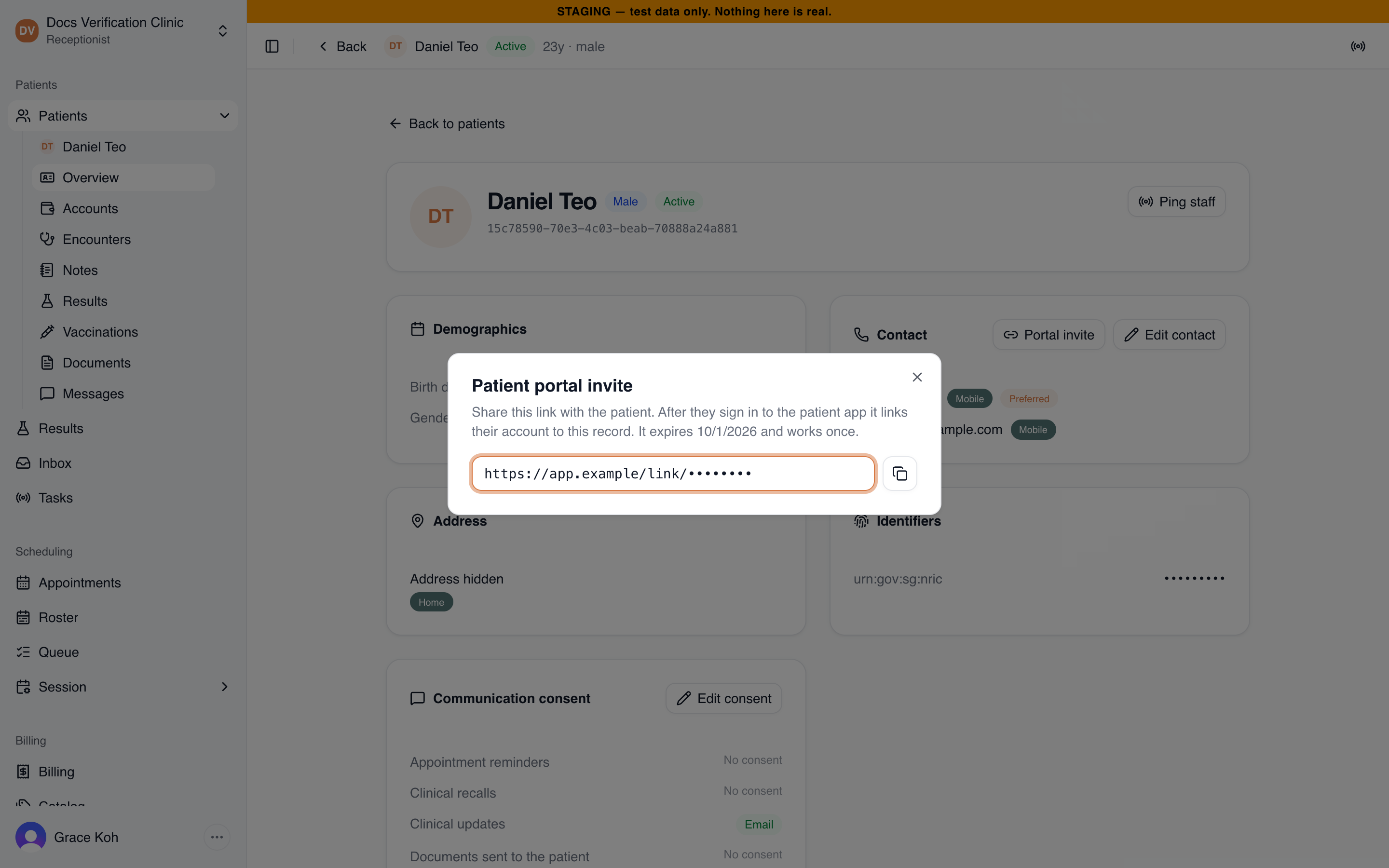
A portal invite link
- The window Patient portal invite shows the link once, with a copy button. A lost link cannot be shown again, so make a new one.
- The link works once and expires after a week. The window shows the expiry date.
- Clinic Admins, receptionists, doctors, and nurses can make one. These are the roles that can edit a patient’s contact details.
After the patient opens the link and signs in, their Profile in the patient app lists your clinic under Connected clinics. They confirm that Medbot may keep a copy of their records from your clinic, and the clinic then shows as Syncing. The patient’s Messages then has a The clinic thread.
A patient can also connect on their own, without an invite. They name the clinic and enter their identifier and date of birth, then a code sent to the contact the clinic holds. Staff do nothing for that path.
A patient with no chart yet
Select Invite to self-register on the Patients page. The patient fills in their own details, which creates the chart. Their account links itself as soon as the chart exists. See Patient Records & Consent.
Where portal activity reaches staff
| The patient does this | Staff see it here |
|---|---|
| Requests an appointment | Appointments: Booking requests. Staff accept, reject, or propose another time. The patient answers a new proposal from their own request. |
| Messages the clinic | Clinic Messaging. One thread per patient, answered by Clinic Admins and receptionists. |
| Raises a red flag through Ask Medbot | The same clinic inbox. Medbot passes it to staff rather than answering. When the patient has several clinics connected, every one of them gets it. |
| Reads a result | Nothing to do, but what the portal shows depends on your sign-off. See below. |
| Updates contact details or consent | The patient’s own chart and consent record. |
A patient’s message from Messages in the patient app appears in the clinic inbox right away. A staff reply appears in the patient app under The clinic. Closing a thread removes it from the inbox, and a new message from the patient opens it again.
Results reach patients on your terms
The portal does not show a patient a verdict the clinic has not released:
- Nothing that reads as a conclusion appears before a doctor signs the result off.
- A Critical flag is withheld when the doctor chose recall, repeat test, or referral, so the patient hears it from a clinician first.
- What this means is the doctor’s own patient-facing note. The doctor’s note for staff is never shown to the patient.
See Diagnostic Results for sign-off and recall.
Caregiver access
A caregiver is a parent, guardian, adult child or carer who uses the patient app for a patient, with their own Medbot account. Patients can add caregivers themselves from their profile. Your clinic can also add one from the chart, which is how a child’s parent or guardian gets access: a patient cannot name themselves a child’s guardian from the patient app. The patient’s side is covered in Caregivers & Family Access.
Every caregiver has one of two access levels:
| Level | What the caregiver can do in the patient app |
|---|---|
| Read-only | See results, visits, records and messages. They cannot book, send messages or change anything. |
| Can make changes | Also book appointments, message the clinic, check in, answer AI encounters and update the patient’s address. |
At either level, only the patient can connect clinics, change their consent, name or date of birth, or choose who has access.
Adding a caregiver
- Open the patient’s chart. In the Contact card, select Caregivers. A badge shows how many caregivers have access now.
- In the Caregiver access window, open Invite a caregiver.
- Fill in:
- Caregiver email (required). Only someone signed in with that verified email can accept.
- Mobile (optional). Medbot sends an SMS with the link. It contains no patient details.
- Their relationship to the patient, which defaults to Parent.
- Access ends (optional). For a patient under 18 this is filled in with their 18th birthday. You can change it.
- The access level, which defaults to Can make changes.
- How did you verify this person? Describe the check you made, for example “Parent’s NRIC and the child’s birth certificate sighted at the front desk.” At least 10 characters.
- Tick I have verified this person’s identity and their relationship to the patient.
- Select Create invite. Medbot emails the invite and shows the link with a copy button. If the email could not be sent, hand the link over yourself. Invite someone else starts a new one.
The caregiver must open the link, sign in with the invited email and accept a consent statement before they get access. The link works once and expires after 7 days. A patient can have at most 5 invites waiting.
For a patient under 18, the Contact card shows a reminder: “Under 18: a parent or guardian can use the patient app for this patient once you add them under Caregivers.”
A patient with no Medbot account of their own. You can still add a caregiver. If the patient has never been linked to the patient app, the first caregiver invite links them. Your clinic’s records start syncing into the patient’s health record once the caregiver accepts.
A patient who has stopped your clinic syncing. If the patient has stopped your clinic syncing into their health record, your clinic cannot add caregivers and Invite a caregiver is disabled. The patient can still add one from their own profile.
Reviewing and ending access
Current access lists each caregiver with their relationship, access level, status, who added them (for example “Added by … (your clinic)”), the end date, when they last used it, and the verification note that was recorded. Past access lists revoked and expired grants. If nobody has access, it says “No one else can access this patient’s record.”
- Revoke ends a caregiver’s access at once, after you confirm. Your clinic can revoke a grant it issued, or any grant on a patient it actively treats.
- Pending invites lists invites not yet accepted. You can cancel your own clinic’s invites. Invites from the patient or from another clinic are marked “Not issued by your clinic”.
Access also ends when the patient removes the caregiver, when the caregiver stops it, or when the end date passes. Both sides are reminded 30 days before an end date. When your clinic records a patient’s death, a caregiver who could make changes keeps read-only access only.
Inviting, cancelling and revoking are recorded in the audit log.
What reaches staff from a caregiver
A caregiver who can make changes may message the clinic, request appointments and check in for the patient. These reach the same screens as the patient’s own actions. When Ask Medbot escalates a red flag raised by a caregiver, the message to the clinic says it was sent by the patient’s caregiver and names their relationship.
What changed
Three differences matter for staff who knew the old /portal.
Patients sign in to Medbot, not to your clinic. A patient has one Medbot account. Instead of a clinic-issued login, they hold a link to your clinic. They agreed to that link and can stop it at any time. The invite creates the link. It does not create a password.
A portal patient may not be only your patient. A patient can connect several clinics to one account. Their record then carries entries from all of them, each tagged with the clinic it came from. Your clinic still sees only its own chart and records in the CMS. The patient sees more than that.
Contact changes no longer run through the CMS. The old two-step code check is gone. A patient’s contact details follow the verified contacts on their own Medbot account, so staff have nothing to re-verify when a patient changes an email address or phone number.
Related
- Patient: the patient’s own view, screen by screen.
- Getting Started and Connected Clinics: connecting, from the patient’s side.
- Caregivers & Family Access: caregiver access, from the patient’s and caregiver’s side.
- Clinic Messaging: the staff side of portal conversations.
- Appointments: the staff side of portal booking.