Patient-Facing Displays
A display is a screen in the waiting room or on a room door that shows which queue ticket is being called. It needs no sign-in. A Clinic Admin sets displays up in the Displays section of Session Setup (/session).
Who can do this
| Task | Clinic Admin | Receptionist | Doctor | Nurse |
|---|---|---|---|---|
| Add a display | Yes | No | No | No |
| See the list of displays | Yes | No | No | No |
| Revoke a display | Yes | No | No | No |
Reception controls what a display shows by calling patients to rooms. See Reception Queue.
Adding a display
- Open Scheduling → Session and choose the clinic location.
- In Displays, select Add display.
- Enter a Name, for example “Lobby TV”.
- Choose the Type: Waiting room (full board) or Room door (single room). For a room door screen, also choose the Room.
- Select Create.
A window says the display is ready and shows its web address. Open that address on the display device, or select the copy button. The address is shown only once. If you lose it, revoke the display and add a new one.
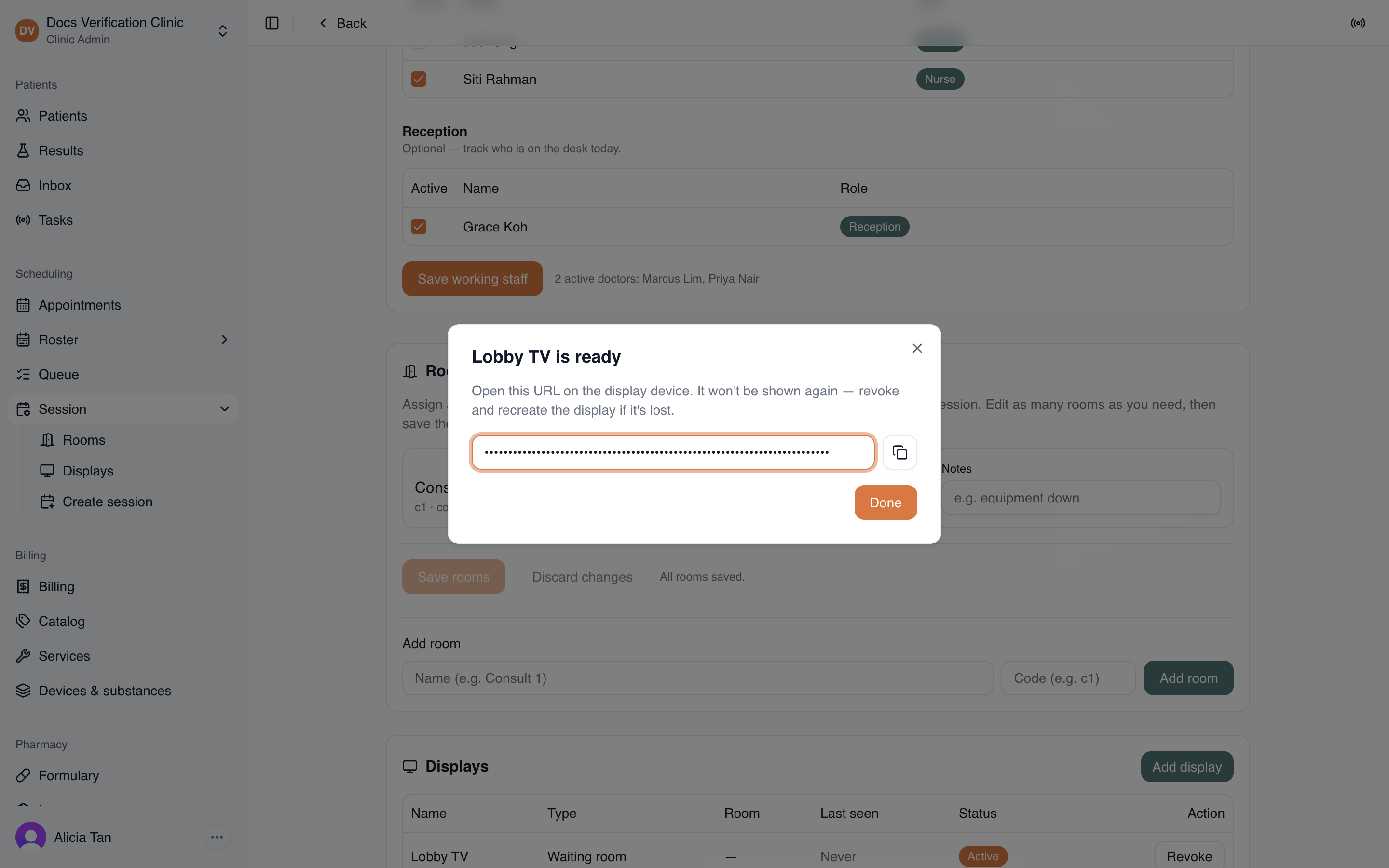
The display is ready window
The Displays list shows each display with its Name, Type, Room, Last seen, and Status. Last seen tells you whether the device is still open.
What each display shows
A display belongs to one location. It updates itself about every four seconds, so nobody needs to reload it. It never shows a patient’s name.
The waiting room board shows the location name and the time of the last update. Under NOW SERVING it lists the ticket last called for each room, with the room name. Under WAITING it lists the tickets of patients who have checked in and not been called. Before anyone is called it says No patients called yet. At the bottom, when a check-in code is set for the day, it shows “Checking in on your phone? Enter code <code> in the patient portal,” so patients can check in from their phones. (The same code appears as Self check-in code on the staff queue screen.) See Reception Queue.
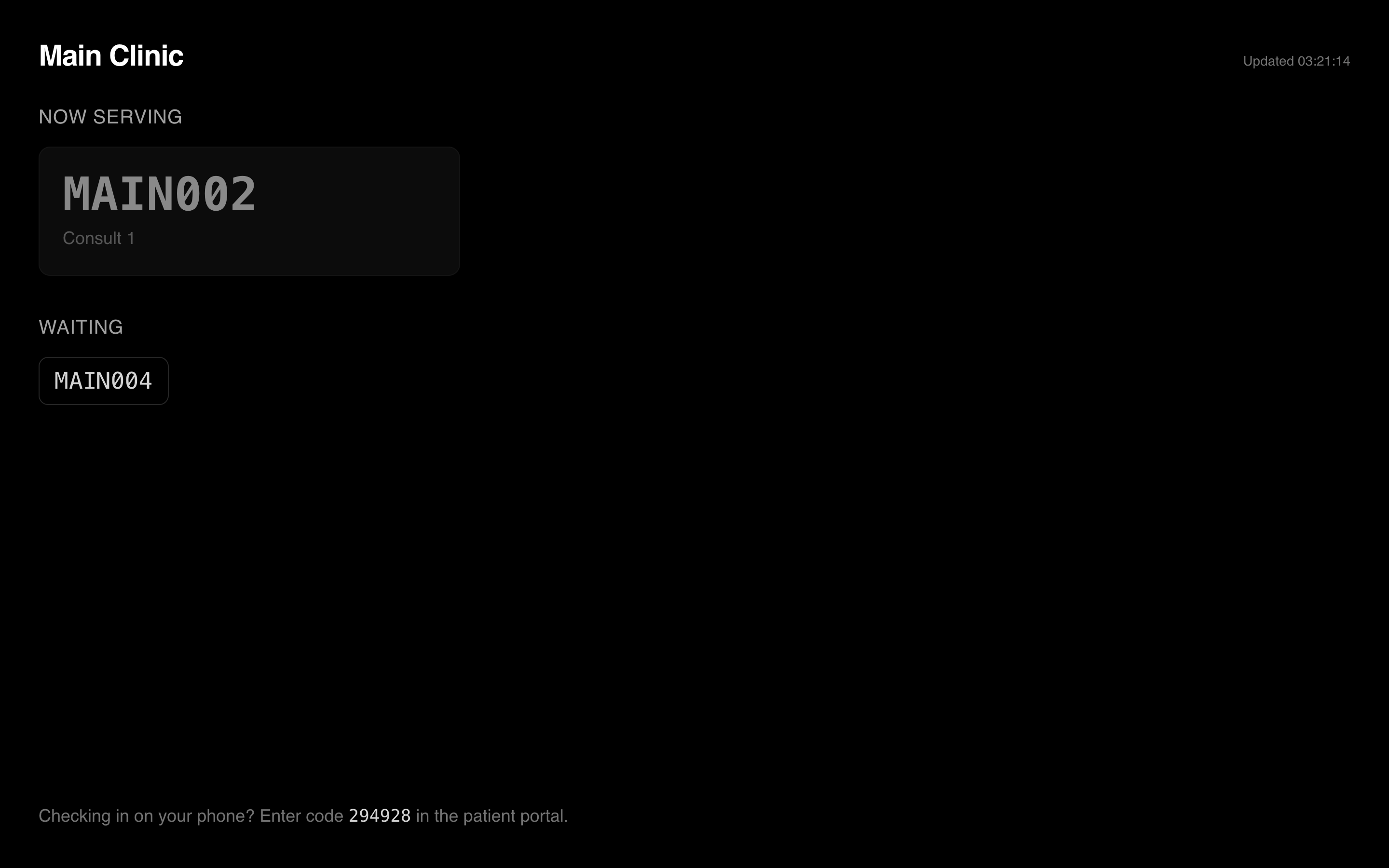
A waiting room board
A room door screen shows the room name and only the ticket called to that room, with the words Now serving.
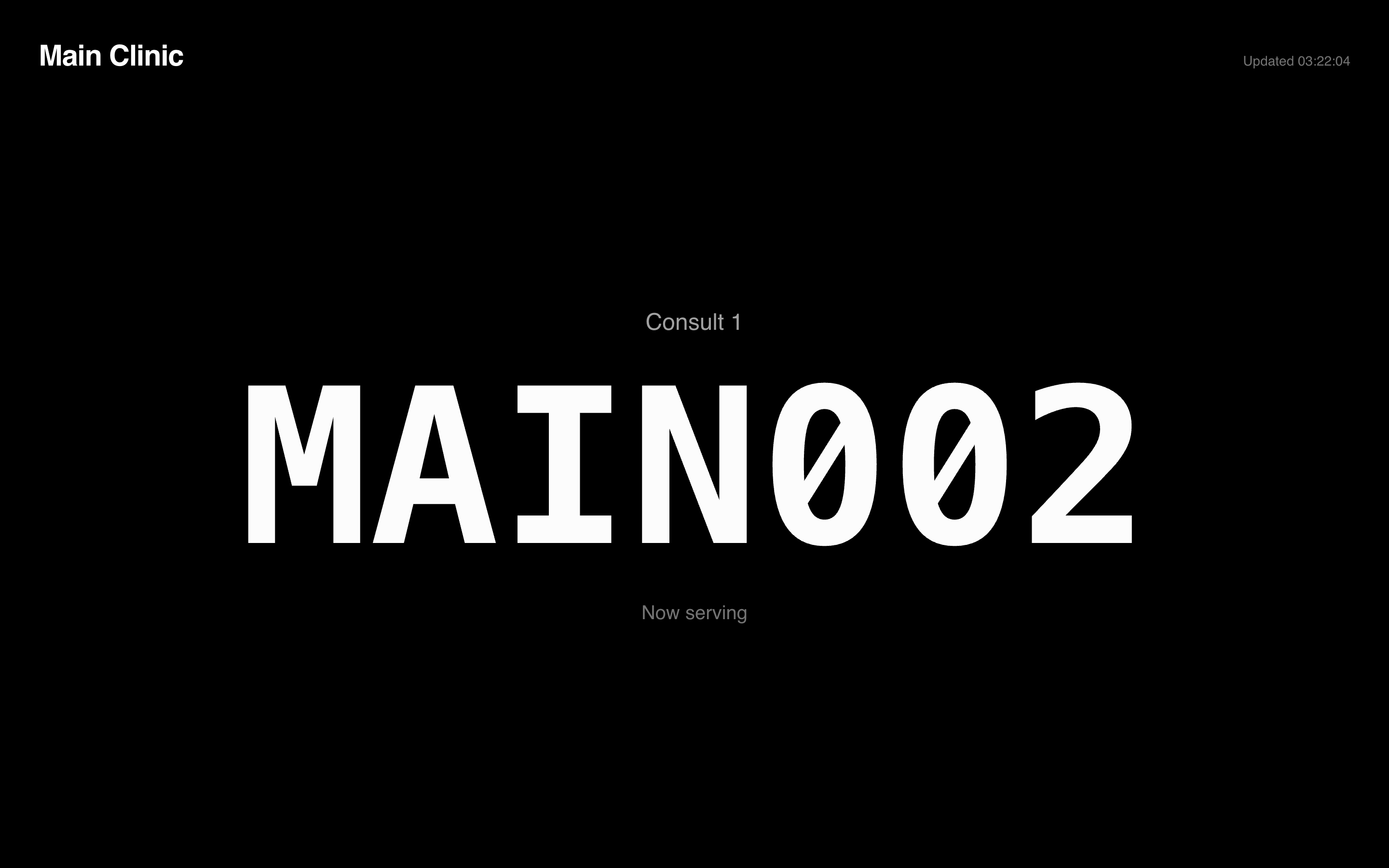
A room door screen
A ticket stays on a display until the patient is routed to another stage or called again.
Revoking a display
In the Displays list, select Revoke on the display. There is no confirmation, and the status changes to Revoked at once. A revoked display, or a wrong address, shows a message that starts “Display deactivated” and tells people to contact reception. A revoked display cannot be turned on again. Add a new one instead.
Note: Treat the display address like a key. Anyone who has it can open the board.
Related
- Session Setup: rooms and working staff.
- Reception Queue: calling patients to rooms.