Documents & Certificates
A patient’s Documents section lists their letters, memos, referral letters, and medical certificates. Open it from the patient’s chart, in the sidebar under the patient’s name. Voided documents stay in the list, marked Voided, so the history is kept.
Who can do this
| Task | Clinic Admin | Receptionist | Doctor | Nurse |
|---|---|---|---|---|
| See documents, and download, print, or email them | Yes | Yes | Yes | Yes |
| Compose a letter or memo | Yes | No | Yes | Yes |
| Compose a referral letter | Yes | No | Yes | No |
| Issue a medical certificate | Yes | No | Yes | No |
| Void a letter or memo | Yes | No | Yes | Yes |
| Void a referral letter or medical certificate | Yes | No | Yes | No |
You can void only the kinds of document you are allowed to compose. A nurse can void a memo but not a referral.
To issue a medical certificate, your staff record needs a medical license number. A Clinic Admin’s record does not normally have one, so a Clinic Admin sees Issue medical certificate but the request is refused. See Staff.
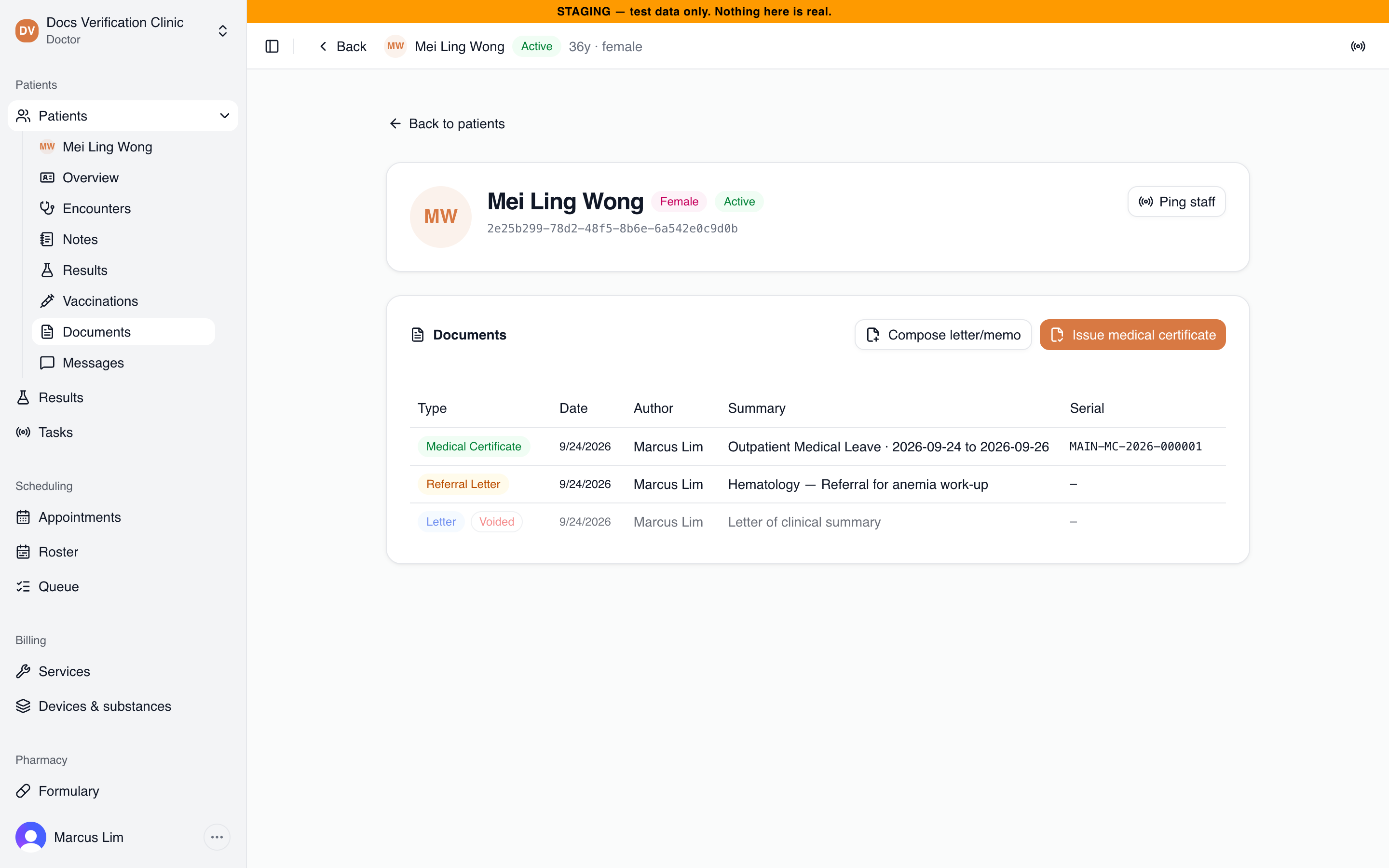
The Documents section
Composing a letter, memo, or referral
- Select Compose letter/memo.
- Choose the Type: Letter (for the patient or a third party), Memo (an internal note filed against the record), or Referral Letter (to another physician or specialist). Nurses see only Letter and Memo.
- For a referral, enter the Specialty, for example “Hematology”. It is required. You can also enter who it is Referred to (optional).
- For a letter, you can enter To (optional) and Recipient email (optional).
- Enter the Subject and the Body.
- Select Compose letter, or Compose referral letter.
The button stays disabled until the required fields are filled. Medbot confirms with a message such as “Letter composed.” The document then appears in the list with its author and date.
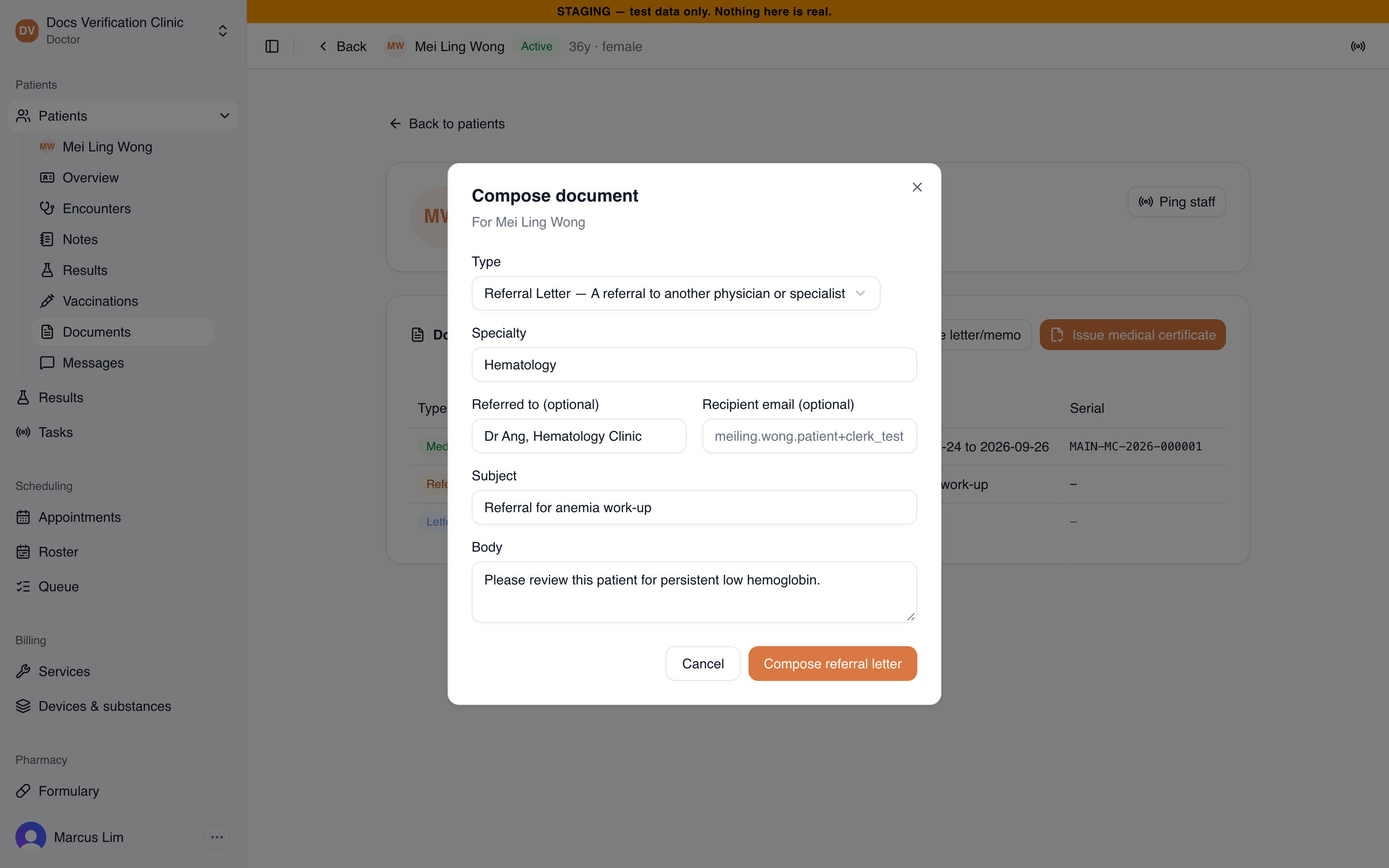
Composing a referral letter
Issuing a medical certificate
- Select Issue medical certificate.
- Choose the Leave type: Outpatient Medical Leave (not fit for work or school), Light Duty (fit for light duties only), or Hospitalization Leave (admitted or hospitalized). No other types exist.
- Enter the Start date and End date. The end date must be on or after the start date.
- Check Number of days. Medbot counts both the first and last day, so 25 to 27 September is 3 days. You do not enter it.
- Optionally, add Comments (optional).
- Select Issue certificate.
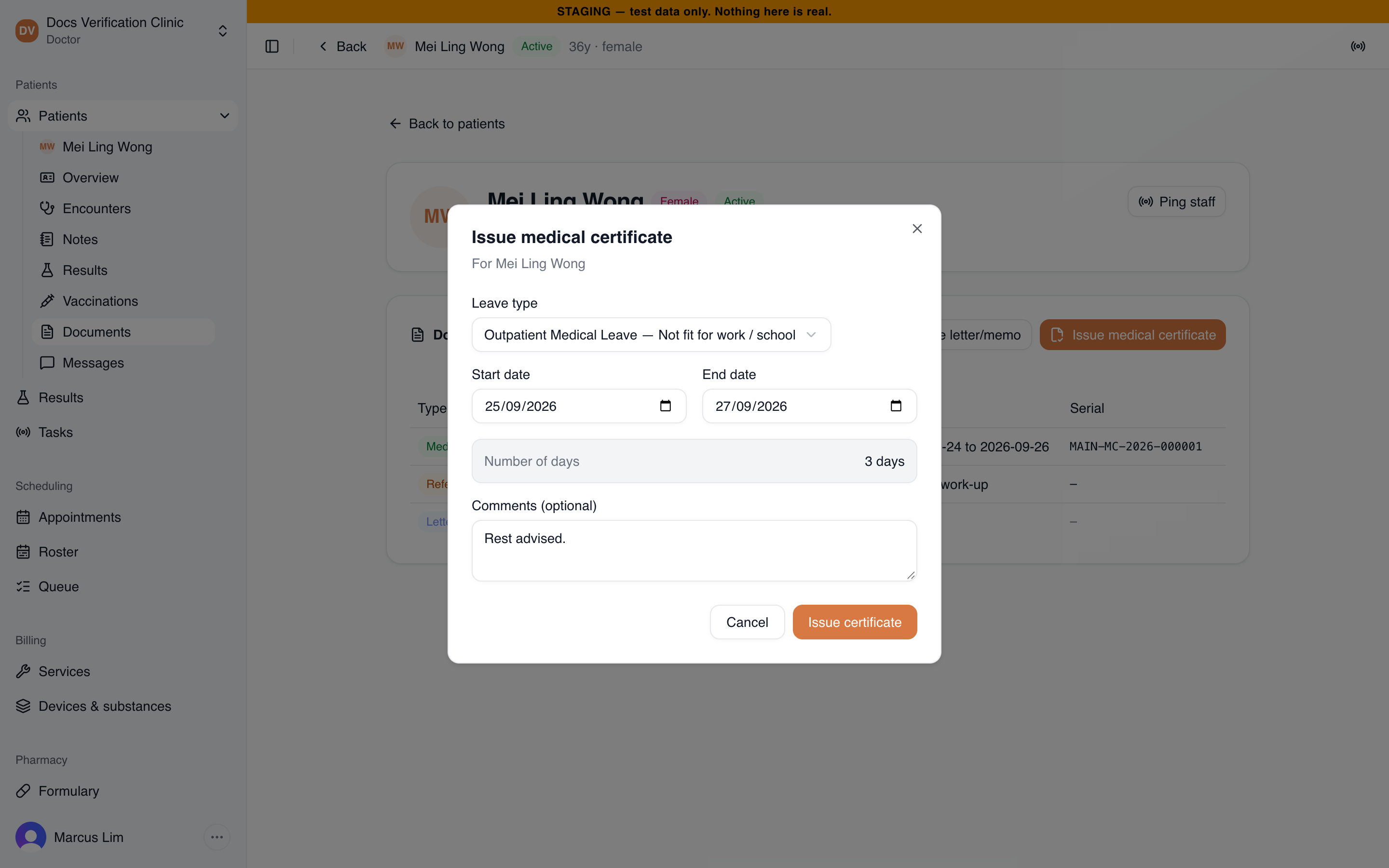
Issuing a certificate
Each certificate gets a serial number for its clinic location and year, such as MAIN-MC-2026-000001. The count for each location and year starts at 000001 and goes up by one. A serial is never reused, even if the certificate is voided.
If you see “Your account is missing a linked practitioner profile or medical license number; contact an admin before issuing certificates.”, ask a Clinic Admin to complete your staff record.
Downloading, printing, and emailing
Select a row to open the document. Everyone who can see documents can use Download, Print, and Email.
For Email, the address starts as the patient’s email. Medbot sends the document as a PDF attachment, but only if the patient has consented to it. It checks two consents in the patient’s communication consent: Documents sent to the patient for the patient’s own address, and Documents sent to a third party for any other address. See Patient Records & Consent.
| Message | What it means |
|---|---|
| Enter a valid email address. | The address is not written correctly. |
| The patient has not consented to document delivery to their email address. | Ask the patient, then record consent on their chart. |
| The patient has not consented to document delivery to a third party by email. | The address is not the patient’s. Record that consent first. |
Sending email needs an email sender to be set up for your Medbot deployment. If it is not, the send fails and you see a message that email is not configured. Ask whoever runs your deployment.
Voiding a document
Voiding marks a document as made in error. Use it to fix a mistake: void the original, then compose or issue a new one.
- Open the document and select Void.
- Type a Reason for voiding.
- Select Confirm void.
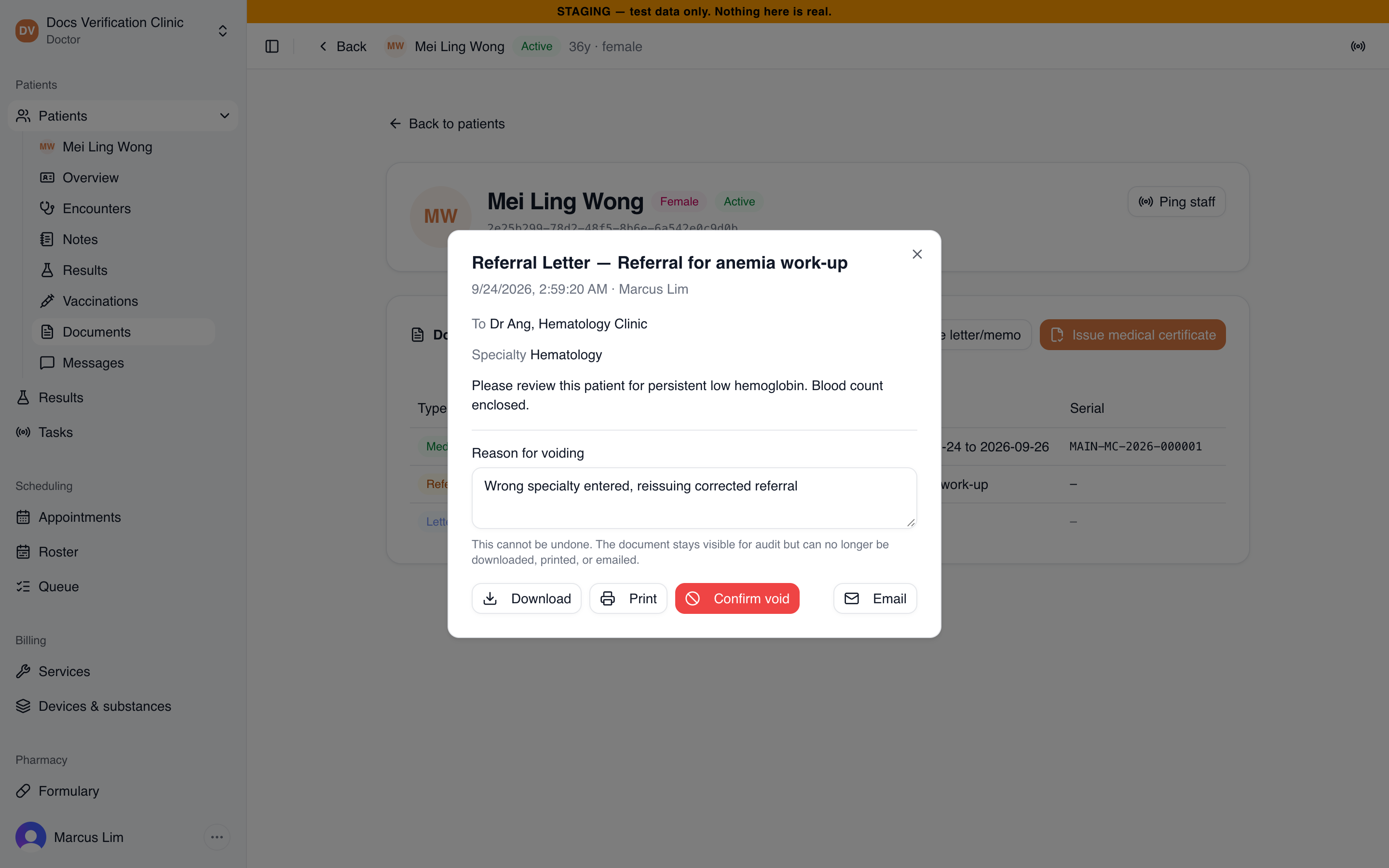
Voiding a referral letter
Voiding cannot be undone. The document stays in the list with a Voided label, the reason, who voided it, and when. A voided document can no longer be downloaded, printed, or emailed. Its serial number is not reused.
Checking a document
Each document’s PDF carries a QR code and a link. Anyone who scans it, such as an employer or a school, opens a public page with no sign-in. The page says Document is valid or Document has been voided. It shows only who the document is for, its type, who issued it, and its date. For a medical certificate it also shows the leave type, dates, and serial.
It never shows a letter’s text or a certificate’s comments, because these can carry a diagnosis. A voided document’s link still opens, showing that it was voided, so a replaced certificate visibly fails the check. An unknown or expired link shows Document not found.
What the patient sees
The patient can read documents and letters in the patient app. See Patient.
Related
- Patient Records & Consent: communication consent and the patient’s chart.
- Clinic Messaging: sending a message rather than a document.
- Staff: adding a license number to a staff record.